
As part of my trying to understand how HTML front end pages interact with a back-end server, I found it was hard to understand what input field information is sent to the back-end.
The information was not quite what I expected, but it does make perfect sense when you consider separating the data from the formatting. I’ll describe what is sent to the server from different input HTML elements.
A simple input field.
<label for="email1">Enter your email: </label>
<input id="email1"
       type="email"
       name="email"
       value="test@example.com"
       title="colins email address">
This looks like

The parameters are
- <label for… give a label to the field with the matching id. When using “for”, if you click on the label, it makes the input field active.
- <input id=… this ties up with the label, and is used in JavaScript to identify this element
- type=”email” HTML does some checking to ensure a valid email address is specified (something@somewhere)
- name=… is passed to the back-end server
- value=… this initialises the field
- title=… provides some hover text.
At the server the data was
email=test%40example.com
Where the @ was converted to ASCII %40, and blanks are converted to + signs.
A select item
<label for="cars">Choose a car:</label>
<select name="cars" id="carsid" multiple>
  <option value="volvo">Volvo</option>
  <option value="saab">Saab</option>
  <option value="opel">Opel</option>
  <option value="audi">Audi</option>
</select>
The multiple option allows more than item to be selected. The default is just one. I use ctrl+space or ctlr+left mouse to select additional items.
This displays
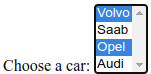
The parameter are
- <Label for… give a label to the field with the matching id. When using “for”, if you click on the label, it makes the input active.
- <select
- name= this is passed to the back-end server,
- id= is used in JavaScript to identify this element. This is pointed to from the <label for…
- “multiple” more than one element can be selected. By default only one can be selected. With multiple you can ctrl+click to select more than one element.
- <option
- value= this gets passed to the server
- <option>xvalue</option> the xvalue is what is displayed
This produces at the server.
- cars=volvo
- cars=opel
Where the value is taken from the value= attribute.
When the “multiple” option is not specified the select element looks like

The pull-down expands as you select it.
A radio button
This displays all of the options and you select one.
<fieldset>
  <legend>Please select your preferred contact method:</legend>
  <div>
    <label for="contactChoice1">Email</label>
    <input type="radio" id="contactChoice1" name="contact" value="email" />

    <label for="contactChoice3">Mail</label>
    <input type="radio" id="contactChoice2" name="contact" value="phone" checked  />

    <label for="contactChoice2">Phone</label>
    <input type="radio" id="contactChoice3" name="contact" value="mail" />
  </div>

</fieldset>
This displays as
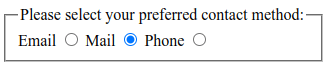
The parameters are
- <fieldset defines a set of options
- <legend displays at the top of the box
- <div.. I copied this from an example, it seems to work just as well without it
- <label .. the label for the field.
- for matches up with the <input id
- <input
- type=radio defines the type
- id= matches the <label for, and can be referred to in JavaScript
- name= is keyword sent to the server
- value= is the value sent to the server
- checked this is pre selected
- name=, all elements with the same name= are part of the same radio group.
Note:
- <label..> <input..> puts the text before the radio button
- <input>..<label> puts the text after the radio button.
The content sent to the server is
contact=phone
Date field
<label for="dateb>date</label>
<input type="date" id="dateb" name="dateBox">
This displays as

You can type a date in or select a date.
The content sent to the server, if no date is specified is
dateBox=
This is one of the cases when the name is sent down with no data.
if a date is specified
dateBox=2023-07-22
Check Box
<label for="check">CheckBox</label>
<input type="checkbox" id="check" name="checkBox">
This displays as

If the box is selected the output is
checkBox=on
If the checkbox is not selected, no data is send down.
Use of labels
With
 <label for="contactChoice1">Email</label>
 <input type="radio" id="contactChoice1" name="contact" value="email" />d
The <label..> does not have to be near to the <input>. You would normally place them adjacent to each other. The <label for …makes the input field with the matching value become active. If you click on the label text, it selects the radio button. You have freedom to format the radio buttons however you wish; horizontally, vertically, in a wrapping paragraph.
Elements with the same id
This can happen because you have created two fields with the same name, or you are using tables. With two rows of a table
<tr   id="trow1">
   <td id="col" name="serial">
    <label for="password">Enter your pw: </label>
    <input id="password" name="rowpassword" value="pw2">
    </td>

</tr>
<tr   id="trow2">
   <td id="col" name="serial">
    <label for="password">Enter your pw: </label>
    <input id="password" name="rowpassword" value="pw3">
    </td>

</tr>
this produced
- rowpassword=pw2
- rowpassword=pw3
you cannot tell which data came from which row.
You cannot tell if there were two input areas with the same name, or a select with the multiple option.
 ColinPaice