
I was asked if there was a REST API into z/OS, to enable a Python program to work with z/OS files.
The answer is yes, and it is pretty easy to set up and get working.
z/OS Explorer and z/OS ZOWE, have a REST interface into z/OS. For example with z/OS explorer you can use the VS Code to edit files on z/OS.
You can just use the server; you do not have to use z/OS explorer or ZOWE.
Remote System Explorer API (RSEAPI) is some RSEAPI specify code on top of Apache Tomcat web server. The customising is documented here.
See Configuring RSEAPI on z/OS to use TLS.
List of topics
- Which program/stc to use
- Basic setup
- Changing the configuration
- Reading the error logs
- Enhanced startup messages
- Using the browser interface
- Using the curl interface
- Processing multiple requests from curl
- Using Python to issue a REST request
Which program/stc to use?
I found two Remote System Explorer (RSE) servers on my z/OS
- RSED (dated on my system 2016)
- RSEAPI (dated on my system 2020).
RSED used an internal interface, and is there for backwards compatibility.
RSEAPI is strategic with a REST API. It uses the Apache Tomcat Java web server.
The notes below are how I got RSEAPI to work on z/OS, and run my REST request into z/OS. I was running on z/PDT where the product was installed in HUH100.* libraries, but the system was only partially configured.
There are at least two versions of RSEAPI.
- v1.0.5 from 2021 only support Java V8 – and you should use a recent fix pack for Java.
- v1.1.0 from 2022 supports Java V8 and Java V11. You should use recent fix packs for these, as earlier ones do not have the latest TLS support.
I found it easier to use a current level of Java.
Basic setup
Mount the file system
The REST server is started with the RSEAPI started task.
The file system was not mounted. Use the TSO command
mount filesystem('HUH100.ZFS') mountpoint('/usr/lpp/IBM/rseapi/')
type(ZFS) mode(read)
You can update your BPXPRMxx to include the same statements.
Start RSEAPI
The set up had mostly been done on my system, I just had to start it.
S RSEAPI,SECURE='false'
SECURE=’false’ says do not use TLS.
This starts several subtasks, including Java. It took over 1 minute for it to accept a connection and over 200 seconds before it was fully up, and able to respond to requests. The time to start is typical of starting a Java Server on my little z/OS running on zPDT on my Linux machine. On real hardware it takes just seconds so I’ve been told.
Once it had started the response time was ok.
Stopping RSEAPI
Within the STDOUT from the RSEAPI was
Registering MVS Console Listener for job RSEAPI6
To stop RSEAPI you have to use “P RSEAPI6”. Once Java had started successfully, it took less than 30 seconds to shut down. If Java was still starting up, it will not shutdown until Java has finished starting, so I tended to cancel the RSEAPI job (cancel RSEAPI6).
Changing the configuration
While exploring RSEAPI, I needed to change the configuration, for example using Java shared classes to improve start up time.
Some configuration is done using RSE specific environment variables in /etc/zexpl/rseapi.env, such as
RSE specific parameters
RSEAPI_KEYSTORE_FILE="safkeyring://START1/MQRING "
The level of Java
I changed the level of Java using
export JAVA_HOME="/usr/lpp/java/new/J8.0_64"
export LIBPATH="$JAVA_HOME/bin:$JAVA_HOME/bin/classic:"$LIBPATH
export PATH="$JAVA_HOME/bin:"$PATH
Java parameters
I added some Java specific parameters.
d1=" -verbose:dynload,class "
d1=""
d2=" -Dlog.level=INFO "
JAVA_OPTS=" $d1 $d2  "
CATALINA_OPTS=$JAVA_OPTS
export JAVA_OPTS
export CATALINA_OPTS
I built up a big list of variables and added them to the JAVA_OPTS, for example
JAVA_OPTS= “$d1 $d2 $d3 $p1 $p2” .
In the above example d1 is blank, and is not passed to Java. If I reorder the two d1 statements I can easily change the configuration, and later change it back again.
Reading the error logs
I had various problems getting TLS working. One hiccup was that Java writes error messages to //STDERR – in ASCII! and so is not easily read. I changed this to
//STDERR   DD PATH='/var/zexpl/logs/rseapi_6800.1/stderr',
//            PATHOPTS=(OWRONLY,OCREAT,OTRUNC),
//            PATHMODE=SIRWXU
Normally this file is empty. You can use date and time in the file name
// SET PATH='/var/zexpl/logs/rseapi_6800.1'
//RSEAPI   EXEC PGM=BPXBATSL,REGION=0M,TIME=NOLIMIT,
//            PARM='PGM &HOME./tomcat.base/start.sh'
//STDOUT   DD SYSOUT=*
//STDERR DD PATH='&PATH/stderr.D&YYMMDD..T&HHMMSS',
//        PATHOPTS=(OWRONLY,OCREAT,OTRUNC),PATHMODE=SIRWXU
//STDERR   DD SYSOUT=*
//CEEOPTS DD *
RPTSTG(ON)
/*
//STDENV   DD *,SYMBOLS=(JCLONLY)
_BPXK_AUTOCVT=ON
...
To look at the output I used the omvs command
oedit /var/zexpl/logs/rseapi_6800.1/
which lists the contents of the directory, then used E to edit stderr – it displays EBCDIC text, or EA to display the file in ASCII – for the Java stuff.
The TLS support writes messages to the same (/var/zexpl/logs/rseapi_6800.1/) directory. Files have format description.yyyy-mm-dd
The files of interest
- catalina.2023-08-07 has information from Java about problems with TLS.
- localhost_access.2023-08-07 shows the request and the return code such as “GET /rseapi/api/v1/datasets/COLIN.D%2A/list HTTP/1.1″ 401 437
Enhanced startup messages
By specifying
-Dlog.level=finer
I got useful information in stderr and catalina….log files. For example
Server version name:   Apache Tomcat/10.0.23
Server built:          Jul 14 2022 08:16:11 UTC
Server version number: 10.0.23.0
OS Name:               z/OS
OS Version:            02.04.00
Architecture:          s390x
Java Home:             /Z24C/usr/lpp/java/J8.8_64/J8.0_64
JVM Version:           8.0.8.6 - pmz6480sr8fp6-20230601_01(SR8 FP6)
JVM Vendor:            IBM Corporation
CATALINA_BASE:         /u/ibmuser/aaa/tomcat.base
CATALINA_HOME:         /u/ibmuser/aaa/tomcat.home
...
Command line argument: -Duser.dir=/S0W1/tmp
Command line argument: -Dlog.level=FINER
Using the browser interface
The URL http://10.1.1.2:6800/rseapi/api-docs/ displays a Swagger page, where you can try out the different commands, for example list dataset names, or display a member.
- http: because I have not enabled https yet
- 10.1.1.2 is the address of my z/OS image
- 6800 is the port
- /rseapi/api-docs/ is the URL to display the swagger documentation.
This gave me
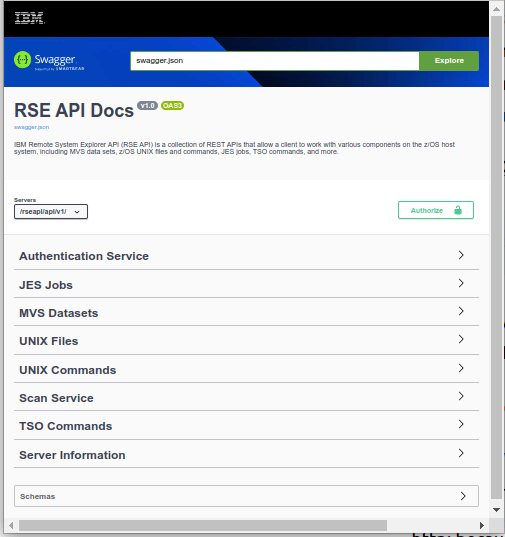
Expand the MVS Datasets and it gives a list of option, including

I expanded the GET to get all dataset names matching the filter. I clicked on Try it out. I entered a High Level Qualifier, and selected execute. The first time the session issues a request it prompts for userid and password. It returns with the data about my data sets, and the strings
- curl: curl -X GET “http://10.1.1.2:6800/rseapi/api/v1/datasets/COLIN/list” -H “accept: application/json”
- Request Url: http://10.1.1.2:6800/rseapi/api/v1/datasets/COLIN/list
This is the information I need to issue a curl request.
For one of the operations I got
HTTP Status 401 – Unauthorized
This is because the userid using the service did not have a R/W home directory. I sometimes got
ICH408I USER(COLIN ) GROUP(SYS1 ) NAME(COLIN PAICE)
/u/.rseapi CL(DIRACC ) FID(…)
INSUFFICIENT AUTHORITY TO MKDIR
ACCESS INTENT(-W-) ACCESS ALLOWED(GROUP R-X)
Using the curl interface.
I used the shell script
trace="-v"
url='http://10.1.1.2:6800/rseapi/api/v1/datasets/COLIN.ZL*/list'
curl $trace  --config  curlapi.config $url --user "colin:xxxxxxxx"
and the configuration file curlapi.config
--header "accept: application/json"
--header "Accept-Encoding: gzip, deflate"
--header "Accept-Language: en-GB,en-US;q=0.9,en;q=0.8"
--header "Connection: keep-alive"
or combining them
head='--header "accept: application/json"  '
head2='--header "Accept-Encoding: gzip, deflate"'
head3='--header "Accept-Language: en-GB,en-US;q=0.9,en;q=0.8" '
head4='--header "Connection: keep-alive" '
url='http://10.1.1.2:6800/rseapi/api/v1/datasets/COLIN.ZL*/list'
curl $trace  --user "colin:xxxxxxxx"  $head $head2 $head3 $head4 $url
The output body was
{"items": [{
  "name": "COLIN.ZLOGON.CLIST",
  "migrated": false
* Connection #5 to host 10.1.1.2 left intact
}]}
This took about 2 seconds to process one file name. It took 7 seconds to process 300 file names.
Processing multiple requests from CURL
There is an overhead setting up the connection. You can issue multiple requests from CURL, so this connection is done once, and is faster than doing multiple CURL requests.
The examples below are for TLS session
I used a shell script
rsecurl.sh
trace="-v"
tls="--cert  ./$name.pem:password --key $name.key.pem --cacert doczosca.pem --tlsv1.2"
post="GET"
user='--user colin:xxxxxxx'
curl $trace -X $post $tls  --config  curlapi.config $user -H@curlapi.headers
curlapi.headers
Accept: application/json
Accept-Encoding: gzip, deflate, br
Accept-Language: en-GB,en-US;q=0.9,en;q=0.8
Authorization: Basic Y29saW46cFFu3Gh2MDI=
Cache-Control: no-cache
Connection: keep-alive
Dnt: 1
Pragma: no-cache
curlapi.config
This has the two requests – with a different URL. The -o directs the output to a file
-o ./COLIN.LIST
url = "https://10.1.1.2:6800/rseapi/api/v1/datasets/COLIN.D%2A/list"

-o ./ADCD.LIST
url = "https://10.1.1.2:6800/rseapi/api/v1/datasets/ADCD.%2A/list"
The script ran and created COLIN.LIST and ADCD.LIST.
Using Python to issue a REST request
The Python code below issues two requests.
home = "/home/colinpaice/ssl/ssl2/"
ca=home+"doczosca.pem"
cert=home+"docec384.pem"
key=home+"docec384.key.pem"
cookie=home+"cookie.jar.txt"
# url="https://10.1.1.2:6800/rseapi/api/v1/datasets/COLIN.D%2A/list"

buffer = BytesIO()
c = pycurl.Curl()
dir(c)
print("C=",c)
try:
  c.setopt(c.URL, "https://10.1.1.2:6800/rseapi/api/v1/datasets/COLIN.Z%2A/list")
  c.setopt(c.WRITEDATA, buffer)
  c.setopt(pycurl.CAINFO, ca)
  c.setopt(pycurl.CAPATH, "")
  c.setopt(pycurl.SSLKEY, key)
  c.setopt(pycurl.SSLCERT, cert)
  c.setopt(pycurl.COOKIE,cookie)
  c.setopt(pycurl.COOKIEJAR,cookie)
  c.setopt(pycurl.SSLKEYPASSWD , "password")
  c.setopt(c.HEADERFUNCTION, header_function)
  c.setopt(pycurl.HTTPHEADER, ['Accept: application/json'])
  c.setopt(c.USERPWD, 'colin:xxxxxxxx')
  c.setopt(pycurl.VERBOSE, True)
  c.perform()
  body = buffer.getvalue()
  print(body.decode('iso-8859-1'))
# now a second one
  c.setopt(c.URL, "https://10.1.1.2:6800/rseapi/api/v1/datasets/ADCD.*/list")
  c.perform()
  body = buffer.getvalue()
  print(body.decode('iso-8859-1'))
  print("==================")
  c.close()
except Exception as e:
  print("exception :",e  )
finally:
    print("ok")
This gave the data in JSON format. The c.setopt(pycurl.VERBOSE, True) gave
C= <pycurl.Curl object at 0x55cc87355170>
*   Trying 10.1.1.2:6800...
* Connected to 10.1.1.2 (10.1.1.2) port 6800 (#0)
* found 1 certificates in /home/colinpaice/ssl/ssl2/doczosca.pem
* found 0 certificates in
* GnuTLS ciphers: NORMAL:-ARCFOUR-128:-CTYPE-ALL:+CTYPE-X509:-VERS-SSL3.0
* ALPN, offering h2
* ALPN, offering http/1.1
* SSL connection using TLS1.2 / ECDHE_ECDSA_AES_256_GCM_SHA384
*   server certificate verification OK
*   server certificate status verification SKIPPED
*   common name: 10.1.1.2 (matched)
*   server certificate expiration date OK
*   server certificate activation date OK
*   certificate public key: EC/ECDSA
*   certificate version: #3
*   subject: O=NISTECCTEST,OU=SSS,CN=10.1.1.2
*   start date: Sun, 02 Jul 2023 00:00:00 GMT
*   expire date: Tue, 02 Jul 2024 23:59:59 GMT
*   issuer: O=COLIN,OU=CA,CN=DocZosCA
* ALPN, server did not agree to a protocol
* Server auth using Basic with user 'colin'
Which may be useful when trying to debug TLS problems.
 ColinPaice
One thought on “Getting REST to work into z/OS with RSEAPI”