How do I diff on Z/OS with Unix files and directories

I wanted to compare the contents of two directories in Unix System Services on z/OS before I merged them. This took me some time to do because the documented is lacking.

With ISPF you can use SUPERC (3.13), give it two PDSs and it shows you the differences.

On Unix there is the diff command. This can compare individual files, or directories. It can display just the changes, or the changes in context.

File a

AOnly 
line1
Aline2
line3

File b

line1 
Bline2
line3
BOnly
BOnly2

Using ispf edit compare to show differences

You can use diff to show the differences in two files, but it is not easy to understand. ISPF EDIT has the compare facility. If you know two files are different you can use

  • oedit /etc/zexpl/rseapi.env
  • use the primary command compare
    • enter the fully qualified name /u/ibmuser/zexpl/rseapi.env,, in the “Name . . . . .” field. if you specify +/filename the + means the same directory.
    • press pf3 and it will show the differences

Because I tend to remove comments to make it easier to see the content, I tend to use

  • oview /etc/ssh/sshd_config you get into ISPF edit, but no changes are saved.
  • Comments start with a #. x all;f ‘#’ all 1 1; f ‘ ‘ 1 1 all;del all nx removes comment lines and blank lines
  • reset to show the hidden lines
  • compare I then specify my version of the file, and see the changes.

  • Lines like ====== TrustedUserCAKeys /etc/ssh/user_ca_key.pub are from my copy.
  • Lines in green with a line number are in both files 000006 Subsystem sftp /usr/lib/ssh/sftp-server
  • Lines like .OAAAA UseDNS yes are from the base file

Update your version, make a copy of the original, then replace the original with your version.

diff -c1 a b – show the files and the changes in context

The line prefix for input file going to output file

  • – to be removed
  • ! to be changed
  • + to be added

The command diff -c1 a b gives

*** a Tue Aug 27 02:48:56 2024              
--- b Tue Aug 27 02:50:41 2024
***************
*** 1,4 ****
- AOnly
line1
! Aline2
line3
--- 1,5 ----
line1
! Bline2
line3
+ BOnly
+ BOnly2
  • *** a Tue Aug 27 02:48:56 2024 the first file name, and last changed date
  • — b Tue Aug 27 02:50:41 2024 the second file name, and last changed date
  • *** 1,4 **** the*** show it is file 1, lines 1 to 4
  • – AOnly this line is in file a is not in file b, so would need to be removed(-) from file a
  • ! Aline2 this line is in file b – but different
  • — 1,5 —- this is file b, lines 1 to 5
  • ! Bline2 this line is also in file a – but different
  • + BOnly this line is in file b and and was additional(+) to file a

When one file exists but is empty you get output like

*** /etc/resolv.conf Wed Mar  6 11:54:50 2024                         
--- /u/ibmuser/temp/resolv.conf Thu Dec 7 05:40:24 2023
***************
*** 0 ****
--- 1,2 ----
+ nameserver 127.0.0.1
+ TCPIPJOBNAME TCPIP

which follows the rules I explained above. *** 0 **** shows the content after line 0 is empty, because the next line is — 1,2 —- from the other file.

diff a b – show just the changes

gives

1d0             
< AOnly

3c2
< Aline2
---
> Bline2

4a4,5
> BOnly
> BOnly2

The output can be split into sections. The first line of each section is like

  • 1d0 the first line of a needs to be deleted from b, line 0
  • 3c2 line 3 of a is changed from line 2 of b
  • 4a4,5 lines 4,5 of b need to be added to a

The < and > tell you which file the data came from

When data is changed it gives the lines

  • < content of file a
  • output divider
  • > content of file b

When the data is in file a and not file b

  • < contents of file a

When the data is in file b and not file a

  • > contents of file b

diff -s dir1 dir2 compare the directory contents

If you specify -s, or just specify two directories, it compares the directory content.

You can use

diff -c1 dir1 dir2 

the -c1 to display the contents (how I like it).

With the directory entries you get records like

Only in /u/ibmuser/temp: test.tar 
Common subdirectories: /etc/wbem and /u/ibmuser/temp/wbem
Only in /etc: yylex.c
diff -c1 /etc/hosts /u/ibmuser/temp/hosts
*** /etc/hosts Wed Mar 6 11:06:55 2024
--- /u/ibmuser/temp/hosts Tue Feb 28 12:43:07 2023

You can find which files are missing from /etc , by using grep ‘Only in /u/ibmuser/temp’ on the output.

It shows the command used for the individual files, and the output

diff -c1 /etc/hosts /u/ibmuser/temp/hosts
*** /etc/hosts Wed Mar 6 11:06:55 2024
--- /u/ibmuser/temp/hosts Tue Feb 28 12:43:07 2023
...

diff -s -r dir1 dir2 compare the directory contents

The -r option displays the data recursively.
How do I change all members of a PDS? Easy – use an edit macro

I looked on the internet, to find something that would allow me to make the same change to all members of a PDS, and there seemed to be several options, IPOUPDTE, CPPUPDTE, PDSUPDTE, written in assembler many years ago.

I had written an equivalent program in C, but I no longer have the source. I found it as quick to write a solution using Rexx and an ISPF edit, than to find a solution on the internet. The solution is much more flexible, and can do so much more.

The processing has two stages

  • Code to iterate over each member of the PDS, and invoke ISPF EDIT on each member
  • An edit macro to make the changes.

Code to iterate over each member

ISPF 3.4 DSLIST displays data sets

DSLIST - Data Sets Matching COLIN.J*       
Command ===>

Command - Enter "/" to select action
-------------------------------------------
AA COLIN.JCL
COLIN.JCL.DCOLLECT.OUTPUT

You can enter local commands at the front of each line. The commands can be ISPF special (D for Delete, C for Catalog, R for Rename), or TSO commands, where a TSO command can be a Rexx exec in the ISPEXEC concatenation. (You can use the TSO ISRDDN command to display the data sets allocated to your session)

I have a Rexx exec called AA.

Access the parameters passed to the rexx

/* rexx */                                           
ADDRESS ISPEXEC "VGET (ZDLDSN) SHARED"
ADDRESS ISPEXEC "VGET (ZDLCMD) SHARED"
ADDRESS ISPEXEC "VGET (ZDLLCMD) SHARED"
say "ZDLDSN " ZDLDSN
say "ZDLCMD " ZDLCMD
say "ZDLLCMD " ZDLLCMD

With the line command

Command - Enter "/" to select action  
--------------------------------------
AA 99 COLIN.JCL

The Rexx produces

ZDLDSN    COLIN.JCL
ZDLCMD AA 99
ZDLLCMD AA 99 'COLIN.JCL'
  • ZDLDSN is the data set name
  • ZDLCMD is the line command and any data
  • ZDLLCMD is the (Long) combined command and the data set

With the line command

aa 99 / Zyx

The dataset name is substituted for /, and the output is

ZDLDSN    COLIN.JCL
ZDLCMD AA 99 / Z
ZDLLCMD AA 99 'COLIN.JCL' Zyx

This means you can pass parameters to your Rexx.

Process every member

The data set name is in variable ZDLDSN. When you use it, you should quote it because your userid may/may not have prefix on, which puts your userid on the front of every data set you use. Without quotes, it could not find dataset COLIN.COLIN.JCL

  • The LMINIT command returns a handle in the DATAID(handle) variable, to refer to the data set. My handle is called data1.
  • The LMOPEN command opens the dataset associated with the handle.
  • The LMMLIST command iterates through the list, starting with a blank member name which indicates start with the first.
  • The EDIT command invokes ISPF edit on the member, and passes the name of an ISPF EDIT macro to use. In my case the macro is called FOREACH.
Address ispexec "LMINIT DATAID(data1) dataset('"ZDLDSN"')" 
if rc <> 0 then
do /* report the errors */
say ZERRSM ZERRLM
return 8
end
Address ispexec 'LMOPEN DATAID('data1') OPTION(INPUT)'
member = ' '
lmrc = 0
/*********************************************************************/
/* Loop through all members in the PDS, issuing the EDIT service for */
/* each. */
/*********************************************************************/
Do i = 1 by 1
Address ispexec 'LMMLIST DATAID('data1') OPTION(LIST),
MEMBER(MEMBER) STATS(NO)'
If rc = 8 then leave /* not found */
If rc <> 0 Then
do
say ZERRSM ZERRLM
leave
end
else
do
Address ispexec 'EDIT DATAID('data1') MEMBER('member')
MACRO(FOREACH)'
end
End
/*********************************************************************/
/* Free the member list and close the dataid for the PDS. */
/*********************************************************************/
Address ispexec 'LMMLIST DATAID('data1') OPTION(FREE)'
Address ispexec 'LMCLOSE DATAID('data1')'
Exit 0

From the information passed to the Rexx exec, you could pass the edit macro as a parameter, such as

AA / MYMAC 

I was just lazy and hard coded the macro name.

An edit macro to make the changes

My basic macro just reports the member name, and the size of the file

ADDRESS ISPEXEC 'ISREDIT MACRO' 
"ISREDIT (last) = LINENUM .ZLAST"
"ISREDIT (member ) = MEMBER"
"ISREDIT (curr,orig,concat)= DATASET"
say "foreach " member last curr
"ISREDIT END"
  • The LINENUM command returns the line number of the specified line. You can create your own line labels. ISPF provides .ZFIRST and .ZLAST .ZCSR (the line where the cursor is currently.
  • The MEMBER command returns the member name
  • The DATASET command returns the current name of the dataset (and other information)

You can now do conditional processing, if the data set name starts with… then change…; if the member name starts with… then change…

You can use standard ISPF commands for example

/* */ 
/* trace e */
ADDRESS ISPEXEC 'ISREDIT MACRO'

"ISREDIT X ALL "
"ISREDIT FIND '//' ALL"
"ISREDIT CHANGE 'IBMUSER' 'COLIN' 1 10 ALL NX"
return
"ISREDIT END"

Without the return statement in the code, the code makes the changes and exits, it invisibly edits all of the members. With the return statement this gives you the opportunity to review the changes and to use end or cancel to leave the edit session.

Whoops – what happened there

To test the macros I use ‘view’ of the member, to edit it, but not save any changes. I then executed the macro.
I was trying to change a VOLSER to a symbol.

/* */ 
ADDRESS ISPEXEC 'ISREDIT MACRO'
"ISREDIT (member ) = MEMBER"
say member
"ISREDIT SCAN OFF"
if substr(member,1,6) <> "IEASYM" then
do
"ISREDIT CHANGE 'A3PRD1' '&&SYSP1.' ALL "
"ISREDIT CHANGE 'A3PRD2' '&&SYSP2.' ALL "
"ISREDIT CHANGE 'A3PRD3' '&&SYSP3.' ALL "
"ISREDIT CHANGE 'A3PRD4' '&&SYSP4.' ALL "
"ISREDIT CHANGE 'A3PRD5' '&&SYSP5.' ALL "
"ISREDIT CHANGE 'A3RES2' '&&SYSR2.' ALL "
"ISREDIT CHANGE 'A3SYS1' '&&SYSS1.' ALL "
"ISREDIT CHANGE 'A3CFG1' '&&SYSC1.' ALL "
end
return
"ISREDIT END"f

I wanted to change A3PRD1 to the symbol &SYSP1. I had use use &&, and SCAN OFF. Without these, ISPF treats &SYSP1 as an ISPF symbol, cannot find it, so replaces it with a null.

How do I compare two PDS on z/OS

I am migrating from one ADCD system to a newer version. I wanted to see the differences in the supplied members.

In ISPF 3.13 (SUPERCE) you can compare dataset members.

  • Enter the New DS Name and the Old DS Name
  • If you leave the PDS Member List blank, you get prompted on the next page to select the members of interest. I specified *
  • Compare type 1 (file) gives you a report on the members which are the same or not. See Output from file compare
  • Compare type 2 (line) shows the contents which are different.
    • Listing type 2 (Delta) gives just the changed lines. See here
    • Listing type 3 (CHNG) shows the change in context. See here
    • Listing type 4 (Long) shows the all the members

Output from file compare

                                                                                     
MEMBER SUMMARY LISTING (FILE COMPARE)

DIFF SAME MEMBERS-COMPARED N-BYTES O-BYTES N-LINES O-LINES N-HASH-SUM O-HASH-SUM

** IEASYMCP 400 400 5 5 0EA58F29 0EA58F29
** IEASYMZZ 2000 2000 25 25 2D0DCCA3 2D0DCCA3
** IEASYSCP 800 720 10 9 6D0F7302 737B66E5
** IEASYSC2 800 800 10 10 7B933738 7B933738
** IEASYS00 3760 3760 47 47 61EAEE95 61EAEE95
** IGDSMS00 1920 1920 24 24 A24BDDC8 A24BDDC8
** IKJTSO00 9920 9920 124 124 46049FE2 46049FE2

Output from Line compare, CHNG output(3)

This shows the changes in context.

  • At the front of the line is I or D, to show what was added or deleted
  • The TYPE MAT= is the count of matching lines, and the line numbers within the files.
  • TYPE=RPL is the count of lines replace, and the line numbers within the files.
 NEW: USER.Z31A.PARMLIB(IRRPRMCP)     OLD: USER.Z25D.PARMLIB(IRRPRMCP) 

LISTING OUTPUT SECTION (LINE COMPARE)

ID SOURCE LINES TYPE LEN N-LN# O-LN#
----+----1----+----2----+----3----+----4----+----...
DATABASE_OPTIONS MAT= 3 00001 00001
DATASETNAMETABLE 00002 00002
ENTRY 00003 00003
I - PRIMARYDSN(COLIN.RACFDB.NEW) RPL= 1 00004 00004
D - PRIMARYDSN(COLIN.RACFDB2)
BACKUPDSN(SYS1.RACFDS.BACKUP) MAT= 1 00005 00005

You also get the output from the Output from file compare

Output from Line compare, Delta output(2)

This just gives the inserted and deleted lines. It is a subset of the data above.

NEW: USER.Z31A.PARMLIB(IRRPRMCP)  OLD: USER.Z25D.PARMLIB(IRRPRMCP) 

LISTING OUTPUT SECTION (LINE COMPARE)

ID SOURCE LINES TYPE LEN N-LN# O-LN#
----+----1----+----2----+----3----+----4----+--...
MAT= 3
I - PRIMARYDSN(COLIN.RACFDB.NEW) RPL= 1 00004 00004
D - PRIMARYDSN(COLIN.RACFDB2)

You also get the output from the Output from file compare.

IOS077E IOS075E zPDT ADCD. Fixed!

Update

After I installed ZDT_Install_PE_V14.2.4.tgz. I could use later Linux kernels. This worked on

  • Ubuntu 22.04 with 5.15.0-122-generic
  • and Ubuntu 24.04.1 LTS (GNU/Linux 6.8.0-48-generic x86_64)

The original problem

After an upgrade to my Ubuntu system, I started getting

IOS071I 0405,A1,VTAM, MISSING CHANNEL AND DEVICE END    
IOS071I 0401,A0,VTAM, MISSING CHANNEL AND DEVICE END
IOS071I 0405,**,VTAM, HALT SUBCHANNEL INTERRUPT MISSING
IOS077E 0405,**,*MASTER*, CLEAR SUBCHANNEL INTERRUPT MISSING
IOS075E 0405,RECURRING MIH CONDITION FOR THIS DEVICE
IOS077E 0405,**,*MASTER*, CLEAR SUBCHANNEL INTERRUPT MISSING
IOS075E 0405,RECURRING MIH CONDITION FOR THIS DEVICE
IOS077E 0405,**,*MASTER*, CLEAR SUBCHANNEL INTERRUPT MISSING
IOS075E 0405,RECURRING MIH CONDITION FOR THIS DEVICE

This seems to be a Linux problem.

On Ubuntu uname -a gave me

6.8.0-40-generic #40~22.04.3-Ubuntu SMP PREEMPT_DYNAMIC

I rebooted Linux, interrupted the boot sequence, chose advance boot options for Ubuntu, and chose a different level. Once Linux had restarted uname -a gave me

6.5.0-45-generic #45~22.04.1-Ubuntu SMP PREEMPT_DYNAMIC

and this works with no problems.

Until this is fixed, you’ll have to do this at every reboot. You can specify the default kernel, but it is not well explained, so I’ll go with this method. The fix is due to be shipped in zPDT due 4Q2024.

I found some documentation on saving the last Linux kernel used

The best solution was to set (in /etc/default/grub):

 GRUB_DEFAULT=saved
GRUB_SAVEDEFAULT=true

With this settings the last selected value is kept for the next boot. If you have a new kernel you don’t have to edit your config.

Don’t forget to re-run sudo update-grub

It fails on earlier and current(14.2.2) releases of zPDT code.

How do I test my RACF updates or recover from a boo-boo?

I am running z/OS on zPDT on my Linux server. I want to test out some RACF commands, but want to be able to recover if I get it wrong. What can I do?

The product zSecure Admin offers RACF Offline can be used by those who have the license.

I do not have this product so I need a different way.

I am running a single user z/OS image. For anything more complex than this, talk to the experts.

Background to RACF

RACF has a database, typically SYS1.RACFDS. For availability you can have a backup RACF database, typically SYS1.RACFDS.BACKUP. Typically these are both updated when changes are made to the RACF environment. I would call this a duplexed dataset.

You can make a copy of a RACF database using the RACF utility IRRUT200. This takes a lock on database for the duration of the copy and ensures the copy is consistent. If you use other tools to backup the primary database, and there were concurrent database updates, the backup may not be consistent. You risk a partial update, and an inconsistent database.

Changing your RACF

You can use the RVARY command (TSO and operator) to change the RACF data sets. You can setup controls for the RVARY command.

If you use SETROPTS LIST it will list the RACF options being used. Mine has (near the bottom)

DEFAULT RVARY PASSWORD IS IN EFFECT FOR THE SWITCH FUNCTION.
...
DEFAULT RVARY PASSWORD IS IN EFFECT FOR THE STATUS FUNCTION.

In this case the default password is YES

See SETROPTS RVARY(…)

You will get a prompt

ICH703A ENTER PASSWORD TO SWITCH RACF DATASETS JOB=IBMUSER USER=IBMUSER

If you have an I/O problem with the SYS1.RACFDS database

You can

  • switch to use the backup, and stop duplex updates.
  • fix the problem. Perhaps delete the data set and recreate it on a different device.
  • copy the backup dataset using IRRUT200 to the newly allocated dataset
  • activate the newly allocated dataset activate the duplex updates.

Updates to the RACF database are written to SMF 80 records.

If you make mistakes with your commands

Some RACF command changes you can undo, for example, you can use an alter command to set a new value. To be able to undo the change you need to know what the original value was, so it is always a good idea to display a resource before you change or delete it.

If you delete a record there is no easy way of undoing it.

Rob van Hoboken suggested the following.

Plan A – online switch

Display the status

#rvary list

This gave me

ICH15013I RACF DATABASE STATUS:                          
ACTIVE USE NUM VOLUME DATASET
------ --- --- ------ -------
YES PRIM 1 A3CFG1 SYS1.RACFDS
YES BACK 1 A3CFG1 SYS1.RACFDS.BACKUP

This shows both data sets are active and which is the primary and which ise the backup.

Switch off your RACF DUPLEX (backup) data set

#RVARY INACTIVE,DATASET(SYS1.RACFDS.BACKUP)

It prompts with

ICH702A ENTER PASSWORD TO DEACTIVATE RACF JOB=RACF USER=START1

I didnt know the password, but I replied r xx,YES and it worked!

Run the commands that you hope will work.

If the commands do not work successfully

If the commands do not work successfully, make the backup active and switch to it.

#RVARY ACTIVE,DATASET(SYS1.RACFDS.BACKUP)
#RVARY SWITCH

See the command RVARY (Change status of RACF database) .

After you have switched to the backup, make the primary inactive

#RVARY INACTIVE,DATASET(SYS1.RACFDS)

and copy the backup into the primary using IRRUT200

//IBMUSRAC  JOB 1,MSGCLASS=H                              
//S1 EXEC PGM=IRRUT200 PARM=ACTIVATE
//SYSRACF DD DISP=SHR,DSN=SYS1.RACFDS.BACKUP
//SYSUT1 DD DISP=SHR,DSN=SYS1.RACFDS
//SYSUT2 DD SYSOUT=*
//SYSIN DD *
//SYSPRINT DD SYSOUT=*

First run it without PARM=ACTIVATE. If this works successfully, then use PARM=ACTIVATE, this take a lock during the copy, and then activates the SYSUT1 data set, so both are now active.

This gave the output

IRR62005I - IDCAMS REPRO copied SYSRACF to the work data set SYSUT1                                         
ICH15013I RACF DATABASE STATUS:
ACTIVE USE NUM VOLUME DATASET
------ --- --- ------ -------
YES PRIM 1 A3CFG1 SYS1.RACFDS.BACKUP
YES BACK 1 A3CFG1 SYS1.RACFDS
ICH15020I RVARY COMMAND HAS FINISHED PROCESSING.

The #RVARY LIST gave, as expected

ICH15013I RACF DATABASE STATUS:                                                  
ACTIVE USE NUM VOLUME DATASET
------ --- --- ------ -------
YES PRIM 1 A3CFG1 SYS1.RACFDS.BACKUP
YES BACK 1 A3CFG1 SYS1.RACFDS

Which shows it has worked.

If the commands do work successfully

If the commands do work successfully, you need to bring the backup up to date with the primary.

//IBMUSRAC  JOB 1,MSGCLASS=H                              
//S1 EXEC PGM=IRRUT200,PARM=ACTIVATE
//SYSRACF DD DISP=SHR,DSN=SYS1.RACFDS
//SYSUT1 DD DISP=SHR,DSN=SYS1.RACFDS.BACKUP
//SYSUT2 DD SYSOUT=*
//SYSIN DD *
//SYSPRINT DD SYSOUT=*

The #rvary active command.

I would be careful about using the #RVARY ACTIVE command. If you copy a RACF data set, then use the RVARY ACTIVE command to make it available, there is a small window where changes made to the active RACF data base are not made to the offline one. You could tell people “do not issue any commands while this work is going on”, but the RACF database is updated during normal work, for example with profile use counts, and last used date.

Plan B – REIPL with different data sets.

  • Convert to using IRRPRMxx PARMLIB member definitions to specify the data set names, instead of using a load module. See RACF setup, and changing the RACF dataset
  • Copy the RACF database to a recovery RACF data set using IRRUT200
  • Create a new IRRPRMxx member pointing to your recovery data set.
  • Create a new IEASYSxx member to use the RACF=xx member
  • You may have to create a new LOADxx member in SYS1.IPLPARM to point to the new IEASYSxx member.
  • REIPL, and specify the appropriate LOADxx suffix.
  • Fix the problem; copy from the recovery into the SYS1.RACFDS dataset and SYS1.RACFDS.BACKUP, so the primary and backup are the same.
  • Reipl using the normal IPL parameters

You could use the emergency stand-alone one pack system SARES1, but this may not have access to all of the data sets due to SMS and catalogs.

Creating a spread sheet from Python to show time spent

I’ve been using xlsxwriter from Python to create data graphs of data, and it is great.

I had problems with adding more data to a graph, and found some aspects of this was not documented. This blog post is to help other people who are trying to do something similar.

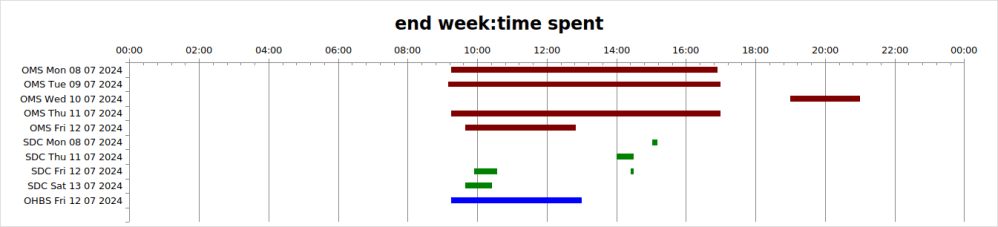
I wanted to produce a graph like

The pink colour would normally be transparent. I have coloured it to make the explanation easier.

This shows the OMS team worked from 0900 to 1600 on Monday, and SDC worked from 10am to 12am and for a few minutes on the same day around 1700. I wanted the data to be colour coded, so OMS was brown and SDC was green.

Create the workbook, and the basic chart

spreadSheet = "SPName"
workbook = xlsxwriter.Workbook(spreadSheet+"xlsx")
workbook.set_calc_mode("auto")
summary = workbook.add_worksheet("data")
hhmm = workbook.add_format({'num_format': 'hh:mm'})
# now the basic chart
chart = self.workbook.add_chart({'type': 'bar','subtype':'stacked'})
chart.set_title ({'name': "end week:time spent"})
chart.set_y_axis({'reverse': True})
chart.set_legend({'none': True})
chart.set_x_axis({
'time_axis': True,
'num_format': 'hh:mm',
'min': 0,
'max': 1.0,
'major_unit': 1/12,
'minor_tick_mark': 'inside'
})

chart.set_size({'width': 1070, 'height': 300})
summary.insert_chart('A1', chart)

Data layout

It took a while to understand how the data should be laid out in the table

ABCDEFG
1OStart1ODur 1SStart 1SDur1SInt2SDur2
2OMS Tue9.07.0
3OMS Wed17.02.0
4SDC Wed10.02.07.00.1

Where the data

  • OSTart1 is the time based on hours for OMS
  • ODur1 is the duration for OMS, so on Wed, the time was from 1700 to 1900, and interval of 2.0 hours
  • SStart1 is the start time of the SDC Wed item
  • SDur1 is the duration of the work. The work was from 1000 to 1200
  • SInt2 is the interval from the end of the work to the start of the next work. It is not the start time. It is 1000 + interval of 2 hours + interval of 7 hours, or 1900
  • SDur2 is the duration from the start of the work. It ends at 1000+ 2 hours + 7 hours + 0.1 hours

Define the data to the chart

To get the data displayed properly I used add_series to define the data.

Categories (The labels OMS Tue, OMS Wed, SDC Wed): You have to specify the same categories for all of your data. For me, range A2:A5. Using add_series for the OMS data, and add_series for the SDC data did not display the SDC data labels. This was the key to my problems.

You define the data as columns. The first column is the time from midnight. I have coloured it pink to show you. Normally this would be fill = [{‘none’ : true } ] You use

fill = [{'color': "pink"}] # fill = [{'none': True}]
chart.add_series({
'name': "Series1,
'categories': ["Hours",1,0,4,0],
'values': ["Hours",1,1,4,1],
'fill': fill
})

This specifies categories row 1, column 0 to row 4, column 0, and the column of data row 1, column 1, to row 4, column 1. (Column 0 is column A etc.)

For the second column – the brown, you use

fill = [{'color': "brown"}]
chart.add_series({
'name': "Series2,
'categories': ["Hours",1,0,4,0],
'values': ["Hours",1,2,4,2],
'fill': fill
})

The categories stays the same, the superset of names.

The “values” specifies the column of data row 1, column 2, to row 4, column 2.

Because the data for SDC is missing – this is not displayed.

For the SDC data I used 4 add_series request. The first one

  • name:Series3
  • ‘categories’: [“Hours”,1,0,4,0], the same as for OMS
  • values: row 1,column 3 to row 4 column 3

I then repeated this for columns (and Series) 4,5,6

This gave me the output I wanted.

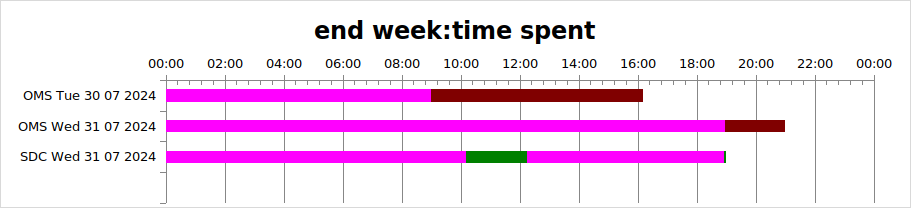
I used Python lists and used loops to generate the data, so overall the code was fairly compact. The overall result was

What is my ISPF screen size and other attributes?

I was trying to use a very large screen in ISPF, but I could only get 132 * 43.
You can display information about your screen using

  • ISPF option 0 Settings
  • top line, tab to environ
  • option 1 Environ settings…
  • tab down to Terminal Status (TERMSTAT)
  • option 2 Query terminal information

If gives information like

ISPF TERMINAL CHARACTERISTICS
14 BIT ADDRESSING = ON
16 BIT ADDRESSING = OFF
EXTENDED COLOR = ON
EXTENDED HIGHLITING = ON
DBCS = OFF
PRIMARY SCREEN SIZE - PARTITIONED MODE
SCREEN SIZE = 1,920 - x'00000780'
SCREEN DEPTH = 24 - x'00000018'
SCREEN WIDTH = 80 - x'00000050'

ALTERNATE SCREEN SIZE - PARTITIONED MODE
SCREEN SIZE = 3,564 - x'00000DEC'
SCREEN DEPTH = 27 - x'0000001B'
SCREEN WIDTH = 132 - x'00000084'

PARTITION SCREEN SIZE - PARTITIONED MODE
SCREEN SIZE = 0 - x'00000000'
SCREEN DEPTH = 0 - x'00000000'
SCREEN WIDTH = 0 - x'00000000'
PRIMARY SCREEN SIZE - NON-PARTITIONED MODE
SCREEN SIZE = 1,920 - x'00000780'
SCREEN DEPTH = 24 - x'00000018'
SCREEN WIDTH = 80 - x'00000050'
ALTERNATE SCREEN SIZE - NON-PARTITIONED MODE
SCREEN SIZE = 3,564 - x'00000DEC'
SCREEN DEPTH = 27 - x'0000001B'
SCREEN WIDTH = 132 - x'00000084'
ISPF TERMINAL BUFFER INFORMATION
TERMINAL BUFFER ADDR = x'000326A8'
TERMINAL BUFFER SIZE = 4,989 - x'0000137D'
PHYSICAL SCREEN SIZE = 3,564 - x'00000DEC'
PARTITION ARRAY ADDR = x'0001DAA0'
GTTERM INFORMATION
RETURN CODE = x'00000000'
PRIMARY ROW = 24 - x'00000018'
PRIMARY COL = 80 - x'00000050'
ALTERNATE ROW = 27 - x'0000001B'
ALTERNATE COL = 132 - x'00000084'
ATTRIBUTE BYTE = x'000000C9'
EBCDIC TERMINAL
EDS TERMINAL
GTSIZE INFORMATION
RETURN CODE = x'00000000'
ROWS = 27 - x'0000001B'
COLUMNS = 132 - x'00000084'

VTAM ACCESS METHOD

All the information says the screen is 27 rows and 132 columns.

Customising ISPF appearance

Screen size: using bigger screens.

  • Use x3270 -model 3279-5-E   to get 132*27 screen size.  It works for the console and ISPF terminal.
  • I could not get the -oversize 160*45 working. When I edited the .3270.pro file and added x3270.oversize: 160×45 it worked.
  • Logon and use ISPF =0  to set defaults.  Scroll down
    • To have command line at the top / Command line at bottom  remove the /
    •  Scroll down.  Screen format 3 1. Data 2. Std 3. Max 4. Part
    • Terminal Type 4 1. 3277 2. 3277A 3. 3278 4. 3278A though I think this field is ignored.

Other ISPF personalisation

  • Options
    _ Command line at bottom  remove the / to have the command line at the top
    / Tab to point-and-shoot fields so you can tap to column headers, press enter and sort by the column
  • Member list options
    / Scroll member list
    / Allow empty member list
    / Allow empty member list (nomatch)
    / Empty member list for edit only
  • pfshow off remove the PFKEYS at the bottom
  • ISPF  keys set PF12 to retrieve not cancel
  • ISPF set scroll to CSR not PAGE. You will need to do this in all applications
  • ISPF 3.4 use reflists list of the last 30 data sets used, or your own list
  • Setting the ISPF main panel.
    • Copy ADCD.Z24A.ISPPLIB(ISR@PRIM)  to USER.Z24A.ISPPLIB(MYMAIN).
    • Add extra content and comparisons at the bottom for example ISMF,’PGM(DGTFMD01) NEWAPPL(DGT)’ .
    • The following are already defined
      •  RACF,’PANEL(ICHP00)’
      • ISMF,’PGM(DGTFMD01) NEWAPPL(DGT)’
      • SMPE,’PGM(GIMSTART) PARM(&ZCMD) NOCHECK’
      • WLM,’CMD(%IWMARIN0)’
    • When you use the TSO Logon panel specify Command ===> ispf panel(MYMAIN)  

RACF setup, and changing the RACF dataset

I used ADCD supplied version of z/OS, and needed to change which data set I used, so it could be used on z/OS 3.1 or earlier (but not both at the same time).

What options are active?

You can use the operator command

#rvary

where # is the RACF subsystem character (defined in INITPARM(‘#’) in the IEFSSN definition for RACF).

Before z/OS 2.3

You had to define RACF data set parameters using a load module.

  • The databases are defined in a module ICHRDSNT.
  • If you use SDSF and issue the LOAD ICHRDSNT command, it will display the data.
  • The source is in ADCD.LIB.JCL(ICHRDSNT).
  • If you want to change it, you need to generate the module, and REIPL

Parmlib definitions

In z/OS 2.3 and later you can specify parameters in the parmlib concatenation.

In your IEASYS member you can specify RACF=(xx,yy,zz) and specify up to three parameters. These parameters take precedence over the ICHRDSNT table. I specified RACF=(00)

My equivalent definition in USER.Z25D.PARMLIB(IRRPRM00) is

DATABASE_OPTIONS 
DATASETNAMETABLE
ENTRY
PRIMARYDSN(SYS1.RACFDS)
BACKUPDSN(SYS1.RACFDS.BACKUP)

You can have one primary data set and up to one backup data set. If you want to partition your database by key, you can have more primary and backup data sets entries, and you need to specify the key range to data set mapping.

The syntax is defined here.

The datasets have to be cataloged. I have used a data set catataloged in a user catalog, they do not need to be SYS1.xxxx.

If you get it wrong and the member is invalid, at IPL RACF prompts

 *IRRY115I RACF IS NOT USING PARMLIB FOR INITIALIZATION.                     
*01 ICH502A SPECIFY NAME FOR PRIMARY RACF DATA SET SEQUENCE 001 OR 'NONE'
IRA600I SRM CHANNEL DATA NOW AVAILABLE FOR ALL SRM FUNCTIONS
IRA860I HIPERDISPATCH MODE IS NOW ACTIVE
R 01,SYS1.RACFDS
*02 ICH502A SPECIFY NAME FOR BACKUP RACF DATA SET SEQUENCE 001 OR 'NONE'
R 2,SYS1.RACFDB.BACKUP

Changing parmlib

If you change the IEASYS RACF=, or change an IRRPMRxx member, you have to REIPL to pick up the changes. Stopping and restarting RACF does not pick up the changes, because the RACF started task handles operator commands and other admin stuff, it does not process the data sets. See here.

Copying the RACF database

You can copy a RACF database and use that. For example

//IBMCRACO  JOB 1,MSGCLASS=H 
//STEP EXEC PGM=IRRUT200
//SYSRACF DD DSN=SYS1.RACFDS,DISP=SHR
//SYSUT1 DD UNIT=SYSDA,SPACE=(CYL,(20)),
// DCB=(LRECL=4096,RECFM=F),DSN=COLIN.RACFDS,DISP=(MOD,CATLG)
//SYSUT2 DD SYSOUT=A
//SYSPRINT DD SYSOUT=A
//SYSIN DD *
INDEX
MAP
END
/*

IRRUT200 is called a RACF database verification utility program (IRRUT200), and to make an exact copy of a RACF data set. It takes a lock on the RACF database for the duration of the copy to ensure the data is consistent.

You should check the size of the source dataset, and make the copy the same size.