Zowe: How to save connection parameters: zowe CLI client configuration files

A Zowe client needs information to be able to invoke a service on Zowe on z/OS. Typically these are

  • host address
  • the host port
  • the service
  • the client public key .pem file
  • the client private key .pem file
  • whether to not allow self signed certificates sent from the host
  • the file containing the CA from the host servers.

These options can be given on the zowe cli command, or can be stored in profile files.

You can have multiple profiles, for example, tso, ssh, z/OSMF, production z/OSMF and test z/OSMF.

The above information may be different for different Zowe server instances- such as development, test and production, and for different applications within a Zowe instance.

Some configuration files are stored in the directory pointed to by the environment variable ZOWE_CLI_HOME, on Linux this defaults to ~/.zowe. These files are available where ever your working directory is. You can also have a configuration file in your working directory so is “application specific”.

Zowe supports a hierarchy of configuration files.

  • zowe.config.json within the current directory. If you change directory you will not use it.
  • zowe.config.user.json , the global user file in the ZOWE_CLI_HOME environment variable ( or it might default to ~/.zowe ). This is used for any user specific options (if any)
  • zowe.config.json the global file in the ZOWE_CLI_HOME environment variable ( or it might default to ~/.zowe ). This is used for project wide options.

The Zowe CLI command will start at the top of the hierarchy and go down until it finds the attributes. If it cannot find an attribute it may have a default.

Within the configuration file are different sections, for example

  • a base section with common parameters,
  • ftp, with specific parameters such as the FTP port number,
  • zOSMF, with with specific parameters such as the z/OSMF port number

You can edit the files manually, or use the Zowe config command to make changes.

Sigh

To specify a Certificate Authority(CA) certificate to a zowe cli command, you have to use an environment variable, for example

export NODE_EXTRA_CA_CERTS=/home/colinpaice/ssl/ssl2/doczosca.pem

You need to allow for this when writing your scripts, because different backend servers may have different CA certificates.

See here.

Getting started

Once you are familiar with Zowe and have a better idea of your Zowe configuration, you can develop the various configuration files; what information is user specific, what information is project specific, and what information is Zowe instance specific. Some files are stored in the direction in the ZOWE_CLI_HOME environment variable which defaults to ~/.zowe (on Linux).

If you may have more than one Zowe instance, you may decide NOT to use ~/.zowe, but have directories like ~/.zoweproduction and ~/.zowetest. This means you have to explicitly specify the location.

Get started by creating zowe.config.json in your working directory. See below, or use cut and paste from here, step 3. If you use an IDE such as slickedit or vscode, these have syntax assist, and can highlight errors as you type.

This is a good blog post on initial configuration. But does not cover use of certificates.

The Zowe config command

You can use the zowe config command to create and update the configuration files. The command has options including

This page has a good description of the options.

  • –dry-run : display the changes, but do not apply the changes
  • –edit and –editor name : this opens the file in the specified editor.

Create a zowe.config.json in the current directory

The command

zowe config init

will create a file zowe.config.json in the current directory.

I created a minimum (hand crafted) file to illustrate how the zowe config commands work.

{
"$schema": "./zowe.schema.json",
"profiles": {
"zosmfcp": {
"type": "zosmf",
"properties": {
"port": 443
},
"secure": []
},

"project_base": {
"type": "base",
"properties": {
"host": "10.1.1.2",
"rejectUnauthorized": true
},
"secure": [
"user",
"password"
]
}
},
"defaults": {
"zosmf": "zosmfcp",
"base": "project_base"
},
"autoStore": true
}

Key elements of this file

  • “defaults”:
    • zosmf : For a z/OSMF request,if --base-profile is not specified, use the referenced profile – zosmfcp.
    • common parameters are defined in the base: profile -> project_base
  • “profiles”: There are two profiles defined
    • zosmfcp with the zosmf specific parameters
    • project_base with the common parameters.

When a zowe command is used, the parameter –base-profile can specify which profile to use.

Commands to display and set profile information

My working directory is /home/colinpaice/ssl/ssl2/ .

zowe config list –locations –root

This lists the only the file names used by Zowe CLI.

/home/colinpaice/ssl/ssl2/zowe.config.json
/home/colinpaice/.zowe/zowe.config.json

zowe config list –locations

This shows the file names and their contents

/home/colinpaice/ssl/ssl2/zowe.config.json: 
$schema: ./zowe.schema.json
profiles:
zosmf:
type: zosmf
properties:
port: 10443
secure:
(empty array)
project_base:
...
/home/colinpaice/.zowe/zowe.config.json:
$schema: ./zowe.schema.json
profiles:
zosmf:
type: zosmf
properties:
port: 10443
secure:
(empty array)
tso:
type: tso
....
global_base:
type: base
properties:
host: 10.1.1.2
rejectUnauthorized: true
user: (secure value)
password: (secure value)
secure:
- user
- password
defaults:
zosmf: zosmf
tso: tso
ssh: ssh
base: global_base
autoStore: true

Change a parameter in the file in the current directory

zowe config set “profiles.zosmf.properties.port “30443”

Change/Add a profile (and content) to the the file in the current directory

zowe config set “profiles.zosmf2.properties.port” “40443”

If the profile zosmf2 did not exist before, it will create it, and add the property port

{
"$schema": "./zowe.schema.json",
"profiles": {
...
"zosmf2": {
"properties": {
"port": 40443
}
}
},
...
}

Set a parameter in the file in the user configuration file

zowe config set “profiles.zosmf2.properties.port” “40443” –user-config

set a parameter in the file in the global configuration file

zowe config set “profiles.zosmf2.properties.port” “50443” –global-config

Example of using the set commands

zowe config set “profiles.zosmf2.properties.port” “50443” –global-config
zowe config set “profiles.zosmf2.properties.port” “4444” –user-config
zowe config set “profiles.zosmf2.properties.port” “1111”

  • file zowe.config.user.json has zosmf2.properties.port:4444
  • file zowe.config.json: has zosmf2.properties.port: 1111
  • file ~/.zowe/zowe.config.json: has zosmf2.properties.port: 50443

Using the list commands, and displaying only the above fields I have

zowe config list gives

profiles: 
...
zosmf2:
properties:
port: 4444

zowe config list –locations gives

/home/colinpaice/ssl/ssl2/zowe.config.user.json: 
profiles:
zosmf2:
properties:
port: 4444
defaults:
/home/colinpaice/ssl/ssl2/zowe.config.json:
profiles:
...
zosmf2:
properties:
port: 1111
...
/home/colinpaice/.zowe/zowe.config.json:
$schema: ./zowe.schema.json
profiles:
...
zosmf2:
properties:
port: 50443

So we can see the profile /home/colinpaice/ssl/ssl2/zowe.config.user.json: provided the port value 444.

If I use –base-profile zosmf2, the port used will be 4444.

If I add

zowe config set “profiles.zosmf2.properties.ca” “MYCA”

This create property zosmf2:properties:ca:”MYCA” in file zowe.config.json.

zowe config list gives

profiles:
zosmf2:
properties:
port: 4444
ca: MYCA

so we can see what is being used.

If I use zowe config list –locations I can see the definition is in /home/colinpaice/ssl/ssl2/zowe.config.json

display profiles

zowe config profiles gave

zosmf
tso
ssh
global_base
zosmf2

What are the valid options?

If you used the zowe config init command, then this generated a schema file.

For zosmf this schema has

  • “host”: “The z/OSMF server host name.”
  • “port”: “default”: 443
  • “user”: “Mainframe (z/OSMF) user name, which can be the same as your TSO login.”
  • “password”: “Mainframe (z/OSMF) password, which can be the same as your TSO password.”
  • “rejectUnauthorized”:”Reject self-signed certificates.”, “default”: true
  • “certFile”: “The file path to a certificate file to use for authentication” “certKeyFile”: “The file path to a certificate key file to use for authentication”
  • “basePath”: “The base path for your API mediation layer instance. Specify this option to prepend the base path to all z/OSMF resources when making REST requests. Do not specify this option if you are not using an API mediation layer.”
  • “protocol”: “The protocol used (HTTP or HTTPS)” “default”: “https”, “http”, “https”
  • “encoding”: “The encoding for download and upload of z/OS data set and USS files. The default encoding if not specified is IBM-1047.”
  • “responseTimeout”: “The maximum amount of time in seconds the z/OSMF Files TSO servlet should run before returning a response. Any request exceeding this amount of time will be terminated and return an error. Allowed values: 5 – 600”

The CA certificate to use is specified by an environment variable, and is not a parameter in the profiles.
Zowe: Changing trace on z/OS

Trace within Zowe is a bit confusing. Different components, such as Gateway and Application-Server seems to have different ways of tracing.

As I understand it, you set a global switch for a components trace, restart Zowe, then use a REST API to set or reset subcomponents.

It took me a day or so to be able to change the trace of Zowe components!

There is Zowe documentation on Troubleshooting Zowe API Mediation Layer. Which is incomplete, and missing useful documentation.

The syntax of the logging commands is here

List the existing traces

The documentation says

GET scheme://hostname:port/application/loggers

This didn’t work for me because I was using port 7554. After I tried all of the Zowe ports, the following worked

"https://10.1.1.2:7558/application/loggers"

Where 7558 is the port for zaas.

This returned one long string, with many logical lines of output. For example:

{
"levels": [
"OFF",
"ERROR",
"WARN",
"INFO",
"DEBUG",
"TRACE"
],
"loggers": {
"ROOT": {
"configuredLevel": "INFO",
"effectiveLevel": "INFO"
},
"_org": {
"configuredLevel": null,
"effectiveLevel": "INFO"
},
"_org.springframework": {
"configuredLevel": null,
"effectiveLevel": "INFO"
},
...

},
"groups": {
"web": {
"configuredLevel": null,
"members": [
"org.springframework.core.codec",
"org.springframework.http",
"org.springframework.web",
"org.springframework.boot.actuate.endpoint.web",
"org.springframework.boot.web.servlet.ServletContextInitializerBeans"
]
},
"sql": {
"configuredLevel": null,
"members": [
"org.springframework.jdbc.core",
"org.hibernate.SQL",
"org.jooq.tools.LoggerListener"
]
}
}
}
  • 434 lines for org.springframework….
  • 36 lines for com.netflix….
  • 286 line for io….
  • 63 lines for org.apache…
  • 57 lines for org.hibernate
  • 68 lines for org.ehcache
  • 109 lines for org.zowe.apiml.

Selecting one record type

I used a Bash script

#!/bin/bash 
url="https://10.1.1.2:7558/application/loggers/org.zowe.apiml.zaas.security"
certs="--cert colinpaice.pem --cert-key colinpaice.key.pem"
verify="--verify no"
https GET ${url} $certs $verify

gave

{
"configuredLevel": "null",
"effectiveLevel": "DEBUG"
}

This means org.zowe.apiml.zaas.security was configured as null, but one of org.zowe, org.zowe.apiml, or org.zowe.apiml.zaas was set to DEBUG, and all of the definitions below it were set to DEBUG.

If I set the value of org.zowe.apiml.zaas.security to WARN, then set the value of org.zowe.apiml.zaas to DEBUG, the value of org.zowe.apiml.zaas.security stayed at WARN.

{
"configuredLevel": "WARN",
"effectiveLevel": "WARN"
}

Updating a value

It took me a while to get a script to update the value.

url="https://10.1.1.2:7558/application/loggers/org.zowe.apiml.zaas.security"
certs="--cert colinpaice.pem --cert-key colinpaice.key.pem"
verify="--verify no"
echo -n '{"configuredLevel": "WARN"}' | https POST ${url} $certs $verify
echo "================="
https GET ${url} $certs $verify

This pipes the update {“configuredLevel”: “WARN”} into the https command. This returned no data. If it fails it may return a message.

Changing the hierarchy

Logically changing a value for a.b.c to ZZZZ works as follows

for every element under a.b.c
   if the element's value is null 
   then set element's value = ZZZZ
   else do nothing 

z/OSMF: what traces are available

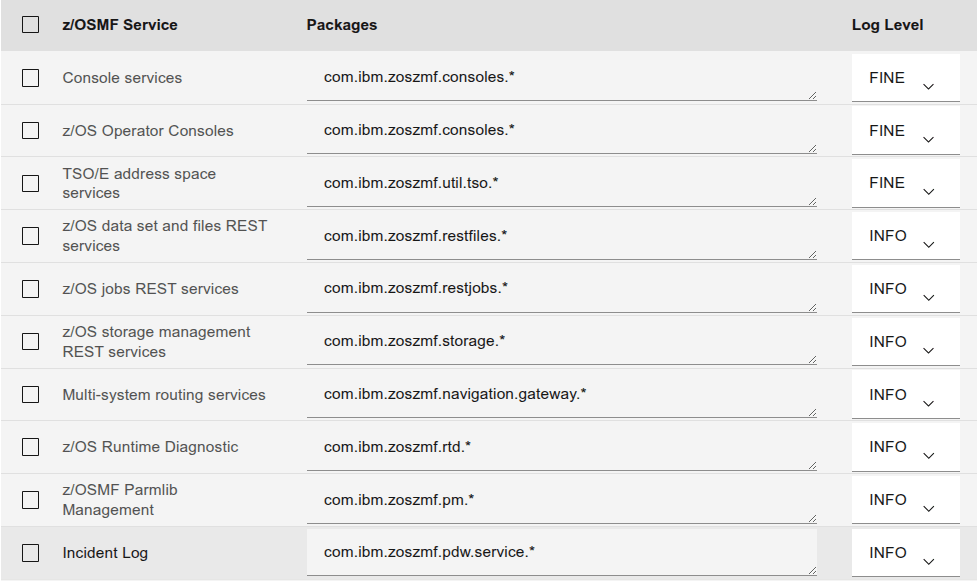
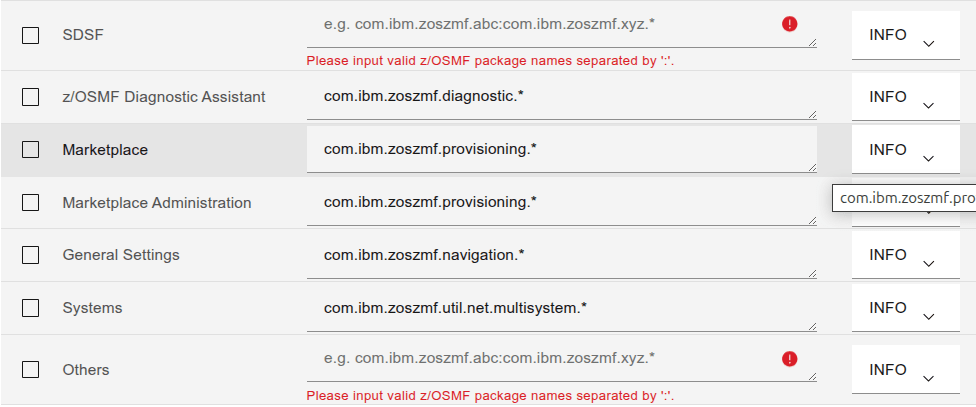
I could find no z/OSMF documentation on how to turn on traces. The documentation says “Contact IBM”. Someone pointed out the z/OSMF Diagnostic Assistant. This is an icon on the z/OSMF main screen (https://10.1.1.2:10443/zosmf/ for me).

You need to click on “Add Service” to list the components, before you can change the log level.

Fill in the details, use the Tick box at the start of the line, and the Log Level pull down. Once you have chose them, click on the “Set” button.

You can issue an operator command.

f server-name,logging='trace_specification'

Below is a list of the trace commands from the diagnostic Assistant . The granularity of the trace is warning, info, fine, finer, finest

For SAF security calls use zos.native=finest.

Ive seen this as zos.native.03=…

I also found these – but I dont know what they mean!

  • com.ibm.ccc.=ALL:
  • com.ibm.crypto.=all:
  • com.ibm.websphere.security.*=all:
  • com.ibm.ws.security.=ALL:
  • com.ibm.ws.webcontainer.=all:
  • com.ibm.wsspi.webcontainer.*=all:
  • HTTPChannel=all:
  • GenericBNF=all:
  • zos.native.03=all – this give information about a subset of z/OS calls
  • com.ibm.websphere.security.jwt=all

SAF security calls: zos.native=finest

Produces output like (formatted for display)

6/23/25, 16:39:20:192 GMT?] 00000028 id=00000000 zos.native.03.001 
Trace: 6/23/25, 16:39:20:192 GMT? t=8c8140 key=S2 (300100f)
Description: RACROUTE REQUEST=FASTAUTH call
racrouteArea_p: 000000007e4b0c10
6/23/25, 16:39:20:193 GMT?] 00000028 id=00000000 zos.native.03.001
Trace: 6/23/25, 16:39:20:193 GMT? t=8c8140 key=S2 (3001010)
Description: RACROUTE REQUEST=FASTAUTH return
returnCode: 0
safReturnCode: 0
racfReturnCode: 0

racfReasonCode: 4
6/23/25, 16:39:20:194 GMT?] 00000028 id=00000000 zos.native.03.001
Trace: 6/23/25, 16:39:20:194 GMT? t=8c8140 key=S2 (3001012)
Description: Exit: checkAuthorizationFast
returnCode: 0
6/23/25, 16:39:20:195 GMT?] 00000028 id=00000000 zos.native.02.008
Trace: 6/23/25, 16:39:20:195 GMT? t=8c8140 key=S2 (2008005)
Description: Entry: registrySetUnused
alreadyVerified: true
token: data_address=00000051_2a6103b8, data_length=64
+--------------------------------------------------------------------------+
|OSet| A=000000512a6103b8 Length=0000040 | EBCDIC | ASCII |
+----+-----------------------------------+----------------+----------------+
|0000|C2C2C7E9 D9C5C7E3 00000001 00000040|BBGZREGT....... |...............@|
|0010|00000000 7DC72100 00000007 00000000|....'G..........|....}.!.........|
|0020|01000000 00000000 00000000 00000000|................|................|
|0030|00000000 00000000 00000000 00000000|................|................|
+--------------------------------------------------------------------------+

It is not very well written, because there are “safReturnCode:”, “SAF return code:”,”return code:” and “returnCode:”, and “rc:”. I found it easiest to use the following in an edit session to find non zero return codes.

  • x all
  • f ‘code: 0’ all
  • del all x
  • f ‘code:’ all

The trace entry ” token: data_address=00000051_2a6103b8, data_length=64 ” shows the value with name “token” at the specified address, and length. It is displayed in hex, EBCDIC and ASCII.

Trace points.

Taken from a trace file

  • zos.native.02.002 getConsoleCommand
  • zos.native.02.006 CommandProcessor.ntv_issueCommandResponse
  • zos.native.02.00d DeleteWorkUnit*
  • zos.native.02.00e wlm_enclave_*
  • zos.native.02.00e wlm_enclave_create leave
  • zos.native.03.001 RACROUTE REQUEST=FASTAUTH
  • zos.native.03.003 CertificateCredential…
  • zos.native.03.004 ntv_createCertificateCredential
  • zos.native.03.005 checkAccess
  • zos.native.03.006 ntv_checkAccess
  • zos.native.03.007 invokeIRRSIA00 createACEE
  • zos.native.03.008 PenaltyBox
  • zos.native.03.00b getGroupsForUser
  • zos.native.04.002 write_to_operator_response
  • zos.native.04.004 Latch
  • zos.native.04.007 getStck

Getting a CTRACE

Component TRACE (CTRACE) is the z/OS system trace capability for z/OS components. Most z/OS components use it.

From “capturing a trace” perspective, there are two aspects.

  • Capturing the trace data
    • The trace can be an in-memory trace, which is available when a dump is taken. This is is often the default. For example by default a trace is enabled to capture errors, and the in-memory trace is used.
    • You can have a trace writer started task which writes to a data set. When you start the trace you give the name of the started task. Data is passed to the trace writer job. You can then use the trace data set in IPCS.
  • Enabling the trace for the component. Usually there are options you can specify, for example all entries, or just error entries and how big the in-memory trace should be.

To trace a z/OS component, you need to know the CTRACE component name, and what you want to trace.

I tried to capture a CTRACE of a z/OS component, and struggled, because I didn’t know the name of the component.

What are the trace component names?

The z/OS command

TRACE STATUS         

gave

IEE843I 16.10.22  TRACE DISPLAY 940                               
SYSTEM STATUS INFORMATION
ST=(ON,0001M,00005M) AS=ON BR=OFF EX=ON MO=OFF MT=(ON,064K)
COMPONENT MODE COMPONENT MODE COMPONENT MODE COMPONENT MODE
--------------------------------------------------------------
CSF ON NFSC ON SYSGRS MIN SYSANT00 MIN
SYSJES2 SUB SYSRRS MIN SYSIEAVX MIN SYSSPI OFF
SYSJES SUB SYSHZS MIN SYSSMS OFF SYSAXR MIN
SYSDLF MIN SYSOPS MIN SYSXCF MIN SYSDUMP ON
SYSLLA MIN SYSXES ON SYSUNI OFF SYSCATLG MIN
SYSTTRC OFF SYSTCPDA SUB SYSRSM SUB SYSAOM MIN
SYSVLF MIN SYSTCPIP SUB SYSLOGR ON SYSOMVS MIN
SYSCEA MIN SYSWLM MIN SYSTCPIS SUB SYSTCPRE SUB
SYSIOS MIN SYSANTMN MIN SYSDMO MIN SYSIEFAL ON
SYSTCPOT SUB

I was after a CEA trace, and from the above, the name is SYSCEA. It is MIN, so is already active.

What is the trace’s status?

d trace,comp=SYSCEA

gave me

COMPONENT     MODE BUFFER HEAD SUBS                           
-------------------------------------------------------------
SYSCEA MIN 0002M
ASIDS *NONE*
JOBNAMES *NONE*
OPTIONS ERROR
WRITER *NONE*

So it is active, capturing errors, and writing to the in-memory trace (because there is no WRITER). I recognised the options as the defaults in parmlib member CTICEA00.

I had my own trace writer started task

Member CTWTR in proclib

//CTWTR PROC                                                                  
//DELETE EXEC PGM=IEFBR14
//TRCOUT01 DD DSNAME=IBMUSER.CTRACE1,
// SPACE=(CYL,(10),,CONTIG),DISP=(MOD,DELETE)
//*
//IEFPROC EXEC PGM=ITTTRCWR,TIME=999
//TRCOUT01 DD DSNAME=IBMUSER.CTRACE1,
// SPACE=(CYL,(10),,CONTIG),DISP=(NEW,CATLG)
//SYSPRINT DD SYSOUT=*

I started my CTRACE writer

TRACE CT,WTRSTART=CTWTR          

I created my own member CTICEACP in parmlib

TRACEOPTS 
ON
BUFSIZE(20m)
OPTIONS('ALL')
WTR(CTWTR)

The WTR ties up with my CTRACE writer started task name.

Stop the current trace

TRACE CT,OFF,COMP=SYSCEA

Start the CEA trace using my member

TRACE CT,ON,COMP=sysCEA,PARM=CTICEACP

Run the test

Stop the CEA trace

TRACE CT,OFF,COMP=SYSCEA

Stop the trace writer

TRACE CT,WTRSTOP=CTWTR     

The output from the CTWTR task gave me

IEF196I IEF142I CTWTR CTWTR - STEP WAS EXECUTED - COND CODE 0000         
IEF196I IGD104I IBMUSER.CTRACE1 RETAINED,
IEF196I DDNAME=TRCOUT01

which gives me the name of the data set IBMUSER.CTRACE1.

Use IPCS to look at the trace

  • option =0 to specify the name of the data set
  • =6
  • dropd
  • The above command clears out any old information about the data set
  • CTRACE COMP(SYSCEA) full

I had some data in the trace – but not for the problem I had…. so I need to try something else.

The advanced class.

You do not need to have a member in parmlib. You can use

TRACE CT,ON,COMP=SYSCEA

and do not specify a PARM. This will then prompt for the parameters, asid, jobname, writer and options.

Oh p*x, it didn’t copy across some files.

I had managed to mess up the files for a product, so I wanted to copy them across from an older system.

This worked for some of the files – but when I came to start the subsystem – it was missing some files! For example /u/my/zosmf/liberty/lib/native/zos/s390x/bbgzsrv

I copied the files across again – and they were still not there!

Once you know the answer it is obvious…

There is a directory /usr/lpp/zosmf/liberty – and it was this directory that was missing.

Once I looked into it more carefully – this was not a directory, but a symbolic link to another directory liberty -> ../liberty_zos/current

To fix this I used

# go to my version of zosmf
cd /u/my/zosmf
# remove the symbolic link
rm liberty
#make the new link
ln -s /usr/lpp/liberty_zos/current liberty

and now I could use ls /u/tmp/zosmfp/liberty/lib/native/zos/s390x/bbgzsrv and it found the file.

If I had checked this before I started, I would have save myself a half day of IPLing older systems!

Zowe: What should I used on my client to talk to z/OS?

There are different ways of accessing the z/OS server.

  • You can use a web server. You will need to configure the certificates.
  • You can write your own program, for example in C or Java.
  • cUrl is a very common tool. Handy for small tasks.
  • HTTPie is an easy tool to generate one of commands. The output comes back nicely formatted, with colour. HTTPie is written in Python.
  • Python has good support for TLS and working with back send-servers. You can capture the data in a dictionary to make it easy to process.
  • You can use zowe Command Level Interface (CLI). This uses the best bits of all of the above.

Which is best?

The answer is the old phrase “horses for courses”.

If you want to do a one-of then the above tools are all very similar.

If you want to use multiple back ends, for example production and test, then you need to have code which selects the host, port, certificates, and applications within a z/OSMF or Zowe instance, then you will need to have code which handles this. Zowe CLI has this code built in.

I could write some basic code in about 100 lines of Python to do this – but why bother?

A Zowe developer’s view

I asked a developer what is good about zowe CLI.

The most common use case I see with Zowe CLI is for use in automation/Jenkins. It saves you the trouble of having to write code to handle the REST requests. It also supports the use of plug-ins for other products or services running on z/OS, like Endeavor, ChangeMan, Db2, CICS, etc. to do more than just download/upload files or submit jobs (e.g., you could also interact with a version control system, issue Db2 queries, deploy changes to a CICS region, and so on). 

Regarding output/data types, Zowe CLI commands can also provide json output (by specifying the `–response-format-json` or `–rfj` flag on commands), which is pretty easy to work with in bash scripts using something jq on Linux to parse the output and extract fields that you need.

For example

With –response-format-json

zowe zos-files list data-set ‘COLIN.Z*’ … –response-format-json

Generated

{
"success": true,
"exitCode": 0,
"message": "",
"stdout": "COLIN.ZCONNECT.BETA.ZFS\nCOLIN.ZCONNECT.BETA.ZFS.DATA\nCOLIN.ZFS\n...
"stderr": "",
"data": {
"success": true,
"commandResponse": null,
"apiResponse": {
"items": [
{
"dsname": "COLIN.ZCONNECT.BETA.ZFS"
},
{
"dsname": "COLIN.ZCONNECT.BETA.ZFS.DATA"
},
...
"returnedRows": 44,
"JSONversion": 1
}
}

Without –response-format-json

COLIN.ZCONNECT.BETA.ZFS
COLIN.ZCONNECT.BETA.ZFS.DATA
COLIN.ZFS
COLIN.ZFS.DATA
COLIN.ZFS.DSFS
COLIN.ZFS.DSFS.DATA
...

The first output is easier to post-process.

Some articles on Zowe CLI

Zowe: What does this message mean?

You can use your favourite search engine to look for the message. If it is not found, you can search within the open source.

Thanks to Martin Zeitham for the following.

Each message has prefix, which indicates the server or component. For example ZWEL* is Launcher etc.
There is a command ./zwe diagnose -e messageID to get more details:

./zwe diagnose -e ZWED0020I

gave

This code corresponds to the errors related to the Zowe Desktop and the App Server.

To find the description of this error code, refer to the:

Zowe documentation for Application framework
https://docs.zowe.org/stable/troubleshoot/app-framework/appserver-error-codes

You may also explore reports from other users experiencing the same error by searching
https://github.com/search?q=org%3Azowe+ZWED0020I&type=discussions

I found it quicker to look in the Zowe bin/commands/diagnose/index.js file, which has

And note the ability to see any discussion on the message ZWED0020I in the git repository using

https://github.com/search?q=org%3Azowe+ZWED0020I&type=discussions

Giving a started task userid a password should be a sackable offence.

Last week I was going through some product documentation, and I got to the part where it said “Now change the started task userid, and give it a password”. I made a note to raise a defect on this, because this is a no-no.
This week someone asked on IBM-MAIN, the impact of giving a started task userid a password. There were many well informed comments covering things I didn’t know about, so I thought I’d make a blog post of of the comments.

Best practices dictate that passwords only be provided when a userid will be used by a specific person and that person needs a password for that userid. All other userids should never have a password.

A userid can be revoked because of too many invalid password attempts, or revoked because of inactivity. If a userid is revoked it cannot logon. If the userid of a started task is revoked, the started task may start, but it may be restricted as to what it can do – because it cannot logon.

You can alter a userid to have NOPASSWORD (and have no PHRASE). This means started tasks can start, but the userid cannot be used to logon to the system. This is known as making the userid PROTECTED.

Often started task userids have special capabilities, such as running as different userids, being able to set security options, or modify system storage. This means you do not want your Help Desk staff from adding or resetting passwords for protected userid. Changes to these protected userids should be done from a secure, limited access userid.

If you think through the impact of using started tasks. It may be better for all routine production jobs to be run as started tasks. This has the advantage that there are no passwords involved, and you can use automation to issue the start command based on a timer.

You might have a CICS started task userid for all CICS regions or just for a subset of regions. You might have one started task userid for all started tasks, or a started task userid for each logical instance, eg CICS, MQ, DB2, Zowe, TCP/IP etc.

System jobs

System jobs should be run as started tasks, and the started tasks should be protected

Personal jobs

You can submit jobs from your userid, (and not specify a password) and the job will run under your userid.

You can put USER=name,PASSWORD=… on a job card, and if these validate the job will run with the specified userid. This is not a good idea, as the password may be visible in the dataset.

Departmental userids

You can put USER=name and omit the password, and use surrogate checking. The documentation says

You can allow the use of surrogate users. A surrogate user is a RACF-defined user who has been authorized to submit jobs on behalf of another user (the execution user) without specifying the execution user’s password. Jobs submitted by a surrogate user run with the identity of the execution user. For example, if user JOE submits a job with the following JOB statement, JOE is the surrogate user and TOM is the execution user:

JOE can submit userid containing

//jobname JOB 'accounting-information',USER=TOM

You set up a security profile (see the documentation) to control which userid can specify a userid on the JOB USER= statement.

All access checks are done with TOM’s user ID.

The TOM userid can be a protected userid – without a password, if surrogates are used.

To set up surrogates, defined the profile, and give a group access to the profile, rather than give userids access. You are likely to have a group already defined. Administration, such as when someone leaves the department, is much easier, as you just need to remove the persons userid from the group.

Thanks to

Robert S. Hansel, Seymour J Metz, Steve Beaver, Jack Zukt, Mike Schwab, Jon Perryman for their comments.