
Other posts on MFA:
- Multi Factor Authentication(MFA): Planning.
- MFA: installation and configuration
- MFA: Configuring a userid
- MFA: displaying information
- MFA: configuring Timed One Time Password (TOTP)
- MFA: Using a password
- MFA configuring a policy for out of band authentication
- MFA: configuring Yubikey
- MFA: setting up Linux as an authenticator to generate a TOTP password
- MFA: messages
What is a Yubikey.
A Yubikey is a USB dongle. When it has been configured if you press the button it generates a 44 character string where the cursor is in the current window. I believe it has two “slots” built in. Press the button quickly and you use configuration slot 1. Press for longer and you use configuration slot 2. The generated character string is used as the password to the z/OS application.
You have to configure the Yubikey to MFA. This adds the Yubikey private key information to the ICSF Token used by MFA. Once this has been configured different userids can use the same YubiKey. A Yubikey has a label like vvuicrlhrufe. You can use the Yubikey Personalization tool to reconfigured the dongle.
Which Yubikey do I need?
To use Yubikey with z/OS Multi Factor Authorization you need to have the correct Yubikey dongle. I have a
which works with z/OS MFA One Time Password.
I also have a
Yubico Security Key NFC – Two Factor Authentication USB and NFC Security Key, Fits USB-A Ports and Works with Supported NFC Mobile Devices – FIDO U2F and Works with Supported NFC Mobile Devices – FIDO U2F and FIDO2 Certified – More Than a Password.
which does not work with IBM z/OS MFA, because this does not provide the One Time Passcode support – it only supports FIDO.
Configuring the dongle
I run on Ubuntu and downloaded the yubikey-personalization-gui using
sudo apt install yubikey-personalization-gui
Insert your Yubikey into an USB port. It will light up for a few seconds.
Start the tool using a command window and the command yubikey-personalization-gui . The display should have

The important text is “YubiKey is inserted”.
The display has
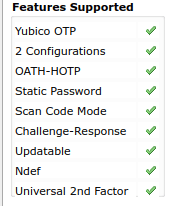
Which has the Yubico OTP ticked.
Select the Settings tab
- In the Log configuration output control, select Yubico format.
Select the Yubico OTP tab.
- Click Quick. Select Configuration Slot 2. Slot 2 is recommended because it requires a long press, making it less likely that the Yubikey is accidentally triggered.
- Click Write Configuration. This prompts you to give the location where the output is to be stored.
Leave the tool.
My file has content like
26146719,vvrdtfvntlkt,5143199c47b4,b1a8e47…..,000000000000,2024-01-22T15:38:15,
Configure MFA to support YubiKey
Follow the configuration as described in Chapter 21. Configuring Yubico OTP .
I found this chapter a little confusing.
In the section Administration and operation steps for Yubico OTP, I followed the instructions in Creating a .csv configuration file.
In the section Allowing users to self-enroll their tokens I followed the instructions in
Ingesting the .csv configuration file. If you do not ingest the data, then the Yubkey is not configured into MFA. You can see the information if you use ICSF, option 5 UTILITY, option 7 PKCS11 TOKEN, option 4 List existing tokens, S in front of your token. Scroll though the list ( it could be a big list). I had an entry with label AZFYUBI.vvuicrlhrufe, where vvuicrlhrufe is the label in the csv file from the Yubi Personalization tool. If the csv has problems, ensure you are editing it will NUM OFF. The ISPF default profile may be setting this on, and treating the fist field as a sequence number! (The file name can be anything – it does not need to end in .csv)
The documentation says you can do either
- Completing the self-enrollment – where a user can enroll their own Yubikey or
- Enrolling tokens for users – where the administrator configures they userid and Yubikey configuration. This does not look a simple task, for example it may mean pasting data into a file, when the data is wider than the window size!
I did neither! The Completing the self-enrollment section basically generates and executes the statements like
ALU YUBI MFA(FACTOR(AZFYUBI1) NOACTIVE NOPWFALLBACK NOTAGS)
ALU YUBI MFA(FACTOR(AZFYUBI1) TAGS(REGSTATE:OPEN))
* ALU YUBI MFA(ADDPOLICY(YUBIPOL))
I did this through my template definitions.
I enrolled by using https://xx.xx.xx:6793/AZFYUBI1/enroll, entering my userid, password and the code from the Yubikey (move the cursor to the Yubikey field, and press the button on the Yubikey for several seconds).
Once this was successful, I could logon to TSO.
I put the cursor at the start of the password field, and pressed the button on the Yubikey. It generated a password (hidden) and logged on.
If I tried using the same code from the Yubikey a second time I got password not authorised and access denied (as expected).
I created the RACF definitions
//         DD   *,SYMBOLS=JCLONLY
RDEF MFADEF FACTOR.AZFYUBI1 OWNER(&OWNER)
SETROPTS RACLIST(MFADEF) REFRESH
RLIST MFADEF FACTOR.AZFYUBI1 MFA

RDEF FACILITY IRR.RFACTOR.MFADEF.AZFYUBI1 OWNER(&OWNER)
SETROPTS RACLIST(FACILITY) REFRESH
RLIST FACILITY IRR.RFACTOR.MFADEF.AZFYUBI1

PERMIT IRR.RFACTOR.MFADEF.AZFYUBI1 ACCESS(ALTER) CLASS(FACILITY) -
   ID(&READER)
PERMIT IRR.RFACTOR.MFADEF.AZFYUBI1 ACCESS(READ) CLASS(FACILITY)  -
    ID(&STC)

SETROPTS RACLIST(FACILITY) REFRESH
and executed the AZFEXEC. My token was called MFATOKEN. When I wanted to use the Compound In-band Authentication I specified option 2, RACF credential first. If you specify MFA credential first, I found that when I pressed the button on the Yubikey it entered the characters and pressed enter, so I was not able to enter my password. If you enter your password, then colin :, then press the Yubikey it all worked.
I used AZFEXEC for the STC. I configured
Enable YubiKey Enrollment . . Y ( N or Y )
to allow me to use the https://…:6793/AZFYUBI1/enroll page.
I wanted the end user to be able to enrol the Yubikey themselves the through the web page https://xx.xx.xx.xx:6793/AZFYUBI1/enroll and followed the instructions Set Enable YubiKey Enrollment
As part of the base MFA configuration I had already done the steps in Start the IBM MFA services started task.
Restart the MFA started tasks.
Task AZF#IN00 now produces message AZF2109I Authenticator initialized : entry 0x207620A0, name AZFYUBI1 (strong).
Restart the MFAweb task
Configure a userid for Yubikey support
Multiple userids can use the same Yubikey.
I created a userid YUBI for this
//         DD   *,SYMBOLS=JCLONLY
DELUSER &YUBIUSER
ADDUSER &YUBIUSER DFLTGRP(TEST) OWNER(SYS1) -
         NAME('MFA  TEST') PASSWORD(PASSW0RD)
ALU &YUBIUSER TSO( -
    ACCTNUM(ACCT#) -
    COMMAND(ISPF)  -
    HOLDCLASS(X)              -
    JOBCLASS(A)               -
    MSGCLASS(X)               -
    PROC(ISPFPROC)            -
    SIZE(2096128)        -
    MAXSIZE(2096128)         -
    SYSOUTCLASS(X)            -
    USERDATA(0000)
ALU &YUBIUSER PASSWORD(PASSW0RD) NOEXPIRED
PERMIT ACCT# CLASS(ACCTNUM) ID(&YUBIUSER) ACCESS(READ)

ALU AZFUSER MFA(FACTOR(AZFYUBI1) NOACTIVE NOPWFALLBACK NOTAGS)
ALU AZFUSER MFA(FACTOR(AZFYUBI1)  TAGS(REGSTATE:OPEN))
Then used https://10.1.1.2:6793/AZFYUBI1/enroll . If you get
resource or service not found
from the web browser, you need to configure the STC task. See above.
If you enter the userid information and the Yubikey password, and get Yubikey enrollment failed use the TSO command LISTUSER userid MFA It should display
FACTOR = AZFYUBI1
STATUS = INACTIVE
FACTOR TAGS =
REGSTATE:OPEN
If the registration fails and there is a message in the AZF#IN01 space
AZFYUBI:Failed to set user factor data (sts=1200008,safrc=0,racfrc=0,racfrsn=0x0)
Issue LU userid MFA, and check the status. It should be INACTIVE REGSTATE:OPEN.
What does the information mean?
When I use my Yubikey to generate a key it produces a string like vvhvjcrlelcehtjdkcgnlflcrgrrnlbregntfjfjcljr
The value vvhvjcrlelce is alway the same; It is generated from the Yubikey Personalisation tool
If I list a user enrolled with Yubikey and display the information I get information like
FACTOR = AZFYUBI1
  STATUS = ACTIVE
  FACTOR TAGS =
    REGSTATE:CONFIRMED
    SERIAL:26146720
  PUBNAME:vvhvjcrlelce
  PRIVID:HYxqjiJGSyZ2zCAnC3dubCPjJojXuavW7vvTe5wnz4Y=
  SECRET:tOPrXw8UMTV5i44KRLKYbvZeCa9wjH9yPma0fRCC5DQmo54uqwu01onduPS0eSN
  CREATED:2024-01-23T14:28:08
  MODIFIED:1706803497
  YKCTR:3
  YKUSE:8
  YKTSL:45628
  YKTSH:176
There are fields like YKUSE, a use count. See the Yubikey documentation for information on what the values mean (but it is not very clear).
 ColinPaice
8 thoughts on “MFA: configuring Yubikey”