Getting table data out of html – successfully

A couple of times I’ve wanted to get information from documentation into my program for example, from

I want to extract

  • “cics:operator_class” : "set","add","remove","delete"
  • “cics:operator_classes”: N/A

then extract those which have N/A (or those with “set” etc).

Background

From the picture you can see the HTML table is not simple, it has a coloured background, some text is in one font, and other text is in a different font.

The table is not like

<table>
<tr><td>"cics:operator_classes"</td>...<td>N/A</td></tr>
</table>

and so relatively easy to parse.

It will be more like one long string containing

<td headers="ubase__tablebasesegment__entry__39 ubase__tablebasesegment__entry__2 " 
class="tdleft">
&nbsp;
</td>
<td headers="ubase__tablebasesegment__entry__39 ubase__tablebasesegment__entry__3 "
class="tdleft">
'Y'
</td>

Where &nbsp. is a non blank space.

Getting the source

Some browsers allow you do save the source of a page, and some do not.
I use Chrome to display and save the page.

You can use Python facilities to capture a web page.

My first attempt with Python

For me, the obvious approach was to use Python to process it. Unfortunately it complained about some of the HTML, so I spent some time using Linux utilities to remove the HTML causing problems. This got more and more complex, so I gave up. See Getting table data out of html – unsuccessfully.

Using Python again

I found Python has different parsers for HTML (and XML), and there was a better one than the one I had been using. The BeautifulSoup parser handled the complex HTML with no problems.

My entire program was (it is very short!)

from lxml import etree
from bs4 import BeautifulSoup

utf8_parser = etree.XMLParser(encoding='utf-8',recover=True)

# read the data from the file
file="/home/colin/Downloads/Dataset SEAR.html"
with open(file,"r") as myfile:
    data=myfile.read()

soup = BeautifulSoup(data,  'html.parser')
#nonBreakSpace = u'\xa0'
tables = soup.find_all(['table'])
for table in tables:
    tr = table.find_all("tr")
    for t in tr:
        line = list(t)
        if len(line) == 11:            
            print(line[1].get_text().strip(),line[7].get_text().strip())
        else: 
            print("len:",len(line),line)
quit()  

This does the following

  • file =… with open… data =… reads the data from a file. You could always use a URL and read directly from the internet.
  • tables = soup.find_all([‘table’]) extract the data within the specified tags. That is all the data between <table…>…</table> tags.
  • for table in tables: for each table in turn (it is lucky we do not have nested tables)
  • tr = table.find_all(“tr”) extract all the rows within the current table.
  • for t in tr: for each row
  • line = list(t) return all of the fields as a list

the variable line has fields like

' ', 
<td><code class="language-plaintext highlighter-rouge">"tme:roles"</code></td>,
' ',
<td><code class="language-plaintext highlighter-rouge">roles</code></td>,
' ',
<td><code class="language-plaintext highlighter-rouge">string</code></td>,
' ',
<td>N/A</td>,
' ',
<td><code class="language-plaintext highlighter-rouge">"extract"</code></td>,
' '
  • print(line[1].get_text().strip(),… takes the second line, and extracts the value from it ignoring any tags (“tme:roles”) and removes any leading or trailing blanks and prints it.
  • print(…line[7].get_text().strip()) takes the line, extracts the value (N/A), removes any leading or trailing blanks, and prints it.

This produced a list like

  • “base:global_auditing” N/A
  • “base:security_label” “set””delete”
  • “base:security_level” “set””delete

I was only interested in those with N/A, so I used

python3 ccpsear.py |grep N/A | sed 's.N/A.,.g '> mylist.py

which selected those with N/A, changed N/A to “,” and created a file mylist.py

Note:Some tables have non blank space in tables to represent and empty cell. These sometimes caused problems, so I had code to handle this.

nonBreakSpace = u'\xa0'
for each field:
if value == " ":
continue
if value == nonBreakSpace:
continue

Getting table data out of html – unsuccessfully

A couple of times I’ve wanted to get information from documentation into my program for example

I want to extract out

  • “cics:operator_class” : "set","add","remove","delete"
  • “cics:operator_classes: N/A

then extract those which have N/A (or those with “set” etc).

Background

From the picture you can see the HTML table is not simple, it has a coloured background, some text is in one font, and other text is in a different font.

The table will not just be

<table>
<tr><td>"cics:operator_classes"</td>...<td>N/A</td></tr>
</table>

and so relatively easy to parse. My first thoughts were to use grep to extract the rows, then extract the data.

It will be more like one long string containing

<td>
<code class="language-plaintext highlighter-rouge">"cics:operator_classes"</code>
</td>

which means grep will not work directly with the data.

Getting the source

Some browsers allow you do save the source of a page, and some do not.
I use Chrome to display and save the page.

Parsing using Linux tools

For me the obvious approach was to use Python to process it. Unfortunately it complained about some of the HTML, so I spent some time trying to remove the stuff I didn’t need. This proved to be an interesting diversion to a dead end. In the end Python was the right answer, see Getting table data out of html – successfully.

Linux utilities only go so far

One of the pages I wanted to process was over 500KB, and I wanted just a small part of it. Looking at the data, it was one long string with no new lines so was very difficult to display.

Splitting the text up

The first thing I did was to extract the <table>… </table> information and ignore the rest.

I found the Unix command sed (stream editor) very useful

sed 's!<table!\n<table!g' racf.html 

This reads from the file racf.html and changes <table…. to \n<table... so adding a new line to the before each <table. When you edit or display the file, the <table... are at the start of a line.

I fed the output of this into another sed command

sed 's!/table>!/table>\n!g' 

which puts a line end after the end of every /table> tag. The data now looks like

<DOCTYPE html><html lang=”en-US”><meta http-equiv=”Content-Type” content=”text/..
<table…
</table>
…..

I then used sed to include lines between lines starting with <table> and </table> where they were at the start of the line

sed -n  '/<table/, /<\/table>/p' > racf1.html 

The final command was

sed 's!<table!\n<table!g' racf.html |sed 's!/table>!/table>\n!g'  | sed -n  '/<table/, /<\/table>/p' > racf1.html 

Using regular expressions

You can use regular expressions and say remove data between <colgroup to /colgroup>.

This is where it starts to get hard

If there was a string and you process it to remove data between <colgroup to /colgroup>, then

my <colgroup> abc</colgroup> and <colgroup>xyz</colgroup> and the rest

then some tools will give

my and the rest

which is called greedy – it removes as much as possible, from the first <colgroup to the last /colgroup> to meet the instructions.

I had to use perl’s regular expressions which could be configured as non greedy

cat racf1.html |perl -p -e 's,<colgroup.*?/colgroup>,,g'

and produced

my and and the rest

which is what I was expecting.
The commands to extract the few fields from the KB of data were getting more and more complex, it would have been quicker to extract the fields of interest by hand.
I backtracked and went back to my Python program. Which was successful.

What do HTML elements send to the back end server.

As part of my trying to understand how HTML front end pages interact with a back-end server, I found it was hard to understand what input field information is sent to the back-end.

The information was not quite what I expected, but it does make perfect sense when you consider separating the data from the formatting. I’ll describe what is sent to the server from different input HTML elements.

A simple input field.

<label for="email1">Enter your email: </label> 
<input id="email1"  
       type="email"  
       name="email" 
       value="test@example.com" 
       title="colins email address"> 

This looks like

The parameters are

  • <label for… give a label to the field with the matching id. When using “for”, if you click on the label, it makes the input field active.
  • <input id=… this ties up with the label, and is used in JavaScript to identify this element
  • type=”email” HTML does some checking to ensure a valid email address is specified (something@somewhere)
  • name=… is passed to the back-end server
  • value=… this initialises the field
  • title=… provides some hover text.

At the server the data was

email=test%40example.com

Where the @ was converted to ASCII %40, and blanks are converted to + signs.

A select item

<label for="cars">Choose a car:</label> 
<select name="cars" id="carsid" multiple> 
  <option value="volvo">Volvo</option> 
  <option value="saab">Saab</option> 
  <option value="opel">Opel</option> 
  <option value="audi">Audi</option> 
</select> 

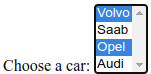
The multiple option allows more than item to be selected. The default is just one. I use ctrl+space or ctlr+left mouse to select additional items.

This displays

The parameter are

  • <Label for… give a label to the field with the matching id. When using “for”, if you click on the label, it makes the input active.
  • <select
    • name= this is passed to the back-end server,
    • id= is used in JavaScript to identify this element. This is pointed to from the <label for…
    • “multiple” more than one element can be selected. By default only one can be selected. With multiple you can ctrl+click to select more than one element.
  • <option
    • value= this gets passed to the server
    • <option>xvalue</option> the xvalue is what is displayed

This produces at the server.

  • cars=volvo
  • cars=opel

Where the value is taken from the value= attribute.

When the “multiple” option is not specified the select element looks like

The pull-down expands as you select it.

A radio button

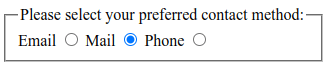
This displays all of the options and you select one.

<fieldset> 
  <legend>Please select your preferred contact method:</legend> 
  <div> 
    <label for="contactChoice1">Email</label> 
    <input type="radio" id="contactChoice1" name="contact" value="email" /> 
                                                                                          
    <label for="contactChoice3">Mail</label> 
    <input type="radio" id="contactChoice2" name="contact" value="phone" checked  /> 
                                                                                          
    <label for="contactChoice2">Phone</label> 
    <input type="radio" id="contactChoice3" name="contact" value="mail" /> 
  </div> 
                                                                                          
</fieldset> 

This displays as

The parameters are

  • <fieldset defines a set of options
  • <legend displays at the top of the box
  • <div.. I copied this from an example, it seems to work just as well without it
  • <label .. the label for the field.
    • for matches up with the <input id
  • <input
    • type=radio defines the type
    • id= matches the <label for, and can be referred to in JavaScript
    • name= is keyword sent to the server
    • value= is the value sent to the server
    • checked this is pre selected
  • name=, all elements with the same name= are part of the same radio group.

Note:

  • <label..> <input..> puts the text before the radio button
  • <input>..<label> puts the text after the radio button.

The content sent to the server is

contact=phone

Date field

<label for="dateb>date</label> 
<input type="date" id="dateb" name="dateBox"> 

This displays as

You can type a date in or select a date.

The content sent to the server, if no date is specified is

dateBox=

This is one of the cases when the name is sent down with no data.

if a date is specified

dateBox=2023-07-22

Check Box

<label for="check">CheckBox</label> 
<input type="checkbox" id="check" name="checkBox"> 

This displays as

If the box is selected the output is

checkBox=on

If the checkbox is not selected, no data is send down.

Use of labels

With

 <label for="contactChoice1">Email</label> 
 <input type="radio" id="contactChoice1" name="contact" value="email" />d

The <label..> does not have to be near to the <input>. You would normally place them adjacent to each other. The <label for …makes the input field with the matching value become active. If you click on the label text, it selects the radio button. You have freedom to format the radio buttons however you wish; horizontally, vertically, in a wrapping paragraph.

Elements with the same id

This can happen because you have created two fields with the same name, or you are using tables. With two rows of a table

<tr   id="trow1"> 
   <td id="col" name="serial"> 
    <label for="password">Enter your pw: </label> 
    <input id="password" name="rowpassword" value="pw2"> 
    </td> 
                                                                                        
</tr> 
<tr   id="trow2"> 
   <td id="col" name="serial"> 
    <label for="password">Enter your pw: </label> 
    <input id="password" name="rowpassword" value="pw3"> 
    </td> 
                                                                                        
</tr> 

this produced

  • rowpassword=pw2
  • rowpassword=pw3

you cannot tell which data came from which row.

You cannot tell if there were two input areas with the same name, or a select with the multiple option.

Updating a web page from a server – sending a complete HTML document.

When using a web server as a back-end to an HTML page, for example filling in a form, the result from the back-end can be

  1. “Redirect to a new page”.
  2. A stream of HTML. This is an HTML document where the “boilerplate” or constant data, is intermixed with the variable data included inline. The HTML is displayed, and replaces the previous page.
  3. A stream of data containing data such as changed fields. The requesting page can use this stream to update its page.

Sending a complete HTML document

Using a python back-end program I can write an entire (and complete) HTML document.

#!/usr/bin/python3
import cgitb
import cgi

cgitb.enable()

print("Content-Type: application/json")
print("ColinHeader: Value")
print("ColinHeader2: Value")
# indicate end of headers
print()
# now the html page
print("<!doctype html>")
print('"<html lang="en">')
print("<head>"
print("<body>")
print('<form id="target"  action="cgi-bin/first.py" enctype="multipart/form-data"  >')
print('<label for="email">Enter your email: </label>')
print('<input id=email name="email" value="test@example.com" title="colins email address">')
print('<label for="password">Enter your pw: </label>')
print('<input id=password name="password" value="pw">')
print('<input type="submit">')print("</form>") print("</body>") print("</html>")

Where

  • print(‘<label for=”email”>Enter your email: </label>’)
    is constant text.
  • print(‘<input id=email name=”email” value=”test@example.com” title=”colins email address”>’)
    is the variable data putting text@example.com into the field.
  • print(‘<label for=”password”>Enter your pw: </label>’)
    is constant text.
  • print(‘<input id=password name=”password” value=”pw”>’)
    is variable text, putting pw into the field.

This is a terrible way of doing it. Presentation (red text) is mixed up with data (green text). This was a no-no about 40 years ago! You might have several similar pages, and any updates would have to be made to all pages. Using pages in national different languages is hard to implement; you need to have a multiple program, one for each language.

Updating a web page from a server – sending back just the updates

When using a web server as a back-end to an HTML page, for example filling in a form, the result from the back-end can be

  1. “Redirect to a new page”.
  2. A stream of HTML. This is an HTML document where the “boilerplate” or constant data, is intermixed with the variable data included inline. The HTML is displayed, and replaces the previous page.
  3. A stream of data containing data such as changed fields. The requesting page can use this stream to update its page.

multiple program, one for each language.

Sending back just updates.

I could have my back-end server program send back just changed elements.

#!/usr/bin/python3
import cgitb
import cgi

cgitb.enable()

print("Content-Type: application/json")
print("ColinHeader: Value")
print("ColinHeader2: Value")
# indicate end of headers
print()
#now the data
print('<p id=email>New-mail</p>')
print('<p id=pw>*********</p>')

Note: This does not send an HTML document, it just sends changed fields.

Where

  • print(‘<p id=email>New-mail</p>‘) id=email is the field in the requester page to be updated
  • print(‘<p id=pw>*********</p>‘) id=pw is the field in the requestor page to be updated.

The front page needs to be smarter, and be able to process these fields. See fetch in HTML sending stuff to the back-end server

In the example below it updates the content of the field with id=”passed”, so that the information returned is only displayed. It does not update the fields. This is described below.

<p id="errorField">No Errors yet</p>

<form id="target"  action="cgi-bin/first.py" enctype="multipart/form-data"  >
  <label for="email">Enter your email: </label>
  <input id=email    name="email" value="test@example.com" title="colins email address">
  <label for="password">Enter your pw: </label>

  <input id=password name="password" value="pw">
  <input type="submit">
  <input type="text" onblur = "check(this)" >
</form>
<p id="passed">old info</p>

<script>
document.forms["target"].addEventListener('submit', (event) => {
  event.preventDefault();
  fetch("cgi-bin/first.py", {
      method: 'POST',
      body: new URLSearchParams(new FormData(event.target)) // event.target is the form
  }).then((response) => { 
       
      if (!response.ok) {
        throw new Error(`HTTP error! Status: ${response.status}`);
      }
        return (response.text());
    })
    .then(function(result) 
    {
      // put the entire response into an exist field.
      document.getElementById("passed").innerHTML = result;     

   }).catch((error) => {
      console.log(error);// TODO handle error
      return(error);
  });
});
</script>

where

.then(function(result) 
    {
    }

is passed the body of the html as a string. The value result is available within the function.

 document.getElementById("passed").innerHTML = result;

This updates <p id=”passed”>old info</p> and gives it the content in result ( the whole data stream).

Parsing a returned document

If you are are returning a whole HTML document <!doctype>…</html> you can use DOMparser to parse the document.

var doc2 = new DOMParser().parseFromString(result, "text/xml");
let x = doc2.getElementById("... 

I was using rexx and it was returning lines of data – not a whole HTML document, and so the DOMParser complained that there was an incomplete document.

Parsing data (not necessarily a document)

By adding the text to an element already in the front page you can use the page’s parser to process the data.

For example add the returned text to a field in the front page

document.getElementById("passed").innerHTML = result;

This will display all of the returned data in the field, and it will be visible ( unless the field is hidden). You can remove elements – see below.

You can now access this data using standard navigation.

My Python program had

print('<p id="z" style="color:red">incolinsz red</p>')
print('<p id="z">colins2</p>')
print('<p id="z">colins3</p>')

print('<p id="update" update="email">Updated@email</p>')
print('<p id="update" update="password">newpw</p>')

print('<p id="focus" which="email"/>')

I want to

  • Display the elements with id=”z”
  • Give a field a focus.
  • Update the fields in the document from the data, where id=”update”, and update=”…” is the name of the field on the page.

Display the elements with id=”z”

let e = document.getElementById("errorField");
e.innerHTML = "";

let  myzs = q.querySelectorAll("#z");
console.log("size of myzs" + myzs.length);
Array.from(myzs).forEach((element) => {
      console.log(element.innerHTML )
      e.innerHTML += element.outerHTML;
}); 

Where

  • let e = document.getElementById(“errorField”); Locate the field where we want to store the error elements
  • e.innerHTML = “”; Clear this
  • let myzs = q.querySelectorAll(“#z”); Get a list of all the elements with id=”z”
  • console.log(“size of myzs” + myzs.length); Debugging – display how many we have
  • Array.from(myzs).forEach((element) => For each one. We need an array to use forEach
  • {
    • console.log(element.innerHTML ) Display the content
    • e.innerHTML += element.outerHTML; Build up the field by concatenating the elements. Include the html, such as styling.
  • });

Note: If element.innerHTML is used, then only the value is used. If outerHTML is used, the formatting is also copied across, for example the text <p id=”z” style=”color:red”>incolinsz red</p> is displayed in red.

Set the focus

This is an example of passing data across the interface. The Javascript looks for the first element like print(‘<p id=”focus” which=”email”/>’) with an id of focus. It uses the “which” attribute to pass a field name.

The Javascript code is

let focus=q.querySelectorAll("#focus");
if (focus.length > 0)
{
  let f0 = focus[0].getAttribute("which");
  let d =  document.getElementById(f0);
  d.focus()
  d.setAttribute('style', 'color: red');
}
  • let focus=q.querySelectorAll(“#focus”); Get all the elements with id=”focus”
  • if (focus.length > 0) If we had at least one…
  • {
    • let f0 = focus[0].getAttribute(“which”); Use the first one found, and extract the value of the “which=” attribute.
    • let d = document.getElementById(f0); Look for the element with the same name in the main document
    • if (d !== null) if it was found
    • {
    • d.focus() Set the focus
    • d.setAttribute(‘style’, ‘color: red’); As it is hard to see if the focus was set, change the colour of the field as well.
    • }
  • }

Updates the fields in the document

The Javascript is

let  updates = q.querySelectorAll("#update");
Array.from(updates).forEach((element) => {
   console.log(element.innerHTML )
   let f0 = element.getAttribute("update");
   let e = document.getElementById(f0);
   if (e !== null)
   {
     e.value = element.innerHTML;     
   }
   else 
   {
     console.log("element not found:" + f0)
    }
}); 

Where

  • let updates = q.querySelectorAll(“#update”); Select all elements which have id=”update”
  • Array.from(updates).forEach((element) => { We need an array to be able to use forEach
    • console.log(element.innerHTML ) Display it
    • let f0 = element.getAttribute(“update”); Get the value of the “update=…” attribute for the individual element
    • let e = document.getElementById(f0); Locate the element in the main document
    • if (e !== null) If it was found
      • {
        • e.value = element.innerHTML; Set the value to what was passed in
      • }
      • else Log we have a problem – and ignore it
      • {
      • console.log(“element not found:” + f0)
      • }
  • });

Removing elements

If you want to display a subset of the elements, you may want to delete some elements.

Array.from(myzs).forEach((element) => {
  x = element
  x.parentNode.removeChild(x);    
}); 

For the elements above with id=”z” the code does

  • Array.from(myzs).forEach((element) => { Create an array so you can use forEach
    • x = element save it
    • x.parentNode.removeChild(x); Delete it
  • });

Create a new field

If you want to create a new field and insert the data you can do

// append data to an existing field.
var d = document.createElement('div');
d.setAttribute("id", "Special");
var myPara = document.getElementById("passed");
myPara.appendChild(d);
d.innerHTML = result;

This does

  • // append data to an existing field.
  • var d = document.createElement(‘div’); create a div section
  • d.setAttribute(“id”, “Special”); and give it a name
  • var myPara = document.getElementById(“passed”); locate the element in the document with the id “passed“.
  • myPara.appendChild(d); Attach our new field to the item.
  • d.innerHTML = result; Sets the content to what was passed back.

You will see the data appear on the web page.

Note: if you execute the page more than one, you will get more and more data

Updating a web page from a server – redirect to a new page.

When using a web server as a back-end to an HTML page, for example filling in a form, the result from the back-end can be

  1. “Redirect to a new page”.
  2. A stream of HTML. This is an HTML document where the “boilerplate” or constant data, is intermixed with the variable data included inline. The HTML is displayed, and replaces the previous page.
  3. A stream of data containing data such as changed fields. The requesting page can use this stream to update its page.

Redirect to a new page

The server can send back status meaning redirect

#!/usr/bin/python3
import cgitb
import cgi
import sys, os, io

cgitb.enable(display=0, logdir="/home/colinpaice/first.log")
print('Status: 303 See Other2')
print("Content-Type: text/html")
// the url and any parmeters
print("Location: ../c3.html?colin=p1&error=p2")
# needs blank line to say end of headers
print()

This causes page c3.html to be displayed. The page can process the URL and process the options passed on the url.

<!DOCTYPE html PUBLIC "-//W3C//DTD HTML 4.01 Transitional//EN"
"http://www.w3.org/TR/html4/loose.dtd">
<HTML lang="en">
<HEAD>
<script>
//  this function is  invoked on page load 
function js_onload_code (e){
  var url = document.location.href;
  // split the parameters from the url  base
  var p = url.split('?')[1]
  if (p)
  {
    var params = p.split('&');
    if (params)
    {
      var l = params.length;
      // display what was passed in
      alert("colin:"+url); 
      for (var i = 0 ; i < l; i++) 
      {
        // split it into kw"="value
        tmp = params[i].split('=');
        document.write(tmp[0] + "=" + tmp[1] +"!<br>");
        }
      } // if params
    } // if
}
// this causes the above script to be executed.
window.onload= js_onload_code ();
   
</script>
<BODY  >
<P>This is page c3.html
</BODY>
</HTML>

This displayed a page with url http://localhost/c3.html?colin=p1&error=p2

colin=p1!
error=p2!

This is page c3.html

If you repeatedly refresh this page you will get more and more data! It is better to use a field, then clear it before adding the information.

HTML sending stuff to the back-end server.

The simple and most common way of sending HTML data to a back-end server is using an anchor link

<a href="./echo.rexx">echo</a> 

This invokes the back-end program and displays the output. You have no control over the headers or what data is sent.

You can do more sophisticated stuff using the JavaScript fetch function, for example

  • specify different headers
  • change the data sent to the server, for example specify which data you want sent to the server, perhaps only send changed values rather than all input values
  • send the data to a different URL.

A quick aside on reading the JavaScript documentation and use of the arrow function

A lot of the documentation on JavaScript uses the arrow function, which can be useful, but I find distracting.

You can use a function such as mysubmit which takes an event:

function mysubmit(event)
{
console.log(event);
}
document.forms["target"].addEventListener('submit', mysubmit ) 

When the submit event occurs, “mysubmit” is invoked, and passed the event;

This can also be written, using inline functions as

document.forms["target"].addEventListener('submit', mysubmit(event) => { console.log(event;...} )
or
document.forms["target"].addEventListener('submit', (event) => { console.log(event;...} ) 

I have also seen it written as

function mysubmit(zevent)
{
console.log(zevent)
}
document.forms["target"].addEventListener('submit', (event) => mysubmit(event) ) 

At first glance this looks it could be simplified. However this is useful if you wanted to pass additional parameters to the function.

function mysubmit(zevent,a)
{
// a will have the value abc
console.log(zevent)
}
document.forms["target"].addEventListener('submit', (event) => mysubmit(event,'abc') ) 

I find the first example, document.forms[“target”].addEventListener(‘submit’, mysubmit ) easier to follow; and easier to write as you have to worry about matching the ending “})”s.

Using fetch

I used an HTML page with a form, so I could process the data. The fetch function sends the data to the specified URL, and waits for the response. You can specified headers and body and you get back a response object.

Setup

You need to associate a function with the “submit” of the form

 document.forms["target"].addEventListener('submit', mysubmit ) 

where mysubmit is the name of a callback function, for example

function submit(event) 
{ 
  event.preventDefault(); 
  displayChanged(event) 
  fetch("./echo.rexx", { 
      method: 'POST', 
      body: new URLSearchParams(new FormData(event.target)) // event.target is the form 
    })
    .then( check   )
    .then( zesult  ) 
    .catch(mycatch ) 
} 

Where

  • function submit(event) { defines the function, the parameter variable is called event.
  • event.preventDefault(); disables normal behaviour and lets me manage it.
  • displayChanged(event) my processing of the data before sending the data, see below.
  • fetch(“./echo.rexx”, { This sends the request to the backed “./echo.rexx”.
    • method: ‘POST’,
    • body: new URLSearchParams(new FormData(event.target)) Fetch has two parameters, the URL and a set of options, such as body, a set of headers{} etc. In this instance the second parameter is {method:”POST”, body: …. }.
  • }) // end of fetch
  • .then(check) this waits until the fetch finishes, see below
  • .then(zesult( ) see below
  • .catch( mycatch ) any exception
  • } // end of function

The .then processing is about using promises. Basically the .then has a wait for the response and return something to the next .then statement.

Check

This waits for the completion of the request.

function check(response) 
{ 
  if (!response.ok) { 
       throw new Error(`HTTP error! Status: ${response.status}`); 
  } 
  return response.text() 
 } 
  • It checks the “ok” flag in the data, if it is not OK, then throw an exception. The variable response.status has an error message.
  • Extract the body of the response and pass it on.

zesult

This waits for the completion of the previous “return response.text()”

function zesult(text) 
{ 
//console.log(text ); 
  let e = document.getElementById("errorField"); 
  e.innerHTML = text;                                                                     
 return (text) 
} 

and replaces the value of the piece of HTML with id=”errorfield”. For example

<p id="errorField" style="color:red ">No Errors yet</p> 

I do not know why two “.then”s are needed. It looks like it started another asynchronous process to extract the body from the response. In “check” if you display “response” it gives you some data. If you display “response.body” is gives a in-flight promise.

If you are tracing this, and you do not get into your code, check you have specified event.preventDefault(); before you do the fetch.

Looking at what data is being sent

Formdata allows you to work with the keyword=value data as generated by a form. You cannot get the data for other HTML elements outside of a form.

In my submit function I have displayChanged(event)

function displayChanged(event) 
{
// display the parameters
...
// Display what has changed
... 
}

Display the parameters

function displayChanged(event) 
{ 
  // display all the data 
  // extract into an iterable object  
 let f = new FormData(event.target)  ; 
 let data = ""
 for ([key, value] of f) { 
    data += ", " + key + ":" + value 
 } 
 console.log(data) 
...
}

For the data in my form, this displayed

,i1:initial value, text1:test@example.com, email:test@example.com, password:pw18,password25:pw25

where the bold names are the input field names.

Display what has changed

There is no direct way of processing just the changed variables, but you can fake it.

I had an input fields defined with an onchange call back.

<input id="password" name="password" value="pw18" onchange="change(this)" >
<script> 
function change(o){ 
  if  (o!= undefined) 
     o.setAttribute("changed","yes"); 
} 
</script>

If the field is changed, then the onchange -> change function is called. This sets an attribute “changed” to “yes”.

In the submit processing there

function displayChanged(event) 
{ 
...
  // display what has changed
  let er = event.target; 
  Array.from(er).forEach((r)  => 
  { 
    let id = r.getAttribute("id") 
    let ch = r.getAttribute("changed") 
    console.log( "id " + id + " changed " + ch ) 
  }) 
...
}

When I changed the two password fields, the console log had

id text1 changed null
id email1 changed null
id password21 changed yes
id password2 changed yes

Changing the parameters passed to the server.

You pass the parameters to the server using

fetch("./echo.rexx", { 
    method: 'POST', 
    body: new URLSearchParams(new FormData(event.target)) 

You can create a new instance of FromData, add keyword/value parameters to it, and pass it through to the back-end.

Above I explained how you can identify the “changed” data. You could take these elements and add to a new FormData, and pass those through to the server.

Am I blind or is there no good documentation on how to write a web server application?

There is a lot of documentation on the internet on how to create a web page, for example using Java script or CSS to do clever things on a page. There is a lot of documentation on how to write a back-end application, with the choice of more than 10 different languages (Python, PHP, Java etc). But I could not find any good documentation on “start here”, how to get the back-end server to update a field on the web page, or what authorisation choices there are.

This blog post tries to cover some of the holes. It is what I have learned – it may not be the best; it may even be wrong, but I hope it helps.

If there is a good source of information, please tell me, and I’ll reference it.

What does a back-end do?

The back-end responds to a request such as

c3.html?colin=p1&error=p2&name=Colin%20Paice”

Where

  • c3.html is the name of the URL invoking the server. This could be page c3.html, or “myPython.py” an application script written in python, or “server”, a label which maps to an html page or a application name.
  • ? this divides the URL name from any parameters .
  • colin=p1. An HTML field with id called colin, has a value of “p1”
  • & a separator between arguments.
  • name=Colin%20Paice, an HTML field with id “name” has a value “Colin Paice”. Special characters like blank and & are replaced by their ASCII hex equivalent, so %20 is a blank.

Some requests pass data via STDIN, and the back-end application has to read from this stream to get the data.

The back-end can reply with a

  • A redirect to a different page (with parameters).
  • An HTML document where “constant” data such as “Please enter your Surname” is intermixed with “variable” data such as “Jones”. To update one field on the page, you have to send the whole document.
  • Other data, for example JSON, or HTML like <p id=”error” field=”firstName”> Invalid value </p> and the front end page can take this data and process it – for example to display the data, or highlight a value.

The request can come from an HTML page or as a REST request, where the application creates the string like c3.html?colin=p1&error=p2&name=Colin%20Paice” and uses an application such as CURL to send the request to the server, then parses the response.

As a developer for the back-end, I do not want to send the whole HTML document back – as I may not have it! I just want to send back a response to the request, for example field-1 has an invalid value, field-2 has an invalid length, the value of field-3 is not in the data base.

If you have multiple servers then a request may not go back to the same server because of load balancing.

Using TLS, it may do a new handshake for every request. TLS can cache session information for a short period to avoid the full handshake.

With some back-ends a request coming in starts a new thread, so there is a noticeable delay (half a second) when sending a request to a back-end. It is faster to use a static HTML home page than to call the back-end server to say “display the home page”.

State is not usually stored the back end, so you may want to return state information to the web page, and have it as a hidden, read only input field, which is sent to the back-end on the next request; or use cookies.

You need to decide what headers you need. You may want to use Cross-origin resource sharing (CORS) for protection.

You need to determine if the back-end can support the services. For example some z/OS services can easily be done using Rexx, but not using Python or PHP.

Basic design questions

What authorisation is needed?

  • Do you want to ensure the users use TLS to establish the session.
  • Do you want the server to send a certificate to the client, so the client authenticates the server.
  • Do you want the client to send a certificate to the server to authenticate the client, or make it optional?
  • Does the end user need to enter a userid and password. Do you have access to the enterprise wide identity system to be able to validate the userid or password, or will you just use the operating system’s checking.
  • You can have the back-end lookup the certificate and get back a userid.
  • Do you want the back-end to execute with the user’s authorisation, or the same authentication for all users.
  • Which ids are authorised to use what facilities, for example scripts, web pages, authorised operating system facilities, database tables etc..

What checking do you need to perform?

You may have checking on a web page, for example check a value is a number, or a string of a certain length. You also need to do the same checks in your back- end, as people may use a REST API to access your back-end, and no checking will have been done. With in-page checking, you get a response much faster than if the request goes to the back-end to validate

How do you transfer information from the front end to the back-end?

You can use cookies to store information in the clients front end. You need to consider Secure cookies and HttpOnly cookies, and should consider Same-site cookies.

You can have hidden input fields and read-only fields on a web page. These get passed to the back-end. A page called “developer.html” might have

<input type=”hidden” name=”action” value=”colinhidden”>
<input type=”text” name=”org” id=”name” value=”myorg.com” readonly=”readonly”>

<input type=”text” name=”role” id=”name” value=”Developer” readonly=”readonly”>

to pass action=”colinhidden” without the end user seeing it, and passing org=”myorg.com” with the user being able to see it, but not change it, and to pass “role= developer”. If you are using a REST API, you can create whatever values you like, as long as they are syntactically correct.

How do you transfer information from the back end to the front-end?

  • Using redirect does not work very well – it may be doable – but not very elegant.
  • Send a whole dynamically built HTML page – does not score well on the isolation of data and boilerplate.
  • Sending data back for the front end page to process. This seems to be the best solution.

The front end page can use javaScript to process the returned data. If the back-end has sent back:

<div id=”error” field=”name”> Invalid name specified>/div>
<div id=”error” field=”date”> Date is in the past</div>
<div id=”focus” which=”Surname”>

The JavaScript can do

  • Select all elements with a particular id, such as id=”error” and display them.
  • Take action over specific fields, for example for id=”error” then change the matching fields value to be red.
  • Take an action such as make the Surname field the focus.

You need to agree the protocol any records, and attributes, and what to do if there is a problem.

One minute – debugging an HTML page

I had an HTML page with javascript and wanted to debug it and see what was going on. It was all pretty easy, but some things took a while to understand. I’ll describe some of the things I did using Chrome browser. Firefox has similar capabilities.

I found JavaScript debugging reference which looks pretty good.

Using the Chrome Debugger Tools, part 3: The Sources Tab is pretty comprehensive.

Getting started

  • Display an html page.
  • To get into developer tools use Ctrl+Shift+I

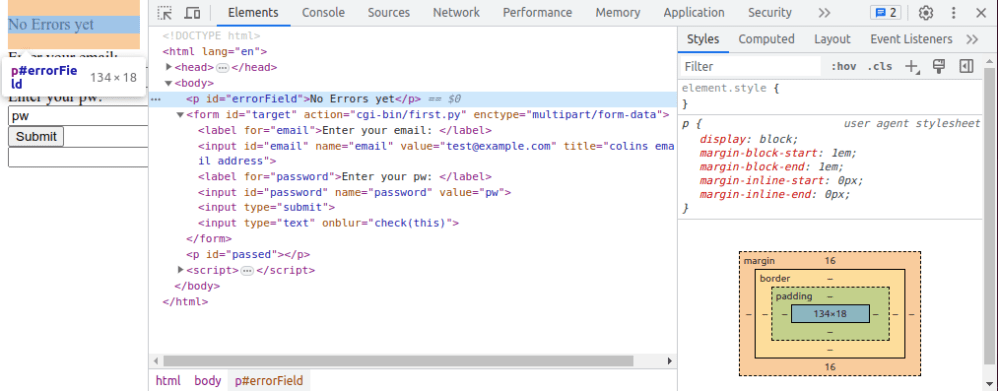
You get a display like

  1. The web page (squashed up) to a narrow column
  2. Elements – you can see the HTML components. As you move your mouse over the elements in the list, the fields in the web page are highlighted
  3. Sources – you can see the source of the program with the javascript etc. Errors in the file will get flagged on this page
  4. Debug” switch. The icon next to it is the “step over”
  5. Watch” – You can specify which variables you want displayed permanently
  6. “Scope” you can list and display all the variables available to you at that point in the web page
  7. An example of the source

Display and edit the HTML

Clock on the Elements tab (2 in the above picture) to display the source.

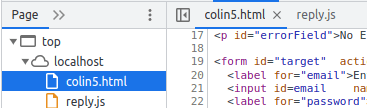
You may have your javaScript within the page, or referenced by http://./reply.js. You can see these under the page sub tab, or as a tab in the source (7). You may have to click on the name on the “Page” tab, to get it displayed in the source pane.

This shows sssserver.html is the main one, and checkCipher.js has been included. Some of these may be displayed as tabs above the sourc

  • It gives a good high level view of the program for example it may have <head>…</head>. The … show there is omitted content. Click on the … to display the content.
  • As you move your mouse over the HTML the web page elements will be highlighted. Moving over the <body> shows the whole web page, moving over a <p> shows just the paragraph.
  • As you click on some html, it displays the CSS on the right had side.
    • It tells you what CSS is being used for example the “p” tag with option “display”:block
    • As you move your mouse over the CSS picture it highlights the data on the html page
  • You can edit the HTML, add elements, delete elements etc

Set breakpoint

  • Click on the Sources (3) tab
  • Click on the line number of interest – it toggles blue.
  • Run the page

Step through the code

  • Click on the Sources (3) tab.
  • Click on the pause button (4); it gets grayed out
  • Run your script. I clicked the submit button.
  • The display changes and it shows “Debugger paused”.
    • Open the “watch” twistie and click “+”. You can now enter a variable name to display the object.
      • Open the object’s twistie to display the attributes of the object
      • Open the “Scope” twistie. Open the “Local” twistie. This will display all of the local variables. Open the variable’s twistie to see all its attributes. I do not think you can change the data. Use ctrl+alt+left mouse to expand or compress the twistie.
  • Open the “Breakpoint” twistie and select “Pause on uncaught exception” and “Pause on caught exception“. This will stop when it detects a problem
  • If you click the icon next to the Pause Icon (or F10) it will step through the code.
  • If you click on a line of javascript and use right-click you select “Continue to here”.
  • Within an active code segment, hovering over a variable will display the attributes. (You can also go to “Scope” and display from that window. Clicking on the window object( for example) gives all the operations you can do on that object (for example all of the on…. method names) .
  • If your code has console.log(“something”) this will appear in the console tab.

To get out of the current debug press the browser’s stop (X) and browser’s “reload/refresh” button.

Where did it spend its time?

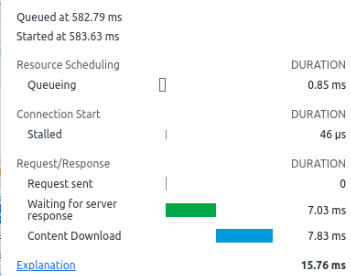
If you click on the “Network” tab it shows where time was spent on the network. For example which files were got, and how long it took to get the data. It gives information on

  • Which file was loaded.
  • Status – 200 is OK.
  • Type eg .gif.
  • Initiator – which page did the request come from.
  • Size ( if it was downloaded) or “cache” if it was already in the browser cache.
  • Time in milliseconds.
  • “Waterfall” breaks down the time spent

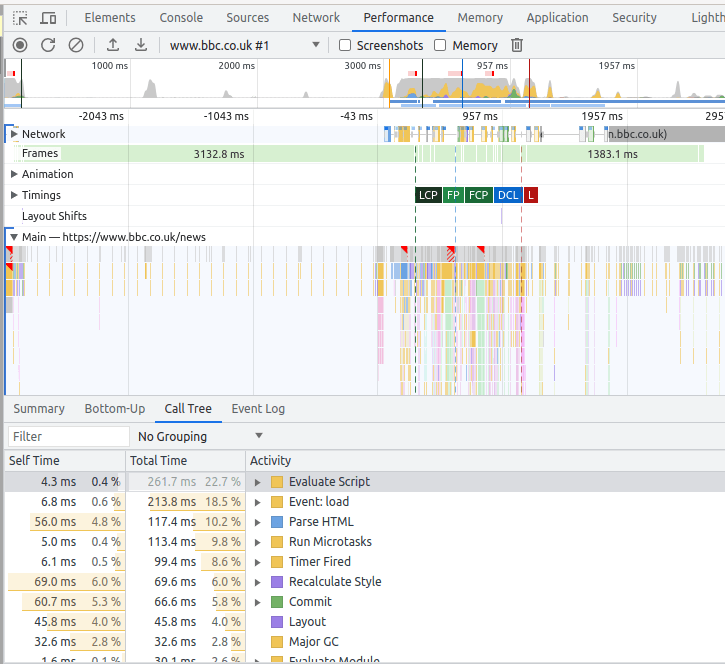
Under the “Performance” tab you can record the activity, and display it.

Use Control+E to start, then Ctrl+E to stop it.

It displays information like

What do all of the keys do?

If you click on the settings wheel, and select Shortcuts, it displays all the options and key combinations.

Debugging a java script file?

Chrome caches these. Disable this by going to the Network table and click on “disable cache”

Html field validation and back-end checking

When writing HTML pages which include fields where users can enter data, you usually want to validate the input. Having checks in your html may be good – but someone could use a REST API url and send data directly to the back-end, and bypass your checks. This means that as well as field checking in your panels, you also need field checking in the back-end before doing any data updates.

The flow of logic for a web server application is

  • display an html page with input fields for user to complete. There may be input fields(possibly read only) with defaults pre-supplied, there may also be ‘input’ fields which have a value, are read only ,and not displayed. This allows you to pass “constant” data to the server, via the URL.
  • The back-end request is submitted.
  • The back-end application:
    • Validates the parameters. These checks may be more stringent that the HTML validate, for example it may lookup a value in a database rather than just checking it is numeric . If a request, such as a REST API request, arrives, the parameters will not have been checked.
    • Augments any data, for example add constant values, or system wide data.
    • Transforms any data, for example change a string option to a numeric option as needed by the service.
    • Calls the service, such as database insert
    • Passes a response back to the caller, possibly in JSON format, giving
      • Return code
      • Any error message
      • Any field in error
  • The front end displays any error messages, and positions the cursor in the first field with a problem.

The easy field validation.

You can have an input field like

<input … required pattern=”…” minlength=”4″ maxlength=”8″ type=”number”

value=”colin paice” readonly=”readonly” title=”colins email address”>

where you can have

  • required – the user must enter value.
  • pattern – you can specify a standard regular expression, such as a string must start with a capital letter.
  • minlength and maxlength – allows you to specify limits to the size.
  • type – can be number, text, password, file, etc..
  • value – you can preset a value.
  • readonly – the user can see it, but cannot change it. You can preset this with value=… .
  • type=hidden, can be used with value to pass a value to the back end that the user cannot see it on the page.
  • title – produces hover over the field so you can provide a description of the expected format.
  • you can define radio buttons, pull down lists, or multi choice selection.

Javascript validation

When the user takes an action, for example pressing a submit button, or changing the value of a field, you can drive a Javascript script.

This can do more complex checking of values. The onfocus=focusfunction(this) invokes the focusfunction when field gets focus (you put your cursor into the input box) (not very useful). The onblur=blurfunction(this) gets control when you move away into another field (much more useful)

<script>
  function check(a){
    alert(a.value)
  }
</script>
<input type="text" onblur = "check(this)" >

After a value is entered into the input field, and you move to another field, it will pop up an alert window with the value you entered.

You can get the the values of several fields and check they are mutually consistent.

You can use the <form onsubmit=…> to invoke a script when submitting a form, to check that all parameters have been specified and are consistent.

Checking parameters passed to an html page

An action such as submitting a form, can display another page. Parameters can be passed as part of the URL. For example

file:///home/colinpaice/tmp/c2.html?name=colin+paice&email=Colin%40sss.com&organisation=Stromness+Software+Solutions&Country=GB&OU=test

  • The invoked page was file:///home/colinpaice/tmp/c2.html
  • The parameters start after the ?
  • Parameters are split at the & sign
  • Some characters are converted to their hex value; for example & and blanks. This is done so the string can be unambiguously parsed.

I have a useful page which processes any parameters and displays them within the page

<!DOCTYPE html PUBLIC "-//W3C//DTD HTML 4.01 Transitional//EN"
"http://www.w3.org/TR/html4/loose.dtd">
<HTML lang="en">
<HEAD>
<script>
  function js_onload_code (e){
    var url = document.location.href;
    alert("colin:"+url);
    var p = url.split('?')[1]; // any parms
    if (p)  // there is a parameter
    {
       var params = p.split('&');
       if (params) // we have at least one parameter.
       {
         var l = params.length;  // number of them
         for (var i = 0 ; i < l; i++) {
            tmp = params[i].split('=');
            document.write(tmp[0] + "=" + tmp[1] +  "<br>");
         }  // for
      } // if params    
  } // function
 window.onload= js_onload_code ();
</script>

<TITLE> Invoked page</TITLE>

</HEAD>
<BODY  >
<p>Parameters passed in</p>

</BODY>
</HTML>

When this page is executed,

  • window.onload= js_onload_code (); says when this page is loaded execute the script. Within the script..
    • var url = document.location.href; gets the URL string
    • var p = url.split(‘?’)[1]; split to get any parameters. Take the URL, split it at ? and take the second value (for zero based, 0 is the first element, 1 is the second element)
    • ...split(‘&’); split the keyword string at the “&”
    • var params = p.split(‘&’); create an array of strings split at the &
    • var l = params.length; count the number of strings produced by split(‘&’)
    • for (var i = 0 ; i < l; i++) { tmp = params[i].split(‘=’); document.write(tmp[0] + “=” + tmp[1] + “<br>”); } for each string – split keyword=value, and insert it into the page.

Server side checking

For a table using method=”get” the parameters are passed in the URL as show above.

For method=”post” data is passed via stdin, and the server application has to read the data. Depending your backend application you may have to write special code. Python handles post and get with no difference in code. You have to write code for Rexx to handle POST.

The server processing is

  • Validates the parameters. These checks may be more stringent that the HTML validate, for example it may lookup a value in a database. If a request, such as a REST API request, arrives, the parameters will not have been checked.
  • Augments any data, for example add site wide data value, or system specific data
  • Calls the service, such as database insert
  • Passes a response back to the caller, possibly in JSON format, giving
    • Return code
    • Any error message
    • Any field in error

Python program can pass data such as lists, and dictionary to external routine.

Rexx program communication is done using a command string. You can separate fields by a delimiter, and then parse the input string. As the URL passed in as a format url?kw1=v1&kw2=v2&… you could pass that string through to external routines.

You may want to have common routines for checking values. These would need to be outside of the server program, so they can be shared. You might parse the url passed to the server program into Rexx variables

  • kw.1=”userid, value.1=”colin”,
  • kw.2=”password”,value.2=”passw0rd”

then have logic like

do I = 1 to number_of_inputs
  if kw.i = "userid" then rc  =checkuid(value.i)
  else if kw.i="password" then rc = "checkpw(value.i)
  ...
end 

You might have to have multiple passes of the data so you get userid, and password, and then issue

userid = ""
password = ""
do I = 1 to number_of_inputs
  if kw.i = "userid" then userid = value.i
  else if kw.i="password" then password= value.i 
  ...
end
rc = checkpw(userid,password)

Where rc could be in a string of format “rc value”

and

  • rc =0 – use the returned value
  • rc!=0 – error detected. The value is an error message. Pass it, and the field name, back to the caller

If you want to add “constant” data

create

number_of_inputs =number_of_input + 1
n = number_of_inputs 
kw.n="zos"
value.n="ZOS1" 

You can then build a string similar to the original input from the kw… and value… values.

There is a lot to consider for a simple little application!