Linux mapping the keyboard and on z/OS SSH

I wanted to configure the keyboard in zsh and bash on z/OS so the delete key (top right of the keyboard) deleted the current character. (Backspace deletes the previous character) I could not find any good documentation on how to do it.

I found some bash for Linux documentation and have based this blog post on that. I’ve given the command I used, then sections on the background of how it works.

Note the binding of key to action depends on the shell. The shells zsf and bash support binding. shell does/may not.

Having written the original blog post, I found some additional useful information which will make the document clearer.

How to set the delete key to delete

With my Bash shell, I initially had to do it in stages:

  • Type bind “ that’s bind space double quote
  • Control+V, delete key to insert the value of the key. This made it bind “^[[3~
  • Type “:delete-char with no space after the :
  • It now looks like bind “^[[3~”:delete-char
  • Press enter
  • The delete key should delete the character under the cursor

The command bind -p |grep delete gave

"\C-h": backward-delete-char
"\C-?": backward-delete-char
"\C-d": delete-char
"\M-[3~": delete-char
"\\": delete-char
# delete-char-o

Which shows that Ctrl+d and \\ also deletes the current character.

In a shell (in ASCII) this is (in ISPF edit with hex on)

bind '" ∇3~":delete-char' 
6666222153723666676266672222
29E4072BB3E2A45C545D38127000

Where the incantation is x1b5b337e.

What does the mapping mean?

It took me many hours of looking for a good description of what the key mapping is.

The Wikipedia page ANSI escape codes, was very helpful and clear.

  • You can press the “a” key – and “a” is displayed in the command window.
  • You can press shift “a” – and “A” is displayed in the command window
  • You can press Control (Ctrl) “a” – and this may do something
  • You can press Meta “the Windows” key “a” and this may do something
  • You can press Alt + “a” and it may do something.
  • You can press combinations of those keys, such as Ctrl+shift + “a” and this may do something.

The operating system may intercept the key and not pass it to the window. For example on my Linux, Ctrl+Alt+Delete is logout.

In the command window the shell code will intercept a key press combination and take an action, for example move the cursor left, clear the screen, delete word, or just the the character.

You can change the mapping using the bind or bindkeys command for bash and zsf shells.

You can find the code for a key combination by using ctrl+v. For example with the left cursor key

Ctrl+v, < gives ^[[D

How to decode ^[[D ?

There are several formats.

  • <esc>[ number(;modifier)~
  • <esc>[ letters

The string starts with an escape sequence. ^[ This can be written as \e ,\033,  0x1b, or ^[. Where \0 is octal 33, which is hex 1B, (and decimal 27). When specifying a key sequence any of the values can be used. I mentioned above the incantation x1b5b337e.

Because there is no trailing ~ we need to lookup the “[D” in the Wikipedia page section xterm sequences. This has

<esc>[D     - Left 

So for ^[[D we have <esc>, Left key pressed

For ^[[3;5~ we have

  • ^[ is escape
  • [3 isDelete key
  • ; is a modifier
  • 5 is Control + shift
  • ~ end of escape

so the key presses was Control + Delete key (top right on my keyboard). Shift seems to be ignored!

Another popular key is ^M which is Carriage Return – (and process any data on the line) and move the cursor to column 0.

\C is the Ctrl key, \M is the meta key. For keyboards without the Meta key this is displayed as Escape \e.

Keys like \M-OD comes from

Keypad mode
"\M-OD":backward-char
"\M-OC":forward-char
"\M-OA":previous-history
"\M-OB":next-history

This information is not well documented.

What is key mapping

On Linux Ubuntu the control-right arrow combination moves the cursor right one word. The control-left arrow moves the cursor left one word. Control-L clears the screen, but leaves the command line intact.

You can list the possible actions

bind - l

This gave

...
arrow-key-prefix
backward-byte
backward-char
backward-delete-char
backward-kill-line
backward-kill-word
...

Get a list of functions and what keys use them

With upper case -P

bind -P |grep backward

This gave

backward-byte is not bound to any keys
backward-char can be found on "\C-b", "\eOD", "\e[D".
backward-delete-char can be found on "\C-h", "\C-?".

Where does \eOD come from ? See here.

Get a list of keys and their functions in bind format

with lower case -p

bind -p |grep backward

gave

"\eOD": backward-char
"\e[D": backward-char
"\C-h": backward-delete-char
"\C-?": backward-delete-char
...

where

  • Control-h moves the cursor left one character and deletes the character
  • \e is the escape key. The alt key is usually mapped to the escape key by terminal emulators.

This output is slightly untrue. If there is no blank after the : you can use bind….

If you have a blank after the : you need to enclose it in single quotes.

bind ‘”\C-h”: backward-delete-char’

to set the key.

What is the code for a key press combination?

The Linux command Ctrl-V (verbatim insert) followed by a key, gives the mapping for that key.

Ctrl+V LeftArrow
^[[D

Ctrl+V Ctrl+Leftarrrow
^[[1;5D

Where ^[ means the escape key and [D is OD.

^[[3~ is escape Delete key.

Verbatim insert gives the code of the key which was pressed. This works on z/OS if you have the Bash or zsf shell installed.

What keys are mapped?

In the zsh shell you can issue

bindkey -L

(With bash you can use the bind command).

This gives output like

bindkey "^E" end-of-line
...
bindkey "^L" clear-screen

Where ^ is the ctrl key.

If you type (on Linux) man bash , and locate Readline Command Names if lists the function names and what they mean.

The bash command bind -l lists all of the functions

$ bind -q backward-char
backward-char can be invoked via "\C-b", "\M-OD", "\M-[D".

It gets very confusing

A sequence can be created in different formats. For example many commands begin with the Escape (or Meta key). This can be written as \e ,\033,  0x1b, or ^[. Where \0 is octal 33 which is hex 1B, ( or decimal 27). It is confusing when you display information with different commands.

Where does \eOD (or \M-OD)come from?

It was a challenge to find this information.

In the Linux terminfo documentation it says

The codes sent by the left arrow, right arrow, up arrow, down arrow, and home keys can be given as kcub1, kcuf1, kcuu1, kcud1, and khome respectively. If there are function keys such as f0, f1, …, f10, the codes they send can be given as kf0, kf1, …, kf10. If these keys have labels other than the default f0 through f10, the labels can be given as lf0, lf1, …, lf10.

The linux command infocmp

infocmp|grep kcu 

gave

kcbt=\E[Z, kcub1=\EOD, kcud1=\EOB, kcuf1=\EOC, kcuu1=\EOA,

so this all says the left arrow key maps to backward character. – Phew

Problems

If there was a space after the : I got

readline: delete-char: no key sequence terminator

from the bind command.

Putting the command into my .profile file didn’t work because of the wrong character set.

I could put the command into a shell script, and invoke it – but I could not get it to work from the .profile.

Why does one ping work, and the same ping doesn’t?

I was trying to check connectivity from z/OS running on my laptop. For some remote sites I could issue ping and get a response back. For some other sites I issue the ping and did not get a response back.

When I issued the pings from Linux – they both worked.

I noticed that for the pings from z/OS the field Timestamp from icmp data (relative): was 27 seconds behind. This was caused by z/OS adding leap seconds. It was not the problem.

By comparing all the fields in a successful and an unsuccessful ping, I could see that z/OS send 256 bytes of data, and Linux sent only 40 bytes of data.

On Linux, when I used

ping …. -s 256

it failed. When I used

ping …. -s 20

it worked.

Similarly on z/OS.

ping .... (length 20

The defaults lengths are different between z/OS and Linux.

The moral of this tale is

If ping does not return any data – try a very short ping.

How do I configure my new laptop to run my work?

This is an aid to help me when I had a new laptop, and the things I had to do. Some people may find some of the things I use, useful in their work. Because I made some big mistakes, it was worth writing things down.

If people have other good Ubuntu tools which they consider essential, please let me know


Note: It is a list of things to do – not a set of instructions.

Windows

  • mangage bitlocker – disable so you can resize the partition
  • set fast boot off so you can resize the partition

Lenovo bios change

  • F1-F12 as primary function -> On. Without this ISPF P9 gives print screen.
  • Enable trackpoint
  • Disable trackpad
  • Swap Ctrl FN

Prepare the laptop

  • Create Linux bootable image for the correct architecture
  • Boot the Linux USB
  • Change partitions, shrink Windows allocate Linux partition, allocate user partition
  • Install Linux
  • Check Windows still starts

Boot the installed Linux

  • Connect to Wifi
  • Sudo apt update
  • Sudo apt install ssh
  • Sudo apt install sshfs
  • Sudo snap install vivaldi
  • Use disks to create a user parition on the SSD.
    • Format it
    • Edit mount options
    • Unselect User session defaults
    • Display Name: colins
    • Mount point /mnt/Colin
    • Identify as LABEL=Colin
    • Reboot and check disk is mounted
  • Add backup userid
    • sudo adduser ColinPaice
    • sudo passwd ColinPaice
    • sudo adduser ColinPaice sudo
    • sudo mkdir /home/ColinPaice
    • sudo chwon ColinPaice:users /home/ColinPaice
    • su – ColinPaice Check it works
  • Change userid to its parition on /mnt/Colin
    • logon as the backup userid ColinPaice
    • usermod --home /mnt/colin colin
    • su – colin to check it works
  • sudo apt install x3270 do this before installing openssh-server because of font problems
  • sudo apt install openssl-server
  • sudo apt install traceroute
  • set up sshd
    • sudo ufw allow ssh
    • sudo ufw enable
    • sudo systemctl enable ssh
    • sudo systemctl start ssh
    • sudo systemctl status ssh
  • use system to change Ethernet network to
    • Manual 10.1.0.4 255.255.255.0
  • From old laptop ssh colin@10.1.0.4
  • sudo snap install discord
  • sudo apt install wmctrl so I can use hot keys to switch ispf windows
  • Set up networking
    • sudo ip -4 addr add 10.1.0.2/24 dev enp1s0f0
  • save/restore keyboard mappings
    • dconf dump /org/gnome/settings-daemon/plugins/media-keys/custom-keybindings/ > custom.txt
    • cat custom.txt | dconf load /org/gnome/settings-daemon/plugins/media-keys/custom-keybindings/
    • all: dconf dump / > dconf-backup.conf
    • all: cat dconf-backup.conf | dconf load /
  • Move window buttons to the top left sudo apt install gnome-tweaks; gnome-tweaks; windows-: Placement left
  • Set dash icon size. Settings-> Ubuntu desktop -> Dock -> Icon size
  • Add my hot directories to the Gnome file manager side bar.
    • Display the directory and its contents, click on ⋮ select “add to bookmarks”.
  • sudo apt install dconf-editor
  • sudo apt install gnome-shell-extension-manager
    • super – extension manager browse clipboard-history – install
      • Shift super sudo apt install gnome-screenshot
  • For backups sudo apt install deja-dup duplicity
  • Setting icon size for file manager.
    • dconf /org/gnome/nautilus/list-view
    • use default value off
    • custom value ‘small’

Setting up applications to use z/OS on a remote Linux machines

  • For hot key to ISPF sessions sudo apt install wmctrl . system -> keyboard -> keyboard short cuts -> custom
    • Name: colin@ wmctrl -a colin@ shortcut ctrl + 3
    • Name: mst cons wmctrl -a mstcon shortcut ctrl + 1
    • Name: tso@ wmctrl -a tso@ shortcut ctrl + 2
  • sudo apt install wireshark
  • sudo apt install curl

Why can’t I change the colour of my Gnome terminals on my new Linux image?

I’ve got a new laptop, and I’ve spent quite a lot of time migrating stuff from my old one.

It all seemed to be working, except I could not change the colour of my Gnome terminals.

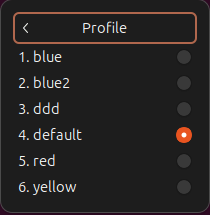
The documentation (and many comments on the internet) say hamburge(≡) -> Profile -> pick your favourite colour from the options. Unfortunately I did not have “Profile” as an option.

Gnome configuration information is stored in a directory tree format under /org/gnome/terminal/legacy/profiles:

This can be see by using:

  • dconf-editor is a GUI tool to allow direct editing of the dconf configuration database.
  • dconf is a simple tool for manipulating a dconf database.
  • gsettings offers a simple command line interface to GSettings. It lets you get, set or monitor an individual key for changes.

From these I could see that for the userid with problems (another userid was OK) I was missing some configuration information.

On my old system I exported the part of the configuration tree using the command

dconf dump /org/gnome/terminal/legacy/profiles:/ > dconf.dump

I sent this file across to my new system, backed up .config/dconf/user and used

dconf load /org/gnome/terminal/legacy/profiles:/ < dconf.dump

I immediately had access to the hamburger icon; it had “Profile >”; and I could pick a colour.

What is in the dumped configuration file?

The dconf.dump file user above contained

[/]
default='f8084ff0-88c6-43ad-b674-d901f5f818a5'
list=['b1dcc9dd-5262-4d8d-a863-c897e6d979b9', '2e126889-4012-485a-a363-057135d6b038', 'f8084ff0-88c6-43ad-b674-d901f5f818a5', '990b09a4-8a20-4ba5-aab6-ad88fdc531dd', 'd963eefc-9bf1-4ae1-8653-e8d36bd6127a', '110cf44a-82fd-454c-bc12-b3918b987cde']

[:110cf44a-82fd-454c-bc12-b3918b987cde]
background-color='rgb(56,111,67)'
use-theme-colors=false
visible-name='ddd'

[:2e126889-4012-485a-a363-057135d6b038]
background-color='rgb(238,238,236)'
foreground-color='rgb(46,52,54)'
use-theme-colors=false
visible-name='blue'
...
[:f8084ff0-88c6-43ad-b674-d901f5f818a5]
default-size-columns=100
use-theme-colors=true
visible-name='default'

There is a definition (at the bottom)

  • id :[:f8084ff0-88c6-43ad-b674-d901f5f818a5]
  • default-size-columns=100
  • use-theme-colors=true
  • visible-name=’default’

I refer to this as default (the visible name) using the system theme colours.

There is a definition called ‘blue’.

  • use-theme-colors=false says do not use the standard theme colour; the colours are overridden
  • the background colours are specified
  • the foreground colours are specified
  • it has an id of 2e126889-4012-485a-a363-057135d6b038

At the top of the file is

  • default=’f8084ff0-88c6-43ad-b674-d901f5f818a5′ this refers to the section which I’ve called default.
  • the list of possible values includes those for default and blue.

Whoops – where has my Firefox configuration gone? oh snap!

On Ubuntu Firefox now comes as a snap package.

Snaps are containerised software packages that are simple to create and install. They auto-update and are safe to run.

All that is true, but nowhere did it say that the Firefox configuration is now in a different place.

Before snaps, profile and configuration files were stored in the ~/.mozilla directory. Now they are stored in ~/snap/firefox/common/.mozilla/firefox/

I had configured my backups to include useful directories including directories ~/.*, and had excluded all ~/snap directories because I could easily download the programs when needed (or so I thought).

I had a problem with Firefox so I deleted the snap files and reinstalled them – to find that my configuration information was not available, and was not backed up.

I’ve now moved to Vivaldi browser.

Lesson learned

I checked where the profiles for vivaldi are stored. They are under ~/snap as well.

Looking into what files are backed up, I had specified which directories I wanted. I think I’ll now say backup all files under my userid, except for….. I have a 2TB solid state external disk drive, so I should have plenty of space as I’ve only used 59 GB of backed up data.

Secure store aren’t

Applications such as Zowe can store secure information on the end user’s machine. This is not very secure! It is built into the operating systems. It is a bit like securing a door with a bit of string. Joshua Waters pointed out

The fact of the matter is that regardless of whether or not you are storing your credentials on a machine, if there is a virus or malicious actor on it, your credentials are up for grabs while the user is logged in. The only time they wouldn’t be up for grabs is if you were using an application that either require some master key to access the credentials store for it, or every authed request to the server requires user to re-enter credentials.

On Linux

The information is in the gnome-keyring ~/.local/share/keyrings/login.keyring .

You can use the Linux command seahorse to display the contents of the gnome-keyring. The user’s password is used to decrypt the store.
The following python code display the keyring contents

import secretstorage
conn = secretstorage.dbus_init()
collection = secretstorage.get_default_collection(conn)
for item in collection.get_all_items():
    print('='*30)
    print('label:', item.get_label())
    print('attributes:')
    for k,v in item.get_attributes().items():
        print('\t%-12s: %s' % (k,v))
    print('secret:',item.get_secret())

This gave

label: Zowe/secure_config_props
attributes:
account : secure_config_props
service : Zowe
xdg:schema : org.freedesktop.Secret.Generic
secret: b'eyIva...9fQ=='

The secret is based64 encoded. You can decode it (on Linux) with

base64 -d <<<"eyIva...9fQ=="  

This gave

{"/home/colinpaice/ssl/ssl2/zowe.config.json":
{"profiles.project_base.properties.user":"colin",
"profiles.project_base.properties.password":"password"
}
}

Where /home/colinpaice/ssl/ssl2/zowe.config.json is the name of the configuration file it applies to.

You can delete an entry using

import secretstorage
conn = secretstorage.dbus_init()
collection = secretstorage.get_default_collection(conn)
for item in collection.get_all_items():
print('='*30)
print('label:', item.get_label())
if item.get_label() == "Zowe/secure_config_props":
item.delete()
print("delete")
continue

This deletes all of the entries for that component – so all the Zowe data.

Who can see the contents of the store?

Your gnome-keyring is encrypted with your password, so you can access it. Someone one else would need your password to be able to decrypt it and see the contents.

What happens on other platforms?

On Windows and Mac’s it is essentially the same. There is a secure disk, and you need to be running as the owner to access it.

If your machine is infected with a virus, which runs under your userid, it can access the key stores and so get userid and password information store in the “secure store”.

Why can’t I connect my something to my laptop over Ethernet?

I was failing to connect a Wi-fi repeater to my laptop via Ethernet. It is a very simple device. It about the size if a plug, and says connect to 192.168.11.1. I did, and it didn’t connect.

Once I spotted the problem, it was obvious.

On Linux, I had to configure the wired connection so support this address. Under IPv4, I added

Routes
192.168.11.1 | 255.255.255.0 | 10.1.0.2

and it all worked.

Simple when you know how!

What’s hammering my Linux Ethernet and how do I stop it?

I was downloading some stuff on one machine, and noticed that my Ethernet connection had a very high throughput – but it was doing nothing useful. This blog post gives some of the things I did to identify and resolve the problem.

Mount the file system

I used the command

sshfs colin@10.1.0.3:/home/zPDT/ ~/mountpoint

to mount the file system from 10.1.03 on my local machine.

Identify the problem

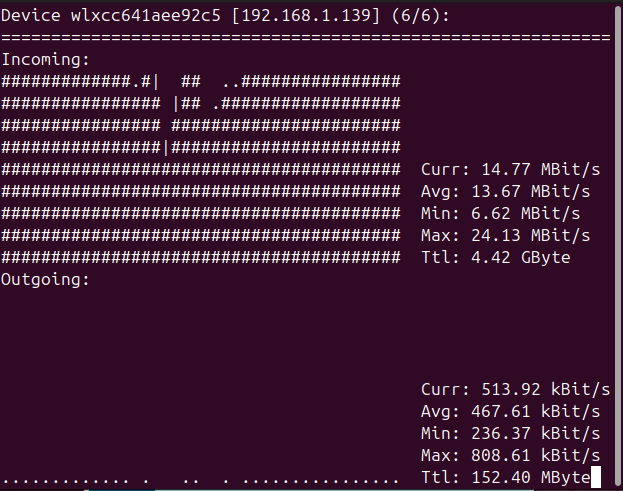
I used the Linux command nload to show the network activity.

For my wireless link (downloading a big file) the output was

I cannot currently reproduce the sustained Ethernet usage problem.

Wireshark showed my a lot of activity for SSH from port 55401 to port 22.

If you do not have access to Wireshark, the following command show all the socket activity which may help.

ss -t -a -i -O |grep delivery|awk '{print $4,$5, " ", $30,$31 }'

To find the owner of port 55401 I used the show socket command

ss -p |grep 55104
tcp ESTAB 0 0 10.1.0.2:55104 10.1.0.3:ssh users:(("ssh",pid=7258,fd=3))

This gave me the process id of the owner of the port. The ps command gives more information

ps -ef |grep 7258
colinpa+ 7258 ... ssh -x -a -oClearAllForwardings=yes -2 colin@10.1.0.3 -s sftp

Showing the sftp to 10.1.0.3.

How to stop the sftp?

The documentation for sshfs says use the fusermount3 command.

$fusermount3 -u ~/mountpoint 
fusermount3: failed to unmount /home/colinpaice/mountpoint: Device or resource busy

I needed to use the lazy unmount option -z

 fusermount3 -z  -u ~/mountpoint

and this successfully unmounted the remote file system

Chaff

I found out that information can be obtained from the profile of key strokes, and so chaff has been added to the SSH flow.

I fixed it by using setting ObscureKeystrokeTiming no in /etc/ssh/ssh_config. The documentation says

Specifies whether ssh(1) should try to obscure inter-keystroke timings from passive observers of network traffic. If enabled, then for interactive sessions, ssh(1) will send keystrokes at fixed intervals of a few tens of milliseconds and will send fake keystroke packets for some time after typing ceases. The argument to this keyword must be yes, no or an interval specifier of the form interval:milliseconds (e.g. interval:80 for 80 milliseconds). The default is to obscure keystrokes using a 20ms packet interval. Note that smaller intervals will result in higher fake keystroke packet rates.

Linux: Why are my cursor keys not working?

I created a new userid, and when I use the cursor keys in a command window it does not work as expected and I get commands like ]]?a

Solution

sudo chsh -s /bin/bash myid

If you use the command adduser you can specify the shell at create time.

Once you have done this you need to logoff and logon again (or just start a new window).

You should also have a .profile script for when you logon. My .profile has

# ~/.profile: executed by the command interpreter for login shells.
# This file is not read by bash(1), if ~/.bash_profile or ~/.bash_login
# exists.
# see /usr/share/doc/bash/examples/startup-files for examples.
# the files are located in the bash-doc package.

# the default umask is set in /etc/profile; for setting the umask
# for ssh logins, install and configure the libpam-umask package.
#umask 022

# if running bash
if [ -n "$BASH_VERSION" ]; then
# include .bashrc if it exists
if [ -f "$HOME/.bashrc" ]; then
. "$HOME/.bashrc"
fi
fi

# set PATH so it includes user's private bin directories
PATH="$HOME/bin:$HOME/.local/bin:$PATH"


JVM_ARGS="-Dcom.sun.management.jmxremote.port=9081 -Dcom.sun.management.jmxremote.authenticate=false -Dcom.sun.management.jmxremote.ssl=false "
# export MQCHLLIB=/var/mqm/qmgrs/QMA/@ipcc
export MQSSLKEYR=/var/mqm/qmgrs/QMB/ssl/key
export SWT_GTK3=0
export SWT_WEBKIT2=0
export CLASSPATH="${JAVA_HOME}/lib/tools.jar:${CLASSPATH}"
export LESS="-I -R"

This . profile invokes .bashrc (if it exists)

My file has

####### added for zPDT #######200725095805
export PATH=/usr/z1090/bin:$PATH
export LD_LIBRARY_PATH=/usr/z1090/bin:$LD_LIBRARY_PATH
export MANPATH=/usr/z1090/man:$MANPATH
ulimit -c unlimited
ulimit -d unlimited
####### end of added for zPDT #######

export LESS="-I -R "
export HISTTIMEFORMAT="%T "
export HISTFILESIZE=5000

How to reduce the chance of screwing up in a Linux window.

I had multiple Linux terminal windows open, doing SSH to different machines. I typed shutdown in the wrong window – and the wrong server shutdown!

I had configured different profiles so I could have a white background, a green background and a yellow background for my different systems, but I had got careless and not used them.

I found a neat way of colouring the windows automatically.

xdotool is a command-line X11 automation tool, which allows you to programmatically press keys. You can use this to set the profile of a terminal window.

To create a profile

From the hamburger options,

  • preferences,
  • profiles +
  • give the profile a name, create
  • select the named profile, it will display customising options
  • colours
  • untick Use colours from system theme
  • Click Text or Background
  • Pick a colour, Select
  • Close the window

Select a profile

Manually

  1. From the hamburger option
    • Select Profile
    • Pick a profile
  2. or Shift+f10
    • r (for Profile)
    • 3 for the third option in the list

Programmatically

xdotool key shift+F10 r 3

This does Shift+10, then select r for Profile, then picks the 3rd option

The clever bit

You can make an alias such as

alias somehost="xdotool key shift+F10 r 3; ssh user@somehost; xdotool key shift+F10 r 2"

or a somehost.sh script

#!/bin/sh
xdotool key shift+F10 r 3
ssh me@10.1.0.5
xdotool key shift+F10 r 2

If you enter the somehost command – it will select the 3rd profile, do the ssh. On exit from ssh it resets it back to the 2nd profile.