Python how do I convert a STCK to readable time stamp?

As part of writing a GTF trace formatter in Python I needed to covert a STCK value to a printable value. I could do it in C – but I did not find a Python equivalent.

from datetime import datetime
# Pass in a 8 bytes value
def stck(value):
value = int.from_bytes(value)
t = value/4096 # remove the bottom 12 bits to get value in micro seconds
tsm = (t /1000000 ) - 2208988800 # // number of seconds from Jan 1 1970 as float
ts = datetime.fromtimestamp(tsm) # create the timestamp
print("TS",tsm,ts.isoformat()) # format it

it produced

TS 1735804391.575975 2025-01-02T07:53:11.575975

Python could not read a data set I sent from z/OS USS.

I created a file in Unix System Services, and FTPed it down to my Linux box. I could edit it, and process it with no problems, until I came to read in the file using Python.

Python gave me

File “<frozen codecs>”, line 322, in decode
UnicodeDecodeError: ‘utf-8’ codec can’t decode byte 0xb8 in position 3996: invalid start byte

The Linux command file pagentn.txt gave me

pagentn.txt: ISO-8859 text

whereas other files had ASCII text.

I changed my Python program to have

with open(“/home/colinpaice/python/pagentn.txt”,encoding=”ISO-8859-1″) as file:

and it worked!

I browsed the web, and found a Python way of finding the code page of a file

import chardet    
rawdata = open(infile, 'rb').read()
result = chardet.detect(rawdata)
charenc = result['encoding']

it returned a dict with

result {‘encoding’: ‘ISO-8859-1’, ‘confidence’: 0.73, ‘language’: ”}

Creating a spread sheet from Python to show time spent

I’ve been using xlsxwriter from Python to create data graphs of data, and it is great.

I had problems with adding more data to a graph, and found some aspects of this was not documented. This blog post is to help other people who are trying to do something similar.

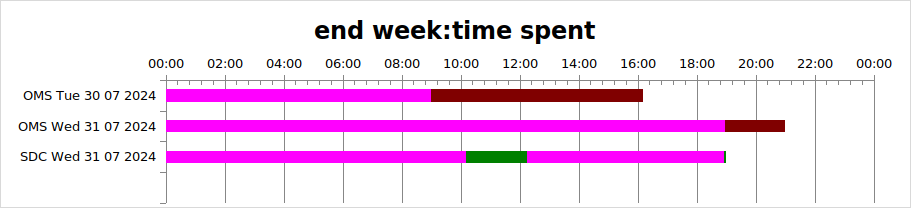
I wanted to produce a graph like

The pink colour would normally be transparent. I have coloured it to make the explanation easier.

This shows the OMS team worked from 0900 to 1600 on Monday, and SDC worked from 10am to 12am and for a few minutes on the same day around 1700. I wanted the data to be colour coded, so OMS was brown and SDC was green.

Create the workbook, and the basic chart

spreadSheet = "SPName"
workbook = xlsxwriter.Workbook(spreadSheet+"xlsx")
workbook.set_calc_mode("auto")
summary = workbook.add_worksheet("data")
hhmm = workbook.add_format({'num_format': 'hh:mm'})
# now the basic chart
chart = self.workbook.add_chart({'type': 'bar','subtype':'stacked'})
chart.set_title ({'name': "end week:time spent"})
chart.set_y_axis({'reverse': True})
chart.set_legend({'none': True})
chart.set_x_axis({
'time_axis': True,
'num_format': 'hh:mm',
'min': 0,
'max': 1.0,
'major_unit': 1/12,
'minor_tick_mark': 'inside'
})

chart.set_size({'width': 1070, 'height': 300})
summary.insert_chart('A1', chart)

Data layout

It took a while to understand how the data should be laid out in the table

ABCDEFG
1OStart1ODur 1SStart 1SDur1SInt2SDur2
2OMS Tue9.07.0
3OMS Wed17.02.0
4SDC Wed10.02.07.00.1

Where the data

  • OSTart1 is the time based on hours for OMS
  • ODur1 is the duration for OMS, so on Wed, the time was from 1700 to 1900, and interval of 2.0 hours
  • SStart1 is the start time of the SDC Wed item
  • SDur1 is the duration of the work. The work was from 1000 to 1200
  • SInt2 is the interval from the end of the work to the start of the next work. It is not the start time. It is 1000 + interval of 2 hours + interval of 7 hours, or 1900
  • SDur2 is the duration from the start of the work. It ends at 1000+ 2 hours + 7 hours + 0.1 hours

Define the data to the chart

To get the data displayed properly I used add_series to define the data.

Categories (The labels OMS Tue, OMS Wed, SDC Wed): You have to specify the same categories for all of your data. For me, range A2:A5. Using add_series for the OMS data, and add_series for the SDC data did not display the SDC data labels. This was the key to my problems.

You define the data as columns. The first column is the time from midnight. I have coloured it pink to show you. Normally this would be fill = [{‘none’ : true } ] You use

fill = [{'color': "pink"}] # fill = [{'none': True}]
chart.add_series({
'name': "Series1,
'categories': ["Hours",1,0,4,0],
'values': ["Hours",1,1,4,1],
'fill': fill
})

This specifies categories row 1, column 0 to row 4, column 0, and the column of data row 1, column 1, to row 4, column 1. (Column 0 is column A etc.)

For the second column – the brown, you use

fill = [{'color': "brown"}]
chart.add_series({
'name': "Series2,
'categories': ["Hours",1,0,4,0],
'values': ["Hours",1,2,4,2],
'fill': fill
})

The categories stays the same, the superset of names.

The “values” specifies the column of data row 1, column 2, to row 4, column 2.

Because the data for SDC is missing – this is not displayed.

For the SDC data I used 4 add_series request. The first one

  • name:Series3
  • ‘categories’: [“Hours”,1,0,4,0], the same as for OMS
  • values: row 1,column 3 to row 4 column 3

I then repeated this for columns (and Series) 4,5,6

This gave me the output I wanted.

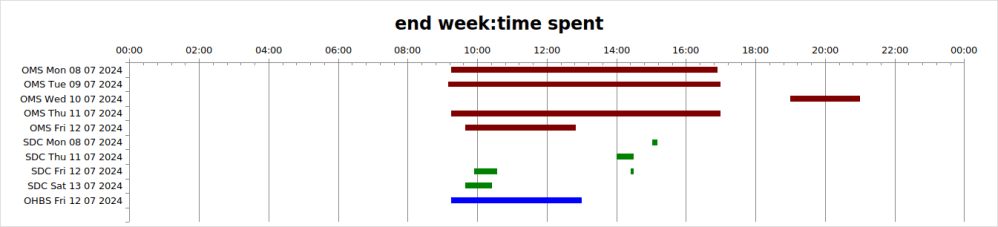
I used Python lists and used loops to generate the data, so overall the code was fairly compact. The overall result was

CEE3501S The module libpython3.8.so was not found.

Running some Python programs on z/OS I got the above error when using Python 11.

If seems that when the C code was compiled, an option (which I cannot find documented) says make it downward compatible.

The fix is easy…

The command ls -ltr /u/ibmuser/python/v3r11/lib/libpython* gave

-rwxr-xr-x ... Jul 15 12:09 /u/ibmuser/python/v3r11/lib/libpython3.11.so                     
lrwxrwxrwx ... Sep 6 12:11  /u/ibmuser/python/v3r11/lib/libpython3.8.so -> libpython3.11.so   

Automation production of a series of charts in Excel format is easy with a bit of Python

We use a building, and have a .csv files of the power used every half hour for the last three months. We wanted to produce charts of the showing usage, for every Monday, and for every week throughout the year. Creating charts in a spreadsheet,manually creating a chart, and adding data to the series, soon got very boring. It was much more interesting to automate this. This blog post describes how I used Python and xlsxWwriter to create an Excel format spread sheet – all this from Linux.

Required output

Because our building is used by different groups during the week, I wanted to have

  • a chart for “Monday” for one group of users, “Tuesday” for another group of users, etc. This would allow me to see the typical profile, and make sure the calculated usage was sensible.
  • A chart on a week by week basis. So a sheet and chart for each week.
  • Automate this so, I just run a script to get the spread sheet and all of the graphs.

From these profiles we could see that from 0700 to 0900 every day there was a usage hump – a timer was turning on the outside lights, even though no one used the building before 1000!

Summary of the code

Reading the csv file

I used

import csv
fn = "HF.csv"
with open(fn, newline='') as csvfile:
    reader = csv.DictReader(csvfile)
   for row in reader:
      # get the column lables
      keys = row.keys()
...

Create the workbook and add a sheet

This opens the specified file chart_scatter.xlsx, for output, and overwrites any previous data.

import xlsxwriter
...
workbook = xlsxwriter.Workbook('chart_scatter.xlsx')
data= workbook.add_worksheet("Data")

Create a chart template

I used a Python function to create a standard chart with common configuration, so all charts had the same scale, and look and feel.

def default_chart(workbook,title):
   chart1 = workbook.add_chart({'type': 'scatter'})
   # Add a chart title and some axis labels.
   chart1.set_title ({'name': title})
   chart1.set_x_axis({
          'time_axis':  True,
          'num_format': 'hh:mm',
          'min': 0, 
          'max': 1.0,
          'major_unit':1/12., # 2 hours
          'minor_unit':1.0/24.0, # every hour
          'major_gridlines': {
            'visible': True,
            'line': {'width': 1.25, 'dash_type': 'long_dash'},
             },
          'minor_tick_mark': 'inside'
          })
   chart1.set_y_axis({
          'time_axis':  True,
          'min': 0, 
          'max': 7.0, # so they all have the same max value
          'major_unit':1,
          'minor_unit':0,
          'minor_tick_mark': 'inside'
          })
         #chart1.set_y_axis({'name': 'Sample length (mm)'})
   chart1.set_style(11)  # I do not know what this does
   chart1.set_size({'width': 1000, 'height': 700})
   return chart1

Create a chart for every day of the week

This creates a sheet (tab) for each day of the week, creates a chart, and attaches the chart to the sheet.

days=['Mon','Tue','Wed','Thu','Fri','Sat','Sun']
days_chart = []
for day in days:
      c=default_chart(day) # create chart
      days_chart.append(c)     # build up list of days
      # add a sheet with name of the day of the week 
      wb =workbook.add_worksheet(day) # create a sheet with name 
      wb.insert_chart('A1',c)  # add chart to sheet

Build up the first row of data labels as a header row

This processes the CSV file opened above and writes each key to the first row of the table.

In my program I had some logic to change the headers from the csv column name to a more meaningful value.

fn = "HF.csv"
with open(fn, newline='') as csvfile:
    reader = csv.DictReader(csvfile)
    # read the header row from the csv  
    row  = next(reader, None)
    count = LC.headingRow(workbook,data,summary,row)
    keys = list(row.keys())
    for i,j in enumerate(keys):
       #  'i' is is the position
       # 'j' is the value
       heading = j 
       # optional logic to change heading 
       # write data in row 0, column i
       data.write_string(0,i,heading) # first row an column of the data
    # add my own columns header
    data.write_string(0,count+1,"Daily total")      
    

Convert a string to a data time

d = row['Reading Date'] # 01/10/2022
dd,mm,yy  = d.split('/')
dt = datetime.fromisoformat(yy+'-'+mm+'-'+dd)
weekday = dt.weekday()	
# make a nice printable value
dow =days[weekday] + ' ' + dd + ' ' + mm + ' ' + yy
row['Reading Date'] = datetime.strptime(d,'%d/%m/%Y')

Write each row

This takes the data items in the CSV file and writes them a cell at a time to the spread sheet row.

I have some cells which are numbers, some which are strings, and one which is a date time. I have omitted the code to convert a string to a date time value

ddmmyy  = workbook.add_format({'num_format': 'dd/mm/yy'})
for row in reader:
    keys = row.keys()
    items = list(row.items())  
    for i,j  in enumerate(items):  # ith and (key,value)
       j =j[1] # get the value
       # depending on data type - used appropriate write method
       if isinstance(j,datetime):
          data.write_datetime(r,i, j,ddmmyy)
       else:
       if j[0].isdigit():  
           dec = Decimal(j)
           data.write_number(r,i,dec) 
           sum = sum + dec 
       else:    
          data.write(r,i ,j) 

Create a sheet for each week

 if (r == 1 or dt.weekday() == 6): # First record or Sunday
 # create a new work sheet, and chart 
    temp = workbook.add_worksheet(dd + '-' +mm)
    chart1 = workbook.add_chart({'type': 'scatter'})
    chart1 = default_chart('Usage for week starting '+ ...)
    # put chart onto the sheet
    temp.insert_chart('A1', chart1)   

Add data range to each chart

This says create a chart with

  • data name from the date value in column 3 of the row – r is row number
  • use the column header from data sheet row 0, column 5; to row 0 column count -1
  • use the vales from from r, column 5 to row r ,column count -1
  • pick the colour depending on the day colours[] is an array of colours [“red”,”blue”..]
  • picks a marker type based on week day from an array [“square”,”diamond”…]
# r is the row number in the data 
chart1.add_series({
         'name':       ['Data',r,3],
         #  field name is row 0 cols 5 to ... 
         'categories': ['Data',0,5,0,count-1],
          # data is in row r - same range 5 to  ,,,
         'values':     ['Data',r,5,r,count-1],
          # pick the colour and line width 
         'line':       {'color': colours[weekday],"width" :1 },
         # and the marker
         'marker':     {'type': markers[weekday]}
       })

Write a cell formula

You can write a formula instead of a value. You have to modify the formula for each row and column.

In a spread sheet you can create a formula, then use cut and paste to copy it to many cells. This will change the variables. If you have for cell A1, =SUM(A2:A10) then copy this to cell B2, the formula will be =SUM(B3:B11).

With xlsxWriter you have to explicitly code the formula

worksheet.write_formula('A1', '{=SUM(A2:A10)}')
worksheet.write_formula('B2', '{=SUM(B3:B11)}')

Save, clean up and end

I had the potential to hide columns – but then they did not display.

I made the column widths fit the data.

# hide boring stuff
# data.set_column('A:C',None,None,{'hidden': 1}) 
# Make columns narrow 
data.set_column('D:D', 5)  # Just Column d    
data.set_column('F:BA', 5)  # Columns F-BA 30.    
workbook.close()       
exit(0)

Creating a C external function for Python, an easier way to compile

I wrote about my first steps in creating a C extension in Python. Now I’ve got more experience, I’ve found an easier way of compiling the program and creating a load module. It is not the official way – but it works, and is easier to do!

The traditional way of building a package is to use the setup.py technique. I’ve found just compiling it works just as well (and is slighly faster). You still need the setup.py for building Python source.

I set up a cp4.sh file

name=zos
pythonSide='/usr/lpp/IBM/cyp/v3r8/pyz/lib/python3.8/config-3.8/libpython3.8.x'
export _C89_CCMODE=1
p1=" -DNDEBUG -O3 -qarch=10 -qlanglvl=extc99 -q64"
p2="-Wc,DLL -D_XOPEN_SOURCE_EXTENDED -D_POSIX_THREADS"
p2="-D_XOPEN_SOURCE_EXTENDED -D_POSIX_THREADS"
p3="-D_OPEN_SYS_FILE_EXT -qstrict "
p4="-Wa,asa,goff -qgonumber -qenum=int"
p5="-I//'COLIN.MQ930.SCSQC370' -I. -I/u/tmp/zpymqi/env/include"
p6="-I/usr/lpp/IBM/cyp/v3r8/pyz/include/python3.8"
p7="-Wc,ASM,EXPMAC,SHOWINC,ASMLIB(//'SYS1.MACLIB'),NOINFO "
p8="-Wc,LIST(c.lst),SOURCE,NOWARN64,FLAG(W),XREF,AGG -Wa,LIST,RENT"
/bin/xlc $p1 $p2 $p3 $p4 $p5 $p6 $p7 $p8 -c $name.c -o $name.o -qexportall -qagg -qascii
l1="-Wl,LIST=ALL,MAP,XREF -q64"
l1="-Wl,LIST=ALL,MAP,DLL,XREF -q64"
/bin/xlc $name.o $pythonSide -o $name.so $l1 1>a 2>b
oedit a
oedit b

This shell script creates a zos.so load module in the current directory.

You need to copy the output load module (zos.so) to a directory on the PythonPath environment variable.

What do the parameters mean?

Many of the parameters I blindly copied from the setup.py script.

  • name=zos
    • This parametrizes the script, for example $name.c $name.o $name.so
  • pythonSide=’/usr/lpp/IBM/cyp/v3r8/pyz/lib/python3.8/config-3.8/libpython3.8.x’
    • This is where the python side deck, for resolving links the to functions in the Python code
  • export _C89_CCMODE=1
    • This is needed to prevent the message “FSUM3008 Specify a file with the correct suffix (.c, .i, .s,.o, .x, .p, .I, or .a), or a corresponding data set name, instead of -o./zos.so.”
  • p1=” -DNDEBUG -O3 -qarch=10 -qlanglvl=extc99 -q64″
    • -O3 optimization level
    • -qarch=10 is the architectural level of the code to be produced.
    • –qlanglvl=extc99 says use the C extensions defined in level 99. (For example defining variables in the middle of a program, rather that only at the top)
    • -q64 says make this a 64 bit program
  • p2=”-D_XOPEN_SOURCE_EXTENDED -D_POSIX_THREADS”
    • The C #defines to preset
  • p3=”-D_OPEN_SYS_FILE_EXT -qstrict ”
    • -qstrict Used to prevent optimizations from re-ordering instructions that could introduce rounding errors.
  • p4=”-Wa,asa,goff -qgonumber -qenum=int”
    • -Wa,asa,goff options for any assembler compiles (not used)
    • -qgonumber include C program line numbers in any dumps etc
    • -qenum=int use integer variables for enums
  • p5=”-I//’COLIN.MQ930.SCSQC370′ -I. -I/u/tmp/zpymqi/env/include”
    • Where to find #includes:
    • the MQ libraries,
    • the current working directory
    • the header files for my component
  • p6=”-I/usr/lpp/IBM/cyp/v3r8/pyz/include/python3.8″
    • Where to find #includes
  • p7=”-Wc,ASM,EXPMAC,SHOWINC,ASMLIB(//’SYS1.MACLIB’),NOINFO ”
    • Support the use of __ASM().. to use inline assembler code.
    • Expand macros to show what is generated
    • List the data from #includes
    • If using__ASM__(…) where to find assembler copy files and macros.
    • Do not report infomation messages
  • p8=”-Wc,LIST(c.lst),SOURCE,NOWARN64,FLAG(W),XREF,AGG -Wa,LIST,RENT”
    • For C compiles, produce a listing in c.lst,
    • include the C source
    • do not warn about problems with 64 bit/31 bit
    • display the cross references (where used)
    • display information about structures
    • For Assembler programs generate a list, and make it reentrant
  • /bin/xlc $p1 $p2 $p3 $p4 $p5 $p6 $p7 $p8 -c $name.c -o $name.o -qexportall
    • Compile $name.c into $name.o ( so zos.c into zos.o) export all entry points for DLL processing
  • L1=”-Wl,LIST=ALL,MAP,DLL,XREF -q64″
    • bind pararameters -Wl, produce a report,
    • show the map of the module
    • show the cross reference
    • it is a 64 bit object
  • /bin/xlc $name.o $pythonSide -o $name.so $L1 1>a 2>b
    • take the zos.o, the Python side deck and bind them into the zos.so
    • pass the parameters defined in L1
    • output the cross reference to a and errors to b
  • oedit a
    • This will have the map, cross reference and other output from the bind
  • oedit b
    • This will have any error messages – it should be empty

Notes:

  • -qarch=10 is the default
  • the -Wa are for when compiling assembler source eg xxxx.s
  • –qlanglvl=extc99. EXTENDED may be better than extc99.
  • it needs the -qascii to work with Python.

Python classes, objects, external functions and cleaning up.

I’ve been working in some code to be able to use z/OS datasets, and DD statements. It took me a while to understand how some bits of Python work.

I also did things such as open a file, allocate a 1MB buffer, and wondered how to close the file, and release the buffer to prevent a storage leak.

The Python import

The Python import makes external functions and classes available to a program. The syntax is like

import abc as xyz

x = xyz…..

abc can be

  • a file abc.py
  • a directory abc
  • a load module abc.so

I’ll focus on the load module.

The abc.so load module

This can define a function based approach, so you would use it like

fileHandle = zos.fopen(“colin.c”,”rb”)
data = zos.fread(fileHandle)
zos.fclose(fileHandle)

You can provide many functions. Some may return a “handle” object, such as fileHandle which is passed to other functions.

It can also be object based and the C load module external function creates a new type.

file = zos.fopen(“colin.c”,”rb”)
data = file.fread()
file.close()

The functions are associated with the object “file”, rather than the load module zos.

Internally the object is passed to the function.

Cleaning up

Within my code I had fileHandle = fopen(“datasetname”….), which allocated a 1MB buffer for the read function.

I also had fclose(fileHandle) where I closed the file and freed the buffer.

However I could also do

fileHandle = fopen(“datasetname1″….)
fileHandle = fopen(“datasetname2″….)
fileHandle = fopen(“datasetname3″….)
fclose(fileHandle)

with no intermediate fclose(), which would lead to a storage leak as the file was fclose routine was not being called.

Using a class to call a function at exit

If you have a Python class for your data you can use

def cb(self,a,b):
     self.handle =  zconsole.acb(a,b)
     atexit.register(self.clean_up,self.handle)

def clean_up(self,handle):
    if handle != None:
        zconsole.cancel(self.handle)

When function cb is used, it registers with the “at exit” routine atexit, and says, “at exit” call my routine “clean_up”, and pass the handle.

At shutdown the clean_up routine is called once for every instance, and gives the cancel code a chance to clean up.

Using a C external function and “functions”.

Within the external functions C code, is PyModuleDef which defines the module to Python.

As such there is no way to automatically get your clean up function to be called (and free my 1MB buffer).

However you can exploit the Python module state data. For example

struct {
myparm * ...
...
} myStatic;

static struct PyModuleDef zos_module = {
  PyModuleDef_HEAD_INIT,
  "zos",
  zos_doc,
  sizeof(myStatic),
  zos_methods, // the functions (methods)
  NULL, // Multi phase init. NULL -> single
  NULL, // Garbage collection traversal
  zos_clear, // Garbage collection clear
  zos_free // Garbage collection free
};

The block of state data is allocated for you, and you can issue the PyModule_GetState(PythonModule) function to get access this block.

You chain could chain your data from the state data, perhaps in a linked list.

When the clean up occurs, your “zos_free” routine will be called, and you can free all the storage you allocated and clean up.

For example

PyMODINIT_FUNC PyInit_zos(void) { 
  PyObject *d; 
                                                                                        
  /* Create the module  */ 
  mzos = PyModule_Create(&zos_module); 
  // get the state data and initialise it
  state * pState = (state * )  PyModule_GetState(mzos); 
  memcpy(pState -> eyec,"state   ",8);
  ... 
                                  
  PyDict_SetItemString(d, "__doc__", Py23Text_FromString(zos_doc)); 
  PyDict_SetItemString(d,"__version__", Py23Text_FromString(__version__)); 
                                                                                        
return mzos;

Using a C external function and “objects” or types.

With a “function based” function, you have Python code like

fileHandle = zos.fopen("myfilename"....)
data = zos.fread(fileHande)
...

With “object based” functions you have Python code like

file = zos.fopen("colin.c","rb")
data = file.fread()
file.close()

In this case the object is a Python type. There is a good description here.

As with function based code you define the attributes of the object, including the tp_dealloc function. This gets control when the object is deallocated. In the Custom_dealloc, function you can close the file and free the buffer etc.

static PyTypeObject CustomType = {
    PyVarObject_HEAD_INIT(NULL, 0)
    .tp_name = "custom.Custom",
    .tp_doc = PyDoc_STR("Custom objects"),
    .tp_basicsize = sizeof(CustomObject),
    .tp_itemsize = 0,
    .tp_dealloc = (destructor) Custom_dealloc,
    .tp_flags = Py_TPFLAGS_DEFAULT,
    .tp_new = PyType_GenericNew,
};

static void
Custom_dealloc(CustomObject *self)
{
   ... // put your code here
}

static PyModuleDef custommodule = {
    PyModuleDef_HEAD_INIT,
    .m_name = "custom",
    .m_doc = "Example module that creates an extension type.",
    .m_size = -1,
};

PyMODINIT_FUNC
PyInit_custom(void)
{
    PyObject *m;

    m = PyModule_Create(&custommodule);
    if (m == NULL)
        return NULL;
    Py_INCREF(&CustomType);
    if (PyModule_AddObject(m, "Custom", (PyObject *) &CustomType) <  0) {
        Py_DECREF(&CustomType);
        Py_DECREF(m);
        return NULL;
    }
    return m;
}

Note: The list of available .tp… definitions is available here.

Python import, packages and modules.

I’ve been building various Python packages (for example pymqi for z/OS, and accessing z/OS datasets from Python). It took me a while to understand how Python import works, for example why I needed two packages, one for my load modules, and one for the Python code.

There is a lot of good documentation but I felt it was missing the end user’s view who was starting to work in this area.

The import statement

The Python import makes external functions and classes available to a program. The syntax is like

import abc as xyz

x = zyx…..

abc can be

  • a file abc.py
  • a directory abc
  • a load module abc.so

They do the same thing, but differently

The abc.py file

This Python source file can have a class (for objects) or functions in the file. It can import other files.

The abc.pyc file

This is a compiled Python file (from abc.py).

The abc.so load module

The load module is generated from C source.

This can defined a function based approach, so you would use it like

fileHandle = zos.fopen(“colin.c”,”rb”)
data = zos.fread(fileHandle)
zos.fclose(fileHandle)

You can provide many functions. Some functions may return a “handle” object which is passed to other functions.

It can also be object based and the C code creates a new type.

hFile = zos.fopen(“colin.c”,”rb”)
data = hFile.fread()
hFile.fclose()

The function calls are attached to the object (hFile) – rather than the load module zos.

Internally the object is passed to the function.

The abc directory with __init__.py

This is known as a “regular” module package.

It has the __init__.py file, and can have other files and subdirectories.

The __init__.py is run when the package is first imported, so this can import other packages and do other initialisation.

The abc directory without __init__.py

This is the follow-on to regular module package, known as a “namespace” package. It feels a bit strange, and I guess most people do not need to know about it.

I’ll give the concept view here, and give an expanded description below.

For example you have a couple of directories

  • /u/mystuff/xyz/abc.py
  • /u/mystuff/xyz/a2.py
  • /usr/myprod/xyz/hij.pj
  • /usr/myprod/xyz/klm.pj

and when the PythonPath has both directories in it, you can use

import xyz
from xyz import abc, klm

which selects the directories in the PythonPath and imports from these.

Packages

The documentation says …

Python defines two types of packages, regular packages and namespace packages. Regular packages are traditional packages as they existed in Python 3.2 and earlier. A regular package is typically implemented as a directory containing an __init__.py file. When a regular package is imported, this __init__.py file is implicitly executed, and the objects it defines are bound to names in the package’s namespace. The __init__.py file can contain the same Python code that any other module can contain, and Python will add some additional attributes to the module when it is imported.

A Namespace package is a composite of various portions, where each portion contributes a sub-package to the parent package. Portions may reside in different locations on the file system. Portions may also be found in zip files, or where-ever else that Python searches during import. Namespace packages may or may not correspond directly to objects on the file system; they may be virtual modules that have no concrete representation.

My view as to how they work is

Regular packages

You have PYTHONPATH pointing to a list of directories.

You want to import foo.

  • For each directory on PYTHONPATH
    • If <directory>/foo/__init__.py is found, return the regular package foo
    • If <directory>/foo.{py,pyc,so,pyd} is found, return the regular package foo

If this returns with a package then import the package.

Namespace package

You have PYTHONPATH pointing to a list of directories.

You want to import foo.

  • dirList = “”
  • For each directory on PYTHONPATH
    • If <directory>/foo/__init__.py is found, return the regular package foo
    • If <directory>/foo.{py,pyc,so,pyd} is found, return the regular package foo
    • If “<directory>/foo/” is a directory then dirList += “<directory>/foo/

If no package was returned, and dirList is not empty then we have a namespace package.

This can be used as follows

from foo import abc

has logic like

  • for d in dirlist:
    • if d/”abc.*” exists then return d/”abc….”

This has the advantage that you can work on a sub component.

If you have PYTHONPATH = /u/colin;/usr/python, and there is a file /u/colin/foo/abc.py, the statement from foo import abc, xyz imports /u/colin/foo/abc and /usr/python/foo/xyz.py

Interacting with a Python script running as a started task on z/OS

I had blogged Running Python as a started task on z/OS which is fine if you run a script when runs and naturally ends. It is not a good idea, if you are using a long running script such as a server, because you have to cancel it, rather than shut it down.

I have created some code in github which allows you a Python script to Write To Operator, and wait for operator requests to Stop, or “modify” your job (pass it data).

It also allows you to display some z/OS information, job name, ASCB, thread TCB, and CPU used by thread.

Please try it and give me feedback.

Configuring a Python external function written in C on z/OS

You can write external functions for Python in C. For example I wrote one which can do a WTO and write to the system logs.

Creating this external function is not difficult, there are just several things to do.

High level view

For an external function called zconsole, there is a DLL (shared object) with name zconsole.so . Within this is an entrypoint label PyInit_zconsole.

PyInit_zconsole is a C function which returns a Python Object with information about the entry points within the DLL.

It can also define additional information such as a Python string “__doc__” which can be used to describe what the function does.

You can use the Python statement

print(dir(zconsole))

to give information about the module, the entry points, the module description, and additional fields like version number.

Conceptually the following are needed

  • The entry point PyInit_xxxxxx returns a PyModuleDef object
  • The PyModuleDef contains
    • The name of the module
    • A description of the module
    • A pointer to the module functions
  • The module functions contain, for each function
    • The function name as used in the Python program
    • A pointer to the C function
    • Specification of the parameters of the function
    • A description of the function

Because C needs something to be defined before it is used,the normal layout of the source is

  • C functions
  • Module functions definitions (which refer to the C functions)
  • PyModuleDef which refers to the Module Functions
  • The entry point which refers to the PyModuleDef

The initial entry point

This creates a Python object from the Python Modules Definitions, and passes it back to Python.

PyMODINIT_FUNC PyInit_zconsole(void) { 
  PyObject *m; 
                                                                             
  /* Create the module and add the functions */ 
  m = PyModule_Create(&console_module); 
                                                                             
return m; 
} 

Python Module Definitions

static char console_doc[] = 
  "z Console interface for Python"; 
static struct PyModuleDef console_module = {
   PyModuleDef_HEAD_INIT,
   "console",
   console_doc,
   -1,
   console_methods
};

Where

  • “console” is a short description. For the above if you use dir(zconsole) it gives __name__ console
  • console_doc refers to the string above which is a description of the module (defined above it)
  • console_methods define the C entry points – see below.

Methods

The list of functions must end in a NULL entry. The code below defines Python functions acb, taskinfo, and cancel. You can pass the description as a constant string or as a char * variable.

char * console_acb_doc[] = "...";
char * taskinfo_doc = "get the ASCB, TCB and TCBTTIME "; 
....
static struct PyMethodDef console_methods[] = { 
    {"acb", (PyCFunction)console_acb,METH_KEYWORDS | METH_VARARGS, console_acb_doc}, 
    {"taskinfo", (PyCFunction)console_taskinfo,METH_KEYWORDS | METH_VARARGS, taskinfo_doc},    
    {"cancel", (PyCFunction)console_cancel,METH_KEYWORDS | METH_VARARGS, "Cancel the subtask"},     
    {NULL, (PyCFunction)NULL, 0, NULL}        /* sentinel */ 
    }; 

A C function

This C function is passed the positional variable object, and keyword object, because of the “METH_KEYWORDS | METH_VARARGS” specified in the methods above. See below,

static PyObject *console_taskinfo(PyObject *self, PyObject *args, PyObject *keywds ) { 
  PyObject *rv = NULL;  // returned object 
  ... 
  // build the return value
  rv = Py_BuildValue("{s:s,s:s,s:s,s:l}", 
          "jobname",jobName, 
          "ascb",  cASCB, 
          "tcb",   cTCB, 
          "tcbttime", ttimer); 
  if (rv == NULL) 
  { 
    PyErr_Print(); 
    PyErr_SetString(PyExc_RuntimeError,"Py_BuildValue in taskinfo"); 
    printf(" Py_BuildValue error in taskinfo\n"); 
  } 
  return rv; 
}

Passing parameters from Python to the C functions.

In Python you can pass parameters as positional variables or as a list of name=value.

Passing a list of variables.

For example in a Python program, call an external function where two parameters are required.

result  = zconsole.acb(ccp,[exit_flag]) 

In the function definition use

static struct PyMethodDef console_methods[] = {
{"acb", (PyCFunction)console_acb, METH_VARARGS, console_cancel_doc},
{NULL, (PyCFunction)NULL, 0, NULL} /* sentinel */
};

and use

static PyObject *console_acb(PyObject *self, PyObject *args) {
  PyObject * method;
  PyObject * p1 = NULL;
  if (!PyArg_ParseTuple(args,"OO", // two objects
          &method, // function
          &p1 )// parms
      )
  {
   PyErr_SetString(PyExc_RuntimeError,"Problems parsing parameters");
   return NULL;
  }
...
}

Using positional and keyword parameters

For example in a Python program

rc = zconsole.console2("from console2",routecde=14) 

“from console2” is a positional variable, and routecde=14 is a keyword variable.

The function definition must include the METH_KEYWORDS parameter to be able to process the keywords.

{"console2", (PyCFunction)console_console2,
              METH_KEYWORDS |   METH_VARARGS, 
              console_put_doc},

The C function needs

static PyObject *console_console2(PyObject *self, 
                                  PyObject *args, 
                                  PyObject *keywds 
                                 ) {
...
}

You specify a list of keywords (which much include a keyword for positional parameters)

static PyObject *console_console2(PyObject *self, 
                                  PyObject *args, 
                                  PyObject *keywds 
                                 ) {
  char * p = "";
  Py_ssize_t lMsg = 0;
  // preset these
  int desc = 0;
  int route = 0;
  static char *kwlist[] = {"text","routecde","descr", NULL};
  // parse the passed data
  if (!PyArg_ParseTupleAndKeywords(args, keywds, 
       "s#|$ii", 
        kwlist,
        &p , // message text
       &lMsg , // message text
       &route, // i this variable is an array
       &desc , // i this variable is an array
  )) 
  {
    // there was a problem
    return NULL;
  }

In the static char *kwlist[] = {“text”,”routecde”,”descr”, NULL}; you must specify a parameter for the positional data (text).

In the format specification above

  • s says this is a string
  • # save the length
  • | the following are optional
  • $ end of positional
  • i an integer parameter
  • i another integer parameter.

You should initialise all variable to a suitable value because a variable is gets a value only of the relevant keyword (or positional) is specified.

How do I print an object from C?

If you have got an object (for example keywds), you can print it from a C program using

PyObject_Print(keywds,stderr,0);

Advanced configuration

You can configure additional information for example create a special exception type just for your code. You can create this and use it within your C program.

#define Py23Text_FromString PyUnicode_FromString  // converts C char* to Py3 str 
static PyObject *ErrorObj; 

PyMODINIT_FUNC PyInit_zconsole(void) { 
  PyObject *m, *d; 
                                                                                                   
  /* Create the module and add the functions */ 
  m = PyModule_Create(&console_module); 
                                                                                                   
  /* Add some symbolic constants to the module */ 
  d = PyModule_GetDict(m); 
                                                                                                   
  PyDict_SetItemString(d, "__doc__", Py23Text_FromString(console_doc)); 
  PyDict_SetItemString(d,"__version__", Py23Text_FromString(__version__)); 
  ErrorObj = PyErr_NewException("console.error", NULL, NULL); 
  PyDict_SetItemString(d, "console.error", ErrorObj); 
                                                                                                   
return m; 
} 
  • The d = PyModule_GetDict(m) returns the object dict for the function (you can see what is in the dict by using print(dir(zconsole))
  • PyDict_SetItemString(d, “__doc__”, Py23Text_FromString(console_doc)); Creates a unicode string from the console_doc string, and adds it to the dict with name “__doc__”
  • It also adds an entry for the version.
  • You could also define constants that the application might use.
  • The ErrorObj creates a new exception called “console.error”. It is added to the dict as “console.error”. This can be used to report a function specific error. For example
    • PyErr_Format(ErrorObj, “%s wrong size. Given: %lu, expected %lu”, name, (unsigned long)given, (unsigned long)expected); return NULL;
    • PyErr_SetString(ErrorObj, “No memory for message”); return NULL;

How do I compile the C code?

I used a shell script to make it easier to compile. The setup3.py does any Python builds

touch /u/tmp/console/console.c 
* generate the assembler stuff (outside of setup
as          -d cpwto.o cpwto.s 
as -a       -d qedit.o qedit.s 1> qedit.lst 
export _C99_CCMODE=1 
python3 setup3.py build bdist_wheel 1>a 2>b 
* copy the module into the Python Path
cp ./build/lib.os390-27.00-1090-3.8/console/zconsole.so .
* display the output.  b should be empty 
oedit a b 

The setup3 Python program is in several logical parts

# Basic imports
import setuptools 
from setuptools import setup, Extension 
import sysconfig 
import os 
os.environ['_C89_CCMODE'] = '1' 
from setuptools.command.build_ext import build_ext 
from setuptools import setup 
version = '1.0.0' 

Override the build – so unwanted C compile options can be removed

class BuildExt(build_ext): 
   def build_extensions(self): 
     print(self.compiler.compiler_so) 
     if '-fno-strict-aliasing' in self.compiler.compiler_so: 
       self.compiler.compiler_so.remove('-fno-strict-aliasing') 
     if '-Wa,xplink' in self.compiler.compiler_so: 
        self.compiler.compiler_so.remove('-Wa,xplink') 
     if '-D_UNIX03_THREADS' in self.compiler.compiler_so: 
        self.compiler.compiler_so.remove('-D_UNIX03_THREADS') 
     super().build_extensions() 
setup(name = 'console', 
    version = version, 
    description = 'z/OS console interface. Put, and respond to modify and stop request', 
    long_description= 'provide interface to z/OS console', 
    author='Colin Paice', 
    author_email='colinpaice3@gmail.com', 
    platforms='z/OS', 
    package_dir = {'': '.'}, 
    packages = ['console'], 
    license='Python Software Foundation License', 
    keywords=('z/OS console modify stop'), 
    python_requires='>=3', 
    classifiers = [ 
        'Development Status :: 4 - Beta', 
        'License :: OSI Approved :: Python Software Foundation License', 
        'Intended Audience :: Developers', 
        'Natural Language :: English', 
        'Operating System :: OS Independent', 
        'Programming Language :: C', 
        'Programming Language :: Python', 
        'Topic :: Software Development :: Libraries :: Python Modules', 
        ], 
        cmdclass = {'build_ext': BuildExt}, 
    ext_modules = [Extension('console.zconsole',['console.c'], 
        include_dirs=["//'COLIN.MQ930.SCSQC370'","."], 
        extra_compile_args=["-Wc,ASM,SHOWINC,ASMLIB(//'SYS1.MACLIB')", 
              "-Wc,LIST(c.lst),SOURCE,NOWARN64,XREF","-Wa,LIST,RENT"], 
        extra_link_args=["-Wl,LIST,MAP,DLL","/u/tmp/console/qedit.o", 
                                            "/u/tmp/console/cpwto.o", 
        ], 
       )] 
   ) 

This code…

  • The cmdclass = {‘build_ext’: BuildExt}, statement tells it to use the function I had defined.
  • Uses the C header files from MQ, using dataset COLIN.MQ930.SCSQC370
  • The C program uses the __asm__ statement to create inline assembler code. The macros libraries are for this assembler source are defined with ASMLIB(//’SYS1.MACLIB’)”,
  • The C listing is put into c.lst.
  • The bind options are LIST,MAP,DLL
  • The generated binder statement is /bin/xlc build/temp.os390-27.00-1090-3.8/console.o -o build/lib.os390-27.00-1090-3.8/console/zconsole.so….
  • The binder statements used include the assembler modules generate in the shell script are

INCLUDE C8920
ORDER CELQSTRT
ENTRY CELQSTRT
INCLUDE ‘./build/temp.os390-27.00-1090-3.8/console.o’
INCLUDE ‘/u/tmp/console/qedit.o
INCLUDE ‘/u/tmp/console/cpwto.o’
INCLUDE ‘/usr/lpp/IBM/cyp/v3r8/pyz/lib/python3.8/config-3.8/libpython

Some gotcha’s to look out for

The code is generated as 64 bit code.

Check you have the correct variable types.

You may get messages about conversion from 64 bit values to 31 bit values.

The code is generated with the ASCII option.

This means

printf(“Hello world\n”); will continue to work as expected. But a blank is 0x20, not 0x40 etc. so be careful when using hexadecimal.

Pass a character string between Python and z/OS

You will have convert from ASCII to EBCDIC, and vice versa when going back. For example copy the data from Python into a program variable, then convert and use it.

memcpy(pOurBuffer,pPythonData,lPythonData);
__a2e_l(pOurBuffer,lPythonData) ;
...

Returning character data from z/OS back to Python

If the data is in a z/OS field ( rather than a variable in your program), you will need to copy it and covert it. You can pass a null terminate string back to Python, or specify a length;
The code below uses Py_BuildValue to creates a Python dictionary {“jobname”: “COLINJOB”).

memcpy(&returnJobName,zOSJobName,8); 
returnJobName[8] = 0; // null terminator
__e2a_l(&returnJobName,8);
rv = Py_BuildValue("{s:s}","jobname",returnJobName); .. null terminated
// or
rv = Py_BuildValue("{s:s#}","jobname",returnJobName,8); // specify length