When tracing a job it helps to trace the correct address space.

The title When tracing a job it helps to trace the correct address space is a clue – it looks obvious, but the problem was actually subtle.

The scenario

I was testing the new version of Zowe, and one of the components failed to start because it could not find a keyring. Other components could find it ok. I did a RACF trace and there were no records. The question is why were there no records?

The execution environment.

I start Zowe with S ZOWE33. This spawns some processes such as ZOWE335. This runs a Bash script which starts a Java program.

I start a GTF trace with

s gtf.gtf,m=gtfracf
#set trace(callable(type(41)),jobname(Zowe*))

Where callable type 41 is for r_datalib services to access a keyring.

No records were produced

What is the problem?
Have a few minute pause to think about it.

Solution

After 3 days I stumbled on the solution – having noticed, but ignored the evidence. I wondered if the Java code to process keyrings, did not use the R_datalib API, I wondered if Java 21 uses a different jar file for processing keyrings – yes – but this didn’t solve the problem.

The solution was I should have been tracing job ZWE33CS! Whoa – where did that come from?

The Java program was started with

_BPX_JOBNAME=ZWE33CS /usr/lpp/java/J21.0_64/bin/java

See here which says

When a new z/OS® UNIX process is started, it runs in a z/OS UNIX initiator (a BPXAS address space). By default, this address space has an assigned job name of userIDx, where userID is the user ID that started the process, and x is a decimal number. You can use the _BPX_JOBNAME environment variable to set the job name of the new process. Assigning a unique job name to each … process helps to identify the purpose of the process and makes it easier to group processes into a WLM service class.

If I use the command D A,L it lists all of the address spaces running on the system. I had seen the ZOWE33* ones, and also the ZWE* ones – but ignored the ZWE* ones. Once I knew the solution is was so obvious.

Zowe: Getting data from Zowe

As part of an effort to trace the https traffic from Zowe, I found there are trace points you can enable.

You can get a list of these from a request like “https://10.1.1.2:7558/application/loggers”. In the browser it returns one long string like (my formatting)

{"levels":["OFF","ERROR","WARN","INFO","DEBUG","TRACE"],
"loggers":{"ROOT":{"configuredLevel":"INFO","effectiveLevel":"INFO"},
"_org":{"configuredLevel":null,"effectiveLevel":"INFO"},
"_org.springframework":{"configuredLevel":null,"effectiveLevel":"INFO"},
"_org.springframework.web":{"configuredLevel":null,"effectiveLevel":"INFO"},
...

Once you know the trace point, you can change it. See here.

Using https module

certs="--cert colinpaice.pem --cert-key colinpaice.key.pem"
verify="--verify no"
url="https://10.1.1.2:7558/application/loggers"
https GET ${url} $certs $verify

This displayed the data, nicely formatted. But if you pipe it, the next stage receives one long character string.

Using Python

#!/usr/bin/env python3

import ssl
import json
import sys
from http.client import HTTPConnection 
import requests
import urllib3
# trace the traffic flow
HTTPConnection.debuglevel = 1

my_header = {  'Accept' : 'application/json' }

urllib3.disable_warnings()
context = ssl.SSLContext(ssl.PROTOCOL_TLS_CLIENT)

certificate="colinpaice.pem"
key="colinpaice.key.pem"
cpcert=(certificate,key)
jar = requests.cookies.RequestsCookieJar()

s = requests.Session()
geturl="https://10.1.1.2:7558/application/loggers"

res = s.get(geturl,headers=my_header,cookies=jar,cert=cpcert,verify=False)

if res.status_code != 200:
    print("error code",res.status_code)
    sys.exit(8)

headers = res.headers

for h in headers:
    print(h,headers[h])

cookies = res.cookies.get_dict()
for c in cookies:
    print("cookie",c,cookies[c])

js = json.loads(res.text)
print("type",js.keys())
print(js['levels'])
print(js['groups'])
loggers = js['loggers']
for ll in loggers:
    print(ll,loggers[ll])

This prints out one line per item.

The command

python3  zloggers.py |grep HTTP

gives

...
org.apache.http {'configuredLevel': 'DEBUG', 'effectiveLevel': 'DEBUG'}
org.apache.http.conn {'configuredLevel': None, 'effectiveLevel': 'DEBUG'}
org.apache.http.conn.ssl {'configuredLevel': None, 'effectiveLevel': 'DEBUG'}
...

Zowe cli: Tracing the data

I spent a long time trying to find what data from a Zowe CLI commands was being sent to the backend. I did traces on the back end – but they did not show me the data. I eventually found traces for the work station end.

Trace the tls setup

export NODE_DEBUG='tls,https'

The tls trace gave me

TLS 18487: client _init handle? true
TLS 18487: client initRead handle? true buffered? false
TLS 18487: client _start handle? true connecting? false requestOCSP? false
TLS 18487: client emit session
TLS 18487: client onhandshakedone
TLS 18487: client _finishInit handle? true alpn false servername false
TLS 18487: client emit secureConnect. rejectUnauthorized: false, authorizationError: SELF_SIGNED_CERT_IN_CHAIN

The https trace gave me the output below. Certificates were used, and these were in the traced data

HTTPS 18509: createConnection [Object: null prototype] {
headers: {
'Content-Type': 'application/json',
'ibm-mq-rest-csrf-token': 'true'
},
hostname: '10.1.1.2',
method: 'POST',
path: null,
port: 9443,
rejectUnauthorized: false,
timeout: 5000,
cert: <Buffer ... 4021 more bytes>,
key: <Buffer 2d ... 1654 more bytes>,
_defaultAgent: Agent {
_events: [Object: null prototype] {
free: [Function (anonymous)],
newListener: [Function: maybeEnableKeylog]
},
_eventsCount: 2,
_maxListeners: undefined,
defaultPort: 443,
protocol: 'https:',
options: [Object: null prototype] {
keepAlive: true,
scheduling: 'lifo',
timeout: 5000,
noDelay: true,
path: null
},
requests: [Object: null prototype] {},
sockets: [Object: null prototype] {
'10.1.1.2:9443:::Certificate:\n
Data:\n
Version: 3 (0x2)\n Serial Number: 683 (0x2ab)\n
Signature Algorithm: ecdsa-with-SHA256
-----BEGIN CERTIFICATE-----
...
-----END CERTIFICATE-----\n
:::-----BEGIN PRIVATE KEY-----
-----END PRIVATE KEY-----\n::false:::::::::::::': []
},
freeSockets: [Object: null prototype] {},
keepAliveMsecs: 1000,
keepAlive: true,
...
},
host: '10.1.1.2',
keepAlive: true,
scheduling: 'lifo',
noDelay: true,
servername: '',
_agentKey: '10.1.1.2:9443:::Certificate:\n' +
' Data:\n' +
' Version: 3 (0x2)\n' +
' Serial Number: 683 (0x2ab)\n' +
' Signature Algorithm: ecdsa-with-SHA256\n'
...

'-----BEGIN CERTIFICATE-----\n' +
...
'-----END CERTIFICATE-----\n' +
':::-----BEGIN PRIVATE KEY-----\n' +
...
'-----END PRIVATE KEY-----\n' +
'::false:::::::::::::',
encoding: null,
keepAliveInitialDelay: 1000
}

Note: it traces setting up the handshake, it does not trace the application data flow.

Trace the application data

The section above shows the data for the TLS handshake obtained with NODE_DEBUG
To get the application data you need the Zowe CLI trace.

See Setting Cli Trace levels.

ZOWE_APP_LOG_LEVELZowe CLI logging levelLog4JS log levels (OFF, TRACE, DEBUG, INFO, WARN, ERROR, FATAL)WARN
ZOWE_IMPERATIVE_LOG_LEVELImperative CLI Framework logging levelLog4JS log levels (OFF, TRACE, DEBUG, INFO, WARN, ERROR, FATAL)WARN

The output is in the directory pointed to by ZOWE_CLI_HOME – which defaults to ~/.zowe/logs on Linux.

ZOWE_APP_LOG_LEVEL

The ZOWE_APP_LOG_LEVEL trace is boring. It is in home/colinpaice/.zowe/logs/zowe.log

[2025/08/02 15:05:37.754] [TRACE] [main.js:40] Init was successful
[2025/08/02 15:05:37.837] [DEBUG] [MQSessionUtils.js:22] Creating an MQ session from arguments
[2025/08/02 15:05:37.845] [INFO] [ConfigAutoStore.js:135] Skipping update of profile properties. Check that config file exists and autoStore is true.

ZOWE_IMPERATIVE_LOG_LEVEL

The ZOWE_IMPERATIVE_LOG_LEVEL=debug trace in logs/imperative.log has

[2025/08/02 15:12:02.162] [TRACE] [AppSettings.js:39] Attempting to load settings file: /home/colinpaice/tmp/settings/imperative.json
[2025/08/02 15:12:02.163] [TRACE] [AppSettings.js:56] Settings were loaded
[2025/08/02 15:12:02.163] [TRACE] [AppSettings.js:57] Loaded Settings:
[2025/08/02 15:12:02.163] [TRACE] [AppSettings.js:58] { overrides: { CredentialManager: '@zowe/cli' } }
[2025/08/02 15:12:02.163] [DEBUG] [ConfigManagementFacility.js:55] ConfigManagementFacility.init() - Start
[2025/08/02 15:12:02.163] [DEBUG] [UpdateImpConfig.js:38] Adding definition = 'config'
[2025/08/02 15:12:02.162] [TRACE] [AppSettings.js:39] Attempting to load settings file: /home/colinpaice/tmp/settings/imperative.json
[2025/08/02 15:12:02.163] [TRACE] [AppSettings.js:56] Settings were loaded
[2025/08/02 15:12:02.163] [TRACE] [AppSettings.js:57] Loaded Settings:
...

Lots of profile information and the schema…

The command entered

[2025/08/02 15:12:02.410] [DEBUG] [CommandYargs.js:75] Defining command: mqsc
[2025/08/02 15:12:02.411] [DEBUG] [CommandYargs.js:174] Building positional string from: mqsc
[2025/08/02 15:12:02.412] [DEBUG] [CommandYargs.js:180] Positional String: [qmgr] [cmd]
[2025/08/02 15:12:02.415] [DEBUG] [CommandYargs.js:94] Defining command builder for: mqsc
[2025/08/02 15:12:02.421] [DEBUG] [CommandYargs.js:105] Handler invoked for: mqsc
[2025/08/02 15:12:02.422] [DEBUG] [CommandYargs.js:118] Executing Handlers: mqsc
[2025/08/02 15:12:02.423] [DEBUG] [CommandYargs.js:136] Executing Handlers (1 total)
[2025/08/02 15:12:02.433] [INFO] [CommandProcessor.js:254] Invoking command "mqsc"...
[2025/08/02 15:12:02.439] [INFO] [CommandProcessor.js:255] Command issued:

zowe --mq-p mq --cert-key-file ./colinpaice.key.pem --cert-file ./colinpaice.pem --host 10.1.1.2 --port 9443 mq run mqsc CSQ9 DIS QMGR ALL


[2025/08/02 15:12:02.439] [TRACE] [CommandProcessor.js:256] Invoke parameters:
{
arguments: {
_: [ 'mq', 'run', 'mqsc' ],
'mq-p': 'mq',
'mq-profile': 'mq',
mqP: 'mq',
mqProfile: 'mq',
'cert-key-file': './colinpaice.key.pem',
certKeyFile: './colinpaice.key.pem',
'cert-file': './colinpaice.pem',
certFile: './colinpaice.pem',
host: '10.1.1.2',
H: '10.1.1.2',
port: '9443',
P: '9443',
version: undefined,
V: undefined,
'available-commands': undefined,
ac: undefined,
availableCommands: undefined,
'response-format-json': undefined,
rfj: undefined,
responseFormatJson: undefined,
help: undefined,
h: undefined,
'help-web': undefined,
hw: undefined,
helpWeb: undefined,
'help-examples': undefined,
helpExamples: undefined,
'reject-unauthorized': undefined,
ru: undefined,
rejectUnauthorized: undefined,
'show-inputs-only': undefined,
showInputsOnly: undefined,
'$0': 'zowe',
qmgr: 'CSQ9',
cmd: 'DIS QMGR ALL'
},
silent: false,
responseFormat: 'default'
}

More stuff

Send the request


[2025/08/02 15:12:02.499] [INFO] [AbstractRestClient.js:339] Setting socket connection timeout ms: 60000
[2025/08/02 15:12:02.500] [TRACE] [AbstractRestClient.js:538] Using PEM Certificate authentication
[2025/08/02 15:12:02.501] [TRACE] [AbstractRestClient.js:807] appendInputHeaders called with options on rest client {"headers":{},"hostname":"10.1.1.2","method":"POST","path":"/ibmmq/rest/v1/admin/action/qmgr/CSQ9/mqsc","port":9443,"rejectUnauthorized":false,
"timeout":60000,
"cert":{"type":"Buffer","data":[67,101,114,...,10]},
"key":{"type":"Buffer","data":[45,45,45,45,45,66,69,71,73,78,32,80,82,...5,10]}
}

MQRestClient
[2025/08/02 15:12:02.501] [TRACE] [AbstractRestClient.js:440] Rest request: POST 10.1.1.2:9443/ibmmq/rest/v1/admin/action/qmgr/CSQ9/mqsc
[2025/08/02 15:12:02.541] [DEBUG] [AbstractRestClient.js:173] will write data for request
[2025/08/02 15:12:02.542] [DEBUG] [AbstractRestClient.js:178] writing JSON for request
[2025/08/02 15:12:02.542] [TRACE] [AbstractRestClient.js:179] JSON body: {"type":"runCommand","parameters":{"command":"DIS QMGR ALL"}}
[2025/08/02 15:12:02.916] [DEBUG] [AbstractRestClient.js:575] Content length of response is: 3299
[2025/08/02 15:12:02.919] [TRACE] [AbstractRestClient.js:626] Data chunk received...
[2025/08/02 15:12:02.924] [DEBUG] [AbstractRestClient.js:668] onEnd() called for rest client MQRestClient
[2025/08/02 15:12:02.934] [INFO] [CommandProcessor.js:476] Handler for command "mqsc" succeeded.
[2025/08/02 15:12:02.937] [INFO] [CommandProcessor.js:824] Command "mqsc" completed with success flag: "true"
[2025/08/02 15:12:02.938] [TRACE] [CommandProcessor.js:825] Command "mqsc" finished.

and finally the response


{
success: true,
exitCode: 0,
message: '',
stdout: <Buffer 52 75 0a ... 1915 more bytes>,
stderr: <Buffer >,
data: {
commandResponse: [
{
completionCode: 0,
reasonCode: 0,
text: [
'CSQN205I COUNT= 3, RETURN=00000000, REASON=00000000',
'CSQM409I %CSQ9 QMNAME(CSQ9 ) DESCR(CSQ9, IBM MQ for z/OS - V9.0.1 )
...
"CSQ9022I %CSQ9 CSQMDRTS ' DIS QMGR' NORMAL COMPLETION"
]
}
],
overallReasonCode: 0,
overallCompletionCode: 0
},
error: undefined
}

Zowe explorer: first baby steps to using z/OS files

When people start to use ISPF they may struggle, because they think it is not obvious. I’ve been using it for over 40 years, and I use it without thinking. My fingers just do it.
I struggled when I used Zowe explorer, but my fingers are starting to remember the keystrokes.

If you change your team configuration you can use fast refresh. You can close and restart vscode or use

  • open command palette with ctrl+shift+p
  • type or select developer: reload window

You can change Zowe Explorer settings.

Ctrl+Shift+P Preferences: Open user settings (JSON)
As you type it displays the values for what you have typed, so I had only to type pref, and the one I wanted was near the top of the list.

You can also enter just the first letter of each word, so typing ou would display a short list of valid words.

This brings up a file which you can edit. It is often easier to work with the JSON, because not all options are covered.

Working with ISPF to edit a member

When I work with ISPF, I typically

  • Use ISPF 3.4 to edit a data set, this lists the members
  • 6 tabs and press enter to sort the members, so the most recently changed members are at the top,
  • Shift return to tab down, to the first member
  • type E on the line prefix and press enter to edit it

It takes longer to read – than to execute it.

To do ISPF 3.4 in Zowe explorer

  • Activate the Zowe side bar
  • Single click on DATASETS
  • Single click on your profile
  • You can click on the magnifying lens icon (the search icon) and give a fully or partially qualified dataset name
  • Single click on your data set to list the members

Sort the members

  • Single right click on the data set
  • Single click on Sort PDS members.
    • click on Sort direction first
    • then click on the attribute
    • If you click on attribute first, you have to click on Sort PDS members a second time to be able to select the attribute

Edit the member

Single click on the member to edit it.

Big lists of members comes in pages

To speed up list processing, if there are more than 100 members in a PDS, then Zowe Explorer displays “pages”.For example

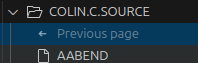
The Next page 2/2 is highlit, so there is a page available page 2 out of 2. The Previous page is grey, so there are no more pages before this one.

You can disable this, or change the number of entries per page in the settings.

Setting default sort

I added into the file the text zowe.ds.default.sort…. below

"window.menuBarVisibility": "compact",
"editor.rulers": [
],
"zowe.ds.default.sort": {
"method": "Name",
"direction": "Ascending"
}

See here.

Getting into supervisor mode and other hard things in C, is easy.

Some functions in z/OS need a user to be in a privileged state such as key zero or supervisor state. Writing the code in assembler has been pretty easy, but writing it in a C program has been hard.

For example you could write a function in assembler, and call it. This has the cross language challenges.

I recently found an easy way – just reuse some code from Zowe. This is open source, so you need to follow the license

This program and the accompanying materials are made available under the terms of the Eclipse Public License v2.0 which accompanies this distribution, and is available at https://www.eclipse.org/legal/epl-v20.html

SPDX-License-Identifier: EPL-2.0

Copyright Contributors to the Zowe Project.

The code uses __asm() Inline assembly statements (IBM extension).

The functions are

  • ddnameExists
  • wtoMessage
  • wtoPrintf3
  • atomicIncrement compare and swap
  • testauth
  • extractPSW
  • supervisorMode or back to problem state
  • setKey
  • getExternalSecurityManager
  • getCVT
  • getATCVT
  • getIEACSTBL
  • getCVTPrefix
  • getECVT
  • getTCB
  • getSTCB
  • getOTCB
  • getASCB
  • getASXB
  • getASSB
  • getJSAB
  • getCurrentACEE
  • getFirstChildTCB
  • getParentTCB
  • getNextSiblingTCB
  • resolveSymbolBySyscall Input: A symbol starting with & and not ending with .
  • resolveSymbol Input: A symbol starting with & and not ending with .
  • lots of saf functions see here
  • loadByName
  • getDSAB Data Set Association Block
  • isCallerLocked
  • isCallerCrossMemory

Some of these need to be APF protected, so although it is easy to use the above code, you may still need to get the load library APF authorised, and the code approved.


For example

Get into supervisor state

The code here.

int supervisorMode(int enable){
// Use MODESET macro for requests
int currentPSW = extractPSW();
if (enable){
if (currentPSW & PROBLEM_STATE){
__asm(ASM_PREFIX
" MODESET MODE=SUP \n"
:
:
:"r0","r1","r15");
return TRUE;
} else{
return FALSE; /* do nothing, tell caller no restore needed */
}
} else{
if (currentPSW & PROBLEM_STATE){
return TRUE; /* do nothing, tell user was in problem state */
} else{
__asm(ASM_PREFIX
" MODESET MODE=PROB \n"
:
:
:"r0","r1","r15");
return FALSE;
}
}
}

To compile it I used

// SET LOADLIB=COLIN.LOAD 
//DOCLG EXEC PROC=EDCCB,INFILE='ADCD.C.SOURCE(C)',
// CPARM='OPTF(DD:COPTS)'
//* CPARM='LIST,SSCOMM,SOURCE,LANGLVL(EXTENDED)'
//COMPILE.ASMLIB DD DISP=SHR,DSN=SYS1.MACLIB
//COMPILE.COPTS DD *
LIST,SOURCE
aggregate(offsethex) xref
SEARCH(//'ADCD.C.H',//'SYS1.SIEAHDR.H')
TEST
ASM
RENT ILP32 LO
OE
NOMARGINS EXPMAC SHOWINC XREF
LANGLVL(EXTENDED) sscom dll
DEFINE(_ALL_SOURCE)
DEBUG
/*
...

You need to specify

  • //COMPILE.ASMLIB for the the assembler macro libraries.
  • and the compiler option ASM which enables inlined assembly code inside C/C++ programs.

I was all so easy, once I had been told about it.

Wow, how to logon securely is so complex….

I’ve been looking into login on to Zowe and z/OSMF, and have realised how complex it is to set up secure logon.

An obvious fact about real life

If someone has access to your machine, for example a hacker, then they have access to your files, and data in virtual storage.

I cover

A lot of the time it is not difficult, but you need to handle the edge cases. When there are multiple dimensions to the problem, the edge case becomes the corner case, and this is where it gets really hard.

I use the expression is not secure. Being secure is relative. If your machine is air gapped with no external access, the machine should be secure. If people can access your files, perhaps on a shared machine, or a hacker can accessed your machine, I would not consider this secure.

The simplest case of logging on manually from a client machine to the server

Of course you use a TLS session to ensure the session traffic is encrypted.

You can type the values into the userid and password fields. It works, simple. If I disconnect and reconnect, I need to re-enter the userid and password

If I am using more than one back end server, I’ll have to enter the userid and password for each system, while the session is active.

Once the userid and password have been used, the fields in memory should be overwritten (but I doubt if this is always the case), to minimise the time window when a hacker extract the values from memory.

The simple case of logging on from a script from the client to the server.

You will not be there to enter the password so it needs to be stored.

The script may prompt you for the userid and password. You enter the information once, and it keeps them in virtual storage, and does not write them to disk. At the end of the session these values need to be overwritten in case a hacker is wandering round your system.

The application may write the information to disk – and we immediately hit a major problem. If a hacker has access to your system, then they can access (and copy away from your machine) the file where the password is stored. On Linux I displayed the contents of the “secure store” with a few lines of Python. I believe it is the same for Windows and Apple machines. (If your userid needs access to the secure store for something, a hacker thread running with your userid can access the store).

We have quickly seen that the use of a password stored on the machine is not secure.

Use of a certificate

As part of the TLS handshake there is a private key kept on the local machine, and a public key is sent to the partner.

Trusting a certificate

As part of setting up the public key, I send the public key to the server. The server’s Certificate Authority does a checksum of the public key, then encrypts the checksum with the server’s private key. The public certificate, encrypted checksum and the CA’s public key are sent back to the originator.

When the public certificate is used as part of the TLS handshake, the server does the same checksum calculation as before on public certificate, and saves it momentarily. It takes the encrypted checksum from the payload, decrypts it, and compares the two checksum values. If they match, then the client’s certificate can be trusted and has not been changed. Therefore the certificate is trusted (for a given level of trust) to represent the end user.

My program has access to my private key – so authenticates as me

As part of the handshake data, the client encrypts some data using its private key, and sends this to the server. The server uses the public key it received, and decrypts this value. If the decrypted data matches what it is expecting, then this is proof that the client has the private key and is who they say they are.

The server can then use the mapping of “name in the public key” to a userid, to determine which userid the requester should run under.

Once this is set up, the client can connect to the server without specifying a userid and password.

There is a proposal to reduce the validity time of personal certificates from over a year to 47 (or less) days. This reduces the time window when a certificate can be used.

This is great … but

If your private key is stored on your disk, a hacker can steal a copy of the file and impersonate you. So once again this is not very secure.

Use a private key – external to your computer

You can get a dongle, such as a Yubikey which keep the private key secured on a detachable USB dongle. To use it, a request is passed to the dongle saying “please encrypt this data”. It encrypts the data, returns it, and it can be sent to the server. You cannot extract the private key from the dongle.

To use this for authentication you physically need the dongle. If someone has control of your machine, they can use this dongle when it is plugged in. If they just have a copy of your files they cannot use the dongle, and so this is secure.

If you remove the dongle when you are not using it, we have a secure solution, until you plug it back in! Most people may forget and leave the dongle in all day.

I’ve been to sites, where the private key is stored on their badge. When they want to authenticate they put their badge on a badge reader and authenticate. This is awkward, so they immediately take their badge off the reader after authentication.

Setting up these external key stores is not trivial.

Use of Multi Factor Authentication(MFA)

One of the main approaches to MFA is

  • something you have
  • something you know

MFA is often used in applications such as online banking.For some transactions you will have a code sent to your email address. Something you know is your application password, something you have is the code sent to you. To use the service, an application password and access to your email is required.

MFA can also use one time passwords – so if someone is monitoring your network traffic they will not be able to reuse the one-time-password.

You can get the one-time-password generated from your badge, a dongle attached to your machine, or an application, such as an authenticator application on your phone. Once these apps have been configured to the back-end, you can press a button and get a one time code.

To logon you may need your normal logon password (which you change monthly) and the one time code from the MFA device. You might just need the one-time-code – depends on how the environment has been set up.

This is great for you logon to a backed and stay connected. If you have script, or are using multiple back-end servers. This becomes impractical. You need a new one-time-code each time you logon. This can be automated if the MFA device is attached to your machine, but not if you are using a mobile phone application.

One small problem is when the user’s password has expired. They are prompted to change it, and now need another One Time Password – and they may have to wait for a period (seconds) before a new one is generated.

JSON Web tokens

See Are JSON Web Tokens secure? – Yes if used properly.

A JSON Web Token(JWT) provides a time limited key, and so avoids the problems when changing a password. Some of the concepts are similar to a certificate logon, but with a limited validity, from minutes to hours.

With RACF these are known as Identity token. (Having a different name, means RACF development can extend the support to cover additional tokens types.)

A JWT has three parts

  • Information about the JWT. This JWT has used an RSA certificate, and algorithm SHA256.
  • Identity information. The userid is…, it was issued by ( z/OSMF, or SAF), at this time…. and is valid until….
  • The above parts are check summed, and the check sum is encrypted using a private key.

The above 3 parts are base 64 encoded, and joined together with a ‘.’ between them.

Once a JWT token is created, it is valid until it expires. You need to consider if you want a JWT to be valid for a few minutes, or all day.

You create (or have the system create for you) the header and the payload. You calculate the checksum, and encrypt the checksum with the private key.

The parts of the JWT are assembled and sent to the partner.

The partner uses its copy of the public key, and checks that the checksum matches what it expects and, if it matches, can use the information in the payload part. This validation could be a call to a RACF service, a https request to a server, or Java.

Once the JWT has been validated, the server can use the information in the payload.

You do not want to use the userid in the JWT directly, because the userid COLIN on one system has no authority, but has super user authority on another system.

With RACF you can map a userid string to a RACF userid using profiles defined with the RACMAP command. See the r_usermap service.

While the JWT is valid it could be used by a hacker.

Overall

It looks like there is not one good solution to cover all cases.

Someone said “assume your machine will be hacked. Minimise what damage they can do”. This may be as simple as turning your machine off overnight, so the hackers cannot control it

The solution for scripts may be different to people logging on.

You may want to have a userid just for scripts, which has only enough authority and permissions to work, and no additional permissions.

You need to consider the options and risks, and not just sleepwalk into having an insecure system.

Zowe explorer: first baby steps to submitting jobs

I found using Zowe explorer was not intuitive, and I had a lot of help to get started.

This blog post explains how to submit JCL, look at the output etc.

Depending on how you are doing authentication you may get prompted for userid, password or both. I use certificate logon, so do not get prompted.

I have a PDS with C code, and a PDS containing the JCL to compile, bind and run the program. I wanted to edit the C source, submit the JCL, and look at the output.

Editing a C file

  • Open Zowe explorer (the Z in a diamond icon)
  • Under data sets, select a profile. You may be prompted to logon.
  • Select the search icon (magnifying glass)
  • Select an existing filter, or create a new one, (for example COLIN.C.Z* )
  • Press enter. This will list the data sets matching the search criteria
  • Single click the data set to display the members
  • Single click the member name to edit it
  • Use Ctrl+S to save your changes.

Editing the JCL file

  • Follow the steps above to open the JCL member
  • Right click and select Submit as JCL
  • This will create a pop up, at the bottom right of the screen with the job number.
  • You can click the job number, and this will open the job under JOBS and the profile on the left hand side. If you have a spool job filter, (to display your spool files) you may not want to click on the pop up job id.
  • Single click the job (under JOBS) to display the content of the spool data sets

Display your usual list of jobs

If you clicked on the pop up window giving the submitted job name, it creates a temporary filter under the JOBS profile.

To reset this back to normal, click on the profile’s search icon, select the filter you want, and select Select this query. (This is too many clicks for me!)

Edit the C file again

You can now go to the C source tab and continue editing your program.

To speed things up

Create/use a keyboard short cut

To jump between the editor windows. Ctrl+Tab, Tab etc to the window. Ctrl+shift+tab to tab backwards.

You can use keyboard short cuts for some of the above. I wanted to create a shortcut to submit JCL.

Ctrl+K Ctrl+S gives the current keyboard short cuts.

Type Ctrl+J in the search window. It gave me

Ctrl+J is in use, so I’ll use Ctrl+Alt+J

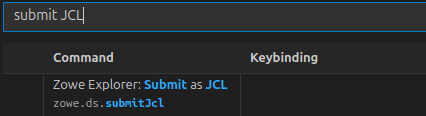
Type submit JCL into the search window. This gave me

So I can see it is not bound to a key.

Click on the item, and on the + sign which appears. A window pops up. Use the key combination, and press enter.

Use favourites

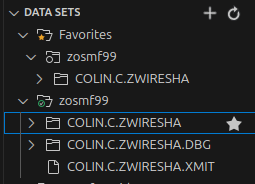
For data sets you often use, you can click on them and add to favourites, so they are always there

To have favourites spool job filters when you are looking at the spool.

  • Select the spool filter (and display any output)
  • Right click on the profile, and select Add to favourites
  • The filter will then appear in the Favourites section

If you submit a job, click on the popup window jobid, it will display it in the JOBS, under the active profile. You can get back to your usual spool filter settings, by going to the favourites.

Thanks

With thanks to Joshua Waters for all of his patience in helping me.

Zowe: Colin’s zowe cli help options

The zowe cli help option does not easily tell you how to get all of the help. In order to get the syntax of the command – you have to know the full command with the and then add the –help option!

ZOSMF CONNECTION OPTIONS

  • -host | -H (string) The z/OSMF server host name.
  • –port | -P (number) The z/OSMF server port. Default value: 443
  • –user | -u (string) Mainframe (z/OSMF) user name, which can be the same as your TSO login. Your TSO logon userid
  • –password | –pass | –pw (string) Mainframe (z/OSMF) password, which can be the same as your TSO password. Your TSO userid’s password
  • –reject-unauthorized | –ru (boolean) Reject self-signed certificates. Default value: true
  • –base-path | –bp (string) The base path for your API mediation layer instance. Specify this option to prepend the base path to all z/OSMF resources when making REST requests. Do not specify this option if you are not using an API mediation layer.
  • –protocol (string)
  • –cert-file (local file path) The file path to a certificate file to use for authentication
  • –cert-key-file (local file path) The file path to a certificate key file to use for authentication
  • –completion-timeout | –cto (number) The amount in time, in seconds, a REST operation should wait to complete before timing out
  • –establish-connection-timeout | –ecto (number) The amount of time, in seconds, a REST operation should wait while connecting to the server before timing out.
  • PROFILE OPTIONS

PROFILE OPTIONS

  • –zosmf-profile | –zosmf-p (string) The name of a (zosmf) profile to load for this command execution.
  • –base-profile | –base-p (string) The name of a (base) profile to load for this command execution.

BASE CONNECTION OPTIONS

  • –token-type | –tt (string) The type of token to get and use for the API. Omit this option to use the default token type, which is provided by ‘zowe auth login’.
  • –token-value | –tv (string) The value of the token to pass to the API.

Zowe cli help command is not helpful!

The zowe cli help option does not easily tell you how to get all of the help. In order to get the syntax of the command – you have to know the full command with the and then add the --help option! (This is working as designed!)

There is some online help here in a tree view or a “flat view of all of the commands“.

Whoops profile options not found


Step 1

The command zowe --help gives output including

USAGE
zowe <group>

Where <group> is one of the following:

GROUPS
auth Connect to Zowe API ML authentication service
config Manage JSON project and global configuration
zos-console | console Issue z/OS console commands and collect responses

...

Step 2

Now you know there is a console command….

The command zowe --help console gives output including

 USAGE

zowe zos-console <group>

Where <group> is one of the following:

GROUPS

collect Collect z/OS console command responses
issue Issue z/OS console commands

Step 3

Now you know there is a console issue command…

The command zowe --help console issue finally gives lots of output including

  • OPTIONS
    • --console-name | --cn | -c
    • --include-details | --id | -i
    • --key-only | --ko | -k (boolean)
    • --return-first | --rf | -r (boolean)
    • --solicited-keyword | --sk | -s (string)
  • ZOSMF CONNECTION OPTIONS
    • --host | -H (string) The z/OSMF server host name.
    • --port | -P (number) The z/OSMF server port. Default value: 443
    • --user | -u (string) Mainframe (z/OSMF) user name, which can be the same as your TSO login. Your TSO logon userid
    • --password | --pass | --pw (string) Mainframe (z/OSMF) password, which can be the same as your TSO password. Your TSO userid’s password
    • --reject-unauthorized | --ru (boolean) Reject self-signed certificates. Default value: true
    • --base-path | --bp (string) The base path for your API mediation layer instance. Specify this option to prepend the base path to all z/OSMF resources when making REST requests. Do not specify this option if you are not using an API mediation layer.
    • --protocol (string)
    • --cert-file (local file path) The file path to a certificate file to use for authentication
    • --cert-key-file (local file path) The file path to a certificate key file to use for authentication
    • --completion-timeout | --cto (number) The amount in time, in seconds, a REST operation should wait to complete before timing out
    • --establish-connection-timeout | --ecto (number) The amount of time, in seconds, a REST operation should wait while connecting to the server before timing out.
  • PROFILE OPTIONS
    • --zosmf-profile | --zosmf-p (string) The name of a (zosmf) profile to load for this command execution.
    • --base-profile | --base-p (string) The name of a (base) profile to load for this command execution.
  • BASE CONNECTION OPTIONS
    • --token-type | --tt (string) The type of token to get and use for the API. Omit this option to use the default token type, which is provided by ‘zowe auth login’.
    • --token-value | --tv (string) The value of the token to pass to the API.
  • MQ options
    • --mq-profile | --mq-p (string) The name of a (MQ) profile to load for this command execution.

Now you know what the options are you can search for them. This pointed me to the console command page.

Whoops profile options not found

I fell over trying to specify a nested profile.

For example

...
"profiles": {
"qa_lpar": { // Base profile connection properties are used unless overriden
"type": "base",
"properties": {
}
},
"profiles": {
"mq": {...
},

This is referred to as qa_lpar.mq .

What would I have done?

Personally I would have have a help page which listed all of the common options then list commands for example

  • Common options
    • --host etc

Specific commands