Zowe explorer: first baby steps to using z/OS files

When people start to use ISPF they may struggle, because they think it is not obvious. I’ve been using it for over 40 years, and I use it without thinking. My fingers just do it.
I struggled when I used Zowe explorer, but my fingers are starting to remember the keystrokes.

If you change your team configuration you can use fast refresh. You can close and restart vscode or use

  • open command palette with ctrl+shift+p
  • type or select developer: reload window

You can change Zowe Explorer settings.

Ctrl+Shift+P Preferences: Open user settings (JSON)
As you type it displays the values for what you have typed, so I had only to type pref, and the one I wanted was near the top of the list.

You can also enter just the first letter of each word, so typing ou would display a short list of valid words.

This brings up a file which you can edit. It is often easier to work with the JSON, because not all options are covered.

Working with ISPF to edit a member

When I work with ISPF, I typically

  • Use ISPF 3.4 to edit a data set, this lists the members
  • 6 tabs and press enter to sort the members, so the most recently changed members are at the top,
  • Shift return to tab down, to the first member
  • type E on the line prefix and press enter to edit it

It takes longer to read – than to execute it.

To do ISPF 3.4 in Zowe explorer

  • Activate the Zowe side bar
  • Single click on DATASETS
  • Single click on your profile
  • You can click on the magnifying lens icon (the search icon) and give a fully or partially qualified dataset name
  • Single click on your data set to list the members

Sort the members

  • Single right click on the data set
  • Single click on Sort PDS members.
    • click on Sort direction first
    • then click on the attribute
    • If you click on attribute first, you have to click on Sort PDS members a second time to be able to select the attribute

Edit the member

Single click on the member to edit it.

Big lists of members comes in pages

To speed up list processing, if there are more than 100 members in a PDS, then Zowe Explorer displays “pages”.For example
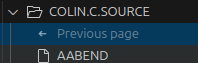
The Next page 2/2 is highlit, so there is a page available page 2 out of 2. The Previous page is grey, so there are no more pages before this one.

You can disable this, or change the number of entries per page in the settings.

Setting default sort

I added into the file the text zowe.ds.default.sort…. below

"window.menuBarVisibility": "compact",
"editor.rulers": [
],
"zowe.ds.default.sort": {
"method": "Name",
"direction": "Ascending"
}

See here.

Zowe explorer: first baby steps to submitting jobs

I found using Zowe explorer was not intuitive, and I had a lot of help to get started.

This blog post explains how to submit JCL, look at the output etc.

Depending on how you are doing authentication you may get prompted for userid, password or both. I use certificate logon, so do not get prompted.

I have a PDS with C code, and a PDS containing the JCL to compile, bind and run the program. I wanted to edit the C source, submit the JCL, and look at the output.

Editing a C file

  • Open Zowe explorer (the Z in a diamond icon)
  • Under data sets, select a profile. You may be prompted to logon.
  • Select the search icon (magnifying glass)
  • Select an existing filter, or create a new one, (for example COLIN.C.Z* )
  • Press enter. This will list the data sets matching the search criteria
  • Single click the data set to display the members
  • Single click the member name to edit it
  • Use Ctrl+S to save your changes.

Editing the JCL file

  • Follow the steps above to open the JCL member
  • Right click and select Submit as JCL
  • This will create a pop up, at the bottom right of the screen with the job number.
  • You can click the job number, and this will open the job under JOBS and the profile on the left hand side. If you have a spool job filter, (to display your spool files) you may not want to click on the pop up job id.
  • Single click the job (under JOBS) to display the content of the spool data sets

Display your usual list of jobs

If you clicked on the pop up window giving the submitted job name, it creates a temporary filter under the JOBS profile.

To reset this back to normal, click on the profile’s search icon, select the filter you want, and select Select this query. (This is too many clicks for me!)

Edit the C file again

You can now go to the C source tab and continue editing your program.

To speed things up

Create/use a keyboard short cut

To jump between the editor windows. Ctrl+Tab, Tab etc to the window. Ctrl+shift+tab to tab backwards.

You can use keyboard short cuts for some of the above. I wanted to create a shortcut to submit JCL.

Ctrl+K Ctrl+S gives the current keyboard short cuts.

Type Ctrl+J in the search window. It gave me

Ctrl+J is in use, so I’ll use Ctrl+Alt+J

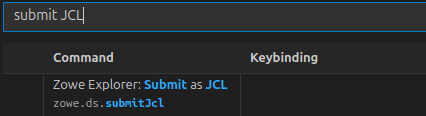
Type submit JCL into the search window. This gave me

So I can see it is not bound to a key.

Click on the item, and on the + sign which appears. A window pops up. Use the key combination, and press enter.

Use favourites

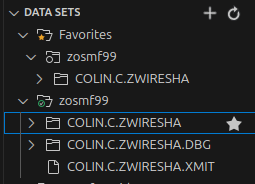
For data sets you often use, you can click on them and add to favourites, so they are always there

To have favourites spool job filters when you are looking at the spool.

  • Select the spool filter (and display any output)
  • Right click on the profile, and select Add to favourites
  • The filter will then appear in the Favourites section

If you submit a job, click on the popup window jobid, it will display it in the JOBS, under the active profile. You can get back to your usual spool filter settings, by going to the favourites.

Thanks

With thanks to Joshua Waters for all of his patience in helping me.