For my z/OS system, I have multiple 3270 session. For example one has an all powerful userid, one has my normal userid, and one has a userid with no authority. I usually position them left to right so it is obvious which session I am using.
I recently had an incident where I disconnected my external monitor, used z/OS, then reconnected my external monitor. The 3270 sessions were not in their usual places, and I used the right hand session to do something, to find I was using the all powerful userid.
I’ve now fixed this by using
x3270 -model 5 -bd red tso@localhost:3270 &
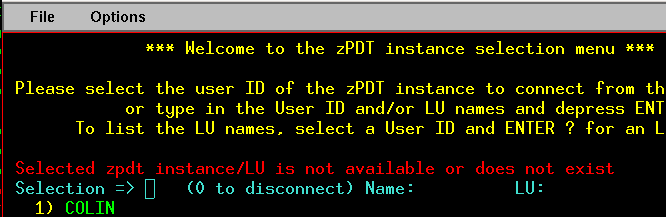
where -bd red says give the window a red border. Of course if I do not look at the border, it will not help – but I hope it will.
My session now looks like
If you display the x3270 options, you will not find -bd mentioned. x3270 uses some of xterm, which has options which include:
-bd color This option specifies the color to use for the border of the window. The default is “black.”
-bg color This option specifies the color to use for the background of the window. The default is “white.”
-bw number This option specifies the width in pixels of the border surrounding the window.
-fg color This option specifies the color to use for displaying text. The default is “black.”
-fn font This option specifies the font to be used for displaying normal text. The default is fixed.
-name name This option specifies the application name under which resources are to be obtained, rather than the default executable file name. Name should not contain “.” or “*” characters.
-rv This option indicates that reverse video should be simulated by swapping the foreground and background colors.
+rv Disable the simulation of reverse video by swapping foreground and background colors.
-title string This option specifies the window title string, which may be displayed by window managers if the user so chooses. The default title is the command line specified after the -e option, if any, otherwise the application name.
I had been editing a file, saving it, and finding the changes were not being picked up. Looking back, it was obvious; I was using CTRL-S the familiar Linux command, instead of F3 on ISPF.
When I started a new X3270 session, Ctrl -S went to the command line, typed save and pressed enter. Job Done ! The numbers are 0 based, so 3 means line 4 on the screen.

 ColinPaice