I can’t automatically allocate a data set, and my SMS set up is not helping.

I’m running my little zD&T z/OS system on my laptop. I am the only person on this system, so I have to do every thing myself.

I started my MQ system last week, and now it is complaining that it cannot allocate archive logs. From my experience with MQ, I know this is serious. I know I have lots of space on my disks, so why can’t MQ use it.
I’ll go through the diagnostic path I took, which shows the SMS commands I used, and give the solution.

The blog post One minute SMS covers many of the concepts (and commands used).

The error messages

CSQJ072E %CSQ9 ARCHIVE LOG DATA SET 'CSQARC2.CSQ9.B0000002' HAS BEEN ALLOCATED TO NON-TAPE DEVICE AND CATALOGUED, OVERRIDING CATALOG PARAMETER                                    
IGD17272I VOLUME SELECTION HAS FAILED FOR INSUFFICIENT SPACE FOR DATA SET CSQARC2.CSQ9.A0000002 JOBNAME (CSQ9MSTR) STEPNAME (CSQ9MSTR) PROGNAME (CSQYASCP)
REQUESTED SPACE QUANTITY = 120960 KB
STORCLAS (SCMQS) MGMTCLAS ( ) DATACLAS ( )
STORGRPS (SGMQS SGBASE SGEXTEAV )
IKJ56893I DATA SET CSQARC2.CSQ9.A0000002 NOT ALLOCATED+
IGD17273I ALLOCATION HAS FAILED FOR ALL VOLUMES SELECTED FOR DATA SET
CSQARC2.CSQ9.A0000002
IGD17277I THERE ARE (247) CANDIDATE VOLUMES OF WHICH (7) ARE ENABLED OR
QUIESCED
IGD17290I THERE WERE 3 CANDIDATE STORAGE GROUPS OF WHICH THE FIRST 3 814
WERE ELIGIBLE FOR VOLUME SELECTION.
THE CANDIDATE STORAGE GROUPS WERE:SGMQS SGBASE SGEXTEAV
IGD17279I 240 VOLUMES WERE REJECTED BECAUSE THEY WERE NOT ONLINE
IGD17279I 240 VOLUMES WERE REJECTED BECAUSE THE UCB WAS NOT AVAILABLE
IGD17279I 7 VOLUMES WERE REJECTED BECAUSE THEY DID NOT HAVE SUFFICIENT
SPACE (041A041D)

Why is it using the storage class SCMQS?

From the ISMF panels,

  • option 7 Automatic Class Selection
  • option 5 Display – Display ACS Object Information

Gives a panel

   Panel  Utilities  Help                                                       
──────────────────────────────────────────────────────────────────────────────
ACS OBJECT DISPLAY
Command ===>

CDS Name : ACTIVE

ACS Rtn Source Data Set ACS Member Last Trans Last Date Last Time
Type Routine Translated from Name Userid Translated Translated
-------- ----------------------- -------- ---------- ---------- ----------
DATACLAS SYS1.S0W1.DFSMS.CNTL DATACLAS IBMUSER 2019/12/17 15:21
MGMTCLAS ----------------------- -------- -------- ---------- -----
STORCLAS SYS1.S0W1.DFSMS.CNTL STORCLAS IBMUSER 2020/12/02 11:23
STORGRP SYS1.S0W1.DFSMS.CNTL STORGRP IBMUSER 2019/12/17 15:23

So the ACS routine is in SYS1.S0W1.DFSMS.CNTL(STORCLAS)

This file has

PROC STORCLAS 
FILTLIST MQS_HLQ INCLUDE(CSQ*.**,
CSQ.**,
MQS.**,
MQS*.**)
...
SELECT
...
WHEN (&DSN = &MQS_HLQ)
DO
SET &STORCLAS = 'SCMQS'
EXIT CODE(0)
END
...
END
END

This says for any data set name (&DSN) that match the list (&MQS_HLQ) whic has CSQ* or MQS*, then set the Storage class to ‘SCMQS’

What storage groups are connected with the MQ data set?

Member SYS1.S0W1.DFSMS.CNTL(STORGRP) has

...
WHEN (&STORCLAS= 'SCMQS')
DO
SET &STORGRP = 'SGMQS','SGBASE','SGEXTEAV'
EXIT CODE(0)
END
...

so these are the storage groups that MQ data sets will use.

What DASD volumes are in the storage group?

D SMS,SG(SGbase)                             
IGD002I 13:34:38 DISPLAY SMS 699

STORGRP TYPE SYSTEM= 1
SGBASE POOL +
SPACE INFORMATION:
TOTAL SPACE = 29775MB USAGE% = 98 ALERT% = 0
TRACK-MANAGED SPACE = 29775MB USAGE% = 98 ALERT% = 0

Hows there is 29775 M allocated -and it is 98% full.

D SMS,SG(SGMQS)                                                        
IGD002I 13:31:33 DISPLAY SMS 678

STORGRP TYPE SYSTEM= 1
SGMQS POOL +
SPACE INFORMATION:
NOT AVAILABLE TO BE DISPLAYED
***************************** LEGEND *****************************
. THE STORAGE GROUP OR VOLUME IS NOT DEFINED TO THE SYSTEM
+ THE STORAGE GROUP OR VOLUME IS ENABLED
- THE STORAGE GROUP OR VOLUME IS DISABLED
* THE STORAGE GROUP OR VOLUME IS QUIESCED
D THE STORAGE GROUP OR VOLUME IS DISABLED FOR NEW ALLOCATIONS ONLY
Q THE STORAGE GROUP OR VOLUME IS QUIESCED FOR NEW ALLOCATIONS ONLY
> THE VOLSER IN UCB IS DIFFERENT FROM THE VOLSER IN CONFIGURATION
SYSTEM 1 = S0W1

There are no volumes allocated to this storage group.

What volumes are in the storage group?

D SMS,SG(SGBASE),LISTVOL                                             
IGD002I 13:39:07 DISPLAY SMS 705

STORGRP TYPE SYSTEM= 1
SGBASE POOL +
SPACE INFORMATION:
TOTAL SPACE = 29775MB USAGE% = 98 ALERT% = 0
TRACK-MANAGED SPACE = 29775MB USAGE% = 98 ALERT% = 0

VOLUME UNIT MVS SYSTEM= 1 STORGRP NAME
B3USR1 0ADA ONRW + SGBASE
USER0A + SGBASE
USER0B + SGBASE
USER0C + SGBASE
USER0D + SGBASE
USER0E + SGBASE
USER0F + SGBASE
USER00 0A9C ONRW + SGBASE
USER01 + SGBASE
USER02 0AB0 ONRW + SGBASE
USER03 0ACE ONRW + SGBASE
USER04 0AB2 ONRW + SGBASE
USER05 0AB5 ONRW + SGBASE
USER06 0A83 ONRW + SGBASE
...
+ THE STORAGE GROUP OR VOLUME IS ENABLED

How do I see how much space is available in my disks?

ISMF,

  • option 2 – Volume
  • option 1 – DASD

This gives a panel

                          VOLUME SELECTION ENTRY PANEL              Page 1 of 3
Command ===>

Select Source to Generate Volume List . . 2 (1 - Saved list, 2 - New list)
1 Generate from a Saved List Query Name To
List Name . . COLIN Save or Retrieve
2 Generate a New List from Criteria Below
Specify Source of the New List . . 1 (1 - Physical, 2 - SMS)
Optionally Specify One or More:
Enter "/" to select option Generate Exclusive list
Type of Volume List . . . 1 (1-Online,2-Not Online,3-Either)
Volume Serial Number . . USER* (fully or partially specified)
Device Type . . . . . . . (fully or partially specified)
Device Number . . . . . . (fully specified)
To Device Number . . . (for range of devices)
Acquire Physical Data . . Y (Y or N)
Acquire Space Data . . . Y (Y or N)
Storage Group Name . . . (fully or partially specified)
CDS Name . . . . . . .
(fully specified or 'Active')
Use ENTER to Perform Selection; Use DOWN Command to View next Selection Panel;
Use HELP Command for Help; Use END Command to Exit.

or

        Enter "/" to select option      Generate Exclusive list                 
Type of Volume List . . . 1 (1-Online,2-Not Online,3-Either)
Volume Serial Number . . * (fully or partially specified)
Device Type . . . . . . . (fully or partially specified)
Device Number . . . . . . (fully specified)
To Device Number . . . (for range of devices)
Acquire Physical Data . . Y (Y or N)
Acquire Space Data . . . Y (Y or N)
Storage Group Name . . . SGBASE (fully or partially specified)
CDS Name . . . . . . . 'ACTIVE'
(fully specified or 'Active')

You can specify a Volume Serial prefix, a Storage Group Name, or a combination of both.

You need to select Acquire Physical Data, and Acquire Space Data.

You get output like

 LINE       VOLUME FREE       %     ALLOC      FRAG   LARGEST    FREE     
OPERATOR SERIAL SPACE FREE SPACE INDEX EXTENT EXTENTS ... ...
---(1)---- -(2)-- ---(3)--- (4)- ---(5)--- -(6)- ---(7)--- --(8)--
B3USR1 149186K 2 8165315K 375 34032K 36
USER00 67067K 1 8247434K 718 2490K 133
USER02 30601K 1 2740899K 412 11621K 31
USER03 3209K 0 2768291K 333 2213K 6
USER04 146198K 5 2625302K 280 42332K 19
USER05 64466K 2 2707034K 9 63802K 3
USER06 273304K 10 2498196K 177 105581K 14

Which shows I do not have much free space.

Add more space

As it looks like my storage group pools are low on disk space, I need to allocate more volumes.

See Adding more disk space to z/OS, creating volumes and adding them to SMS.

Once I added the volume to the SGBASE storage group, it usage went from

TOTAL SPACE = 29775MB USAGE% = 98 ALERT% = 0                      
TRACK-MANAGED SPACE = 29775MB USAGE% = 98 ALERT% = 0

to

TOTAL SPACE = 32482MB USAGE% = 89 ALERT% = 0                      
TRACK-MANAGED SPACE = 32482MB USAGE% = 89 ALERT% = 0
Using keyrings and certificates on z/OS with Liberty

This is a work in progress… but someone asked me for this information so I’ll publish as it is.

I had a lot of playing around with MQWEB on Linux, and I thought that z/OS would be just a small step more than Linux.  After many false steps, it is very similar to Linux – but because z/OS is more secure than Linux you have to do more work to get the right permissions.

Once you have set up the keyrings and got your web browser to talk to the Liberty at the back end, you can then

  • logon with userid and password
  • logon with digital certificate, so there is now set up to map your Linux  digital certificate to a z/OS userid

Once you have got the z/OS userids set up,  you need to set up the RACF groups which determine if you are allowed to use the server, and if you are a read only user, or a full function.

z/OS certificates background.

  • You use the RACF RACDCERT command to manage certificates
  • Certificates either stored in an (encrypted) RACF data base.
  • You provide similar information as with midrange machines to define certificates, such as Organisation, Common Name, Country etc.
  • On z/OS you cannot specify Extended Key Usage (EKU) attributes.
  • A certificate has two parts,
    • a private part, this allows you to encrypt data for that certificate.  It must be kept securely.
    • a public part  – anyone can have a copy of this – allows them to decrypt a message created using the private key.
  • Certificate ownership.  The RACF documentation says
    • User certificate A certificate that is associated with a RACF user ID and is used to authenticate the user’s identity. The RACF user ID can represent a traditional user or be assigned to a server or started procedure.  These are identified by ID(…).
    • Certificate-authority certificate. A certificate that is associated with a certificate authority and is used to verify signatures in other certificates.   These are identified by CERTAUTH.
    • Site certificate. A certificate that is associated with an off-platform server or other network entity, such as a peer VPNserver. This category of certificate can also be used to share a single certificate and its private key among multiple RACF user IDs. When used for sharing, a certificate might be referred to as a placeholder certificate.  These are identified by SITE.
  • A certificate has to have the TRUST attribute to be visible in a keyring.
  • Applications access certificate via a user’s keyring.
    • A userid can have many keyrings
    • A keyring can have many certificates.  They can belong to User, Certificate Authority, or Site.
    • You can control access at an individual keyring level.
  • Your web browser will likely have two keyrings (similar to midrange)
    • A Server key ring containing the private certificate to identify the server, and has the private key.   This keyring might only be used by a group of MQWEB servers and no other applications. A web server in CICS would have a its own keyring.
    • A Trust store.  This has the public certificates and allows people to communicate with the web server.  It typically has Certificate Authority certificates.   A CA certificate can validate all users who’s certificate was  signed by the CA. So one CA in the keyring could validate 1000 users.   If the end users are using self signed certificates, then the z/OS keyring has to have a copy of every self signed certificate.  If you add a new certificate then you may have to restart the server.
    • You might share this trust store with all web servers, either native or within CICS.

Steps for setting up the certificates and keyrings to connect the browser to the z/OS web server

  • Server keyring
    • Create a z/OS certificate authority
    • Create a server keyring
    • Create a certificate for the server
    • Add the certificate to the keying
    • Add the CA to the keyring
    • Give the mqweb userid access to the keyring.
    • Export the CA certificate, download it, distribute it to all users.  Import into their web browsers.
  • Trust keyring
    • Create a (shared) keyring
    • Get the CA from your users, upload to z/OS import them into the keyring
    • Give the server userids access to the keyring

Once you have been sucessfull with setting up the keyrings you will either be logged on on, or get a logon panel.

You now have to configure the environment to allow people to logon with the correct authorities.

Detailed steps.

I found it easiest to create JCL using batch TSO  with the various commands rather than use panels, or typing commands.  It means you can repeat the steps until they work.

//IBMRABB JOB 1,MSGCLASS=H 
//S1 EXEC PGM=IKJEFT01,REGION=0M 
//SYSPRINT DD SYSOUT=* 
//SYSTSPRT DD SYSOUT=* 
//SYSTSIN DD * 
  Put your commands here
  /* this (with a space in front) is ignored 
/* 

Configuration

  • The MQWEB server runs with userid START1
  • It will have a server key keyring called KEY
  • It will have a trust store keyring called TRUST
  • The IP address of the z/OS image is 10.1.1.2.   This is needed  when defining the server’s certificate because the clients compare this with web server’s location.  It can be IP(‘nn.nn.nn.nn’) or DOMAIN(‘ABC.COM’).

Create the CA

 /* Delete it in case it existed
RACDCERT CERTAUTH   DELETE(LABEL('TEMP-CA'))
 /* the CA needs size >= 2048 otherwise Chrome browser may ignore it
 /* The certificate shows up in browsers under org-TEST 
RACDCERT GENCERT  - 
  CERTAUTH - 
  SUBJECTSDN(CN('TEMPCertification Authority')- 
             O('TEMP') - 
             OU('TEST')) - 
  NOTAFTER(   DATE(2021-07-01  ) -   
  KEYUSAGE(HANDSHAKE,CERTSIGN,DOCSIGN,DATAENCRYPT          ) - 
  RSA SIZE(2048) - 
  WITHLABEL('TEMP-CA') 

RACDCERT CERTAUTH EXPORT(LABEL('TEMP-CA'))- 
       DSN('IBMUSER.CERT.TEMPCA.PEM') - 
       FORMAT(CERTB64) - 
       PASSWORD('password') 

You can now download the dataset IBMUSER.CERT.TEMPCA.PEM and import it into the browser’s keystore.

Create the server keyring

RACDCERT DELRING(KEY) ID(START1)
RACDCERT ADDRING(KEY) ID(START1)

Create the certificate to identify the server

This needs the ALTNAME so the browsers  accept the certificate

RACDCERT ID(START1) DELETE(LABEL('TEMP')) 
RACDCERT ID(START1) GENCERT - 
  SUBJECTSDN(CN('TEMP') - 
             O('TEMP') - 
             OU('TEST')) - 
   ALTNAME(IP(10.1.1.2)) - 
   SIGNWITH (CERTAUTH LABEL('TEMP-CA')) - 
   RSA SIZE(2048) 
   NOTAFTER(   DATE(2021-12-29))- 
   WITHLABEL('TEMP')
 /* KEYUSAGE is not needed 

RACDCERT ID(START1) ALTER(LABEL(‘TEMP’))TRUST

      
RACDCERT ID(START1) CONNECT(RING(KEY) LABEL('TEMP')) 
RACDCERT ID(START1) CONNECT(RING(KEY) - 
       LABEL('TEMP-CA') CERTAUTH) 
RACDCERT LIST(LABEL('TEMP-CA'             ))  CERTAUTH 
RACDCERT LIST(LABEL('TEMP'                ))  ID(START1) 
                                                                  
SETROPTS RACLIST(DIGTCERT,DIGTRING ) refresh                                                                

Give the servers userid access to the server’s keyring

See here.

RDEFINE RDATALIB START1.KEY.LST UACC(NONE)
 /* READ access enables retrieving one's own private key
 /* UPDATE access enables retrieving other's.
PERMIT START1.KEY.LST CLASS(RDATALIB) ID(START1 ) ACCESS(UPDATE)
PERMIT START1.KEY.LST CLASS(RDATALIB) ID(IBMUSER) ACCESS(UPDATE)

SETROPTS RACLIST(RDATALIB) REFRESH
RLIST FACILITY START1.KEY.LST


Upload the CA from the midrange machine and store in the key store.

The certificate ( .pem file) looks like

—–BEGIN CERTIFICATE—–

—–END CERTIFICATE—–

So should be uploaded as a source file.

RACDCERT CERTAUTH DELETE(LABEL('Linux-CA2')) 
RACDCERT SITE ADD('IBMUSER.CACERT.PEM') - 
    WITHLABEL('Linux-CA2') TRUST 
RACDCERT DELRING(TRUST) ID(START1) 
RACDCERT ADDRING(TRUST) ID(START1) 


RACDCERT ID(START1) CONNECT(RING(TRUST ) - 
       LABEL('Linux-CA2') SITE 

RACDCERT LISTRING(TRUST ) ID(START1) 
SETROPTS RACLIST(DIGTCERT,DIGTRING ) refresh

Of course you run this just once, and use the connect statement to add as many CAs as you have.


MQWEB: I want to trace the https requests

See HTTP access logging.

When I had the following in my mqwebuser.xml file,

  <httpAccessLogging id="accessLogging"/> 
<httpEndpoint id="defaultHttpEndpoint" httpsPort="9443">
<accessLogging filepath="${server.output.dir}/logs/http_defaultEndpoint_access.log"/>
</httpEndpoint>

it gave me a record like

10.1.0.2 IBMUSER ∇10/Aug/2025:17:12:25 +0000∆ "GET /ibmmq/rest/v1/admin/action/qmgr/CSQ9/mqsc HTTP/1.1" 405

so I could see the HTTP code (405) from my request.

I got the HTTP 405 code because I specified type GET instead of type POST! Another of those obvious once you see it problems.

Configure the mqweb server to accept JWT.

See my blog post JWT to learn what JSON Web Token are, and how they work.

In Liberty the JWT is processed by OpenID Connect Client.

In my mqwebuser.xml I had

<featureManager> 
<feature>transportSecurity-1.0</feature>
<feature>openidConnectClient-1.0</feature>
</featureManager>
<openidConnectClient
id="RS2"
clientId="COLINSOC"
jwkEndpointUrl="https://10.1.1.2:10443/jwt/ibm/api/zOSMFBuilder/jwk"
inboundPropagation="supported"
issuerIdentifier="zOSMF"
mapIdentityToRegistryUser="true"
signatureAlgorithm="RS384"
trustAliasName="CONN2.IZUDFLT"
trustStoreRef="defaultKeyStore"
userIdentifier="sub"
/>

Where

  • id=”RS2″ is any label
  • clientId=”COLINSOC” is another label
  • jwkEndpointUrl=”https://10.1.1.2:10443/jwt/ibm/api/zOSMFBuilder/jwk&#8221;
  • inboundPropagation=”required”
  • issuerIdentifier=”zOSMF” this matches the iss-uer in the JWT token
  • mapIdentityToRegistryUser=”false” this is to use the Liberty userid mapping so specify false to use the RACF mapping.
  • signatureAlgorithm=”RS384″ – this has to match what is in the task that creates the JWT. If I had RS256 – it came out as Elliptic Curve. I configued z/OSMF and MQWEB both to use RS384 and it worked.
  • trustAliasName=”CONN2.IZUDFLT” the certificate to use in the validation
  • trustStoreRef=”defaultKeyStore” this point to the definition of the trust keystore to use
  • userIdentifier=”sub” the user name is taken from this field in the JWT

The JWT had

header

{
"kid": "aaPdG7y6fDNNTMCT6wb9-Oe21M63dPS3MtCeF7kYKn8",
"typ": "JWT",
"alg": "RS384"
}

The payload had

token_type:Bearer
sub: IBMUSER The subject of the JWT (the user).
upn: IBMUSER
groups["DBBADMNS","IZUADMIN","IZUUSER","PKIGRP","SYS1","ZWEADMIN"]
realm:SAFRealm
iss:zOSMF The issuer of the JWT.
exp: 1754240783 (Sun Aug 03 2025 18:06:23 GMT+0100 (British Summer Time)). The expiration time on or after which the JWT MUST NOT be accepted for processing. Learn more
iat:1754237783 (Sun Aug 03 2025 17:16:23 GMT+0100 (British Summer Time)) The time at which the JWT was issued.

Getting it to work

I used Setting mqweb trace on z/OS and other useful hints on tracing extensively.

Using JWT and when it goes wrong has some debugging hints.

Processing lines in ASCII files in ISPF edit macros made looking at log files so much easier, by displaying lines from a trace file on one screen – rather than having to scroll sideways many times.

Using JWT and when it goes wrong

General

In the Liberty traces, I tended to look for the last few CWW…. messages.

Processing lines in ASCII files in ISPF edit macros made looking at log files so much easier.

Tracing the openidConnectClient activity

You can use the trace

com.ibm.ws.security.*=all:com.ibm.ws.webcontainer.security.*=all:com.ibm.oauth.*=all:com.ibm.wsspi.security.oauth20.*=all:org.openid4java.*=all:org.apache.http.client.*=all:io.openliberty.security.*=all

to get a lot of information about the activity.

  • com.ibm.oauth.*=all didnt give me anything.
  • com.ibm.ws.webcontainer.security.*=fine didn’t produce anything
  • com.ibm.ws.webcontainer.security.*=finer produced good stuff – too much info

I used Setting mqweb trace on z/OS and other useful hints on tracing extensively to look at the Liberty traces.

Messages

CWWKS1776E: Validation failed for the token requested by (COLINCOO2) using the (RS384) algorithm due to a signature verification failure:

CWWKS1737E: The OpenID Connect client (COLINCOO2) failed to validate the JSON Web Token. The cause of the error was: (JWT rejected due to invalid signature).
After I added the certificate to the keyring, I needed to restart the server to pickup the change.

CWWKS2915E: SAF service IRRSIA00_CREATE did not succeed because group
null was not found in the SAF registry. SAF return code 0x00000008. RACF return code 0x00000008. RACF reason code 0x00000010.

Explanation: The JWT has a userid, and the userid/realm mapping does not exist in the RACMAP definitions. I think this is a bug… it should not have got into RRSIA00_CREATE if there is no userid.

Basic configuration errors

When there was no matching issuerIdentifier in the openidConnectClient, I got

HTTP/2 401
www-authenticate: Bearer realm=”jwt”, error=”invalid_token”, error_description=”Check JWT token”

{“error_description”:”OpenID Connect client returned with status: SEND_401″,”error”:401}

With the above I got in the trace

… Jose4jUtil E CWWKS1737E: The OpenID Connect client (…) failed to validate the JSON Web Token . The cause of the error was: (
CWWKS1773E: Validation failed for the token requested by the (…) OpenID Connect client for the (…) user because the token is outside of its valid range. This error occurs either because the (2025-08-08T18:45:15.182Z) current time is after the (2025-08-08T18:03:21.000Z) token expiration time or because the (2025-08-08T17:13:21.000Z) issue time is too far away from the (2025-08-08T18:45:15.182Z) current time.)

Which means the token has expired.

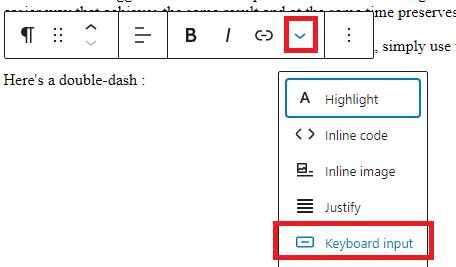
WordPress lost my dash dash – it is too clever

I had documented some Unix-like commands, of the format dash dash help, but these were displayed like strange dash help, and so if I searched for the text, it was not found. If I copied it – and user id, it was not valid!

A dash is not that simple, there is

characterUnicode (hexadecimal)HTML entity
hyphenU+2010 &dash;
&hyphen;
Figure dashU+2012
En dashU+2013 &ndash;
Em dashU+2014 &mdash;
Horizontal barU+2015 &horbar;
minus signU+2212 &minus;

The solution

You can use

and the text comes out like --help. If you do this, the text is searchable in the formatted page in a browser

I now have to go through all my pages and make the change!

Using a Python script to access MQWEB with JSON Web Tokens

See JWT for my blog post on what JWT are and how they work.

I also gave myself the additional challenge of not saving sensitive information in disk files.

Once I had got the basics working using a Bash script, I used Python as a proper solution, because I could capture the information from the requests much easier.

Overall application

My overall application is

Python

Get the JWT

#!/usr/bin/env python3
from timeit import default_timer as timer
import ssl

#import time
#import base64
#import json
import sys
from http.client import HTTPConnection # py3
import requests
import urllib3
# trace the traffic flow
HTTPConnection.debuglevel = 1

my_header = { 'Accept' : 'application/json' }

urllib3.disable_warnings()

geturl = "https://10.1.1.2:10443/zosmf/services/authenticate"

context = ssl.SSLContext(ssl.PROTOCOL_TLS_CLIENT)

certificate="colinpaice.pem"
key="colinpaice.key.pem"
cpcert=(certificate,key)

jar = requests.cookies.RequestsCookieJar()

caCert='./doczosca.pem'

s = requests.Session()
res = s.post(geturl,headers=my_header,cookies=jar,cert=cpcert,verify=caCert)

if res.status_code != 200:
print(res.status_code)
#headers = res.headers
#print("Header",type(headers))
#for h in headers:
# print(h,headers[h])

cookies = res.cookies.get_dict()
token=""
for c in cookies:
print("cookie",c,cookies[c])
if c == "jwtToken":
token = cookies[c]

if token == "" :
print("No jwtToken cookie returned ")
sys.exit(8)

Issue the MQ command

print("===========NOW DO MQ ==============")
mqurl="https://10.1.1.2:9443/ibmmq/rest/v1/admin/action/qmgr/CSQ9/mqsc"
tok = "Bearer " + token
mq_header = {
'Accept' : 'application/json',
'Authorization' : tok,
'Content-Type': 'application/json',
'ibm-mq-rest-csrf-token' : ''
}

data={"type": "runCommand",
"parameters": {"command": "DIS QMGR ALL"}}

mqres = s.post(mqurl,headers=mq_header,cookies=jar,verify=False,json=data)

print("==MQRES",mqres)
print("mqheader",mqres.headers )
print("mqtext",mqres.text)

sys.exit(0)

Notes:

  • The authorisation token is created by “Beader ” concatenated from the jwtToken value.
  • The data is created as json. {“type”: “runCommand”,….}. It needs header ‘Content-Type’: ‘application/json’,

Using a Bash script to access MQWEB with JSON Web Tokens

See JWT for my blog post on what JWT are and how they work.

I also gave myself the additional challenge of not saving sensitive information in disk files.

Once I got the scripts working I used a Python script- which was much easier to use.

Overall application

My overall application is

BASH

I initially tried using a BASH script for creating and using JWT to issue MQ REST API requests to MQWEB.

This worked, but capturing the JWT from the cookie was not easy to implement.

Get the JWT

#!/bin/bash
rm cookie.jar.txt

url="https://10.1.1.2:10443/zosmf/services/authenticate"
tls="--cacert doczosca.pem --tlsv1.2 --tls-max 1.2"
certs=" --cert ./colinpaice.pem:password --key ./colinpaice.key.pem"
insecure="--insecure"
cj="--cookie cookie.jar.txt --cookie-jar cookie.jar.txt"

curl -v $cj $tls $certs $url $insecure

Note: If there was a valid JWT in the cookie store, the code did not return a JWT. I deleted the cookie file to get round this.

Issue the MQ command

#!/bin/bash
set -x

url="https://10.1.1.2:9443/ibmmq/rest/v1/admin/action/qmgr/CSQ9/mqsc"

token="..."

tls="--cacert ./doczosca.pem --tlsv1.2"
certca="--cacert ./doczosca.pem "

origin="-H Origin:"
post="-X POST"
# need --insecure to avoid subjectAltName does not match
insecure="--insecure"

cj="--cookie cookie.jar.txt --cookie-jar cookie.jar.txt"

curl --verbose -H "Authorization: Bearer $token" -H "Connection: close" $cj $header $insecure $verify $tls -H "Content-Type: application/json" -H "ibm-mq-rest-csrf-token: value" $certs $trace $url --data "{ \"type\": \"runCommand\", \"parameters\": {\"command\": \"DIS QMGR ALL\"} }"

I used cut and paste to copy the JWT from the output of the CURL z/OSMF request, and paste it in token=”” in the MQ script.
I did this because my BASH scripting was not up trying to getting the JWT from the z/OSMF script.

How to configure systems to use JSON Web Token

JSON Web Token(JWT) is a technique of authenticating across systems. It depends on trust, and technology similar to TLS and SSL.

The high level picture

A client wants to use a service on a server.

On the client machine

  • The client creates a payload containing authentication information, such as subject(=userid), issuer(=machine/company name), issued time, and expiry time.
  • This payload is signed using a private key. Where signing is doing a checksum on the payload and encrypted the checksum with the private key.
  • The payload and signature are sent to the server.

On the server machine

  • The server has a list of definitions, containing a issuer and other information, the name of a keyring, and the name of a certificate. The trust comes from if you trust the client then you store the public key for the client in the keyring. If you do not trust the client, you do not make the certificate available.
  • When the data from the client machine arrives, the list of definitions is processed until a match is found. It checks the issuer and other fields, (it can use filters) and if they match, checks the signature of the payload to find the public key in the keyring, and validates the signature.
  • If everything matches, information from the payload and the definition on the server are used to look up a list of subject, and issuer to get the RACF userid to be used.
  • The thread switches to the userid and does the application work.

How to create a JWT

  • z/OSMF can do this for you
  • You can create your own on z/OS – but you need to know how to do a checksum and encrypt with a private key. ICSF provides services which do this.
  • use Python.

Use z/OSMF

In the logical server.xml file

<featureManager> 
<feature>jwtSso-1.0</feature>
</featureManager>

<jwtSso cookieName="jwtToken"
jwtBuilderRef="zOSMFBuilder"
includeLtpaCookie="true"
useLtpaIfJwtAbsent="true"
/>

<jwtBuilder id="zOSMFBuilder"
issuer="zOSMF"
keyAlias="CONN2.IZUDFLT"
expiresInSeconds="10"
jwkEnabled="false"
signatureAlgorithm="RS384"
/>

<mpJwt id="myMpJwt"
issuer="zOSMF"
wksUri="https://${izu.jwks.hostname}:${izu.https.port}/jwt/ibm/api/zOSMFBuilder/jwk"
signatureAlgorithm="RS384"
/>

Interesting fields are

  • issuer=”zOSMF” this is put into the payload. It is used to help identify the realm
  • keyAlias=”CONN2.IZUDFLT”. This is the certificate with the private key in the keyring which is used to sign the JWT
  • expiresInSeconds=”10″ how long the JWT is valid for. During testing I set this to 600 seconds.
  • jwksUri=”https://${izu.jwks.hostname}:${izu.https.port}/jwt/ibm/api/zOSMFBuilder/jwk” if you want the server to issue a request to the client asking for validation, this is the URL the server would use.

Use Python

This is very easy

from datetime import datetime, timezone, timedelta
import jwt

# open the private key and read the contents
pemfile = open("/home/colinpaice/ssl/ssl2/colinpaice.key.pem", 'r')
keystring = pemfile.read()
pemfile.close()

# Create the header. Specify the type, and the encryption algorithm
header= {
"typ": "JWT",
"alg": "RS256"
}

# get time in number of seconds since "day 0"
now = datetime.now(timezone.utc)
payload = {
"token_type": "Bearer",
"sub": "ADCDC", # userid
"upn": "ADCDC",
"realm": "PYTHON",
"iss": "PYTHON", # issuer
"iat": now,
"exp": now + timedelta(seconds=6000) # valid for 6000 seconds

}

# encrypt it and create the jwt
token = jwt.encode(payload, keystring, algorithm='RS256')

print(token) # display it

Backend server set up

The page Configuration example: Securing a Liberty web application with a JWT and CICS transaction security explains how to do it for Liberty in a CICS region.

For my MQWEB server I added to mqwebuser.xml

<featureManager> 
<feature>openidConnectClient-1.0</feature>
</featureManager>

<openidConnectClient id="RSCOOKIE"
clientId="COLINCOOK"
realmName="zOSMF"
inboundPropagation="required"
issuerIdentifier="zOSMF"
mapIdentityToRegistryUser="false"
signatureAlgorithm="RS384"
jwkEndpointUrl="https://10.1.1.2:10443/jwt/ibm/api/zOSMFBuilder/jwk"
trustAliasName="CONN2.IZUDFLT"
trustStoreRef="defaultKeyStore"
userIdentifier="sub"
>
</openidConnectClient>

mapIdentityToRegistryUser=”false” says use the realm in this definition and the userid(subject) from the payload to look up the in the RACF RACMAP to get the userid.

If you specify “true” it uses the userid(subject) from the payload, and the sysplex name. This means a userid “COLIN” from a z/OS system, and a userid “COLIN” from Linux – get the same userid on z/OS.

Note: If they public key for the JWT is not in the keyring, add it, and restart the server.

Map subject(userid) and realm to get a userid.

See RACMAP (Create, delete, list, or query a distributed identity filter)

For example

RACMAP ID(IBMUSER) MAP USERIDFILTERNAME("IBMUSER")  REGISTRY("zPROD") WITHLABEL("zPROD")
RACMAP ID(NOONE) MAP USERIDFILTERNAME("IBMUSER") REGISTRY("LINUX") WITHLABEL("LINUX")
RACMAP ID(ZILTCH) MAP USERIDFILTERNAME("*") REGISTRY("*") WITHLABEL("CATCHALL")

The registry is the realm name from the server definitions.

if a valid userid is returned from the mapping, the thread is changed to run as that userid, and execute the application work – as that userid.

The backend server is a little more complex

You need a <openidConnectClient ../> for each “client” system the server supports.

You can specify one <authFilter../> to restrict what the <openidConnectClient ../> processes. For example if can be an IP address(10.1.0.2) or a range (10.1.*.*), or restrict it by URL.

For the <openidConnectClient ../> definition to match it needs

  • The signature validated – so the public key needs to be in a keyring. (You could have a different keyring for each realm)
  • The issuer from the payload to match the definition
  • The input data must pass the authFilter.

You need to plan for

  • the realms you need,
  • the mapping of subjects and realms to userids in the server,
  • public keys and keyrings

Some useful links

My Server’s definition

<featureManager> 
<feature>transportSecurity-1.0</feature>
<feature>openidConnectClient-1.0</feature>
</featureManager>

<openidConnectClient id="RSCOOKIE"

headerName="colin"

clientId="COLINCOO2"
realmName="zOSMF"
inboundPropagation="required"
issuerIdentifier="zOSMF"
mapIdentityToRegistryUser="false"
signatureAlgorithm="RS384"
jwkEndpointUrl="https://10.1.1.2:10443/jwt/ibm/api/zOSMFBuilder/jwk"
trustAliasName="CONN1.IZUDFLT"
trustStoreRef="defaultKeyStore"
userIdentifier="sub"
>
<authFilter id="afint">
<remoteAddress id="myAddress" ip="10.1.0.2" matchType="equals" />
</authFilter >

</openidConnectClient>

<keyStore
id="defaultKeyStore"
filebased="false"
location="safkeyring://IZUSVR/CCPKeyring.IZUDFLT"
password="password" readOnly="true" type="JCERACFKS"
/>

Where

  • headerName=”colin”. My curl request has -H “colin: $token” where token is the bash variable with the is the JWT token. Without this, the request needs -H “Authorization: Bearer $token”
  • realmName=”zOSMF” used with the userid to lookup in the RACMAP table for the z/OS userid to use
  • signatureAlgorithm=”RS384″ matches the value in the JWT. (I had problems using RS256)
  • trustAliasName=”CONN1.IZUDFLT” the name of the certificate to use on the server
  • trustStoreRef=”defaultKeyStore” points to the keyring definition

Setting mqweb trace on z/OS and other useful hints on tracing

I spent time trying to track down in the MQWEB server, why my JSON Web Token was not working as I expected . I found it hard to trace the problem, and tried many trace parameters till I found some which provided the information I needed. It was not an easy journey.

This blog entry covers

How to set the trace

I tried the trace

setmqweb properties -k traceSpec -v ...

described here, but this was slow and had the side effect in that it inserted blank lines to the mqwebuser.xml file, and made each xml entry one long line, and lost all of my nice formatting!

Alternatives

Using the z/OS console command

For example

f csq9web,LOGGING='*=info:zos.*=finest' 

Issuing the command from the console means that the mqwebuser.xml file is not changed, and when you restart the MQWEB server it comes up with what you specified – rather than the last setmqweb command.

Editing the mqwebuser.xml manually

For MQ the trace definition is taken from the variable traceSpec.

For example

<variable 
name="traceSpec"
value="*=info"
/>

I just added some more definitions

<variable 
name="traceSpec"
value="*=info"
/>

<variable
name="traceSpec"
value="*=info:com.ibm.ws.webcontainer.security.ProviderAuthenticationResult=all"
/>

The last value is used – so my trace definition was used.

I could easily move these around to get different traces.

When the MQWEB server is restarted, the last definition will be used – so remember to move the normal entry to the end of the definitions (with value=”=info” or similar).

Using a more complex value

The trace entry I was given was over 150 characters long, and was difficult to enter into the file or on the command line. I had to enter it in pieces, and kept getting blanks in the wrong place. You can use symbol substitution

<variable 
name="t1"
value="*=info"
/>

<variable
name="t2"
value="zos.*=all"
/>
<variable
name="traceSpec"
value="${t1}:${t2}"
/>

This produced a trace *=info:zos.=all

Whenever you change the trace, check in the message.log or trace.log file, and fix any problems.

If the update is successful, there should be an entry in the job log, such as

[AUDIT ] CWWKG0017I: The server configuration was successfully updated in 0.265 seconds.

If you do not get this, then check the log files (again).

The trace files did not have enough information in them.

Some of the traces I was given to solve my problem produced thousands of lines of output. It was hard to find the records of interest.

One record was

∇8/9/25, 16:18:52:470 GMT   ∆ 00000102 Authenticatio <  getStatus Exit 
FAILURE

Where Authenticatio is a small part of the trace id.

I specified

 <logging traceFormat="ENHANCED" /> 

See traceFormat and value ENHANCED.

This gave me

8/9/25, 16:22:37:516 GMT ∆ 000000f1 id=dd803e1d com.ibm.ws.webcontainer.security.AuthenticationResult < getSta…
FAILURE

You can see a more complete trace entry (com.ibm.ws.webcontainer.security.AuthenticationResult ) for the record.

You can now specify this trace entry in the <variable name=”t2″ value=”…” . And restrict which entries you want, for example value=”com.ibm.ws.webcontainer.security.*=all” .

Once I had found which trace records I wanted, I went back traceFormat=”SIMPLE” because the output was easier to read.

Useful trace entries

To get JWT information

io.openliberty.security.*=all

Why JWT faildation failed

org.apache.http.client.*=all

My definitions for these were

name="t1" 
value="*=info"
/>

<variable
name="t3"
value="org.apache.http.client.*=all"
/>

<variable
name="t4"
value="io.openliberty.security.*=all"
/>

<variable
name="traceSpec"
value="${t1}:${t3}:${t4}"
/>

<logging traceFormat="SIMPLE" />

What level of trace do you need – too much info?

A trace entry with value=”io.openliberty.security.*=all” can produce a lot of output.

You may get enough to debug your problem using value=”io.openliberty.security.*=fine“, value=”io.openliberty.security.*=finer“, or value=”io.openliberty.security.*=finest

Putting your definitions in a separate file

I put some of my definitions in a separate file trace.xml

<server> 
<!-- always specify this one -->
<variable
name="t1"
value="*=info"
/>
...
</server>

You can incorporate these changes using

<include location="trace.xml"/> 

<!-- and use the definitions -->
<variable
name="traceSpec2"
value="${t1}:${t2}:${t3}"
/>

If you change the trace.xml file, it will not cause MQWEB to reprocess it. You need to make a change (such as change a blank to a blank) to mqwebuser.xml for MQWEB to notice and process the file.

Displaying the trace record so it fits in the window

A trace record can be hundred of characters long – and requires to scroll sideways many pages.

The blog post Processing lines in ASCII files in ISPF edit macros has a useful ISPF edit macro which displays a row from the file, flowed so it fits into the screen width – and as the trace files are in ASCII, converts the output to displayable EBCDIC.

This made looking at the data much easier.

How I do tracing

I am the only person on my z/OS machine, which make debugging problems much easier. With all my attempts to resolve problems, I found my trace log and message log files were getting too large for me to use ISPF edit on them.
Below is how I use the trace files, it generally works.

  • I edit the file, delete most of the record to leave one or two records, then save it.
  • I run my test
  • I edit the file again and it should have only the entries added since the first step.

Note, if you delete the file the logging code, detects the file is deleted, and stops writing to it. If you delete rows, then records are written to the end of the current file.