What are JSON Web Tokens and how do they work?

Wikipedia says

JSON Web Token (JWT) is a proposed Internet standard for creating data with optional signature and/or optional encryption whose payload holds JSON that asserts some number of claims. The tokens are signed either using a private secret or a public/private key

What does a JWT look like?

A JWT has three parts

  1. Header: Information about the JWT itself, such as the Algorithm type.
  2. Payload: This contains information such as creation datetime, expiry datetime, secret key, userid.
  3. Encrypted checksum: (the signature) of parts 1 and 2.

A header looks like

{
"alg": "RS256"
}

A payload looks like

{
"sub": "IBMUSER",
"iat": 1753381341,
"exp": 1753410141,
"iss": "APIML",
"jti": "699cdd3b-832a-4b27-95f6-2a0a9fd5375a",
"dom": "security-domain"
}

Where

  • sub: is the principal (userid) within the payload
  • iat: issued time
  • exp: expiry time
  • jti: is unique value
  • dom: is the security domain.

These are converted to base64 where each 3 bytes are encoded as 4 printable characters.

The payload could include a userid and a file name, and because an authentication server has created the JWT, the server can send the file to the user without much more authentication.

How does it work?

I understand (from reading the limited online documentation), that it works as follows.

Create your payload.

Some fields you might specify are

  • sub: subject – such as a userid
  • iat: The issued time
  • exp: The expiry time
  • jti: A unique value for the JWT
  • You might put in a public certificate name
  • you can include a public key as a JSON Web Key (JWK) representation of cryptographic key.

This will include the algorithm used to sign the JWT.

Calculate the signature

You use a private key, and the algorithm, and calculate the signature (encrypted checksum) of the header and payload, and append it to the header and payload.

How long should it be valid for?

The JWT has the creation time, and the expiry time, after which the JWT is no longer valid.

You need to consider what valid interval to use. Remember a JWT is a pre-authorised userid token. It can be used multiple times before it expires. A hacker could copy it and use it.
You might chose a short time if it is just used to establish a session, and is not used again.

You might use a longer interval if you keep connecting and disconnecting from servers. Once it expires you have to request another JWT. The longer the expiry interval, the longer a hacker can use the JWT.

Creating the JWT

There are different ways of creating the JWT. For example

  • You can use Java
  • use the Python package pyJWT
  • Use RACF services. This creates a JWT. It requires supervisor state, so is not easy to set up. You can create RACF profiles which are used to create the JWT.

Send the JWT to the requester

The JWT is sent to the client which can use it to authenticate with a back end server which supports JWTs.

The server authenticates the JWT

This is server dependent.

  • One approach is to go through every public certificate in the key store, until the right one is found
  • You could specify the name of the public certificate in the header, and use that.

Note. This is different to TLS and certificates. With TLS the public certificate is sent as part of the handshake. The public key is authenticated by the Certificate Authority (CA) at the recipient. With TLS you only needs the CA certificate, not the individual certificates to validate. (Except for self signed which you should not be using). With a JWT you need the public certificate, it is not passed within the JWT

Note 2. There is discussion about a server sending the jti value in the JWT to an authorisation server, to get back the public key, which can be validated with a CA etc.

The back end may need to validate with the authorisation server. The request may be along the lines of “I’ve received userid COLIN, and the JTI from the JWT value is COLIN123456… is this valid?” This could be a cross memory request, for example using a RACF service, or it could be a TLS request to a server.

If the response is positive, then you can trust the information in the payload.

Use the information in the JWT payload.

The backend should not just use the userid in the payload, because I could easily create my own JWT (such as with pyJWT), as long as the server has my public key, the signature matches and verifies my unofficial JWT, and so I get unauthorised access.

With the openidConnectClient support in Liberty ( used by z/OSMF, MQWEB, and Zowe) you can have multiple openidConnectClient definitions. Each definition can have a filter, so you can restrict each openidConnectClient definition to a particular IP address range, or URL, (or both).

With openidConnectClient you specify the realm name to be used.

On midrange machines, it looks like the userid may be taken from the payload, and used!

Mapping name information to RACF userid.

Once the JWT has been validated in the openidConnectClient definition, the code looks up the JWT userid and realm combination to find which z/OS userid should be used.

There is a RACF service R_usermap (IRRSIM00): Map application user which maps a name and realm to a RACF userid.

You can define the mapping using the RACF command RACMAP, for example:

RACMAP ID(COLIN) MAP USERDIDFILTER(NAME('COLIN')) - 
REGISTRY(NAME('PRODZOSMF')) -
WITHLABEL('COLIN')

RACMAP ID(ADCDA) MAP USERDIDFILTER(NAME('CN=HACKER')) -
REGISTRY(NAME('*')) -
WITHLABEL('ADCDA')


RACMAP ID(COLIN) LISTMAP
RACMAP ID(ADCDA) LISTMAP
SETROPTS RACLIST(IDIDMAP) REFRESH

This says

  • if userid COLIN from the JWT, and the realm PRODZOSMF, then use userid COLIN.
  • If userid HACKER from the JWT in any realm, then use userid ADCDA.

If you get RACF abend 648 reason 0000004 see here.

To use this the userid using r_usermap needs permission.

PERMIT IRR.IDIDMAP.QUERY CL(FACILITY) ID (IBMUSER) ACCESS(READ) 
SETROPTS RACLIST(FACILITY) REFRESH

Note. The input to r_usermap is UTF8 (ascii) so the COLIN was passed in as 0x434F4C494E.

Use of different registries.

Because there may be multiple sites sending a JWT, you can use the REGISTRY name to further qualify the mapping. The registry is passed (in ASCII) on the r_usermap call – but you can specify a generic * (ASCII 0x2a) for any registry.

In the JWT above it had “dom”: “security-domain”. You could specify this as the registry.

Planning is required

To use the r_usermap service you need to plan before you start.

  • What format “userid” strings will be used? Is this just a string, or you you create a compound string “origin”.”userid” where origin and userid are taken from the JWT
  • Use of the registry field. If you want to use the registry field to identify different originators machines, you need to ensure that the JWTs are produced with the appropriate domain. If all requests have “dom”:”security-domain” it adds no value.

Zowe explorer: first baby steps to submitting jobs

I found using Zowe explorer was not intuitive, and I had a lot of help to get started.

This blog post explains how to submit JCL, look at the output etc.

Depending on how you are doing authentication you may get prompted for userid, password or both. I use certificate logon, so do not get prompted.

I have a PDS with C code, and a PDS containing the JCL to compile, bind and run the program. I wanted to edit the C source, submit the JCL, and look at the output.

Editing a C file

  • Open Zowe explorer (the Z in a diamond icon)
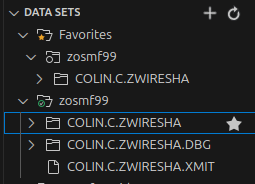
  • Under data sets, select a profile. You may be prompted to logon.
  • Select the search icon (magnifying glass)
  • Select an existing filter, or create a new one, (for example COLIN.C.Z* )
  • Press enter. This will list the data sets matching the search criteria
  • Single click the data set to display the members
  • Single click the member name to edit it
  • Use Ctrl+S to save your changes.

Editing the JCL file

  • Follow the steps above to open the JCL member
  • Right click and select Submit as JCL
  • This will create a pop up, at the bottom right of the screen with the job number.
  • You can click the job number, and this will open the job under JOBS and the profile on the left hand side. If you have a spool job filter, (to display your spool files) you may not want to click on the pop up job id.
  • Single click the job (under JOBS) to display the content of the spool data sets

Display your usual list of jobs

If you clicked on the pop up window giving the submitted job name, it creates a temporary filter under the JOBS profile.

To reset this back to normal, click on the profile’s search icon, select the filter you want, and select Select this query. (This is too many clicks for me!)

Edit the C file again

You can now go to the C source tab and continue editing your program.

To speed things up

Create/use a keyboard short cut

To jump between the editor windows. Ctrl+Tab, Tab etc to the window. Ctrl+shift+tab to tab backwards.

You can use keyboard short cuts for some of the above. I wanted to create a shortcut to submit JCL.

Ctrl+K Ctrl+S gives the current keyboard short cuts.

Type Ctrl+J in the search window. It gave me

Ctrl+J is in use, so I’ll use Ctrl+Alt+J

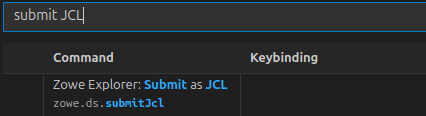
Type submit JCL into the search window. This gave me

So I can see it is not bound to a key.

Click on the item, and on the + sign which appears. A window pops up. Use the key combination, and press enter.

Use favourites

For data sets you often use, you can click on them and add to favourites, so they are always there

To have favourites spool job filters when you are looking at the spool.

  • Select the spool filter (and display any output)
  • Right click on the profile, and select Add to favourites
  • The filter will then appear in the Favourites section

If you submit a job, click on the popup window jobid, it will display it in the JOBS, under the active profile. You can get back to your usual spool filter settings, by going to the favourites.

Thanks

With thanks to Joshua Waters for all of his patience in helping me.

Zowe: Setting up vscode before you start, so the editors work

You can configure vscode to say if the type of the is JCL, then display a line at column 80, so you can tell when your lines spill, and other clever things.

You need to install the support

  • IBM provides Z Open Editor, This provides a lot of function – some of which is chargeable. The editing for COBOL, PL/I, REXX, HLASM, and JCL is free. Once is it installed, you can click on the settings icon and display more information about what is supported.
  • Broadcom provides JCL language Support

Open vscode

  • Open the extensions window, Ctrl+shift+X
  • Search for the extension you want, and install it
  • Restart vscode

Configure the vscode settings

You need to do some vscode configuration to get the full benefit of Zowe explorer.

Display the file associations.

Use ctrl+shift+p and type Preferences: Open user settings (JSON).

For me this displayed a file which included

 "files.associations": {
"**/*.COBOL*{,/*}": "cobol",
"**/*.COB*{,/*}": "cobol",
"**/*.COBCOPY*{,/*}": "cobol",
"**/*.COPYBOOK*{,/*}": "cobol",
"**/*.COPY*{,/*}": "cobol",
"**/*.PL1*{,/*}": "pl1",
"**/*.PLI*{,/*}": "pl1",
"**/*.INC*{,/*}": "pl1",
"**/*.INCLUDE*{,/*}": "pl1",
"**/*.JCL*{,/*}": "jcl",

If I edit a member in a data set which matches *.JCL*, it will be flagged as a language jcl.

Display the language settings

Ctrl+shift+P and search for Preferences: specify language specific settings. This displays all of the languages known to this instance of vscode. Scroll down to jcl. If jcl is missing, you need to install the support. See You need to install the support above

Click on JCL. Information about JCL is displayed. There is a box with @lang:jcl above the display. If you type @lang:jcl ruler it will display information about the ruler parameter

Mine says

Editor: Rulers  (Modified elsewhere . Default value changed)
Render vertical rulers after a certain number of monospace characters. Use multiple values for multiple rulers. No rulers are drawn if array is empty.
Edit in settings.json

If you click on Edit in settings.json it will put you into an edit session.

I inserted

 "[jcl]": {
"editor.rulers": [10,16,80],
},

Save the files. Edit a JCL data set. The sessions should have vertical lines at 10,16, and 80.

Thanks

With thanks to Joshua Waters for getting me working, and answering my many questions.

Zowe: Colin’s zowe cli help options

The zowe cli help option does not easily tell you how to get all of the help. In order to get the syntax of the command – you have to know the full command with the and then add the –help option!

ZOSMF CONNECTION OPTIONS

  • -host | -H (string) The z/OSMF server host name.
  • –port | -P (number) The z/OSMF server port. Default value: 443
  • –user | -u (string) Mainframe (z/OSMF) user name, which can be the same as your TSO login. Your TSO logon userid
  • –password | –pass | –pw (string) Mainframe (z/OSMF) password, which can be the same as your TSO password. Your TSO userid’s password
  • –reject-unauthorized | –ru (boolean) Reject self-signed certificates. Default value: true
  • –base-path | –bp (string) The base path for your API mediation layer instance. Specify this option to prepend the base path to all z/OSMF resources when making REST requests. Do not specify this option if you are not using an API mediation layer.
  • –protocol (string)
  • –cert-file (local file path) The file path to a certificate file to use for authentication
  • –cert-key-file (local file path) The file path to a certificate key file to use for authentication
  • –completion-timeout | –cto (number) The amount in time, in seconds, a REST operation should wait to complete before timing out
  • –establish-connection-timeout | –ecto (number) The amount of time, in seconds, a REST operation should wait while connecting to the server before timing out.
  • PROFILE OPTIONS

PROFILE OPTIONS

  • –zosmf-profile | –zosmf-p (string) The name of a (zosmf) profile to load for this command execution.
  • –base-profile | –base-p (string) The name of a (base) profile to load for this command execution.

BASE CONNECTION OPTIONS

  • –token-type | –tt (string) The type of token to get and use for the API. Omit this option to use the default token type, which is provided by ‘zowe auth login’.
  • –token-value | –tv (string) The value of the token to pass to the API.

Secure store aren’t

Applications such as Zowe can store secure information on the end user’s machine. This is not very secure! It is built into the operating systems. It is a bit like securing a door with a bit of string. Joshua Waters pointed out

The fact of the matter is that regardless of whether or not you are storing your credentials on a machine, if there is a virus or malicious actor on it, your credentials are up for grabs while the user is logged in. The only time they wouldn’t be up for grabs is if you were using an application that either require some master key to access the credentials store for it, or every authed request to the server requires user to re-enter credentials.

On Linux

The information is in the gnome-keyring ~/.local/share/keyrings/login.keyring .

You can use the Linux command seahorse to display the contents of the gnome-keyring. The user’s password is used to decrypt the store.
The following python code display the keyring contents

import secretstorage
conn = secretstorage.dbus_init()
collection = secretstorage.get_default_collection(conn)
for item in collection.get_all_items():
    print('='*30)
    print('label:', item.get_label())
    print('attributes:')
    for k,v in item.get_attributes().items():
        print('\t%-12s: %s' % (k,v))
    print('secret:',item.get_secret())

This gave

label: Zowe/secure_config_props
attributes:
account : secure_config_props
service : Zowe
xdg:schema : org.freedesktop.Secret.Generic
secret: b'eyIva...9fQ=='

The secret is based64 encoded. You can decode it (on Linux) with

base64 -d <<<"eyIva...9fQ=="  

This gave

{"/home/colinpaice/ssl/ssl2/zowe.config.json":
{"profiles.project_base.properties.user":"colin",
"profiles.project_base.properties.password":"password"
}
}

Where /home/colinpaice/ssl/ssl2/zowe.config.json is the name of the configuration file it applies to.

You can delete an entry using

import secretstorage
conn = secretstorage.dbus_init()
collection = secretstorage.get_default_collection(conn)
for item in collection.get_all_items():
print('='*30)
print('label:', item.get_label())
if item.get_label() == "Zowe/secure_config_props":
item.delete()
print("delete")
continue

This deletes all of the entries for that component – so all the Zowe data.

Who can see the contents of the store?

Your gnome-keyring is encrypted with your password, so you can access it. Someone one else would need your password to be able to decrypt it and see the contents.

What happens on other platforms?

On Windows and Mac’s it is essentially the same. There is a secure disk, and you need to be running as the owner to access it.

If your machine is infected with a virus, which runs under your userid, it can access the key stores and so get userid and password information store in the “secure store”.

Zowe cli help command is not helpful!

The zowe cli help option does not easily tell you how to get all of the help. In order to get the syntax of the command – you have to know the full command with the and then add the --help option! (This is working as designed!)

There is some online help here in a tree view or a “flat view of all of the commands“.

Whoops profile options not found


Step 1

The command zowe --help gives output including

USAGE
zowe <group>

Where <group> is one of the following:

GROUPS
auth Connect to Zowe API ML authentication service
config Manage JSON project and global configuration
zos-console | console Issue z/OS console commands and collect responses

...

Step 2

Now you know there is a console command….

The command zowe --help console gives output including

 USAGE

zowe zos-console <group>

Where <group> is one of the following:

GROUPS

collect Collect z/OS console command responses
issue Issue z/OS console commands

Step 3

Now you know there is a console issue command…

The command zowe --help console issue finally gives lots of output including

  • OPTIONS
    • --console-name | --cn | -c
    • --include-details | --id | -i
    • --key-only | --ko | -k (boolean)
    • --return-first | --rf | -r (boolean)
    • --solicited-keyword | --sk | -s (string)
  • ZOSMF CONNECTION OPTIONS
    • --host | -H (string) The z/OSMF server host name.
    • --port | -P (number) The z/OSMF server port. Default value: 443
    • --user | -u (string) Mainframe (z/OSMF) user name, which can be the same as your TSO login. Your TSO logon userid
    • --password | --pass | --pw (string) Mainframe (z/OSMF) password, which can be the same as your TSO password. Your TSO userid’s password
    • --reject-unauthorized | --ru (boolean) Reject self-signed certificates. Default value: true
    • --base-path | --bp (string) The base path for your API mediation layer instance. Specify this option to prepend the base path to all z/OSMF resources when making REST requests. Do not specify this option if you are not using an API mediation layer.
    • --protocol (string)
    • --cert-file (local file path) The file path to a certificate file to use for authentication
    • --cert-key-file (local file path) The file path to a certificate key file to use for authentication
    • --completion-timeout | --cto (number) The amount in time, in seconds, a REST operation should wait to complete before timing out
    • --establish-connection-timeout | --ecto (number) The amount of time, in seconds, a REST operation should wait while connecting to the server before timing out.
  • PROFILE OPTIONS
    • --zosmf-profile | --zosmf-p (string) The name of a (zosmf) profile to load for this command execution.
    • --base-profile | --base-p (string) The name of a (base) profile to load for this command execution.
  • BASE CONNECTION OPTIONS
    • --token-type | --tt (string) The type of token to get and use for the API. Omit this option to use the default token type, which is provided by ‘zowe auth login’.
    • --token-value | --tv (string) The value of the token to pass to the API.
  • MQ options
    • --mq-profile | --mq-p (string) The name of a (MQ) profile to load for this command execution.

Now you know what the options are you can search for them. This pointed me to the console command page.

Whoops profile options not found

I fell over trying to specify a nested profile.

For example

...
"profiles": {
"qa_lpar": { // Base profile connection properties are used unless overriden
"type": "base",
"properties": {
}
},
"profiles": {
"mq": {...
},

This is referred to as qa_lpar.mq .

What would I have done?

Personally I would have have a help page which listed all of the common options then list commands for example

  • Common options
    • --host etc

Specific commands

Why did that curl request take so long?

I’ve just discovered that you can get curl to report how long each part of a session took.

I set up a bash script

t=(--write-out "\n DNS Lookup:%{time_namelookup}s\n TCP Connect:%{time_connect}s\n TLS Handshake: %{time_appconnect}s\n Total Time: %{time_total}s\n")
...
curl -X PUT --header 'Content-Type: application/json' "${t[@]}" ....

and in the output it gives

 DNS Lookup:0.000033s
TCP Connect:0.003088s
TLS Handshake: 0.322826s
Total Time: 0.981765s

Note the \n in the text to give new lines.

For more details

see curl man page. –write-out.

You can specify an output file, stderr or stdout.

There are many parameters, the performance timing ones are

  • time_appconnect: The time, in seconds, it took from the start until the SSL/SSH/etc connect/handshake to the remote host was completed.
  • time_connect: The time, in seconds, it took from the start until the TCP connect to the remote host (or proxy) was completed.
  • time_namelookup: The time, in seconds, it took from the start until the name resolving was completed.
  • time_posttransfer:The time it took from the start until the last byte is sent by libcurl. In microseconds.
  • time_pretransfer: The time, in seconds, it took from the start until the file transfer was just about to begin. This includes all pre-transfer commands and negotiations that are specific to the particular protocol(s) involved.
  • time_queue: The time, in seconds, the transfer was queued during its run. This adds the queue time for each redirect step that may have happened. Transfers may be queued for significant amounts of time when connection or parallel limits are in place.
  • time_redirect: The time, in seconds, it took for all redirection steps including name lookup, connect, pretransfer and transfer before the final transaction was started. “time_redirect” shows the complete execution time for multiple redirections.
  • time_starttransfer: The time, in seconds, it took from the start until the first byte was received. This includes time_pretransfer and also the time the server needed to calculate the result.
  • time_total: The total time, in seconds, that the full operation lasted.
  • tls_earlydata: The amount of bytes that were sent as TLSv1.3 early data. This is 0 if this TLS feature was not used and negative if the data sent had been rejected by the server. The use of early data is enabled via the command line option “–tls-earlydata“.

z/OSMF console times out with return code 2 reason code 21

When trying to use the z/OSMF console interface to issue a console command and get the response I got after 60 seconds.

{“reason”:”Timeout when creating TSO address space for console COLIN99″,”return-code”:2,”reason-code”:21}

This was caused by PARMLIB(IZUPRMCM) not having a HOSTNAME specified, and was picking up a HOSTNAME of S0W1.DAL-EBIS.IHOST.COM. When I specified HOSTNAME(10.1.1.2) and restarted z/OSMF it all worked!

The HOSTNAME can be in various places in TCP/IP and the value from TSO (and jobs) may be different from a Unix thread.

I had to use the address of the TCP/IP stack for example 10.1.1.2; using the address of 127.0.0.1 didn’t work. I could not connect to z/OSMF from my client.

It was strange that with the HOSTNAME missing, I could create TSO address spaces.

How did I diagnose this problem?

In the file /global/zosmf/data/logs/IZUG0.log were entries like

INFO:Prepare to start new TSO/E address space with acct: ACCT#, proc: IZUFPROC, rsize: 50000, apptag: IZUCONAP 
Ýtx000000000000000E:IBMUSER@10.1.0.2 (PUT) /zosmf/restconsoles/consoles/COLIN99?null¨
2025-06-28T16:44:02.114Z|00000092|com.ibm.zoszmf.consoles.tsoconnect.Connection|run
WARNING:exception when run as server:
java.net.SocketTimeoutException: Connect timed out
...
at java.base/sun.net.www.http.HttpClient.openServer(HttpClient.java:531)
...
at com.ibm.zoszmf.consoles.tsoconnect.Connection$3.run(Connection.java:372)

This shows the TSO account number, the TSO procedure, the region size. I checked these were valid, and the userid had access to them.

The http request was a clue that this was using TCP/IP, and not using the TSO services available through CEA interface.

How did I run the command?

I used a script like

name=”colinpaice”
cert=” –cert ./$name.pem:password –key $name.key.pem”

insecure=”–insecure”
curl -X PUT –header ‘Content-Type: application/json’ $cert –header ‘Accept: application/json’
–insecure -d ‘{ “cmd”: “d a,l”, “sol-key”: “JES” }’
https://10.1.1.2:10443/zosmf/restconsoles/consoles/COLIN99&#8217;

What CEA TSO operator commands are there?

Part of the CEA facility service on z/OS, provides the capability for an application to start TSO address spaces, send it TSO commands, and receive the responses. This is used by products lie z/OSMF. You can have a CEA TSO address spaces for a user, as well as a “normal” TSO userid, where you logon and use ISPF.

More information about the commands

Change the CEA parameters F CEA,CEA=(x1,x2,…xN)

Display the CEA configuration parameters F CEA,D,P

STATUS: ACTIVE-FULL      CLIENTS: 0  INTERNAL: 0            
CEA = (00)
SNAPSHOT = N
HLQLONG = CEA HLQ =
BRANCH = COUNTRYCODE =
CAPTURE RANGE FOR SLIP DUMPS:
LOGREC = 01:00:00 LOGRECSUMMARY= 04:00:00
OPERLOG = 00:30:00
CAPTURE RANGE FOR ABEND DUMPS:
...
CAPTURE RANGE FOR CONSOLE DUMPS:
...
TSOASMGR:
RECONSESSIONS = 0 RECONTIME = 00:00:00
MAXSESSIONS = 50 MAXSESSPERUSER= 10

Display a summary of CEA TSO regions F CEA,D,S

STATUS: ACTIVE-FULL      CLIENTS: 0  INTERNAL: 0         
EVENTS BY TYPE: #WTO: 0 #ENF: 0 #PGM: 0
TSOASMGR: ALLOWED: 50 IN USE: 1 HIGHCNT: 0

Display client summary F CEA,D,CLIENTSUMMARY and D CEA,CLIENT=*

STATUS: ACTIVE-FULL      CLIENTS: 0  INTERNAL: 0                   
EVENTS BY TYPE: #WTO: 0 #ENF: 0 #PGM: 0
TSOASMGR: ALLOWED: 50 IN USE: 1 HIGHCNT: 0
NO CLIENTS KNOWN TO CEAS AT THIS TIME
12I CN=L700 DEVNUM=0700 SYS=S0W1

Display the session information F CEA,DIAG,SESSTABLE

INDEX=0001 USERID=COLIN    APPID=IZUCONAP ASID=004E MSGQID=00060018                       
COUNT=0001 ASCBADDR=FC3B80 STOKEN=0000013800000009 STTIME=15:34:43.966
LRTIME=15:34:43.967 LOGONPROC=IZUFPROC GROUP= REGION=50000
CODEPG=1047 CHARSET=697 ROWS=204 COLS=160 RECONN=N RCTIME=00:00:00.000
ACCT=ACCT#
HOST REMOTESYS= REMOTEQID=00000000 CALLERSYS=

This shows information like the TSO LOGON procedure used, the screen size,the region size and the account number.