Some z/OS applications only support passwords of length up to 8 characters. z/OS has had pass-phrase support for many years. A pass phrase must be between 14 to 100 characters in length (inclusive).
If you are going to use MFA where you combine a One Time Password and your password (such as 123456:passw0rd) the applications need to be able to support passwords longer than 8 characters. If your application does not support long passwords you will need to use out-of-band MFA.
See here on how to configure TSO to support pass phrase. Once this has been done, the TSO logon panel has a long password field. Once you have configured TSO to support pass phrases you can configure RACF and individual userids to use pass phrases.
In-band and out-of-band
With some applications you enter two factors to logon to the application. For example, I can logon to TSO with a “password” 983211:passw0rd - where 983211 is a one time code (which changes every minute) and passw0rd is my RACF password. This is in-band (you enter the combined password >IN<to the application). To be able to use in-band authentication you need to be able to enter long “passwords”.
If you cannot use in-band authentication, you can use multiple factors to logon to a web page, get a one time password and enter that into the application logon screen. This is indirect, or out-of-band authentication; you set up the password >OUT<side of the application. Your application does not need to change to be able to use out-of-band authorisation.
If you try to configure a userid with two factors, for example AFZTOTP1, and AZFYUBI1, you will get a message AZF2214E A user with multiple active Strong factors cannot authenticate in-band. If you try to logon to TSO with password and your Yubikey, how does MFA know if you are entering a AZFTOTP1 or a AZFYUBI1 password.
If you are going to configure a userid to logon out of band, using AZFTOP1 and AZFYYUBI1 then you will need to configure both the factors. If you want to logon in-band, just specify the single factor you want to use.
Pre-requisites
To be able to use the web browser interface to configure users for MFA you need to have AT-TLS working. AT-TLS logs to syslogd, so you need the SYSLOGD daemon running. My daemon is configured to log into /var/log/. For AT-TLS you need keyring(s) and certificate(s). Get these set up (and tested) before you try to configure MFA.
TCPIP port configuration
You need to decide which TCP ports you will use.
The Server Port. This is used between the MFA web server started task and the main MFA started task. The default is 6792.
The Server Authentication Port. This is used when end users connect to the MFA web server, for example to define a One Time Passcode connection. The default is 6793. This port needs to be configured in AT-TLS.
The Mutual Authentication Port. This is used when client connect to the MFA web server using client certificate authentication. The default is 6794. If you intend to use client certificate authentication this port needs to be configured to AT-TLS
These ports are configured via the AZFEXEC processing. If you are using Communications Server IP filtering, or a firewall, you will need to enable these ports.
What shape is your configuration?
Each LPAR needs an instance of the AFZ#IN00 started task.
For the MFA web server started task (AZF#IN01), you can use:
one MFA web server on each LPAR, with a different URL for each LPAR
a VIPA address, and one (or more) MFA web servers running, and one URL. Request will go to one server. If that server is shutdown, the traffic will be rerouted to another (active) MFA web server
a sysplex distributor, and one URL. A connection request is routed to any available MFA web server running in the sysplex, in a Round Robin, or workload balanced fashion.
You need to define RACF profiles for MFA. MFA stores information in some of these profiles.
You also provide information in the MFA segment for userids.
MFA is configured using AZFEXEC which displays ISPF panels. There is granular control, you can give a userid read or update access to a specific RACF FACILITY profile like IRR.RFACTOR.MFADEF.AZFTOTP1 (for the AZFTOTP1 component).
You should plan which userids (or groups) have read or update authority to which factor. It is easy to change at a later date. You could start with a generic profile IRR.RFACTOR.MFADEF.* .
Define and activate AT-TLS definitions
MFA provides a TLS session for the MFA web browser, so it can display the secret information need to configure authenticating applications.
Strictly you need to provide two keyrings – but I used the same keyring for both.
The server identification keyring.
This contains a certificate used to identify the server. This certificate needs a private key. If you want to specify which label in the keyring to use, add ServerCertificateLabel to the TTLSConnectionAdvancedParms AZFConnAdvParms1 definiton.
If you are using client certificate authentication then you need a keyring with certificates which can validate the certificate sent from the client. This keyring will usually contain certificate authority certificates. If the client is using self signed (not best practice) you will need these certificates in the z/OS keyring.
When you configure the AT-TLS procedure you configure where any output is put. I have it going to /var/log/ATTLS
You can use the Unix command pasearch > aa to write the current AT-TLS configuration to the file. You can then check the configuration is as you expect.
Steps
You need to define at least one authentication factor configured before MFA will successfully start. One Time Passcode is an easy one to define.
My approach to getting MFA configured for user was:
Get one function working such as Timed One Time Password (TOTP) so you can logon with just TOTP (and no password) to TSO.
Change the configuration to use Compound In-band Authentication, where you need TOTP and a password, so you enter 123456:passw0rd. You need to decide if you want password:code or code:password, and what the separator character is.
Develop a policy for out-of-band authentication for applications which do not accept a long or compound password.
Some MFA information is stored in a user profile, some information is stored as MFADEF profiles, and some information (such as private keys) is stored in ISCF under a token.
Some information is stored in RACF but is not displayable by RACF command. For example the STC configuration information.
Display user specific information
You can use the LISTUSER userid MFA command to display userid information. For example
TSO LU YUBI14 MFA
gave
 ...
MULTIFACTOR AUTHENTICATION INFORMATION:
 ---------------------------------------
   PASSWORD FALLBACK IS NOT ALLOWED
   AUTHENTICATION POLICIES =
     OOBCERT
     OOBYUBI
   FACTOR = AZFYUBI1
     STATUS = ACTIVE
     FACTOR TAGS =
       REGSTATE:CONFIRMED
       SERIAL:26146720
       PUBNAME:vvhvjcrlelce
       PRIVID:T4ZfCmaz8bbOdfv...
       SECRET:WdxFUpQA9uWq...
       CREATED:2024-01-23T14:28:08
       MODIFIED:1706025957
       YKCTR:1
       YKUSE:4
       YKTSL:1619
       YKTSH:175
Note: LU YUBI12 MFA NORACF does not work. It gave me ICH30012I NO USER(S) LISTED. NORACF SPECIFIED AND NO OTHER SEGMENTS REQUESTED.
Display MFA configuration information
Some information is available using the RACF RLIST command. Other information is not displayed.
You can have a hardware dongle, or an authenticator app on your phone (or other device) configured with a secret key. You can request the dongle or app to generate a temporary password which is valid for a period, typically 30 seconds or one minute. With this validity period it makes it hard for other people to use this password to get access to your system.
In theory the application to take the secret and generate a code should be simple to implement, but not all of the MFA parameters work will all authentication applications, for example some applications only support SHA-1, and do not support SHA256. You need to configure MFA and the userid to use parameters which work with your choice of authentication app.
The AZFEXEC configuration tool allows you to specify
SHA-1, SHA256, SHA384 SHA512
You can configure a user to have SHA1, SHA256, SHA384, SHA512. Some authentication applications only support SHA1.
If you get it wrong, you can reset the userid, add the correct tags, and get the user to reactivate the userid.
RLIST FACILITY IRR.RFACTOR.MFADEF.AZFTOTP1 ALL RLIST FACILITY IRR.RFACTOR.USER ALL RLIST MFADEF FACTOR.AZFTOTP1 MFA ALL
I followed Additional system programming steps for TOTP and used AZFEXEC to configure AZFTOTP1.
I used the following values
PKCS#11 Token Name: MFATOKEN
Key Label: I let it default to what was used previously
Use Single-key Encryption: I let it default to Y
REALM: I used MYREALM. Once you have MFA configured you may wish to revisit this
Initial Trace Level: default
Digest Algorithm: 2 (SHA256). Some authenticator apps do not support all algorithm. You can change this on a per user basis
Token Code Length: 1 (6 Digit). Some authenticator apps only support a length of 6
Token Period: 2 (30 seconds). Some authenticator apps only support 30 seconds
Window:1 (default)
Compound In-band Authentication: This is to use more than one factor to logon.
During initial set up and testing I set this to N. Once this worked, I set it to Y
Credential Order: 1. I logged on with 123456:PASSW0RD
Factor Separator: I used the default ( see the above line 123456>:<PASSW0RD)
Suspension Threshold: 10. This was set to the default value “0”,
Initial Trace level: default
Start the IBM MFA services started task
As part of the base MFA configuration I had already done the steps in Start the IBM MFA services started task.
Restart the MFA started tasks.
Task AZF#IN00 now produces message
AZF2109I Authenticator initialized : entry 0x206E40A8, name AZFTOTP1 (strong).
Restart the MFAweb server task (AZF#IN01)
Configure a user
I used
//         DD   *,SYMBOLS=JCLONLY
* RESET THE MFA ATTRIBUTES
 ALU &TOTPUSER MFA(NOPWFALLBACK)
 ALU &TOTPUSER MFA(FACTOR(AZFTOTP1) NOACTIVE                 )
 ALU &TOTPUSER MFA(FACTOR(AZFTOTP1) NOTAGS                   )
 ALU &TOTPUSER MFA(DELPOLICY( OOBCERT            )           )
 ALU &TOTPUSER MFA(DELPOLICY( OOBTOTP            )           )

 ALU &TOTPUSER MFA(FACTOR(AZFTOTP1) ACTIVE TAGS(REGSTATE:OPEN))

 ALU &TOTPUSER MFA(FACTOR(AZFTOTP1) NOACTIVE                 )

 LU &TOTPUSER MFA
The LU output has
MULTIFACTOR AUTHENTICATION INFORMATION:
---------------------------------------
  PASSWORD FALLBACK IS ALLOWED
  FACTOR = AZFTOTP1
    STATUS = ACTIVE
    FACTOR TAGS =
      REGSTATE:OPEN
Activate the user
Use the web site https://xx.xx.xx.xx:6793/AZFTOTP1/genericStart to start the activation. This prompts for your userid and password. If they are correct and the userid has been configured correctly it will display a QR code.
Use your authentication app to add a userid, by scanning the QR code. If successful, the app will generate a code. Enter this code in the web page to complete the activation.
Initial set up and testing
During initial testing, you can use just the 6 digit code to logon, for example to TSO. Once this is working you can use the AZFEXEC panels to configure AZFTOTP1 to enable Compound In-band Authentication, where you will need the One Time Password, plus your (TSO) password. You can specify if you want the format 123456:passw0rd or passw0rd:123456.
For TSO to take the TOTP and password, TSO will need to configured to support passwords greater than 8 characters long (passphrase support). The IKJTSOxx needs.
LOGON PASSPHRASE(ON)
For those applications which do not accept long password you will need to set up an Out of Band policy.
Define a simple Out of Band policy for just the TOTP
You can use a password or pass phrase with other MFA factors, for example with Timed One Time Password, you can enable Compound In-band Authentication where you need to specify 123456:passw0rd or passw0rd:123456. This only works if the password input field can handle the length.
With Out-of-band authorisation, you define a policy of which factors you want the end user to use, such as TOTP and password, or certificate and password.
You enter your security data on the MFA web page for the policy , and get back a one time code which you can use in your application. You need to configure the AZFPASS1 component to be able to enter your password as one of the factors.
PLUGHOST:Successfully retrieved system factor data for AZFCERT1: PLUGHOST:about to load AZFCERT1 PLUGHOST:AZF2102I Loaded authenticator (name: AZFCERT1, entry point: 0x206E40A8, status: 0x0) AZFCERT1:AZF8005I AZFCERT1 Initializing MFA2.2.0.0 compiled Jan 11 2022 11:44:24 last modified Tue PLUGS:AZF2108I Authenticator entry point invoked : status = 0x0 PLUGS:AZF2406E Error from R_factor (AZFCERT1) (length=0)
ICH21053I Unexpected return code=00000004 and reason code=00000000 from IBM MFA while processing user TOTP
I got this when doing
ALU TOTP MFA(FACTOR(AZFCERT1) ACTIVE TAGS(REGSTATE:OPEN))
I think it is connected to the first message. The FACTOR.name has been defined, but not initialised.
AZFYUBI:Failed to set user factor data (sts=0,safrc=8,racfrc=8,racfrsn=0xc) MFAWEB:serveYubiEnrollPost: Failed to commit updated yubiUser data (sts=0,safrc=8,racfrc=8,racfrsn=0xc)
AZF6159W PKCS#11 object not found (serveYubiEnrollPost) (label=<AZFYUBI….>,sts=0,num=0,p11rc=0,p11rsn=0x0)
Need to ingest commit the Yubikey
AZFYUBI:Failed to set user factor data (sts=1200008,safrc=0,racfrc=0,racfrsn=0x0) MFAWEB:serveYubiEnrollPost: Failed to commit updated yubiUser data (sts=1200008,safrc=0,racfrc=0,racfrsn=0x0)
With out-of-band authentication you log on to a MFA provided web page with multiple factors, such as certificate and password, to get a one time (and/or time limited) password which can be used in applications which do not support multiple factors in the password field.
A policy has a list of factors that must be used to get an out of band password.
The factors must exist, and be defined for a userid before they can be used in a policy.
My approach is to get a function working, such One Time Password, then configure a policy which uses it, and change the userid to use the policy.
and you specify which policies will be used. Profiles for the factors must exist, so they should exist in the output of the TSO search class(MFADEF) command, and the user configured to use them.
Display a policy
You can use
TSO rlist mfadef POLICY.OOBYUBI NORACF MFPOLICY
to display a policy. It provides the same information as is on the RDEFINE command.
Add a policy to a userid
You can use
ALU userid MFA(ADDPOLICY(OOBYUBI))
to add a policy to the user and remove it from the user with
ALU userid MFA(DELPOLICY(OOBYUBI))
where the value is in the POLICY…. list from the SEARCH class(MFADEF) output.
Ive put all of the RACF statements to configure the MFA parameters for a userid in a file. You can then cut and paste, or delete the ones you do not need.
The job to create the userid USERJ
//IBMUSERU JOB 1,MSGCLASS=H,RESTART=S1
//* Job to do set up  userid coonfigure all attr and give policy
//  JCLLIB ORDER=COLIN.MFA.JCL4
// EXPORT SYMLIST=(*)
// INCLUDE MEMBER=PARMS
// SET USERID=AZFUSER
// SET POLICY1=OOBTOTP
// SET POLICY2=OOBTOUS
// SET POLICY3=OOBTOUS
// SET POLICY4=OOBTOUS
// SET RSAUSER='??????'
// SET RADUSER='??????'
// SET ALTUSER='??????'
// SET WINDOW='??????'
//*
//* DEFINE THE STUFF NEEDED FOR STC
//S1  EXEC PGM=IKJEFT01,REGION=0M
//SYSPRINT DD SYSOUT=*
//SYSTSPRT DD SYSOUT=*
//SYSTSIN DD *,SYMBOLS=(JCLONLY)
//  INCLUDE MEMBER=USERTSO
//  INCLUDE MEMBER=USERAZF
//  INCLUDE MEMBER=USERPOL
Define a TSO userid member USERTSO
This deletes and defines the userid specified in the USERID variable in the JCL. If you already have a userid then you do not need to use this member.
This member has one definition active – the rest are commented out. I find it easier to comment out/remove stuff than type in lots of data.
//         DD   *,SYMBOLS=JCLONLY
ALU &USERID MFA(FACTOR(AZFYUBI1) NOACTIVE NOPWFALLBACK NOTAGS)
ALU &USERID MFA(FACTOR(AZFYUBI1)  TAGS(REGSTATE:OPEN))
* ALU &USERID MFA(FACTOR(AZFYUBI1)  ACTIVE                  )

* ALU &USERID MFA(FACTOR(AZFPASS1)  ACTIVE                  )
....
Define the policies for the userid, member USERPOL
//         DD   *,SYMBOLS=JCLONLY
ALU &USERID MFA(ADDPOLICY(&POLICY1))
ALU &USERID MFA(ADDPOLICY(&POLICY2))
ALU &USERID MFA(ADDPOLICY(&POLICY3))
ALU &USERID MFA(ADDPOLICY(&POLICY4))

LU &USERID MFA
Registering a userid
With some policies you have to enter parameter to register the userid, for example userid, password and TOTP.
I found if the password had expired I could not register. I had to logon (to TSO), change my password, then register.
A Yubikey is a USB dongle. When it has been configured if you press the button it generates a 44 character string where the cursor is in the current window. I believe it has two “slots” built in. Press the button quickly and you use configuration slot 1. Press for longer and you use configuration slot 2. The generated character string is used as the password to the z/OS application.
You have to configure the Yubikey to MFA. This adds the Yubikey private key information to the ICSF Token used by MFA. Once this has been configured different userids can use the same YubiKey. A Yubikey has a label like vvuicrlhrufe. You can use the Yubikey Personalization tool to reconfigured the dongle.
Which Yubikey do I need?
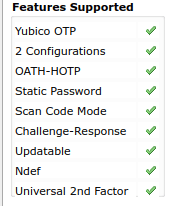
To use Yubikey with z/OS Multi Factor Authorization you need to have the correct Yubikey dongle. I have a
Insert your Yubikey into an USB port. It will light up for a few seconds.
Start the tool using a command window and the command yubikey-personalization-gui . The display should have
The important text is “YubiKey is inserted”.
The display has
Which has the Yubico OTP ticked.
Select the Settings tab
In the Log configuration output control, select Yubico format.
Select the Yubico OTP tab.
Click Quick. Select Configuration Slot 2. Slot 2 is recommended because it requires a long press, making it less likely that the Yubikey is accidentally triggered.
Click Write Configuration. This prompts you to give the location where the output is to be stored.
Follow the configuration as described in Chapter 21. Configuring Yubico OTP .
I found this chapter a little confusing.
In the section Administration and operation steps for Yubico OTP, I followed the instructions in Creating a .csv configuration file.
In the section Allowing users to self-enroll their tokens I followed the instructions in Ingesting the .csv configuration file. If you do not ingest the data, then the Yubkey is not configured into MFA. You can see the information if you use ICSF, option 5 UTILITY, option 7 PKCS11 TOKEN, option 4 List existing tokens, S in front of your token. Scroll though the list ( it could be a big list). I had an entry with label AZFYUBI.vvuicrlhrufe, where vvuicrlhrufe is the label in the csv file from the Yubi Personalization tool. If the csv has problems, ensure you are editing it will NUM OFF. The ISPF default profile may be setting this on, and treating the fist field as a sequence number! (The file name can be anything – it does not need to end in .csv)
The documentation says you can do either
Completing the self-enrollment – where a user can enroll their own Yubikey or
Enrolling tokens for users – where the administrator configures they userid and Yubikey configuration. This does not look a simple task, for example it may mean pasting data into a file, when the data is wider than the window size!
I did neither! The Completing the self-enrollment section basically generates and executes the statements like
ALU YUBI MFA(FACTOR(AZFYUBI1) NOACTIVE NOPWFALLBACK NOTAGS)
ALU YUBI MFA(FACTOR(AZFYUBI1) TAGS(REGSTATE:OPEN))
* ALU YUBI MFA(ADDPOLICY(YUBIPOL))
I did this through my template definitions.
I enrolled by using https://xx.xx.xx:6793/AZFYUBI1/enroll, entering my userid, password and the code from the Yubikey (move the cursor to the Yubikey field, and press the button on the Yubikey for several seconds).
Once this was successful, I could logon to TSO.
I put the cursor at the start of the password field, and pressed the button on the Yubikey. It generated a password (hidden) and logged on.
If I tried using the same code from the Yubikey a second time I got password not authorised and access denied (as expected).
and executed the AZFEXEC. My token was called MFATOKEN. When I wanted to use the Compound In-band Authentication I specified option 2, RACF credential first. If you specify MFA credential first, I found that when I pressed the button on the Yubikey it entered the characters and pressed enter, so I was not able to enter my password. If you enter your password, then colin :, then press the Yubikey it all worked.
I used AZFEXEC for the STC. I configured
Enable YubiKey Enrollment . . Y ( N or Y )
to allow me to use the https://…:6793/AZFYUBI1/enroll page.
I wanted the end user to be able to enrol the Yubikey themselves the through the web page https://xx.xx.xx.xx:6793/AZFYUBI1/enroll and followed the instructions Set Enable YubiKey Enrollment
As part of the base MFA configuration I had already done the steps in Start the IBM MFA services started task.
Restart the MFA started tasks.
Task AZF#IN00 now produces message AZF2109I Authenticator initialized : entry 0x207620A0, name AZFYUBI1 (strong).
from the web browser, you need to configure the STC task. See above.
If you enter the userid information and the Yubikey password, and get Yubikey enrollment failed use the TSO command LISTUSER userid MFA It should display
FACTOR = AZFYUBI1 STATUS = INACTIVE FACTOR TAGS = REGSTATE:OPEN
If the registration fails and there is a message in the AZF#IN01 space
AZFYUBI:Failed to set user factor data (sts=1200008,safrc=0,racfrc=0,racfrsn=0x0)
Issue LU userid MFA, and check the status. It should be INACTIVE REGSTATE:OPEN.
What does the information mean?
When I use my Yubikey to generate a key it produces a string like vvhvjcrlelcehtjdkcgnlflcrgrrnlbregntfjfjcljr
The value vvhvjcrlelce is alway the same; It is generated from the Yubikey Personalisation tool If I list a user enrolled with Yubikey and display the information I get information like
FACTOR = AZFYUBI1
  STATUS = ACTIVE
  FACTOR TAGS =
    REGSTATE:CONFIRMED
    SERIAL:26146720
  PUBNAME:vvhvjcrlelce
  PRIVID:HYxqjiJGSyZ2zCAnC3dubCPjJojXuavW7vvTe5wnz4Y=
  SECRET:tOPrXw8UMTV5i44KRLKYbvZeCa9wjH9yPma0fRCC5DQmo54uqwu01onduPS0eSN
  CREATED:2024-01-23T14:28:08
  MODIFIED:1706803497
  YKCTR:3
  YKUSE:8
  YKTSL:45628
  YKTSH:176
There are fields like YKUSE, a use count. See the Yubikey documentation for information on what the values mean (but it is not very clear).
With Timed One Timed Passwords, you can use an application on your mobile phone for generating the TOTP codes.
You can also do this from Linux and generate the code to be able to logon to z/OS from Linux (Ubuntu 22.04). I used cURL and a Linux authenticator tool called oathtool. I expect other techniques are available, such as with Python.
Overview of the process
From Linux, send the userid and password request in a URL from Linux to https://….:6793/AZFTOTP1/genericToken.
This sends back a response with
“status”:0,
“rc”:0,
“rsn”:0,
“preflightPathBase”:”/AZFTOTP1/preflight”,
“inviteCode”:”HXKNSSWMMDIZ2DVB1R2VNTGA2MOUJDKE”,
“otpauthURL”:”otpauth://totp/T012@MYREALM
?secret=MQB4T…2Y
&issuer=MYREALM
&algorithm=SHA1
&digits=6
&period=30″}
The data is
The “preflightPathBase” is the URL to send back the code to
The “inviteCode” identifies the specific request to MFA
The secret is the value used to generate the OTP – it should be kept securely
Algorithm specifies the algorithm to be used, for example SHA1, or SHA256
The number of digits to be generated in the numeric code
The period when it should generate a new code, typically 30 seconds.
The oathtool is invoked passing the secret and the algorithm etc. and it generates a code
The code is sent back to the requester to complete the registration process
a new code is generated. This means you need to retain the various parameters ( secret, digits etc) on Linux. Having the parameters in a file may be insecure, so you may want to consider encrypting the file with the parameters, and use, for example, a dongle with the private key on it. This means to be able to access the parameters you need the dongle.
What is supported?
The oathtool help says the supported algorithms are “SHA1”, “SHA256”, or “SHA512” The MFA product also supports SHA384 – but cannot be used with authtool.


 ColinPaice