What’s going on? – getting performance data from a z/OS systrace

On my little z/OS system, one address space was using a lot of CPU – but doing nothing. What was going on? The address space was a z/OSMF based on the Liberty Web server.

The blog post tells you how to take a dump, and use IPCS to display useful information from the system trace. The system trace contains deep down information like

  • Task A was dispatched on this processor at this time.
  • It issued a request MVS to get a block of storage, and time.
  • The request completed, with this return code, at this time.
  • Task A was interupted at this time
  • Task B was dispatched

There is a lot of detailed information, and it is overwhelming when you first look at it. This blog post shows how you can get summary information from the trace – while ignoring all of the detailed, scary stuff. It does not require any prior knowledge of IPCS or dumps.

Take your dump

DUMP COMM=(COLINS DUMP)
R xx,jobname=IZUSVR1

This gives output like

IEE600I REPLY TO 01 IS;JOBNAME=IZUSVR1
IEA045I AN SVC DUMP HAS STARTED AT TIME=16.24.56 DATE=06/21/2021 044
FOR ASID (0044) QUIESCE = YES

IEA611I COMPLETE DUMP ON SYS1.S0W1.Z24A.DMP00004

Go into IPCS

I find it easier to use a wide(132) screen for IPCS.

This may be in your ISPF panels, or you might need to issue a command before starting ISPF. You might need to talk to your system programmer.

You get the primary menu

 ------------------- z/OS 02.04.00 IPCS PRIMARY OPTION MENU
 OPTION  ===>                                              
                                                           
    0  DEFAULTS    - Specify default dump and options      
    1  BROWSE      - Browse dump data set                  
    2  ANALYSIS    - Analyze dump contents                 
    3  UTILITY     - Perform utility functions             
    4  INVENTORY   - Inventory of problem data             
    5  SUBMIT      - Submit problem analysis job to batch  
    6  COMMAND     - Enter subcommand, CLIST or REXX exec  
    T  TUTORIAL    - Learn how to use the IPCS dialog      
    X  EXIT        - Terminate using log and list defaults

Select option 0

------------------------- IPCS Default Values ---------------------------------
 Command ===>                                                                   
                                                                                
   You may change any of the defaults listed below.  The defaults shown before  
   any changes are LOCAL.  Change scope to GLOBAL to display global defaults.   
                                                                                
   Scope   ==> LOCAL   (LOCAL, GLOBAL, or BOTH)                                 
                                                                                
   If you change the Source default, IPCS will display the current default      
   Address Space for the new source and will ignore any data entered in         
   the Address Space field.                                                     
                                                                                
   Source  ==> DSNAME('SYS1.CTRACE1')
   Address Space   ==> RBA
   Message Routing ==> NOPRINT TERMINAL NOPDS
   Message Control ==> CONFIRM VERIFY FLAG(WARNING)
   Display Content ==> NOMACHINE REMARK REQUEST NOSTORAGE SYMBOL ALIGN
                                                                                
 Press ENTER to update defaults.                                                
                                                                                
 Use the END command to exit without an update.                                 

Replace the source with DSN(‘your dumpname’).

Change Scope from LOCAL to BOTH

Press enter to update. Use =6 on the command line to get to the IPCS command window.

Enter a free-form IPCS subcommand or a CLIST or REXX exec invocation below: 
                                                                            
===>                                                                        
                                                                            
                                                                            
----------------------- IPCS Subcommands and Abbreviations -----------------
ADDDUMP           | DROPDUMP, DROPD   | LISTDUMP, LDMP    | RENUM,    REN   
ANALYZE           | DROPMAP,  DROPM   | LISTMAP,  LMAP    | RUNCHAIN, RUNC  
ARCHECK           | DROPSYM,  DROPS   | LISTSYM,  LSYM    | SCAN            
ASCBEXIT, ASCBX   | EPTRACE           | LISTUCB,  LISTU   | SELECT          
ASMCHECK, ASMK    | EQUATE,   EQU, EQ | LITERAL           | SETDEF,   SETD  
CBFORMAT, CBF     | FIND,     F       | LPAMAP            | STACK           
CBSTAT            | FINDMOD,  FMOD    | MERGE             | STATUS,   ST    
CLOSE             | FINDUCB,  FINDU   | NAME              | SUMMARY,  SUMM  
COPYDDIR          | GTFTRACE, GTF     | NAMETOKN          | SYSTRACE        
COPYDUMP          | INTEGER           | NOTE,     N       | TCBEXIT,  TCBX  
COPYTRC           | IPCS HELP, H      | OPEN              | VERBEXIT, VERBX 
CTRACE            | LIST,     L       | PROFILE,  PROF    | WHERE,    W     

If you use the command “systrace” you will see the scary internal trace. PF3 out of it.
Use the command

systrace jobname(IZUSVR1) PERFDATA(DOWHERE) time(LOCAL)

Go to the bottom of the report ( type m and press PF8) and type

REPORT VIEW

This gives you the report in an editor session, so you can exclude, delete, sort count etc.

This gives a lot of data. It is in sections, the sections are…FLocal

Summary of the dump

Analysis from 06/21/2021 16:24:46.391102 to 16:24:56.042146 9.651044 seconds 

This gives the time of day, and the interval of the trace is 9.65 seconds.

Summary of CPU usage by engine

CPU  Type Pol  Park   SRB Time              TCB Time             Idle Time           
---- ---- ---- ---- --------------------- --------------------- ---------------------
0000 CP   High No       0.190562   1.974%     0.828988   8.589%     8.603271  89.143%
0001 CP   High No       0.098836   1.024%     0.393259   4.074%     9.143735  94.743%
0002 CP   High No       0.086573   0.897%     0.415063   4.300%     9.136385  94.667%
0003 zIIP High No       0.015463   0.160%     2.227832  23.083%     7.398707  76.662%
0004 zIIP High No       0.000000   0.000%     1.094373  11.339%     8.551280  88.604%
---- ---- ---- ---- --------------------- --------------------- ---------------------
                        0.391434              4.959518             42.833380 

This shows

  • Most of the time was spent in TCB “application thread” mode (4.959 seconds of CPU) rather than SRB “system thread” mode (0.391 seconds of CPU).
  • One ZIIP was busy 23 % of the time, the other ZIIP was busy 11 % of the time.

Summary of CPU overall over 5 engines

 SRB time      :     0.391434 
 TCB time      :     4.959518 
 Idle time     :    42.833380 
 CPU Overhead  :     0.070886 
                 ------------ 
         Total :    48.255220  

This summarises the data

  • 4.95 seconds of CPU in TCB mode in 9.65 seconds of trace
  • 42 seconds idle
  • 5 engines * 9.65 seconds duration = 48.25

CPU break down by ASID/Jobname

CPU breakdown by ASID: 
                                                    
ASID Jobname    SRB Time     TCB Time    Total Time 
---- -------- ------------ ------------ ------------
0001 *MASTER*     0.011086     0.017940     0.029027
0003 RASP         0.000186     0.000000     0.000186
0005 DUMPSRV      0.035545     0.008959     0.044504
0006 XCFAS        0.021590     0.074411     0.096001
...   
0044 IZUSVR1      0.021217     3.638295     3.659513
0045 COLIN        0.000000     0.000000     0.000000
0046 RMF          0.010238     0.020204     0.030442
0047 RMFGAT       0.019961     0.160512     0.180474
              ------------ ------------ ------------
                  0.391434     4.959518     5.350953

Most of the CPU was in ASID 44 for job IZUSVR1.

Breakdown by system thread (SRB) by address space/jobname

SRB breakdown by ASID: (WHERE command bypassed for CPU usage less than 0.100000): 
                                                                                   
ASID: 0001   Jobname: *MASTER* 
IASN      SRB PSW      # of SRBs     Time 
---- ----------------- --------- ------------ 
0001 070C0000 83D0E8A0         2     0.000314 
...  
ASID: 0003   Jobname: RASP 
IASN      SRB PSW      # of SRBs     Time

Ignore this unless the SRB usage was high.

Breakdown of CPU by used thread by address space/jobname


TCB breakdown by ASID: 
                                                   
ASID Jobname  TCB Adr  # of DSPs     Time 
---- -------- -------- --------- ------------ 
0001 *MASTER* 008EDE88         1     0.000535
... 
ASID Jobname  TCB Adr  # of DSPs     Time 
---- -------- -------- --------- ------------ 
0044 IZUSVR1  008C8E88        22     0.013143 
0044 IZUSVR1  008AD7A0        30     0.006694 
0044 IZUSVR1  008B97B8        37     0.015926 
0044 IZUSVR1  008BA3E8        50     0.017547 
0044 IZUSVR1  008B2628        15     0.007748 
0044 IZUSVR1  008C4840        19     0.008433 
0044 IZUSVR1  008BD2D8        20     0.008551 
0044 IZUSVR1  008CDC68        14     0.008107 
0044 IZUSVR1  008C8328        15     0.006540 
0044 IZUSVR1  008CAC68        16     0.006612 
0044 IZUSVR1  008C9E88        14     0.006634 
0044 IZUSVR1  008B5C68        14     0.005668 
0044 IZUSVR1  008CBBE0        28     0.015650 
0044 IZUSVR1  008ADE00        17     0.005861 
0044 IZUSVR1  008B9470        15     0.006014 
0044 IZUSVR1  008BEA48        17     0.017092 
0044 IZUSVR1  008C6CF0        20     0.010093
...
0044 IZUSVR1  008CC2D8       548     0.827491 
0044 IZUSVR1  008D2E88        25     0.445230 
0044 IZUSVR1  008D2510       819     0.412526 
0044 IZUSVR1  008CEE88        14     0.158703
0044 IZUSVR1  008D3E88         8     0.003189 
0044 IZUSVR1  008C4CF0        18     0.013237 
                                 ------------ 
                                     3.638295
  • There were 166 TCB’s which did something in the time period.
  • TCB with address 008D2510 was dispatched 819 times times in 9 seconds – using 0.4 seconds of CPU! This was being dispatched 100 times a second, and used 5 milliseconds of CPU on average per dispatch. This looks high considering the system was not doing any work.
  • TCB with address 008d2E88 was dispatched 25 times in 9 seconds, and used 0.44 seconds of CPU or 17 ms of CPU per dispatch. This is doing more work per dispatch than the previous TCB.

Display lock usage

Lock events for CEDQ   
  None found                
Lock events for CSMF       
  None found               
Lock events for CLAT        
  None found              
Lock events for CMS         
  None found                
Lock events for OTHR        
  None found                

Nothing of interest here.

Display local lock usage – locking the job

Lock events for LOCL of ASID 0010 OMVS 
Lock ASID Jobname  TCB/WEB  Type    PSW Address    IASN  Suspended at    Resumed at     Suspend Time 
---- ---- -------- -------- ---- ----------------- ---- --------------- --------------- ------------ 
CML  0044 IZUSVR1  008C33E8 TCB  00000000_04868084 0010 16:24:49.612051 16:24:49.612076     0.000025 
CML  0044 IZUSVR1  008B4938 TCB  00000000_048687E4 0010 16:24:49.612090 16:24:49.612570     0.000480 
... 
---- ---- -------- -------- ---- ----------------- ---- --------------- --------------- ------------ 
Suspends:      6  Contention Time:     0.000821    0.008%               WU Suspend Time:    0.000823 
                                                                                                        
Lock events for LOCL of ASID 0044 IZUSVR1 
Lock ASID Jobname  TCB/WEB  Type    PSW Address    IASN  Suspended at    Resumed at     Suspend Time 
---- ---- -------- -------- ---- ----------------- ---- --------------- --------------- ------------ 
LOCL 0044 IZUSVR1  008D3E88 TCB  00000000_010CCD62 0044 16:24:46.404417 16:24:46.404561     0.000144 
LOCL 0044 IZUSVR1  008D3E88 TCB  00000000_010ADA78 0044 16:24:46.410188 16:24:46.412182     0.001993
Suspends:     83  Contention Time:     0.042103    0.436%               WU Suspend Time:    0.079177

The LOCal Lock (LOCL) is the MVS lock used to serialise on the address space, for example updating some MVS control blocks. For example if MVS wants to cancel an address space, it has to get the Local lock, to make sure that critical work completes.

  • For the OMVS addess space, address space IZUZVSR1 got the lock 6 times, and was delayed for 0.823 milliseconds waiting for the local lock.
  • For the IZUSVR1 address space, 83 TCBs got the local lock, and were suspended for a total of 79 milliseconds.

Display timer events (CPU Clock comparator CLKC and timer TIMR)

ASID: 0044   Jobname: IZUSVR1 
SRB/TCB  IASN   Interrupt PSW    Count   Where processing 
-------- ---- -------- -------- -------- ----------------------------------------
00000000 0044 070C0000 81D83CB8        2 IEANUC01.ASAXMPSR+00     READ/WRITE NUCLEUS 
...
008CEE88 0044 078D0401 945F2B28       11 AREA(Subpool252Key00)+CB28 EXTENDED PRIVATE 
008CEE88 0044 078D2401 945F99BE        1 AREA(Subpool252Key00)+0139BE EXTENDED PRIVATE 
008CEE88 0044 078D2401 FA63F71E        1 SPECIALNAME+03F71E     EXTENDED PRIVATE 
008CEE88 0044 078D0401 FAB00178        1 SPECIALNAME+0178     EXTENDED PRIVATE 
008CEE88 0044 078D2401 FAB447BE        1 SPECIALNAME+0447BE     EXTENDED PRIVATE 
008CEE88 0044 078D0401 FAD9E660        1 SPECIALNAME+29E660     EXTENDED PRIVATE 
008B17B8 0044 070C0000 81C92030        1 IEANUC01.IAXVP+4048     READ ONLY NUCLEUS 
008B27C0 0044 072C1001 91AF2460        1 BBGZAFSM+7520     EXTENDED CSA 
...
008D2E88 0044 078D0401 945F2B28       22 AREA(Subpool252Key00)+CB28     EXTENDED PRIVATE 
008D2E88 0044 078D0401 FB036F08        1 SPECIALNAME+036F08     EXTENDED PRIVATE 
...
008D2E88 0044 078D0401 FC145732        1 AREA(Subpool229Key00)+A732     EXTENDED PRIVATE 

This displays

  • The TCB
  • The virtual adress where the interrupt occurred
  • These entries are in time sequence, and so we can see the second entry had 11 interupts in quick succession (count is 11).
  • The Where processing, is a guess at converting the address into a module name. Sometimes it works, for example Module IEANUC01, csect ASAXMPSR, offset 0. Sometimes it cannot tell, for example from Java code.

This shows 2 things

  • The application said wake me up in a certain time period
  • The TCB was executing and z/OS interrupted it because it needed to go and dispatch some other work. This gives a clue as to hot spots in the code. If the same address occurs many times – the code was executing here many times. I look in the raw systrace to see if this is a TIMer (boring) or a CLKC interesting. Interesting gives you a profile of what code is CPU intensive.
  • You can delete all the records outside of this block, then sort 15 32 to sort on PSW address. For my IPCS dump the address 078D0401 945F2B28 occurred 35 times.

I/O activity

 Device   SSCH Issued    I/O Occurred     Duration   
 ------ --------------- --------------- ------------ 
  0A99  16:24:48.009819 16:24:48.010064     0.000244 
  0A99  16:24:48.033619 16:24:48.033856     0.000236 
  0A99  16:24:48.051014 16:24:48.051081     0.000066 
  0A99  16:24:48.057377 16:24:48.057434     0.000056 
  0A99  16:24:48.080331 16:24:48.080430     0.000098 
                                        ------------ 
                                            0.000702 
                                                     
    Events for 0A99 :            5                   
    Quickest I/O    :     0.000056                   
    Slowest  I/O    :     0.000244                   
    Total           :     0.000702                   
    Average         :     0.000140                   

This says for the device 0A99 there were 5 I/O requests, total time 0.7 milliseconds

  • I used the REPORT VIEW to get the data into ISPF edit,
  • deleted all the records above the I/O section
  • Used X ALL
  • F TOTAL ALL
  • This shows the totals for all I/Os. Most totals were under 1 ms. One I/O was over 5 seconds.
  • Displaying the detailed records above this TOTAL record showed one I/O took over 5 seconds!

End of report

End of PERFDATA analysis.

Advanced topic: Look at hot spots

I had seen that PSW 078D0401 945F2B28 was hot. If you go back to the IPCS command panel, you may be able to use the command

L 945F2B28

To display the storage. This will not work. You have to remove the top bit (80), so

L 145F2B28

may work.

If the first character is a letter (A-F) then you need to put a 0 on the front for example

L 0D2345678

You might need to put the address space in as well for example

L 145F2B28 ASID ID(x’44’)

You can say

L 145F2B28 ASID ID(x’44’) LENGTH(4096)

To display large sections of storage

Dig into the trace

You can use

systrace jobname(izusvr1)tcb(x’008CC2D8′)

to display all entries for the specified TCB and jobname.

  • Go to the bottom ( type Max press PF8)
  • use the report view command to get into and edit session
  • Columns 79 to 88 contain a description of some of the system calls
  • use X ALL;f ‘ ‘ 79 84 all;del all nx to delete all lines without a description

This gives you a picture of the MVS services being used.
The best way to save money, is not to spend it. The same is true for CPU.

I was trying to understand why a z/OSMF address space, using the Liberty web server (written in Java) was using a lot of CPU – when it was doing no work. I looked into the MVS system trace and saw some interesting behaviour. If you are trying to investigate a high CPU usage in a z/OS Job, I hope the following may help you with where you need to start looking.

If you are looking at a Java program, knowing there is a problem does not help you with what is causing the problem. There is Java, which uses C code, which uses USS services, which uses MVS services which is what you see in the system trace. The symptom is a long way from the source code. You might be able to correlate the time stamp in the system trace with the Java trace.

The ‘interesting’ behaviour…

  • Getmain/freemain storage requests. These are heavy weight requests for getting and freeing storage. Once warmed up, I would expect no storage requests.
  • “Storage Obtain”/”Storage Release” requests. These are medium weight requests for getting and freeing storage. Once warmed up, I would expect no storage requests.
  • Attach task and detach tasks, or pthread_create(). I would have expected tasks would have been attached at start up, and there would be no need for more tasks. I can see that under load more tasks may be required until the system stabilises.
  • Many timer pops a second. There were 50 time pops every second (one every 20 milliseconds). Is this efficient? No! It may be more efficient to have the duration between timer pops increase if there is no load, so a timer pop 10 times a second may be acceptable when the system is idle – and reset it to a short interval when the system is busy, or change the programming model to be wait-post rather than spinning the wheels.

I’ll discuss these in more detail below.

Storage requests, GETMAINs, FREEMAINs, STORAGE requests.

For a non trivial application such as a web server, MQ, DB2 etc, I would not expect to see any storage requests in the system trace once the system has warmed up. When I worked for MQ development, we went through the system trace, and every time we found a GETMAIN or STORAGE OBTAIN, we worked to eliminate it, until there were non left.

Use a stack

Instead of each subroutine using GETMAIN or “Storage request” to get a block of storage for its variables, I would expect a program stack to be used. For example the top level program for the thread allocates a 1MB block of storage and uses this as a stack. The top level program uses the first 2KB from this buffer. The first subroutine uses this buffer from 2KB for 3KB. If this subroutine calls another subroutine, the lower level subroutine uses this buffer from 5KB for 2KB. This is a very efficient way of managing storage and each subroutine needs only 10’s of instructions to get and release storage from the stack.

A problem can occur if the stack is not big enough, and there is logic like “If no space in the stack – then GETMAIN a block of storage”. If this happens the request quickly becomes expensive.

C (Language Environment) programs on z/OS can set the stack size, and when the system is shutdown, print out statistics on the stack usage.

Use the heap

A subroutine may need some “external storage”, which exist outside of the subroutine, for example store entries in a table for the life of the job. A heap (or heappool) is a very efficient way of managing the storage. If your program gets some storage, it does not return it, when the block has been finished with, the program “adds it to the heap” so it can be reused.

A simple heap example.

This might be an array of 3 pointers;

  • storage[0] is a chain of free 1KB blocks,
  • storage[1] is a chain of free blocks from 1K+1 bytes to 10KB,
  • storage[2] is a chain of free blocks from 10K+1 bytes to 50KB.

If your program needs a 512 byte block – it looks to see if there is a free block chained from storage[0], if not allocate a 1KB block (not 512 byte). When it has finished with the block, put it onto the storage[0] chain.
Over time the number of elements on each chain is sufficient to run the workload, and there should be no more storage requests. An increase in throughput may increase the demand for storage, and so during this “warm up” period, there may be more storage requests.

C run time statistics

For C programs on z/OS you can get the C runtime component to print out statistics on the stack and heap usage, and gives recommendations on the best size to specify.

In the //CEEOPTS data set you can specify the following

You may want to use HEAPPOOLS64(ALIGN…) and HEAPPOOLS(ALIGN…) when there are multiple threads so the blocks are hardware cache friendly, and you do not have two CPUs fighting for the same hardware cache data.

Ive blogged One Minute MVS – tuning stack and heap pools.

Smart programs

MVS can call exit programs, for example when an asynchronous event has happened, such as a timer has expired. These programs are expected to allocate storage for their variables ,do some work, give back the storage, and return. This can be very expensive – you have the cost of getting and freeing a block of storage just to set a few bits.

You may be able to write your exit program so it only uses registers, and does not need any virtual storage for variables. If this is not possible then consider passing a block of storage into the called program. For example the RACF Admin function

CALL IRRSEQ00 (Work_area,… )

Work_area: The name of a 1024-byte work area for SAF and RACF usage. The work area must be in the primary address space.

Example exit program

You could use the assembler macro STIMERM (Set TIMER). You specify the time interval, the address of the exit, and a user parameter. This user parameter is passed to the exit program when it gets control.

  • This could be a pointer to a WAIT ECB block,
  • or a pointer to a structure, one element in the structure is the WAIT ECB block, another element is the address of a block of storage the exit can use.

Attach task and detach task.

It is expensive to attach and detach tasks, so it is important to do it as little as possible. From a USS perspective the attach is from pthread_create.

A common design template to eliminate the attach/detach model is to have a pool of threads to do work.

  • A work request comes in, the dispatcher task gets a worker thread from the pool, and gives the work request to it. When the worker has finished it puts itself back in the pool.
  • If there was no worker thread available, check the configuration for the maximum number of threads, If this limit has not been reached, create a new worker thread.
  • If the was no worker thread available and the number of threads was at the limit, then wait until a worker thread is free.
  • Some thread pools have logic to shrink the pool if it gets too big. Without this logic a thread pool could be very large because it hit a peak usage weeks ago, and the pool has only been little used since.

Having a pool means that some of the expensive set up is done only once per thread, for example connect to DB2 or connect to MQ. You also avoid the expensive create (attach) of a thread, and delete (detach) of the thread. The application has logic like

  • Dispatching application attaches a new thread.
  • start thread
    • perform the expensive set up – for example connect to DB2 or connect to MQ
    • add task to the thread pool
    • do until told to shutdown
      • wait for work
      • do the work
    • end do
    • disconnect from DB2 or MQ
    • thread returns and is detached
Problems with the thread pool

One problem with using a thread pool is if the minimum pool size is too small. Smart thread pools have options like

  • lowest number of threads in thread pool
  • maximum number of thread thread pool
  • maximum idle time of a thread. If there are more threads than the lowest number of threads, and a thread has been idle for longer than this time then free the thread.

You can get the”thrashing” on a low usage system

  • The lowest number of threads is specified as 10 threads.
  • The main program needs 50 threads – it uses 10 from the pool, and allocates 40 new threads. These are added to the pool when the work has finished.
  • The clean-up process periodically checks the pool. If there are more threads than the lowest number, then purge ones which have been idle for more than the specified idle-time. 40 threads are purged
  • Repeat:
  • The main program needs 50 threads- it uses 10 from the pool, and allocates 40 new threads. These are added to the pool when the work has finished.
  • The clean-up process periodically checks the pool. If there are more threads than the lowest number, then purge ones which have been idle for more than the specified idle-time. 40 threads are purged

In this case there is a lot of attach/purge activity.

Making the pool size 50, or the maximum idle time very large will prevent this thrashing…

  • The lowest number of threads is specified as 50 threads.
  • The main program needs 50 threads – it uses 50 from the pool.
  • The clean-up process periodically checks the pool. The pool size is OK – do nothing.
  • Repeat:
  • The main program needs 50 threads- it uses 50 from the pool.
  • The clean-up process periodically checks the pool. The pool size is OK – do nothing

In this case the number of threads stays constant and you do not get the create/delete (attach/purge) of threads.

In one test this reduced the CPU time used when idling by more than 50 %.

Many timer pops a second

In my system trace I can see a task wakes up, it sets a timer for 20 milliseconds later, and suspends itself. This is very inefficient. This should be a wait-post model instead of an application in a loop, sleeping and checking something.

When investigating this you need to think about the speed of your box. Consider an application which just does

  • setting a timer to wake up in 10 milliseconds
  • it wakes up a thread which does nothing – but set a timer for 10 ms later (or 100 times a second)

On my slow box this could take me 1 ms of CPU to do this once, – or 100 ms of CPU for 100 times a second. One engine would be busy 10% of the time.

If I had a box which was 10 times faster and only took 0.1 ms of CPU to do the same work. For 100 iterations this would be 10 ms of CPU or 1% of an engine. To some people this is at the “noise level” and not worth looking at.

To you 1% CPU per second is “noise level”, to me the noise level of 10% CPU per second is a flashing red light, a loud klaxon and people in body armour running past.

One Minute MVS performance – DASD

Question: In your car how do you tell if your car has a problem? Answer: You look at the dashboard and see if there is a red light showing. You may not know how to fix it – but you know that you need to get help to fix it.

The aim of this series of blog posts is to show you what to look for in z/OS performance and if you have a problem.

I will cover

For some of these you need data from z/OS. This post describes how to get the SMF data, and format it using RMF.

DASD has changed in 40 years

40 years ago “disk storage” was on huge rotating disks and you had to carefully manage where you put your datasets -both which disk, and whereabouts on the disk. For example people would put the hot dataset in the “centre” of the disk to minimise the time to move the heads.

For the last 20 years people use the term “storage” because most I/O activity goes to cache in the disk controller, and the disk controller writes the data out to PC sized disks – which in turn may be solid state, and have no moving parts.

A pictorial view of disks

  • You have the processor running z/OS
  • Plugged into the side of the processor is the I/O adapter
  • Plugged into this I/O adapter are a lot of channels (think optical fibre cables)
  • Theses cables can be plugged into a switch – think of a plug board or telephone exchange. This allows channels from 2 processors plugged into the switch, and have one cable down to the storage controller . You could avoid a switch and have cables directly from the processor to the storage controller. Each processor would need its own set of cables.
  • The storage controller manages all of the IO
    • It has a lot of cache so most I/O may go to the cache. During a read, the storage controller will read from the disks if the data is not in the cache.
    • It has many PC type of disks. These disks could be solid state, or have rotating disks
    • If you have mirrored disks, the storage controller talks to a remote storage controller
  • Within each channel are many logical sub channels. Each disk has at least one sub-channel allocated to it. A disk can have multiple sub-channels allocated to it. There can be a pool of sub-channels which are used as needed to allowed parallel I/O to a disk.

The I/O journey

  • Your application wants to read the first record of a file.
  • Once the file has been opened, the application can issue the read.
  • z/OS knows where the data set is on disk (eg VOLID A4USR1, Cylinder 200, track 4)
  • z/OS builds up a set of commands (such as locate disk, locate cylinder 200, locate track 4, read data, read data, read data) to get the data and issues the Start Sub channel request, passing the list of I/O commands.
  • This is queued to the I/O adapter.
  • The original application is suspended (until the I/O is complete)
  • The I/O adapter looks for a free sub-channel for the disk, or gets one from the sub-channel pool.
  • The I/O adapter takes the list of commands, and executes them one at a time.
  • When the I/O adapter has finished the list of commands, it sends an interrupt to the mainframe saying “this subchannel has finished”.
  • z/OS wakes up, looks at the interrupt, and resumes the application.

Today you have to consider 3 areas where you can get delays, you need to be an expert if you want to look at more detail.

  1. Waiting in the I/O adapter before being able to get a sub channel. This is known as IOSQ – IO subsystem Queueing.
  2. Establishing the connection from processor to the storage controller
  3. Transferring the data the connect time.

This is complicated by being able to use disks 50 km away, which adds to the delay time.

RMF Reports

In the RMF MFR000… report with section D I R E C T A C C E S S D E V I C E A C T I V I T Y. (I search for IOSQ).


                  DEVICE   AVG  AVG   AVG  AVG  AVG   AVG  AVG  AVG    %      %    
 VOLUME PAV  LCU  ACTIVITY RESP IOSQ  CMR  DB   INT   PEND DISC CONN   DEV    DEV  
 SERIAL   1       RATE     TIME TIME  DLY  DLY  DLY   TIME TIME TIME   CONN   UTIL 
 A4RES1   1       102.896  .044 .003  .001 .000       .004 .000 .036   0.38   0.38 
 A4RES2   1        27.293  .036 .000  .001 .000       .003 .000 .032   0.09   0.09 
 USER00   1        25.331  .031 .003  .001 .000       .004 .000 .024   0.06   0.06 
 A4SYS1   1       365.102  .026 .005  .001 .000       .004 .000 .017   0.62  24.52 

Key fields

  1. Volume Serial such as A4RES1 is the volid of the disk
  2. PAV – I’ll mention this below.
  3. Device Activity Rate – how many requests (start sub channel) from z/OS, per second
  4. Average response time in milliseconds
  5. Average IOSQ – how long did it have to wait in z/OS and the I/O adapter before the request was sent down to the storage controller

The times are in milliseconds.

There are often thousands of volumes in a z/OS environment some are heavily used, some are not used. See below on how to find the hot volumes.

I typically look at the volumes with the highest I/O. If the hot volumes have good response time, the not so hot should be OK.

If you think of the sub-channel connection between the mainframe and the volid in the storage controller, there can only be one I/O requests at a time per sub-subchannel. You can have multiple connections down to a volume. These are known as PAV, or Parallel Access Volumes. The PAV is the average number of sub-channels in use.

The first field you look at is the IOSQ. This is the time between z/OS starting the request, and before the I/O could be started to the storage controller. This should be small 10s of microseconds ( 0.0xx in the report above). If this value is larger than this, you need to speak to your Storage Manager or z/OS Systems Programmer.

The second field you look at is the % DEV UTIL. How busy was the connection to the storage controller. A value of 100% means that it was running flat out. If the utilisation is around 70-80% it may be a OK – just something to note. More PAVs can increase throughput for a busy disk.

The next figure you look at is the RESP TIME. This is the response time the application sees. For local disk, response times of under 1 millisecond are OK. If you have remote disks, and synchronous I/O then the response time will be longer.

Finding the hot volumes

I take the RMF report and extract the DASD records.

  • For SDSF where the output is in the spool
    • I use Status to list all of the jobs, (Output or Hold work just as well)
    • Put ? in front of the job to show all of the spool data sets
    • use the SE command to Spool Edit the report
  • For a dataset I use the View prefix command in ISPF 3.4
  • Put DD in line prefix area on line 1
  • Find ‘D I R E C T’
  • Put DD in line prefix area, press enter, to delete the lines above it
  • Find ‘D I R E C T’ last
  • put d9999 in the line prefix area following the data (My report has ‘P A G I N G’), and press enter.
  • You should now have only DASD records
  • Put ‘cols’ in the line command area, note the columns of the DAR (50 to 58)
  • In the command line type SORT 50 58 D on Device Activity Rate.
  • This shows you the top usage volumes. Check the response times. Under 1 millisecond is good for locally attached disks. It can be down to 0.1 ms
  • If the response time is 1 ms or larger…
    • Check columns 60-65 (AVG IOSQ TIME) this should be 0. If this is non zero it means there was queueing in z/OS before it got to the disks. If there was only one I/O request to the volume, then there would IOSQ would be zero. If there are multiple I/O requests then you can get IOSQ queuing time.
    • Any IOSQ could be reduced by moving data sets to other volumes, or adding more paths(sub-channels) between the mainframe and the disks. Each disk requires at least one subchannel. You can allocate more in a pool – which are used when needed, but this is a z/OS system programmer/Storage manager job.
    • As a performance person you can control which disks you use, and can spread the load.
    • Avg CMR (ComMand Response) is the time to get from the processor down to the Storage Controller, and the controller to respond with “I’ve got the request” This should be small. This value allows you to see if delays are due to getting to the Storage controller, or within the controller.

If you do this for all disks you get an overall view of the data. Now you can select the DASD volumes you are using and check those.

If you find you have a long response time, then it is hard to find out the root cause. There are many links in the end to end chain. See here for more information.

One Minute MVS performance – CPU at the LPAR level

Question: In your car how do you tell if your car has a problem? Answer: You look at the dashboard and see if there is a red light showing. You may not know how to fix it – but you know that you need to get help to fix it.

The aim of this series of blog posts is to show you what to look for in z/OS performance and if you have a problem.

I will cover

For some of these you need data from z/OS. This post describes how to get the SMF data, and format it using RMF.

CPU

There are two basic things you need to check

  1. Has my LPAR got all the CPU it wanted – has the hyper-visor restricted the CPU?
  2. How busy are my CPUs?

Has my LPAR got all the CPU it wanted

An LPAR can be configured to have dedicated engines, or share a pool of engines. Dedicated engines means that the engine is always there when it is needed. If the LPAR is using a shared engine, it may not always be available when needed.

An example to explain the concept

You have a class from 10am to 11 am.  You go in, and sit down.  The teacher starts the class.  the teacher’s phone rings and goes out of the classroom. You play with your phone until the teacher comes back after 40 minutes. (The teacher went to teach in a different class room.)
How long were you in class for and how much work did you do?

  • You were in class for 1 hour.
  • You did 20 minutes work.

This concept is the same as any LPAR with shared engines.

  • The 1 hour class is a time slice as seen by z/OS.
  • The “processor” (teacher) was used in the time slice for only 20 minutes
  • For 40 minutes the “processor” was doing work elsewhere.

How do you get the report to show these figures.?

You need the RMF CPU report. It has “C P U A C T I V I T Y “ at the top of the page.

Look at the section

---CPU---    ---------------- TIME % ----------------   
NUM  TYPE    ONLINE    LPAR BUSY    MVS BUSY   PARKED   
 0    CP     100.00    46.68        46.32        0.00   
 1    CP     100.00    38.98        38.78        0.00   
 2    CP     100.00    34.91        34.62        0.00   
TOTAL/AVERAGE          40.19       39.90               
 3    IIP    100.00    94.43        94.70        0.00   
 4    IIP    100.00    93.50        93.74        0.00   
TOTAL/AVERAGE          93.96       94.22               

LPAR BUSY is how much teacher time you got

MVS Busy is how much time you were in the classroom for.

  • If MVS BUSY TIME = LPAR BUSY TIME, perfect, what you needed you got.
  • If MVS BUSY TIME > LPAR BUSY TIME, MVS had to wait for an engines, the system may need more CPU, a small difference(5%) is OK.
  • If MVS BUSY TIME >> LPAR BUSY TIME, For much of the time, there was no engine when MVS needed This will have a major impact on your work. If your end user work is not meeting targets, you need more CPUs, or give your LPAR a higher dispatching priority.

These values should be similar: MVS BUSY TIME 39.60 is close to LPAR BUSY 40.19, and for the ZIIP, 93.96 is close to 94.22.

When these figures are significantly different, stop, and fix the problem. This can make all other performance data look bad. For example, disk response time, and timing in application trace entries.

How busy are my CPUs?

The TOTAL/Average will be close to 100 % on a busy system. 95% busy is OK, Make a note that the system may be short of CPU.

These are average values. The individual values could be spiky. For example at 100% busy for 4 minutes, 80% busy for 1 minute, or an average of 96% busy over 5 minutes. Consider using an online monitoring to see if you have big peaks and trough.

More advanced topic for information.

The following section gives you information on how much work was waiting. It is hard to say what is good or bad, as it could look bad, but all the performance goals are being met.

How much work was waiting?

-----------------------DISTRIBUTION OF IN-READY WORK UNIT QUEUE--------------
 NUMBER OF              0    10   20   30   40   50   60   70   80   90   100
 WORK UNITS     (%)     |....|....|....|....|....|....|....|....|....|....|  
                                                                             
<=  N          26.3     >>>>>>>>>>>>>>                                       
 =  N +   1   12.9     >>>>>>>                                              
 =  N +   2    10.1     >>>>>>                                               
 =  N +   3    10.1     >>>>>>                                               
<=  N +   5    12.5     >>>>>>>                                              
<=  N +  10    11.0     >>>>>>                                               
<=  N +  15     6.0     >>>>                                                 
<=  N +  20     5.2     >>>                                                  
<=  N +  30     1.6     >                                                    
<=  N +  40     0.6     >                                                    
<=  N +  60     1.1     >                                                    
<=  N +  80     1.1     >                                                    
<=  N + 100     0.8     >                                                    
<=  N + 120     0.1     >                                                    
<=  N + 150     0.0                                                          
>   N + 150     0.0                                                          

N is the number of CPUs. I have 5 on my system.

The data is sampled. If system was sampled 10 times a second, every 0.1 of a second RMF counts the number of tasks in the “ready to dispatch queue”, and increments the value in the appropriate box; if there were 5 tasks executing and one task waiting, increment the N+1 element;

  • 26.3 % of the time, there were no tasks waiting for CPU.
  • 12.9 % of the time, there was 1 task waiting for CPU. See the bold data in the data above. (N+1 12.9 >>)
  • 10.1 % of the time, there were 2 tasks waiting for CPU
  • 5.2 % of the time there were between 16 and 20 tasks waiting for CPU
  • 0.1 % of the time there were between 101 and 120 task waiting for CPU

Remember this could be waiting for CP, or IIP.

If there are hundreds to tasks waiting for CPU you should make a note. It may not be a problem.

If there are under 50 tasks waiting for CPU, this should be OK.

On a busy system there will always be work waiting to run. Compare the pictures from a busy time and a not so busy time.

Is this important?

I once did some measurements with MQ on a machine with 16 processors, on average the engines were about 5% busy. A performance person from IBM said that my workload showed a shortage of CPU! 5 % busy on 16 processors – was I really short of CPU?

My application received some data, and posted 30 threads to come and process the data. The first 15 threads could be dispatched because there were 15 unused CPUs. 15 threads had to wait.

This showed up in the above report at line N+15 of the tasks were waiting 20% of the time.

Out of the 30 tasks that were dispatched, one processed the work,the other 29 went back to sleep.

We changed the program to post no more threads the number of CPUs (16) in the LPAR, and had a significant saving in CPU.

One minute MVS performance – getting batch RMF reports

There is an introduction to getting RMF reports docucmented here.

You can display information about your SMF environment, using

D SMF,O

This tells you if you are using SMF datasets, or log streams ( in the coupling facility) for the RMF data.

Copy the data from SMF dataset

// SET SMFPDS=SYS1.S0W1.MAN3 
// SET SMFSDS=SYS1.S0W1.MAN4 
//* 
//SMFDUMP  EXEC PGM=IFASMFDP 
//DUMPINA  DD   DSN=&SMFPDS,DISP=SHR,AMP=('BUFSP=65536') 
//DUMPINB  DD   DSN=&SMFSDS,DISP=SHR,AMP=('BUFSP=65536') 
//* MPOUT  DD   DISP=(NEW,PASS),DSN=&RMF,SPACE=(CYL,(1,1)) 
//DUMPOUT  DD   DISP=SHR,DSN=IBMUSER.RMF SPACE=(CYL,(1,1)) 
//SYSPRINT DD   SYSOUT=* 
//SYSIN  DD * 
  INDD(DUMPINA,OPTIONS(DUMP)) 
  INDD(DUMPINB,OPTIONS(DUMP)) 
  OUTDD(DUMPOUT,TYPE(70:79)) 
  DATE(2020316,2022284) 
  START(0930) 
  END(1700) 
/* 

This job copies the records from the “MAN” data sets, and writes them to the DUMPOUT.

The RMF records with types 70 to 79 are copied, within the specified dates and start and end times.

Copy the data from a log stream.

SMF can write data to log streams, for example MQ records go to the MQ stream, and the RMF records go to the RMF Stream.

//SMFDUMP EXEC PGM=IFASMFDL
//DUMPOUT DD DSN=&TEMP,SPACE=(CYL,(10,10),RLSE),DISP=(NEW,PASS)
//SYSPRINT DD SYSOUT=*
//SYSIN DD *
DATE(2018004,2018012)
START(0900)
END(1900)
LSNAME(IFASMF.RMF,OPTIONS(ALL))
OUTDD(DUMPOUT,TYPE(70:79,116))
/*

This step writes the data to a temporary data set.

Sort the data

If you are processing the data from more than one LPAR you will need to sort the data. See here.

Format the RMF data

The RMF control statements are described here

//POST EXEC PGM=ERBRMFPP 
//* use the following if using a temporary data set in same job.
//* MPFINPUT DD DISP=SHR,DSN=*.SMFDUMP.DUMPOUT 
//MFPINPUT DD DISP=SHR,DSN=IBMUSER.RMF 
//PPXSRPTS DD   SYSOUT=*,DCB=(LRECL=200,BLKSIZE=4000) 
//SYSPRINT DD   SYSOUT=* 
//SYSOUT   DD   SYSOUT=* 
//SYSIN DD * 
  SUMMARY(INT,TOT) 
  NODELTA 
  SYSOUT(H) 
  REPORTS(ALL,NOENQ,DEVICE(NOUNITR,NOCOMM)) 
SYSRPTS(WLMGL(RCPER)) 
SYSRPTS(WLMGL(SCPER)) 
/* 
/* SYSRPTS(WLMGL(RCPER)) 
/* SYSRPTS(WLMGL(SCPER,RCLASS,RCPER,SCLASS)) 

This takes the records from MFPINPUT which could be a permanent data set, or a temporary data set passed from a previous job step.

You can have the output go to the spool (by default) or to preallocated data sets. See here

One Minute MVS performance reports of interest are

REPORTS(CPU,DEV(DASD))

For WLM the reports

SYSRPTS(WLMGL(RCPER,SCPER))

Refreshing my zD&T and ADCD z/OS libraries

I wanted to refresh my zD&T system, and update some of the Z/OS volumes available from ADCD, so I could run the latest z/OS on my Ubuntu server.

It was not easy to find the route, and on the journey I found IBM has some web sites that are hard to use!

This page has been updated to reflect ZDT_Install_PE_V14…

Getting started

You access the updates through IBM Passport Advantage.

I started with the IBM home page for my country, logged on and searched for “passport advantage”.

The top item was Download products from IBM Passport Advantage. Great, I clicked and got to a page giving an overview of Passport Advantage. Hidden at the very bottom it has a picture and a link “Sign on to Passport Advantage”.

This gets me to a page Passport Advantage Online for Customers. Click on “Sign on to your Passport Advantage site” (even though I am already signed on). If you click on the “sign in now” link, you get to a page with another(!) sign on link. It would be better to call this path ” Sign in now, with just a few more clicks now and then wait 30 seconds”.

Under Software download & media access click “Download Software“.

This gets you to another page called “Software download & media access”.

At the bottom of a page is a pull down with “Passport Advantage Express” pre selected. “Click on the Continue button to begin your personalized download experience“. It was “Passport Advantage Slow” rather than express.

You get to yet another page called “Software download & media access”.

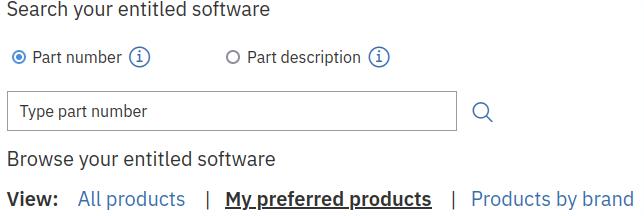
You can pick a part if you know the name or part number, but I found this almost impossible to use. I kept going round in circles. Instead I used “All Products” (see below). This would be better called “All products you are licensed to”.

I cannot see how you get a product to appear as “My preferred products”. I have zD&T as a favourite.

Selecting All products displayed the following below the text.

IBM Z Development and Test Environment Personal Edition

When I clicked on it, it gave me the choice of

  • All operating systems
  • Redhat Enterprise Linux Base Server
  • Redhat Enterprise Linux Base Server

I wanted Ubuntu – and not two copies of Redhat, so I selected “All operating systems”.
I chose English language

This gives a page with a lot of information, and is a bit hard to navigate until you understand it.

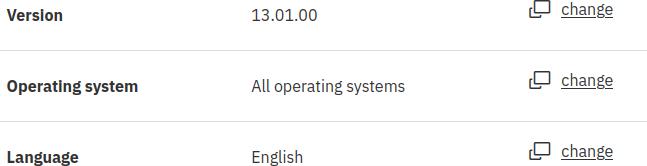
This says you are using version 13.01.00 – click on change to select a different version. The version pull down has a random order – 10, 13, 8, 9 13 etc.

Pick your version.

The screen displays content based on your selection.

Expand “select individual files”. This gave me

Review the IBM z Development so you know what to expect. I think it is good practice to upgrade zD&T before upgrading ADCD.

Update the level of zD&T.

Expand IBM Z Development and Test Environment Personal Edition 13.01.

Download the ZDT* file and follow the instructions here.

On V14 you execute ./zdt-install-pe

I used sudo instead of using a super user password (which I do not have configured)

sudo ./ZDT_Install_PE_V13.0.0.0.x86_64

After it installed, I shutdown and rebooted.

After the reboot the z1091ver command gave

z1091, version 1.10.55.05.01, build date – 09/15/20 for Linux on Ubuntu 64bit

This is the same as it was with version 12.05!

With version 14.0 it gives

z1091, version 1.11.57.06.01, build date – 08/18/22 for Linux on Ubuntu 64bit

The same as V13!

Once you have reipled z/OS and checked it works, you can think about upgrading z/OS.

You can download the z/OS volumes while you are on the web site, and install them later.

Select the Z/OS volumes you want to download

Expand ADCD…

This gives a table with contents like

z/OS 2.4 Part 1 of 19 – RES volume 1 Multilingual (CC88DML)

At the top of the table click “show details”. This gives additional information like

  • z/OS 2.4 Part 1 of 19 – RES volume 1 Multilingual (CC88DML)
  • Part number: CC88DML
  • File name: B4RES1.ZPD

For zD&T version 12.05, the set of download files for z/OS 2.4 were called A4… for version 13.0.0 service refresh the files were called B4… for version 13.1.0 the files were called C4… . I expect the first volumes for z/OS 2.5 will be called A5RES1 etc.

If you know what volid you want within a release, you can enter it in the Search: box, for example B4RES1.

Download the files you want.

Using them is a much bigger challenge which I may write up another day. (For example SYS1.LINKLIB is currently catalogued on A4RES1. If I add B4RES1 to my system, I cannot just IPL from it as the volids will not match up.

How to become a performance expert in 3 easy lessons

and many hard lessons.

I had emails from two people, with different experiences of doing performance on z/OS. One person has recently started, and is not sure what is involved. The other person has been doing lots of work with customers explaining that his product is not the cause of the performance problems.

I thought it might be interesting for people who might be tempted to work in performance, to see the route to becoming an expert.

What does “performance” mean?

Performance work covers many different areas, and once you are competent in one product area it is not too difficult to cover additional areas.

“Performance” covers

Making sure it scales close to linearly

If you double the throughput, the costs per transaction should be similar. As the throughput increases, the response time does not increase significantly. You can have many threads running concurrently.

If the workload has disk I/O then you need to have multiple threads, so while one task is waiting for I/O another task can be using the CPU.

You need a box with multiple CPUs to detect contention. If you have only one or two engines you may not detect concurrency issues.

Work to remove contention until you can drive the CPUs at 100% busy (and then you ask for a bigger box). If you cannot drive the box at 100% find out why, resolve it and repeat.

Reduce CPU

Once you have eliminated as much contention as possible, you need to investigate where the CPU is being used, and try to eliminate any hot spots. This might be

  • Change algorithms – use a hash table instead of a linked list.
  • Avoid unnecessary work. Do you really need to store intermediate values in a database?
  • Can you tune the services being used. For example tune the database, add an index to a table.
  • Rearrange the code, for example have the “hot code” located in the same few pages. Avoid lots of error handling code in the mainline code – branch out of the mainline to handle it.
  • Remove debug code, or put debug code within if (debug enabled) then { debug code}.

Work with customers problems

Understand what areas the users have problems with, identify “problem areas” which take time to identify the problem.

Enhance the design

From your testing, and the experience with customer problem propose improvements to help diagnose problems for example

  • Capture the number, the average time, and the maximum time of database requests. Report this as a statistics or in response to a display command.
  • Record the number of times a resource, such as a lock, was not available, record total count of requests, number of blocked requests, time spent waiting. This code may never be executed, but if it is, you get useful information about the size of the problem.

Provide useful information to the end user

These are often known as “performance reports”. It is easy to produce reports that people cannot use – I have done it many times. Producing reports with nice graphs are often not easy to use, as they do not match your scenario.

You need to consider the questions the end users will have.

  • I want to run an ill defined workload (I do not know all the details), how big a box do I need (how many CPUs), to support 1000 requests a second.
  • What should I look at to tell me if things are running well or not.
  • What are common symptoms, and what actions can I take to solve performance problems.
  • What things do we need to consider to make it run well? For example table layout, how many requests per commit, how often you need to sign on.

Performance roles

The roles below are typical of the sort of activities a performance person will do

Run tests

The first tasks a person usually does when becoming a performance person is to run tests, and collect the data. This may involve writing scripts and tools so it can all be automated. For example on z/OS you might use Netview to run scripts, capture responses, and take actions when there are problems. This could all be done using Rexx scripts in TSO, and possibly using a REST interface.

Good automation will collect all of the key metrics into one place, for example a spread sheet, so the analyst can simply press a button or two to be able to display the data.

There may be a management report produced daily or weekly to show that performance overall has improved – or has not got worse.

Look at a component

You need to look at components within the whole environment, for example this week, look at the z/OSMF SDSF interface, next week the logon process.

You need to drive a high volume workload using this component. You need to focus on the component, for example with a REST requests 90% of the cost may be in the logon and establish a session. This makes it hard to focus on the other 10%. Sign on once, and have an application that just issues requests to the component.

When I was testing MQ under CICS, the duration of an MQPUT took 50 microseconds, and the cost of starting the CICS transactions was 1000 microseconds. I changed the transaction to process 1000 messages, so the transaction now took about 50 milliseconds, and most of the work was in the MQPUT area, and not in the CICS transaction overhead.

Capture the response time of the transactions and plot it over time. You should get a flat line. If the response increases over time, you might have a storage leak, and so it takes longer to get storage.

You may find it does not scale. Turning trace on can give an indication where the problem is. You often get function entry and exit trace, with time stamps, so you can post process the output to calculate the duration within the function. Trace often does not scale, so you cannot always believe the output.

You may want to instrument a private copy of the code. Obtain the time on entry and exit to the function, and across major calls to external requests. Calculate the duration of the calls, add logic to say “If duration > 10 millisecond then throw exception”, or accumulate the data in a global control block. When I did this, I found the trace code was adding significant delays, and the root cause of the problem was an insignificant line of code, which got an exclusive latch for an update!

I added code to measure the average duration of file I/O, and output this in the statistics. This made solving some problems very easy – you have an I/O problem. See here, it is taking 10 ms to write a page of data!

Unless you are testing the startup times, you should allow the system under test to “warm up”, so the hardware cache is in a steady state, database tables are in memory etc.

I found it useful to warm it up, then take 5 sets of measurements each of 1-5 minutes. When displaying the data, the results should all be similar. If not, you need to find out why. You should also run these tests once a week, and whenever you change a component, such as putting fixes onto your system, or change the hardware. Some example of things that can change your results

  • Overnight the Operations Team run backups and cause a different disk response time
  • The order the LPARs were ipled has changed. Last week your system had 6 CPUs in one book (so all very close to each other) this week your system has 3 CPUs in one book – and 3 CPUs in a different book – 1 metre away.
  • The network between your driving system and the test system has changed, or has a different load.

Usually the performance machines have their own dedicated hardware, processors, disks, connections to the disks, network.

Develop skills in other products

My background is MQ performance on z/OS. I had to learn about the performance characteristics of z/OS, DB2, TCP/IP, IMS, and understand the tools these products provide. Once you understand one trace, other traces are basically similar. The hard part is capturing the trace.

MQ passes messages from system to system. There were several problems where the “network was slow”. This meant we had to understand what was happening under the covers. Some good problems with easy fixes included

  • There was a TCP performance “improvement” where one end would delay sending a packet for a few milliseconds, as it is more efficient to send one big packet rather than several smaller packets. This meant that every MQ message sent over the network had a couple of millisecond delay. This fix was easy – disable this feature.
  • TCP/IP by default uses small buffers (256 bytes). You can configure a session to have very large buffers and tell it to automatically tune the best buffer size ( up to MB sized buffers).

Work with customers on their performance problems

The work involves working on performance problems where you do not have any of your specially written code included in it. You may need to turn on the product trace for a few seconds, then turn it off, and then process the output. Many customers do not run with trace on because of the overhead and major impact on throughput.

You can acquire the skills to talk to customers on the phone about their problems. It is very good to feedback what you heard. “Let me check what you just said … when you do … you get … “

Over time you will build up a list of questions to ask.

Once the problem has been resolved, consider what would have made it easier to find the root cause. Can you get development to put in some statistics, so next time this happens, you can tell the customer to check a value.

In the early days on MQ, we used to get many problems, because the in-memory buffer was too small. Development put out a fix, so that every 10 minutes or so it would report if it had detected a buffer full problem since the last message. After this fix was rolled out, we had no more of these problems.

There is no limit as to how far you can go

Once you have skills in one component you can apply these skills to other products or components. For example I spent some time looking at MQ on Linux so I could understand (and blog) on the performance data produced. (The performance data was “here are some numbers, we are not going to tell you what they mean”).

I’ve also been looking at Java performance, which lead me to look at the zFS file system, and the statistics it provides (it provides some – but they are not very useful).

You can also go deep. I knew about z architecture instructions and how some are fast and some are slow. I attended a taskforce with lots of hardware people. I met the team leader for the “load instructions”, and found that the “load instruction” was not an instruction – it is more like a subroutine with logic, for example

  • Find which CPU which currently “owns” this data in the CPU cache, and go and get it
  • Lock the page
  • Go and get this value from another page
  • Add the two values
  • Unlock both the pages

The subroutine had to communicate with other CPUs in the LPAR, worry about its own CPU cache etc. Deep Stuff!

Once you know this sort of stuff, it helps you program, for example it is better not to share a field if you do not have to. When a multi threading program uses a buffer to trace into, do not have one buffer which they all share, but give each thread its own buffer. This way the hardware will not be fighting over the buffer, and the data for each application can be kept on the same CPU as the program. This is obvious once you know!

Collect statistics at the thread level, and not at the global level. Merge them at display time. You know the reason why.

The hardware can start to execute instructions out of order – as long as they “commit” in the right order.

The z hardware has instrumentation which samples the executing system, and can tell you why instructions were delayed. For example

  • Data had to be obtained from the L2 cache on the chip
  • The instruction needed to be interpreted and added to the Translation Lookaside Buffer

This is a bit deep for many people, especially if they are at the level of using “printf” in their programs to display debug information.

“Me, with the brain the size of a planet ….”

This is a quote from Marvin the paranoid Android in the Hitchhiker’s guide to the galaxy. With performance work you can go deep, or you can go wide, but you would need a bigger brain than I had to go deep and wide – but it is a fascinating area.

Example of zFS statistics

This blog post gives an example of zFS statistics, and my interpretation of what they mean.

Related posts

I IPLed my z/OS to give a clean system.

I used a batch job to read all of the files in a directory and throw away the output.

sh cat /usr/lpp/java/J8.0_64/lib/ext/* 1> /dev/null

The command

du -ka /usr/lpp/java/J8.0_64/lib/ext/

gave 16728 KB, and there were 30 files in the directory.

The interface layer

The command

query -knpfs

gave

------------- ---------- ---------- ---------- ----------
Operation Count XCF req Avg Time Bytes
------------- ---------- ---------- ---------- ----------
zfs_opens 37 0 0.053
zfs_closes 37 0 0.024
zfs_reads 4160 0 0.080 16.234M
zfs_getattrs 86 0 0.036
zfs_accesses 377 0 0.027

There were 4160 read requests of 4096 bytes = 16MB

There were 30 opens one for each file.

There was an open for ‘/’, ‘/usr’ ‘/usr/lpp’ etc .. so 37 opens in total. At the end, each of these objects were closed.

The interface layer calls the buffer manager

The command

query -usercache

gave the User FIle (VM) Caching System Statistics report. It had

External requests
Reads     4160 Fsyncs     0 Schedules 0
Writes       0 Setattrs   0 Unmaps    0
Asy Reads 4126 Getattrs 153 Flushes   0

Which says there were 4160 read requests, which matches the zfs_reads request.

There were 4126 requests from the interface layer which had read-ahead set. This tells the buffer manager to get the pages. If they are not already in the buffer start reading them from disk. The Asy Reads does not give the reads from disk.

When I repeated the test I had: Reads 4160, Asy Reads 4120, with reads from disk 0 (as expected).

 File System Reads:
 Reads Faulted          34     (Fault Ratio    0.817%) 
 Writes Faulted          0     (Fault Ratio    0.000%) 
 Read Waits             34     (Wait Ratio     0.817%) 
 Total Reads           276 

This shows there were 276 reads from a file system, of which 34 requests had to wait for I/O.

I interpret this as saying there were 34 requests for get page which required disk I/O. The remained 276 – 34 caused I/O for read ahead so the application did not have to wait. I think the first page of each file was not in the cache, so there was an I/O to read the first segment(16 pages) of records in. There were 30 files, so 34 is close enough. The first request also started a Read Ahead to read the next segment in.

 Page Management (Segment Size = (64K) ) (Page Size = 8K) 
 -------------------------------------------------------- 
 Total Pages           121725     Free             118843 
 Segments                 395 
 Steal Invocations          0     Waits for Reclaim     0 

Before the test the free pages was 120933, so the delta is 2490 pages. Each page is 8KB, so the amount of storage used is 2490 * 8KB = 19.5 MB. The amount of data read from disk is 16.234MB so these numbers are comparable.

The Steal Invocations is the number of 64KB segments released to make space in the cache. In another test, I used a very small cache (10MB) and read 25636 KB of data in, and repeated the reads. Steal invocations was 404. 404 * 64 * 1024 = 25856 KB. This is close to the amount of data processed. Note: The documentation is incorrect,it says the value is the number of 4KB pages, not 64KB segments.

Data level

                   I/O Summary By Type 
                   ------------------- 
                                                                      
 Count       Waits       Cancels     Merges      Type 
 ----------  ----------  ----------  ----------  ---------- 
         75          61           0           0  File System Metadata 
          0           0           0           0  Log File 
        276          51           0           0  User File Data 

This shows there were 75 I/O requests for meta information about the file, and 276 I/O requests to read the file itself. Reading the documentation I think the WAITS column indicates an I/O request was delayed before its I/O started, for example there was already an I/O outstanding.

                  zFS I/O by Currently Attached Aggregate 
 DASD   PAV 
 VOLSER IOs Mode  Reads  K bytes  Writes  K bytes  Dataset Name 
 ------ --- ----  -----  -------  ------  -------  ------------ 
 ... 
 A4PRD3   1  R/O    302    16780       0        0  JVB800.ZFS 
 ... 
 ------ --- ----  -----  -------  ------  -------  ------------ 
                    337    17104      14       56  *TOTALS* 

This shows there was I/O to the data set containing the Java file system. There were 302 reads, and it read 16780 KB of data.

I’ve omitted the other file systems which with 35 Reads, and 14 Writes.

These counts do not seem to tie up. There were 276 Reads to the User File Data, and 75 reads for File System Meta data, a total of 351. The zFS read count was 337.

zFS performance reports I would like to use on z/OS (but can’t)

What started off as an investigation in why Java seemed slow on z/OS; was it due to a ZFS tuning problem? It changed into what performance health checks can I do with zFS.

It may be that zFS is so good you do not need to check its status, but I could find no useful reports, on what to check, and found that basic reports are not available, and useful data is missing. I would rather check than assume things are working OK.

Related posts

Getting the data

Data is available from SMF 92 records. Records are produced on a timer, either the SMF Interval broadcast, or the zFS -smf_recording interval.

Data is available from the zFS commands, for example query -reset -usercache.

If you use the display command, you get the data accumulate since the system was started, or the last reset was issued.

You may want to have a process to issue the display and reset commands periodically to provide a profile throughout the day. Having data accumulated for a whole day does not allow you to see peaks and troughs.

Some data does not include the duration of the data (or reset time), so you cannot directly calculate rates. You might need to save the reset time in a file, and use this to calculate the interval.

query fsinfo includes the reset time; query metacache, usercache and dircache do not include the reset time.

There is an API BPX1PCT(“ZFS “,ZFSCALL_STATS, … This returns the data in a C structure, but z/OS does not seem to provide this as a header file! It provides sample c programs for printing the data for each sort of data.. I do not know if the data is cumulative, or since the last reset.

Simple scenario

Consider the simple scenario,

  • I have a web server (Liberty on z/OS) for example z/OSMF, z/OS Connect, WAS with people using it.
  • There are people developing a Java application
  • I have a production Java program which runs every hour, reads in data from a file, does some processing, and puts sends it over HTTP to a monitoring system. This could be reading SMF data, and coverting it to JSON.

What the basic reports did I expect?

The question below would apply to any work, for example a business transaction, using CICS, DB2, MQ and IMS, zFS is just another component within a transaction.

  • When I start my Java application – it sometimes takes much longer to start than at other times – 20 seconds longer. What is causing this? Is it due to the delays in reading files or should I look else where?
    • For each job, I would like to know the total time spent processing files, and identify the files, used by the job, were most time is spent.
  • We had a slow down last week, can we demonstrate that zFS is not the problem?
  • Do I need to take any actions on zFS
    • Today – because it is slow
    • Next week – because I can see an increase in disk I/O over the past few weeks.
  • Can I tell which files or file systems are using most of the cache, and what can I do about it?

For each job, I would like to know the total time spent processing files, and identify the files, used by the job, were most time is spent.

This information is not available.

From the SMF 92-11 records you can get some information

  • Job name
  • File name. Some files are given as /u/adcd/j.sh, other files are given as write.c with no path, just the name used. This is not very helpful, as it means I am unable to identify the specific file used.
  • Time file was opened
  • Time file was closed (so you can calculate the open duration)
  • The number of directory reads. For the file “.” this had 1 read,
  • The number of reads, blocks read, and bytes read
  • The number of writes, locks written, and bytes written. For example an application did 10,000 writes, with a buffer length of 4096. There were 10,003 blocks written and 40,960,000 bytes written.

This information does not tell you how long requests took. A fread() could require data to be read from the file, or it may be available in the cache.

You cannot get this information from the zfs commands. You can get other information, for example the I wrote to a file and issued the command fileinfo -path /u/adcd/temp.temp -both this gave


path: /u/adcd/temp.temp 
owner                S0W1       file seq read           yes 
file seq write       yes        file unscheduled        0 
file pending         625        file segments           625 
file dirty segments  0          file meta issued        0 
file meta pending    0          
 

The data is described here.

  • unscheduled Number of 4K pages in user file cache that need to be written.
  • pending Number of 4K pages being written.
  • segments Number of 64K segments in user cache.
  • dirty segment Number of segments with pages that need to be written.

Given a filename you can query how many segments it has, but I could not find a way of listing the files in the cache. You would have to search the whole tree, and query each file to find this. This operation would significantly impact the metadata cache.

We had a slow down last week. Can we demonstrate that zFS is not the problem?

You can get information on

  • the number of pages in the various pools
  • the number of reads from the file system, and the number of requests that were available from the cache – the cache hit ratio. A good cache hit is typically over 95%.
  • Steal Invocations tells you if the cache was too small, so pages had to be reused.
  • The I/O activity (number of reads and writes, and number of bytes) by file system.
  • The average I/O wait time by volume.
  • The number of free pages never goes down, you can use it to see the highest number of pages in use, since ZFS started. It it reached 95% full on Monday – it will stay at 95% until restart.

If you compare the problem period with a normal period you should be able to see if the data is significantly different.

You need to decide how granular you want the data, for example capture it every 10 minutes, or every minute.

Do I need to take any actions on ZFS?

Today – because it is slow

Display the key data for the cache, cache hits, compare the amount of I/O today with a comparable day.

I do not think there are any statistics to tell you how much to increase the size of the cache. Making the cache bigger may not always help performance, for example if a program is writing a 1GB file, then while the cache is below 1GB it will flood the cache with pages to be written, and read only pages will have been overwritten.

Next week

You can monitor the number of reads and writes per file, and the number of file system I/Os, but you cannot directly see the files causing the file system I/O.

If there is a lot of sustained I/O to a file system, you may want to move it to a less heavily used volume, or move subdirectories to a different file system, on a different volume.

There are several caches: User Cache, Meta data cache, VNode cache, Log cache. The size of these can all be reconfigured, but I cannot see how to tell how full they are, and if they need to be increased in size.

Can I tell which files or file systems are using most of the cache, and what can I do about it?

The SMF record 92-59 contains the number of pages the file system has in the user cache, and in the meta cache.

The field SMF92FSUS has the number of pages this file system has allocated in the user cache.

The field SMF92FSMT has the number of pages this file system has allocated in the meta data cache

For 40 file systems, the time the record was created was within 2ms, so you should be able to group records with a similar time stamp, for example save the data, and show % buffers per file system.

The command fsinfo -full -aggregate ZFS.USERS provides the same information. It gave me

Statistics Reset Time:     May 30 11:09:51 2021 
Status:RW,NS,GF,GD,SE,NE,NC 
Legend: RW=Read-write, GF=Grow failed, GD=AGGRGROW disabled                                  
        NS=Mounted NORWSHARE, SE=Space errors reported, NE=Not encrypted                     
        NC=Not compressed                                                                    
   *** local data from system S0W1 (owner: S0W1) ***                                         
Vnodes:              48              LFS Held Vnodes:         4       
Open Objects:        0               Tokens:                  0       
User Cache 4K Pages: 5011           Metadata Cache 8K Pages: 39      
Application Reads:   11239           Avg. Read Resp. Time:    0.046   
Application Writes:  22730           Avg. Writes Resp. Time:  0.081   
Read XCF Calls:      0               Avg. Rd XCF Resp. Time:  0.000   
Write XCF Calls:     0               Avg. Wr XCF Resp. Time:  0.000   
ENOSPC Errors:       1               Disk IO Errors:          0 

This also showed:

  • there was 1 no-space error
  • Status had
    • GF=Grow failed
    • GD=AGGRGROW disabled
  • There were 48 Vnodes (files) in the meta cache.

It looks like the Application Reads and Writes are true application requests. I had a program which wrote 10,000 4KB records, and the Application writes increased by 10002. The reads increased by 23 event. I think this due to the running of the program.

The command also gave


VOLSER PAV    Reads      KBytes     Writes     KBytes     Waits    Average           
------ --- ---------- ---------- ---------- ---------- ---------- ---------          
A4USS2   1         55        532       1658      91216         83 0.990              
------ --- ---------- ---------- ---------- ---------- ---------- ---------          
TOTALS             55        532       1658      91216         83 0.990              

The number of write ( to the file system) increased by 630, the KB written increased by 40,084KB which is the approximate size of the file (40,000KB)

You can use the command fileinfo -path /u/adcd/aa -both and it will display information about the file system the file is on.

Although you can see how much data was written to the file system, I could not find easily find which file it came from. The SMF 92-11 records can give an indication, but writing 10MB to a file, and deleting the file may mean no data is written to disk, so the SMF 92-11 records are not 100% reliable.

How to collect zFS statistics

This blog post is part of a series on the zFS file system on z/OS and how to identify performance problems.

Related posts

How to collect the statistics data.

You can collect statistics data from zFS using

  • SMF type 92 records
  • Using operator commands. This should not be the normal way of collecting data, as it is verbose, and does not format well
    • You can display accumulated data
    • You can display and reset accumulated data
  • Using a batch/tso command. You can create output datasets of the information
    • You can display accumulated data
    • You can display and reset accumulated data
  • You can display them in RMF.
  • You can write your own program to extract the records. zFS provides the code of their commands.

SMF

You need to enable SMF collection using the zfsadm command. You can use batch or Unix Services

// SET P='config -smf_recording off' 
// SET P='config -smf_recording on,10' 
// SET P='config -smf_recording on' 
// SET P='configquery -all' 
//AGGRINFO EXEC PGM=IOEZADM,REGION=0M, 
// PARM=('&P') 
//SYSPRINT DD SYSOUT=H 
//STDOUT DD SYSOUT=H 
//STDERR DD SYSOUT=H 
//SYSUDUMP DD SYSOUT=H 
//CEEDUMP DD SYSOUT=H 

You can use

  • configquery -all to display the current configuration
  • config -smf_recording on,10 to produce records every 10 minutes
  • config -smf_recording on to enable SMF recording on the SMF interval broadcast
  • config -smf_recording off to stop the collection of SMF data

You need to check that SMF is configured to collect the SMF 92 records. The operator command d SMF,o shows what is being collected. If it reports NOTYPE(14:19,62:69,92,99) with 92 in the list of NOTYPE, then SMF 92 records will not be collected.

You use a standard SMF job to copy the SMF data for post processing. I could not find an IBM provided formatter, so I wrote one.

I could not see how to cofigure zFS to not produce the SMF 92-11 records on individual zFS usage. I think you have to disable it at the SMF interval.

Operator command

You can issue a command at the console for example

F OMVS,PFS=ZFS,QUERY,VM

or

f ZFS,QUERY,VM

There is a lot of output, and it does not always format well on the console.

Using OMVS command line

You can use the omvs command zfsadm, for example zfsadm query -iobyaggr to display the data.

You’ll need to issue a command like

zfsadm query -iobyaggr 1>output_file

To capture the output

Using Batch

I use JCL (and move the relevant SET P statement to the bottom of the list as needed).

// SET P='config -smf_recording on,10' 
// SET P='/fileinfo /u/ibmuser      ' 
// SET P='config -smf_recording on' 
// SET P='configquery all' 
// SET P='config -smf_recording off' 
// SET P='query -iobyaggr' 
//AGGRINFO EXEC PGM=IOEZADM,REGION=0M, 
//  PARM=('&P') 
//SYSPRINT DD SYSOUT=H 
//STDOUT DD SYSOUT=H 
//STDERR DD SYSOUT=H 
//SYSUDUMP DD SYSOUT=H 
//CEEDUMP DD SYSOUT=H 

The query command has many options. I think you can only pass parameters via the parm statement. You cannot pass a list of command in//SYSIN.

Command interface

For the command interface, The values displayed are accumulated until reset, for example query -reset -iobyaggr

RMF

I started RMF, then used F RMF,START III to collect additional information.

I used the TSO RMFWDM command (RMF Work Delay Monitor). This gave me RMF Monitor III Primary Menu.

Selection S SYSPLEX Sysplex reports and Data Index

Selection I ZFSOVW zFS Overview

This gave

                                                                        
                                 ---------- Cache Activity ------------ 
System       -----Wait%------    ---User---    --Vnode---    -Metadata- 
              I/O  Lock Sleep     Rate Hit%     Rate Hit%     Rate Hit% 
                                                                        
S0W1         24.8   1.2   6.7    694.9 98.6    569.3 97.0    743.3 99.6 

This displays the user, vnode, and Metadata data cache. The rate of activity and the cache hit ratio. High(> 95%) is good. The rate is the number of get page requests a second.

If you tab to any of the numbers and press enter, it displays more information, for example

                     zFS Overview - User Cache Details                 
                                                                       
 The following details are available for system S0W1                   
 Press Enter to return to the Report panel.                            
                                                                       
 Size        :       951M         Storage fixed :  NO                  
 Total Pages :       122K                                              
 Free Pages  :      98245                                              
 Segments    :       4694                                              
                                                                       
 --------- Read ---------    --------- Write --------                  
  Rate  Hit%  Dly%  Async     Rate  Hit%  Dly%  Sched     Read%  Dly%  
                     Rate                        Rate                  
 261.3  96.4   0.2  97.44    433.6   100   0.0  7.010      37.6   0.0  
                                                                       
 ---------- Misc -----------                                           
 Page Reclaim Writes :     0                                           
 Fsyncs              :     7                                           

Selection 14 ZFSFS zFS File System (or zff)


                    RMF V2R4   zFS File System  - ADCDPL          Line 55 of 80
 Command ===>                                                  Scroll ===> CSR
                                                                               
 Samples: 100     Systems: 1    Date: 06/01/21  Time: 08.51.40  Range: 100   Sec
                                                                                
 ------ File System Name --------------------              I/O  Resp Read  XCF  
                  System    Owner     Mode    Size Usg%   Rate  Time  %    Rate                                                                                 
 ZFS.S0W1.USR.MAIL                                                              
                  *ALL      S0W1      RW     3600K  4.9  0.000 0.000  0.0 0.000 
 ZFS.S0W1.VAR                                                                   
                  *ALL      S0W1      RW       37M 63.2  265.1 0.033  100 0.000 
 ZFS.S0W1.VARWBEM                                                               
                  *ALL      S0W1      RO      105M 33.8  0.000 0.000  0.0 0.000 

If you put the cursor on any value ( except file name) you get more information.

I cound not find how to sort the data.

                           zFS File System Details                        
 File System Name : JVB800.ZFS                                            
 Mount                                                                    
 Point :                                                                  
 System : *ALL              Owner : S0W1              Mode : RO           
 -------------- Read -------------    ------------- Write -------------   
 --- Appl --- ---- XCF ----   Aggr    --- Appl --- ---- XCF ----   Aggr   
  Rate   Resp   Rate   Resp   Rate     Rate   Resp   Rate   Resp   Rate   
         Time          Time                   Time          Time          
 112.8  0.191  0.000  0.000  36618    0.000  0.000  0.000  0.000  0.000   
                                                                          
 Vnodes              :   111          USS held vnodes         :    68     
 Open objects        :    47          Tokens                  :     0     
 User cache 4k pages :  9549          Metadata cache 8k pages :   106     
                                                                          
 ENOSPC errors       :     0          Disk I/O error          :     0     
 XCF comm. failures  :     0          Cancelled operations    :     0     

Selection 15 ZFSKN zFS Kernel (zfk)

This gave me


                    RMF V2R4   zFS Kernel       - ADCDPL            Line 1 of 1
 Command ===>                                                  Scroll ===> CSR
 Samples: 100     Systems: 1    Date: 06/01/21  Time: 08.51.40  Range: 100   Sec
                                                                                
 System      - Request Rate -  --- XCF Rate ---  - Response Time -              
 Name         Local   Remote    Local   Remote    Local   Remote                
                                                                                
 S0W1          8599    0.000    0.000    0.000    0.054    0.000                

In all these reports you can use PF10 and PF11 to scroll through time.

Annoyances

With all the output you do not get the duration of the statistics, so you are not able to display rates, for example MB/Second to a file system.

If you enable SMF, then the first record contains the accumulated data since ZFS was started, or SMF was disabled. If you try plotting the values against time – you will get a strange graph.

There is no SMF formatter provided so I’ve written my own.

You cannot pass all of the parameters to IOEZADM as the parameter field is too long, so you have to use PARMSDD=

//AGGRINFO EXEC PGM=IOEZADM,REGION=0M,
// PARMDD=PARMS
//PARMS DD *
query -reset -iobyaggregate -iobydasd -knpfs -ctkc
-usercache -iocounts -metacache -dircache -logcache
/*