GUIs ain’t what they used to be

I’ve recently had to use some “improved” applications (one of which was internet banking) and it made me realize how different GUIs are these days compared to when I were a lad, and you only had a choice of text colours green or bright green.  (I remember a banking customer being shown the pre-release 3279 displays which could display 8 colours.  The customer asked “why do we need so many colours”, and someone said “you can show overdrawn balances in red” – the banker was convinced; and put in a big order).

You need to know your audience for example

  1. People who only use the app once a week, for example internet banking.   You want the user to do things easily and without problems. They may just want to look at the top few entries in their bank statement
  2. People who use the interface 100 times a day – for example, programmers and administrators.  These people want to do their job – and one key press is better than multiple key-presses.  They need to process large  numbers of items(hundreds) and take actions.

I feel that modern interfaces try to use one interface for both sets of users.

As a professional programmer I wanted any interface to be efficient.  For example

  • small movements – press just one key if possible
  • have important fields together.   For example for a list of left justified items, have the action field/icon in front of the list instead of at  the right hand side, being the wrong end of the line.  They eye should only have small movements.
  • display “more” – with one key press
  • use screen space efficiently

I thought the ISPF interface on z/OS was very good.

  • I could efficiently move around it, for example, when looking at job output, I could type =L;3;4;(enter) to get to the place in the GUI hierarchy to list the files.
  • You press F7 andF8 to scroll within the file
  • You have a local command area in front of each item in a list and you can use E to edit, B for Browse, D for delete etc.
  • You can have thousands of entries in the list, and can you the “find” command to locate entries of interest.
  • I can could organise fields in the display, so I can display the start of job/file/queue name, and %cpu/depth/depth and so the important information was in the left 20 %of the screen – and then stack up 4 screens from different systems all showing this information.

Compare this with “the modern GUI” in a web browser

  • Often you have a big picture or icon at the top of the screen – wasting valuable space.   The first thing you have to do is scroll past it. To get to the top you press “home” and “page down” – two key strokes
  • Lines are widely spaced – for example one row of output per centimeter of screen space, showing 10 lines per window, a third the density compared to the mainframe
  • “Actions” icons are at the right hand end of the lines – it is harder to match up the line of interest with the action icon – coloured backgrounds help with this.  Sometimes the “Action icon” is off the side of the screen – so is invisible.  It would help to have an action icon at each end to make it easier.   (I remember a “new” tool in IBM that we had to use, which had the “save” button off the side of the screen.  It was only visible if the window was very wide.   I lost a lot of data as I foolishly assumed the lack of a visible “save” button meant the tool saved automatically! – and pressing the “help” button lost what you had typed.)   The minimum you want displayed is the item, and the action.  Having the action icon only at the right means you will lose it if you make the window narrower.
  • Can we have “right click” for data rows?
  • I tend to work with a “messy desk” with several narrow windows displayed, many on automatic refresh.   This allows me to quickly see if things have changed.   If I am forced to have wide windows, then I need an even wider display which is less efficient
  • You have to click on “Next” and “Back” to navigate.  Some times “Up” is at the top of the screen, and “Down” is at the bottom of the screen so you have to move your mouse a large distance to be able to scroll.  Having up and down buttons adjacent,  is much more efficient as  it means you need a small movement to be able to scroll.
    • Some times the “next” or “back” button move as you move through the pages.  This means you have to move the mouse, and so slows you down!
  • It displays a small number of items at a time  (up to 50) to display more, you have have to scroll – for example I have 500 user queues on one of my queue managers – that would be 10 “next page” actions to get to the end.  Personally I would allow up to 1000 items on the page.

I remember watching some Chinese programmers who could drive their systems properly by chaining all of the commands together and they could type faster than the eye could follow.

Ive seen other people who program their 3270 emulator so Alt+Ctrl+6 logged on to another system, issued commands, copied data to a clip board, jumped to another session and pasted the data in a file.  This was a joy to watch.

Ive seen other people who use the cursor to scroll up and down a web page to get to the bottom, to find the “next” key, and it takes them 10 seconds a page.  I did not show my frustrations but suggested they use the “home” and “end” keys – for which they were very grateful.

On my laptop I use  Ctrl+up instead of the home key and Ctrl+down instead of the end key, as my hands to not need to move so far, which means it is more accurate.   I doubt if modern web GUI designers think about this sort of design.
facepalm: Why my mqconsole was refreshing every 60 seconds

I had just upgraded MQ to v915 and was trying out the new mqconsole via the web stuff.  It was really annoying because every 60 seconds the web page would refresh, and I would have to start again.

I checked my mqwebuser.xml file for “60” seconds, but there were no hits.

Gwydion suggested I check the ltpaExpiration value.   This specifies how long a logon token is valid for; after it has expired you have to logon. again .  There were several problems here:

  • I had <variable name=”ltpaExpiration” value=”30″/> .   This says your session expires after 30 minutes.  Because I was using certificates to logon, I automatically get relogged on after this interval expires, this was 30 minutes not 1 minute so not my problem.
  • I used grep ltpa mqwebuser.xml and found I had several  <variable name=”ltpaExpiration” value=…./> statements. The last one had a value of 01 – one minute.   This was the statement causing my problems.

What did I learn from this?

  • Use the command  dspmqweb properties -a  to display all of the parameters.   If they are not as you expect, check the mqwebuser.xml file.
  • The setmqweb command deletes all the entries except for the last one, and updates the last entry with the specified value.   This solved my duplicate entry problem.
  • I specified setmqweb properties -k ltpaExpiration -v 015 to set it to 15 minutes.
  • You can put a comment  <!– unit in minutes –> before(near) the statement.
  • I also added unit=minutes into the statement <variable name=”ltpaExpiration” unit=”minutes” value=”016″/>.  setmqweb, and startup ignore this.

I tend not to use the setmqweb command as I pretend to be an enterprise where every change has to have a change record and where configurations are created centrally and deployed to the machines.

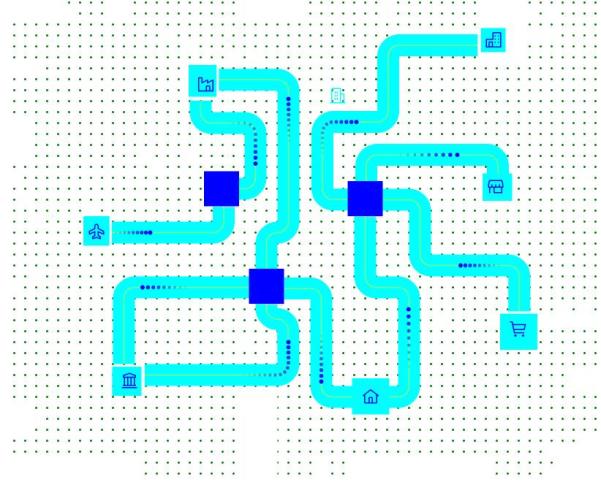
What is the connection between MQ, a thatched cottage, a museum, an aeroplane and a factory?

Do you give up on the question – so do I!

I upgraded to 915 and used the “improved” mqconsole web interface.  This has several problems. Under “MQ Basics, what is messaging?” you get some pictures.  For example, we seem to have random meteors going to random places,

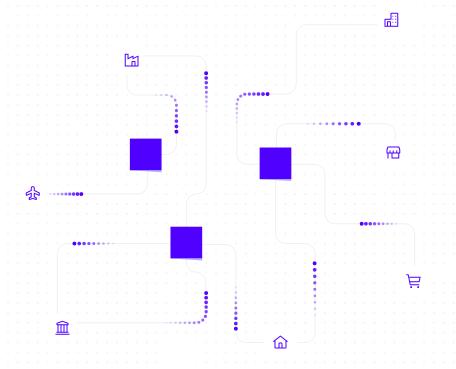
It is hard to understand, as it uses a white background and off-white colours for connections.   I took the source of this, and by a bit of python magic changed the html and produced

This is clearer, but I am non the wiser.  We have  icons for Home,  Shopping Trolley, Thatched cottage, High rise building with garage, Factory, Aeroplane, and Museum.  The aeroplane sends stuff to the blue box( queue manager?) but messages are not processed.

My blog posts from the old IBM community

The old IBM community site is being replaced by a new IBM community web site, and old blogs are not being copied across.

I’ve managed to copy the posts I wrote when I worked for IBM and copied them to this web site. It has been a trip down memory lane reading the posts, and the topic I covered.

NETTIME does not just mean net time

I saw a post which mentioned NETTIME and where people assume it is the network time.   It is more subtle than that.

If NETTIME is small then dont worry.   If NETTIME is large it can mean

  • Slow network times
  • Problems processing messages at the remote end

Consider a well behaved channel where there are 2 messages on the transmission queue

Sender end Receiver end
  • MQGET first message from the queue
  • TCP Send message in  buffer 1
  • MQGET second message from the queue
  • TCP Send message in buffer 2
  • MQGET – no message found
  • Do end of batch processing
    • TCP Send “End of batch” in buffer 3
    • Start timer
    • Wait
    • buffer arrives, wake up application
    • Stop timer. Interval is “Sender wait time”
  • Extract “receiver processing time” from reply buffer
  • Calculate NETTIME = “sender wait time” – “receiver processing time”
  • buffer 1 arrives, wake up Receiver channel application
  • buffer 2 arrives
  • TCP receive buffer 1 from network
  • MQPUT message 1 to the queue
  • buffer 3 arrives
  • TCP receive buffer 2 from network
  • MQPUT message 2  to the queue
  • TCP receive buffer 3 from the network – get  “end of batch” flag
    • Start timer
    • Issue commit
    • Stop timer
    • Send “OK + time interval back to Sender

In this case the NETTIME is the total time less the time at the receiver end.  So NETTIME is the network time.

In round numbers

  • it takes 2 millisecond from sending the data to it being received
  • get + send takes 0 ms ( the duration of these calls is measured in microseconds)
  • receive (when there is data) + MQPUT and put works, takes 0 ms
  • commit takes 10 ms
  • it takes 1 ms between sending the response and it arriving.
  • “10 ms” is sent in the response message

This is a simplified picture with details omitted.

The sender channel sees 13 ms  between the last send and getting the response.  (13 ms – 10 m)s is 3 ms – the time spent in the network.


Now introduce a queue full situation at the receiver end

Sender end Receiver end
  • MQGET first message from the queue
  • TCP Send message in buffer 1
  • MQGET second message from the queue
  • TCP Send message in buffer 2
  • MQGET – no message found
  • Do end of batch processing
    • TCP Send “End of batch” in buffer 3
    • Start timer
    • Wait
    • buffer arrives, wake up application
    • Stop timer. Interval is “Sender wait time”
  • Extract “receiver processing time” from reply buffer
  • Calculate NETTIME = “sender wait time” – “receiver processing time”
  • buffer 1 arrives, wake up Receiver channel application
  • buffer 2 arrives
  • TCP receive buffer 1 from network
  • MQPUT message 1 to the queue – it gets queue full, it pauses
  • buffer 3 arrives.  All of the data is in the buffers in TCP at this end.
  • after 500 ms the MQPUT succeeds.
  • TCP receive buffer 2 from network
  • MQPUT message 2 to the queue
  • TCP receive buffer 3 from the network – get “end of batch” flag
    • Start timer
    • Issue commit
    • Stop timer
    • Send “OK + time interval back to Sender

In round numbers

  • it takes 2 millisecond from sending the data to it being received
  • get + send takes 0 ms ( it is in microseconds)
  • receive (when there is data) takes 0 ms
  • the pause and retry took 500 ms
  • the second receive and MQPUT takes 0 ms
  • commit takes 10 ms
  • it takes 1 ms between sending the response and it arriving.
  • “10 ms” is sent ( as before) in the response message (the time between the channel code seeing the “end of batch” flag and the end of its processing
  • Buffer 3 with the “end of batch” flag was sitting in the TCP buffers for 500 ms

The sender channel sees 513 ms  between the last send and getting the response.  513 ms – 10 ms is 503  ms – and reports this as ” the time spent in the network” when in fact the network time was 3 ms, and 500 ms was spent wait to put the message.

Regardless of the root cause of the problem, a large nettime should be investigated:

  • do a TCP ping to do a quick check of the network
  • check the error logs at the receiver end
  • check events etc to see if the queues are filling up at the receiver end

The ccdt file was exactly where I specified it.

I had been successfully using a json ccdt file to use runmqsc as a client.  Because of a “.” it didn’t work when I used it elsewhere.

I had a directory of useful shell scripts.  In this directory I had my mqclient.ini with

CHANNELS:
MQReconnectTimeout=30
ReconDelay=(1000,200)(2000,200)(4000,1000)
ChannelDefinitionDirectory=.
ChannelDefinitionFile=ccdt.json

I had another directory with some shell scripts for some other applications.  I used

export MQCLNTCF=/home/colinpaice/… to point to the mqclient.ini file.

When I used runmqsc -c QMA I got

AMQ8118E: IBM MQ queue manager does not exist.

In /var/mqm/errors/AMQERR01.LOG was the error message AMQ9518E: File ‘./ccdt.json’ not found.

This was because I had specified ChannelDefinitionDirectory=. instead of a fully qualified name.  I had wrongly assumed that “.” meant the same directory as the mqclient.ini file.

The moral of this user error is to

  • use a fully qualified directory instead of “.”
  • or omit this parameter, and put the ccdt.json in the default location /var/mqm – but you may not have write access to this directory.
  • and go to the bottom of the class.

Do not panic so much if you are still running MQ V8

I had a question from a customer about being unable to use the REST API because they were still on MQ V8.

The announced end of support date for V8 was the end of April 2020. This gives them no time to upgrade test system, pre-production, and production.

Do not panic if you haven’t  upgraded yet – because the page says

This gives you a bit of time to get to MQ 9.1 – dont delay, raise a change request today.

Using Activity Trace to show a picture of which queues and queue managers your application used.

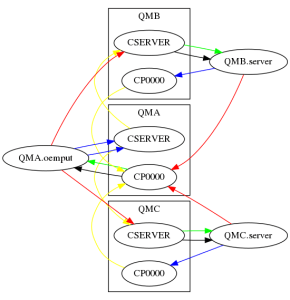
I used the midrange MQ activity trace to show what my simple application, putting a request to a cluster server queue and getting the reply, was doing.  As a proof of concept (200 lines of Python), I  produced the following

This output is a .png format.   You can create it as an HTML image, and have the nodes and links as clickable html links.

Ive ignored any SYSTEM.* queues, so the SYSTEM.CLUSTER.TRANSMIT.QUEUE does not appear.

The red arrows show the “high level” flow between queue managers at the “architectural”, hand waving level.

  • The application oemput on QMA did a put to a clustered queue CSERVER, there is an instance of the queue on QMB and QMC.   There is a red line from QMA.oemput to the queue CSERVER on QMB and QMC
  • The server programs, server running on QMB and QMC put the reply message to queue CP0000 on queue manager A

The blue arrows show puts to the application specified queue name – even though this may map to the S.C.T.Q.  There are two blue lines from QMA.oemput because one message went to QMC.CSERVER, and another went to QMB.CSERVER

The yellow lines show the path the message took between queue managers.  The message was put by QMA.oemput to queue CSERVER; under the covers this was put to the SCTQ.  From the accounting trace record this shows the remote queue manager and queue name:  the the yellow line links them.

The black line is getting from the local queue

The green line is the get from the underlying queue.  So if I had a reply queue called CP0000, with a QAlias of QAREPLY. If the application does a get from QAREPLY,  There would be a black line to CP0000, and a green line to QAREPLY

How did I get this?

I used the midrange activity trace.

On QMA I had in mqat.ini

applicationTrace:
ApplClass=USER # Application type
ApplName=oemp* # Application name (may be wildcarded)
Trace=ON # Activity trace switch for application
ActivityInterval=30 # Time interval between trace messages
ActivityCount=10 # Number of operations between trace msgs
TraceLevel=MEDIUM  # Amount of data traced for each operation
TraceMessageData=0 # Amount of message data traced

I turned on the activity trace using the runmqsc command

ALTER QMGR ACTVTRC(ON)

I ran some work load, and turned the trace off few seconds later.

I processed the trace data into a json file using

/opt/mqm/samp/bin/amqsevt -m QMA -q SYSTEM.ADMIN.TRACE.ACTIVITY.QUEUE -w 1 -o json > aa.json

I captured the trace on QMB, then on QMC, so I had three files aa.json, bb.json, cc.json.  Although I captured these at different times, I could have collected them all at the same time.

jq is a “sed” like processor for processing json data.   I used it to process these json files and produce one output file which the Python json support can handle.

jq . --slurp aa.json bb.json cc.json  > all.json

The two small python files are zipped here. AT.

I used ATJson.py python script to process the all.json file and extract out key data in the following format:

server,COLIN,127.0.0.1,QMC,Put1,CP0000,SYSTEM.CLUSTER.TRANSMIT.QUEUE,QMC,CP0000,QMA, 400

  • server, the name of the application program
  • COLIN, the channel name, or “Local”
  • 127.0.0.1, the IP address, or “Local”
  • QMC, on this queue manager
  • Put1, the verb
  • CP0000, the name of the object used by the application
  • SYSTEM.CLUSTER.TRANSMIT.QUEUE, the queue actually used, under the covers
  • QMC, which queue manager is the SCTQ on
  • CP0000, the destination (remote) queue name
  • QMA, the destination queue manager
  • 400 the number of times this was used, so 400 puts to this queue.

I had another python program Process.py which took this table and used python graphviz to draw the graph of the contents.  This produces a file with DOT  (graph descriptor language)parameters, and used one of the many programs to draw the chart.

This shows you what can be done, it is not a turn-key solution, but I am willing to spend a bit of time making it easier to use, so you can automate it.  If so please send me your Activity Trace data, and I’ll see what I can do.

How do I use the mid-range MQ accounting data?

Like many topics I look at, this topic seems much harder than I expected.  I thought about this as I walked the long way to the shops, up a steep hill and down the other side (and came back the short way along the flat).  I wondered if it was because I ignore the small problems (like one queue manager and two queues), and always look at the bigger scale problems, for example with hundreds of queue managers and hundreds of queues.

You have to be careful processing and interpreting the data, as it is easy to give an inaccurate picture see “Be careful” at the bottom of this post.

Here are some of the things I found out about the data.

Enabling accounting trace

  • You need to alter qmgr acctQ(ON) acctqMQI(ON) before starting your applications  (and channels).  Enabling it after the program has started running does not capture the data for existing tasks.  You may want to consider enabling accounting trace, then shutdown and restart the queue manager to ensure that all channels are capturing data.
  • The interval ACCTINT is a minimum time.  The accounting records are produced after this time, and with some MQ activity.  If there is no MQ activity, no accounting record is produced, so be careful calculating rates eg messages processed a second.
  • Altering ACCTINT does not take effect until after the accounting record has been produced.  For example if you have ACCTINT(1800) and you change it to ACCTINT(60), the “ACCTINT(1800)” will have to expire, produce the records, then the ACCTINT(60) becomes operative.
  • You can use the queue attribute ACCTQ() to disable the queue accounting information for a queue.

The data

  • The MQI accounting has channel and connection information, the queue accounting does not.  This means you cannot tell the end point from just the queue data.
  • The MQI accounting and Queue accounting have a common field the “connectionId”.   It looks like this is made up with the first 12 characters of the the queue manager name, and a unique large number (perhaps a time stamp).  If you are using many machines, with similar long queue manager names you may want to use a combination field of machineName.connectionId, to make this truly unique.
  • I had an application using a dynamic reply to queue.  I ran this application 1000 times, so 1000 dynamic queues were used. When the application put to the server, and used the dynamic reply queue, the server had a queue record for each dynamic queue.   There were up to 100 queue sections in each queue record, and 11 accounting queue messages for the server ( 1000 dynamic queues, and one server input queue).  These were produced at the end of the accounting interval, they all had the same header information, connectionId, start time etc. You do not know in advance how many queue records there will be.
  • Compare this to using a clustered queue on a remote queue manager, the server queue accounting record on the remote system.had just two queues, the server input queue, and the SYSTEM.CLUSTER.TRANSMIT.QUEUE.
    • The cluster receiver channel on the originator’s queue manager had a queue entry for each dynamic queue.
  • In all my testing the MQI record was produced before the queue accounting record for a program.   If you want to merge the MQI and the Queue records, save information from the MQI record in a table, keyed with the connectionId. When the Queue records come along you use same connectioID key to get the connection information and MQI data.
    • You can get rid of the MQI key data from your table when queue record has less than 100 queues.
    • If the queue record has exactly 100 queues, you do not know if this is middle in a series or the last of the series.  To prevent a storage leak, you may want to store the time within the table and have a timer periodically delete these entries after a few seconds – or just restart the program once a day.
  • The header part of the data has a “sequenceNumber” field.    This  is usually incremented with every set of records.
  • On the SYSTEM.ADMIN.ACCOUNTING.QUEUE, messages for different program instances can be interleaved, for example client1 MQI, client2 MQI, client1 Queue, client3 MQI, client2 Queue, client1 Queue, client3 Queue.
  • You do not get information about the queue name as used by an application, the record has the queue name as used by the queue manager (which may be the same as that which the application used).  For example if your program uses a QALIAS -> clustered queue.   The queue record will have the remote queue name used: SYSTEM.CLUSTER.TRANSMIT.QUEUE, not what the application used.
    • You can use the activity trace to get a profile of what queues an application uses, and feed this into your processing
  • You do not get information about topics or subscriptions names.
  • You may want to convert connectionName  from 127.0.0.1 format to a domain name.

Using the data in your enterprise

You need to capture and reduce the data into a usable form.

From a central machine you can use the amqsevt sample over a client channel for each queue manager and output the data in json format.
I used a python script to process this data. For example:

  • Output the data into a file of format yymmdd.hh.machine.queueManager.json.  You can then use program like jq to take the json data for a particular day (or hour of day) and merge the output from all your queue managers to one stream, for reporting.
    • You get a new file every day/every hour for each queue manager, and allows you to archive or delete old files.
  • Depending on what you want to do with the data, you need to select different fields.  You may not be able to summarise the data by queue name,  as you may find that all application are using clustered queues, and so it is reported as SYSTEM.CLUSTER.TRANSMIT.QUEUE.  You might consider
    • ConnectionName – the IP address where the client came from
    • Channel Name
    • Userid
    • The queue manager where the application connected to
    • The queue manager group (see below)
    • The program name
    • Record start time, and record end time
    • The interval of the record – for a client application, this may be 1 second or less.  For a long running server or channel this will be the accounting interval
    • Number of puts that worked.
    • Number of gets that worked
    • Number of gets that failed.
    • Queue name used for puts
    • Queue name used for gets.
  • You can now display interesting things like
    • Over a day, the average number of queue managers used by an application.   Was this just one (a single point of failure), mostly using one (an imbalance), or spread across multiple queue managers(good).
    • If application did a few messages and ended, and repeated this frequently.  You can review the application and get it to stay connected for longer, and avoid expensive MQCONN and MQDISC, and so save CPU.
    • Did an application stay connected to one queue manager all day?  It is good practice to disconnect and reconnect perhaps hourly to spread the connections across available queue managers
    • You could charge departments for usage based on userid, or program name, and charge on the number or size of messages processed and connections (remembering that an MQCONN and MQDISC are very expensive).
    • You may want to group queue managers  so the queue managers FrontEnd1, FrontEnd2, FrontEnd3 would be grouped as FrontEndALL.   This provides summary information.

Be careful

The time interval of an accounting record can vary.  For example if you are collecting data at hh:15 and hh:45, and you business hours are  0900 to 1700.  If you have no traffic after 1700, and the next MQ request is 0900 the next day, the accounting record will be from 1645 today to 0901 tomorrow.

  • If you are calculating rates eg messages per second then the rates will be wrong, as the time interval is too long.
  • The start times of an interval may vary from day to day.  Yesterday it may have been 0910 to 0940, today it is 0929 to 0959.  It makes it hard to compare like for like.
  • If you try to partition the data into hourly buckets 0900 to 1000,1000 to 1100 etc. using data from 0950: 10:20 by putting a third of the numbers in the 0900:1000 bucket, and the other two thirds into 1000:1100 bucket, then for a record from1645 today to 0900 tomorrow will spread the data across the night and so give a false picture.

You may want to set your accounting interval to 30 minutes, and restart your servers  at 0830, so they are recording on the hour.  At the end of the day, shut down and restart your servers to capture all of the data in the correct time interval bucket

When is mid-range accounting information produced?

I was using the mid-range accounting information to draw graphs of usage, and I found I was missing some data.

There is a  “Collect Accounting” Time for every queue every ACCTINT seconds (default 1800 seconds = 30 minutes).  After this time, any MQ activity will cause the accounting record to be produced.  This does not mean you get records every half hour as you do on z/OS, it means you get records with a minimum interval of 30 minutes for long running tasks.

Setup

I had a server which got from its input queue and put a reply message to the reply-to-queue.

Every minutes an application started once a minute which put messages to this server, got the replies and ended.

When are the records produced?

Accounting data is produced (if collecting is enabled) when:

  • an MQDISC is issued, either explicitly implicitly
  • for long running tasks  the accounting record(s) seems to be produced at when the current time is past the “Collect Accounting time”, when there has been some MQ activity. For example  there were accounting records for a server at the following times
    • The queue manager was started at 12:35:51, and the server started soon afterwards
    • 12:36:04 to 13:06:33.   An application put a message to the server queue and got the response back.   This is 27 seconds after the half hour
    • 13:06:33 to 13:36:42  The application had been putting messages to the server and getting the responses back.   This is 6 seconds after the half hour
    • 13:36:42 to 14:29:48 this interval is 57 minutes.  The server did no work from 1400 to 14:29:48 ( as I was having my lunch).  At 14:29:48 a message arrived, and the accounting record was written for the server.
    • 14:29:48 to 15:00:27 during this time messages were being processed, the interval is just over the 30 minutes.

What does this mean?

  • If you want accounting data with an interval “on the half hour”, you need to start your queue manager “just before the half hour”.
  • Data may not be in the time period you expect.  If you have accounting record produced at 1645, the data collected between 1645 and 17:14  may not appear until the first message is processed the next day. The record havean  interval  from 16:45 to  09:00:01 the next day.  You may not want to display averages if the interval is longer than 45 minutes.
  • You may want to stop and restart the servers every night to have the accounting data in the correct day.